How to set up DMARC/DKIM/SPF for Docusign

Published 6 Aug 2026
Updated 13 Oct 2026
11 min read
Summarize with
Updated on 13 Oct 2026: We updated the Docusign setup steps for its AWS SES migration and clarified DMARC verification.
Docusign supports SPF return-path alignment and DKIM signing through Custom Email Domain. The working setup uses a dedicated subdomain, the DNS values generated inside Docusign Admin, and a DMARC policy covering the visible From domain. Configure both SPF and DKIM, then confirm that at least one passes with DMARC identifier alignment on a real envelope notification.
Configuration at a glance
Claim the parent domain, create a new Docusign sending subdomain, publish the generated SPF, DKIM, and MX records, verify the subdomain, then test DMARC before increasing enforcement.
Claim a domain and create a sending subdomain
Start in Docusign Admin with an Organization Administrator account. Custom Email Domain must be available for the organization, and the parent domain must be claimed before Docusign can create the sending subdomain.
- Claim the parent: Open Docusign Admin, go to Domains, select Add Domain, enter example.com, then select Claim. Copy the generated CNAME or TXT verification details.
- Verify ownership: Publish the verification record at the exact host shown by Docusign. Return to Domains and select Actions, then Check DNS after the record resolves.
- Enable the feature: Go to Features, find Custom Email Domain, select Manage, then Actions and Enable.
- Create a subdomain: Open Custom Email Domain, select Add Subdomain, enter an unused label such as docusign, choose the verified parent domain, and select Next.
- Keep environments separate: Use different subdomains for demo and production so their DNS records, test traffic, and policies remain independent.
The subdomain becomes the domain used by custom Docusign sender addresses, such as notifications@docusign.example.com. It should not already be assigned to SSO or another mail service. Docusign's domain setup steps are the source of record values for the account.
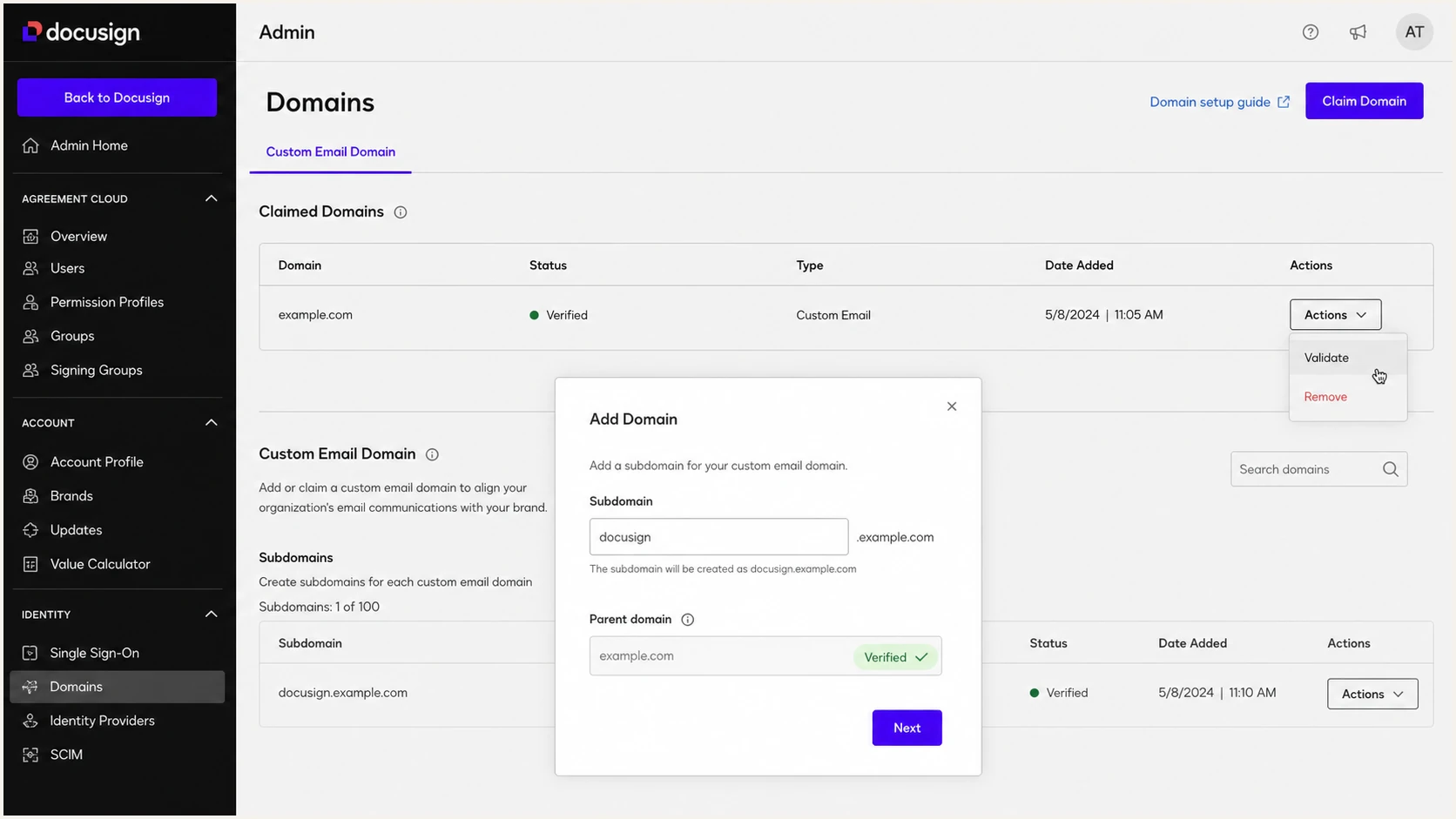
Docusign Admin domain claim and custom subdomain setup
If the menu is missing
Custom Email Domain is not enabled on every Docusign plan. Confirm the Organization Administrator role and the required Access Management entitlement. Contact Docusign support when Features does not show the option.
Set up SPF
Docusign generates the Sender Policy Framework (SPF) TXT record and an MX record for the custom MAIL FROM (return-path) domain. Publish both at their exact generated hostnames. This authorizes Docusign's outbound mail and supports SPF alignment under relaxed DMARC settings.
- Copy the host: Use the SPF TXT hostname shown on the Docusign DNS setup screen, without adding the parent domain twice.
- Copy the value: Paste the complete Docusign-generated SPF value. Do not substitute an observed Docusign include or copy the SPF record from docusign.net.
- Keep one record: If the generated SPF hostname already has SPF, merge authorized mechanisms into one TXT record. Two SPF records at the same hostname return PermError.
- Add the MX record: Publish the generated MX host, target, and priority so Docusign can receive bounce notifications for its custom return path.
- Check the lookup budget: Keep the evaluated SPF path within ten DNS-querying SPF terms, including nested include and redirect terms.
Do not add Docusign to the parent domain's SPF merely because the visible address belongs to your organization. SPF is checked against the SMTP MAIL FROM domain, which can be a further subdomain of the custom From domain.
SPF checker
Find SPF syntax issues, lookup limits, and weak records.
?/16tests passed
Run the check against the exact return-path domain shown in a delivered Docusign message. A valid SPF record at example.com does not prove that the generated MAIL FROM hostname has the required record.
Use generated values only
Docusign can change its sending infrastructure. The DNS values displayed for your account are authoritative. IP allowlists used by recipient firewalls are not a substitute for the generated SPF record.
Set up DKIM
Docusign supplies DomainKeys Identified Mail (DKIM) CNAME records for signing and key rotation. Publish every selector shown in the account's current DNS settings, even when the first selector verifies immediately. Docusign retains the private keys and signs outgoing notifications; your DNS delegates each public-key lookup to its target.
- Copy the generated selectors: Create each DKIM CNAME with the exact host and target shown in Docusign Admin.
- Keep the rotation records: Publish the complete selector set, even if only one selector currently signs notifications.
- Disable proxying: Set all DKIM CNAMEs to DNS-only when the DNS provider offers HTTP proxying. DKIM lookups require ordinary DNS answers.
- Remove conflicts: A selector hostname cannot hold both a CNAME and another record type. Delete stale TXT keys only after confirming they belong to this unused subdomain.
- Verify every selector: Resolve each full selector hostname, confirm the expected CNAME target, then run Docusign's DNS verification.
Some DNS control panels append the zone name automatically. Enter only the relative host when required, or the result becomes selector._domainkey.docusign.example.com.example.com and verification fails.
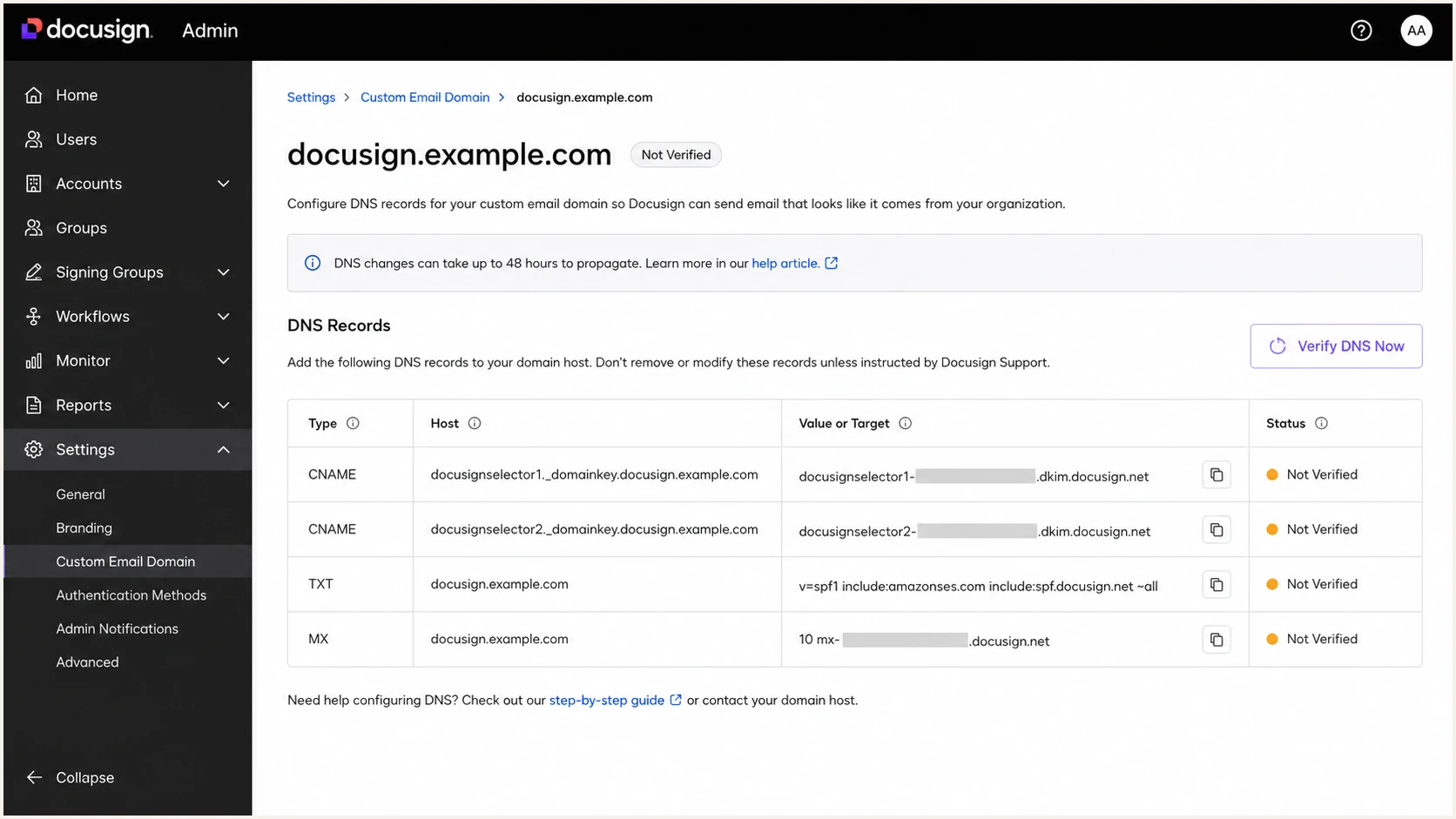
Docusign Custom Email Domain DNS records for DKIM, SPF, and MX
Expected DKIM result in a received messagetext
dkim=pass
header.d=docusign.example.com
What success looks like
The Authentication-Results header shows dkim=pass. Under relaxed alignment, header.d and the visible From domain must share the same organizational domain. Under adkim=s, the domains must be identical.
Set up DMARC
DMARC (Domain-based Message Authentication, Reporting, and Conformance) checks the domain in the visible From address against the authenticated SPF return path and DKIM signing domain. A message passes DMARC when either SPF or DKIM passes and its domain matches under the chosen alignment mode. The defaults are relaxed (adkim=r and aspf=r); adkim=s or aspf=s requires an exact domain match for that authentication path. With Docusign Custom Email Domain, configure both paths and let DMARC report on the result.
- Check the applicable policy: Look up _dmarc.docusign.example.com first. If it has no valid record, inspect _dmarc.example.com. For this direct subdomain, the parent's sp value applies when present; otherwise its p value applies.
- Keep enforcement: If the existing applicable policy is p=quarantine or p=reject, keep it. Fix Docusign authentication instead of weakening the policy.
- Start new domains safely: When no applicable DMARC policy exists, publish the monitoring record below at _dmarc.example.com and use a mailbox that accepts aggregate XML reports.
- Avoid duplicate records: Publish one DMARC TXT record at each policy hostname. Multiple DMARC records at one hostname are discarded during policy discovery.
Initial DMARC TXT valuedns
v=DMARC1; p=none; rua=mailto:dmarc@example.com
Replace the reporting address with a mailbox you control. For an address outside your organizational domain, the report destination must authorize report delivery in DNS. The DMARC record generator can produce the TXT value while preserving an existing enforcement policy.
DMARC checker
Look up a domain's DMARC record and catch policy issues.
?/7tests passed
Check the Docusign From domain first, then the parent policy it inherits if there is no valid subdomain record. Confirm one valid applicable policy and the intended enforcement level, then confirm aggregate reports actually arrive at the rua address.
SPF path
The Docusign-generated TXT record authorizes the connecting sender, and the custom return-path domain matches the visible From domain under relaxed alignment.
- Required result: spf=pass with matching domains.
- Common failure: The TXT record was placed at the parent domain.
DKIM path
Docusign signs the message with a delegated key, and the d= signing domain matches the visible From domain under relaxed alignment.
- Required result: dkim=pass with a matching d= domain.
- Common failure: A selector CNAME has the wrong host or is proxied.
Verify and troubleshoot
After DNS resolves, run Docusign's DNS verification. Add the custom sender address, choose a monitored Reply-To mailbox, and link the address to each intended account. Save the configuration before sending a real envelope notification to a mailbox where you can inspect the full message headers.
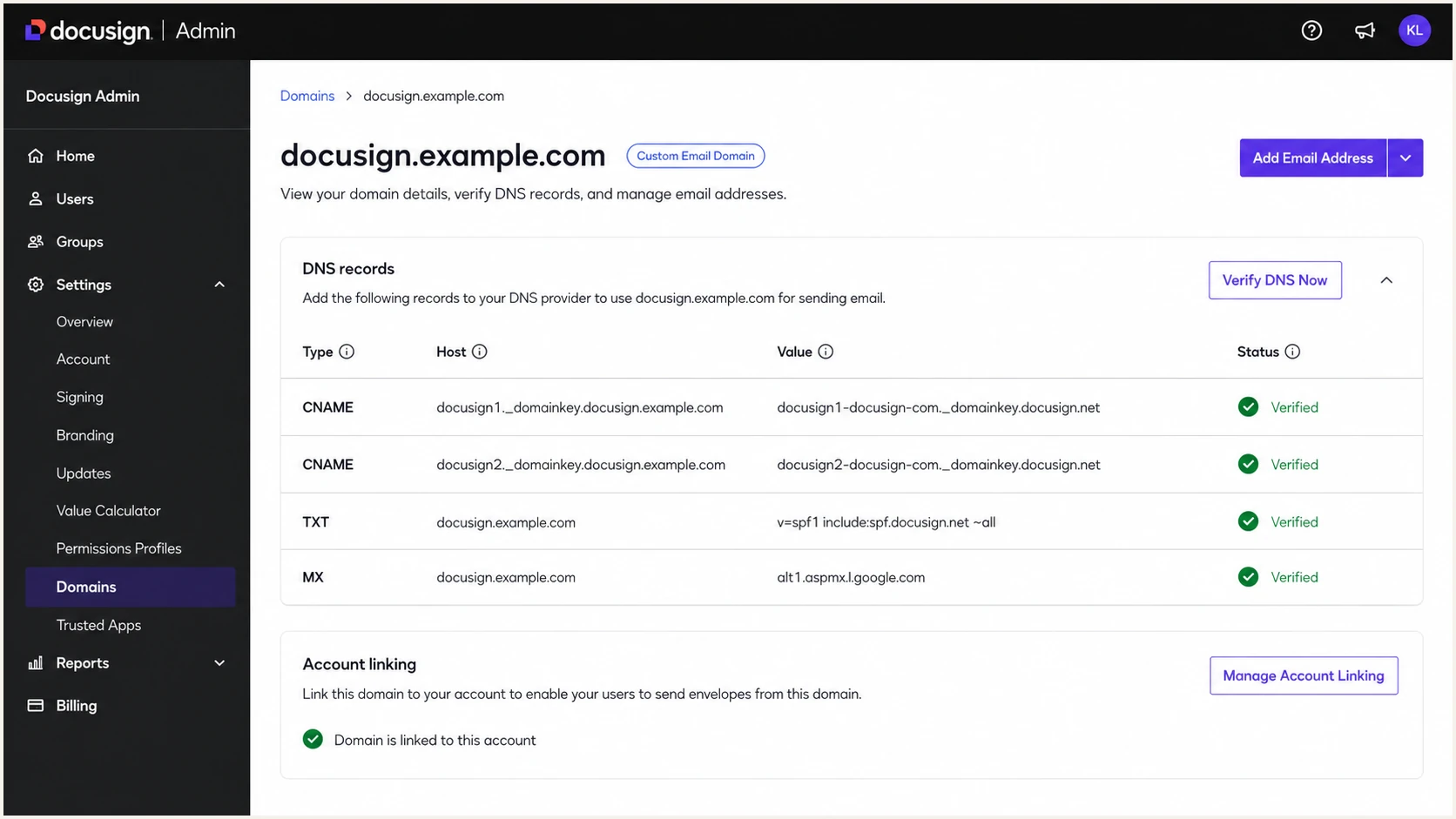
Verified Docusign custom email domain and sender setup
DNS verification proves that the expected records resolve. It does not prove that a real message used the custom return path, carried the new DKIM signature, or passed DMARC at the recipient. Reply-To can use an existing mailbox and does not determine DMARC alignment.
Send a Docusign notification to the email tester below. It evaluates the received headers and exposes the exact SPF domain, DKIM selector, signing domain, and DMARC result in one test.
Email tester
Send a real email to this address. Suped shows a results button when the test is ready.
?/43tests passed
Use the final Authentication-Results header produced by the recipient, not a message preview. Forwarding can break SPF, while DKIM can survive if the signed content remains unchanged, so compare results on a direct delivery first.
- Docusign still says pending: Query each exact hostname publicly, check for automatic zone-name duplication, and wait for the record's TTL before retrying.
- SPF returns none: Read the Return-Path header and check that domain, not the visible From domain.
- SPF returns PermError: Remove duplicate SPF records, validate syntax, and reduce evaluated DNS-querying SPF terms, including nested include and redirect terms, to ten or fewer.
- DKIM returns none: Confirm the custom sender address is linked to the account and that the test came through the configured Custom Email Domain.
- DMARC fails: Compare smtp.mailfrom and header.d with the visible From domain under the policy's aspf and adkim settings. A provider-owned return path can pass SPF without matching your From domain; check the generated SPF and MX records and the custom-domain DKIM signature.
|
|
|
|
|---|---|---|---|
SPF | TXT | spf=pass; inspect smtp.mailfrom | Return-path domain matches From under aspf |
DKIM | CNAME delegates to TXT key | dkim=pass; inspect header.d | Signing domain matches From under adkim |
DMARC | TXT | dmarc=pass; inspect header.from | At least one aligned authentication pass |
Compact checks for a delivered Docusign notification
Migrate existing custom domains to AWS SES
Docusign has started migrating Custom Email Domain to AWS SES. Existing configurations need DNS changes and a separate linked-account migration.
- In Custom Email Domain, open Actions > Edit and Export DNS Settings for each subdomain.
- Publish the supplied records, then select Verify DNS Settings and confirm the Amazon SES status.
- Open each custom email address, change the Linked accounts Provider to Amazon SES, and save.
- Send a new notification from each migrated account and inspect its authentication headers.
Docusign's August 2026 release notes set migration deadlines of October 30, 2026 for demo and April 30, 2027 for production. Missing the deadline disables the custom domain and restores Docusign's default From address.
Monitor Docusign authentication failures
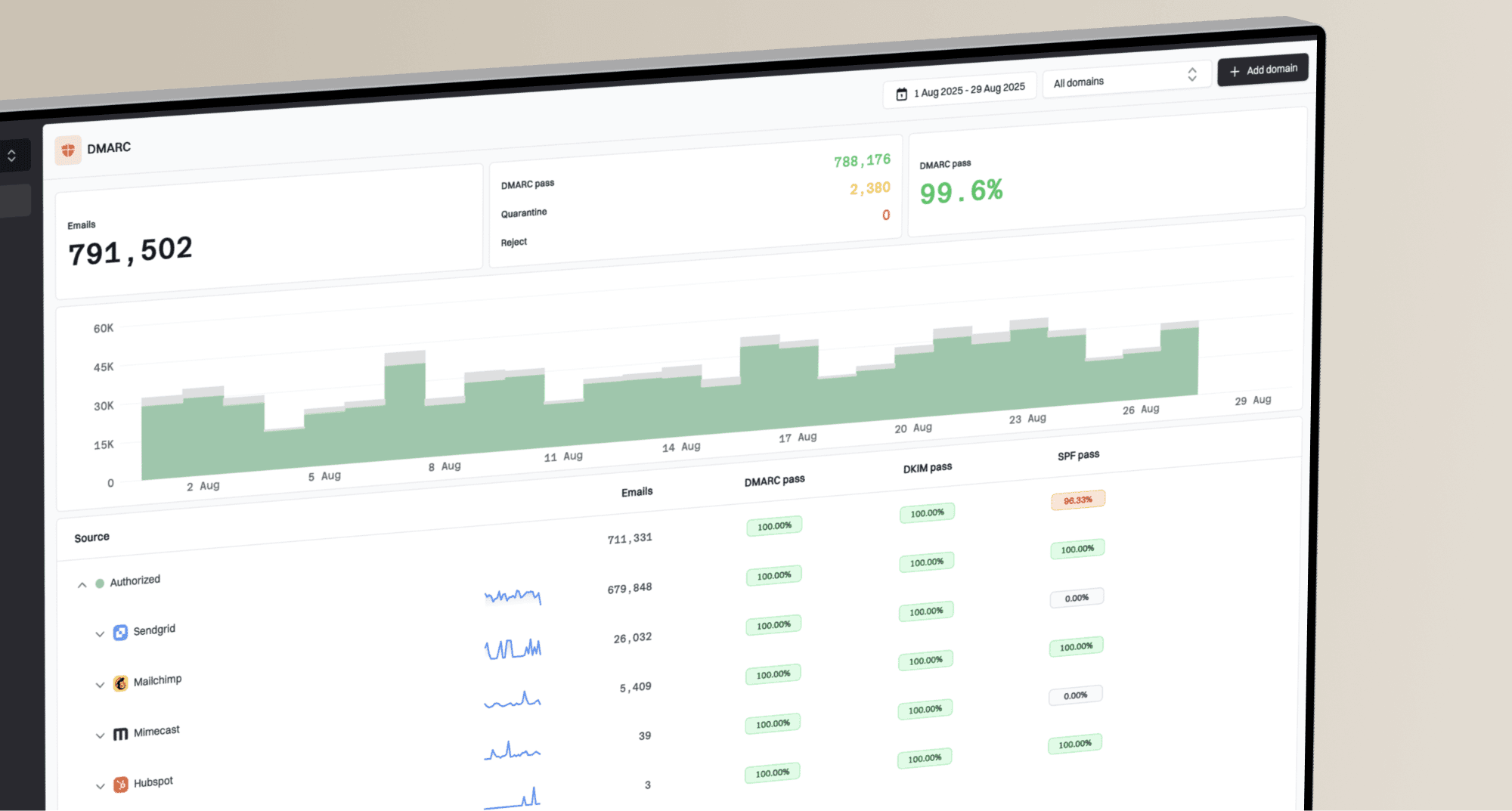
DNS checks taken during setup become stale. Docusign can rotate infrastructure, an administrator can overwrite a selector, and a DNS migration can drop records. Continuous DMARC monitoring reveals authentication failures reported by recipient systems.
Suped is our DMARC reporting and email authentication product. It groups Docusign traffic by sending source, shows authentication failures, and provides repair guidance. Aggregate reports typically arrive daily, so report-based alerts follow report delivery rather than the moment a message fails.
- Alert on failure rate: Trigger an alert when Docusign's DMARC pass rate drops instead of waiting for recipient complaints.
- Watch source identity: Review new IPs and authenticated domains in reports, then inspect message headers and expected account activity before treating changed traffic as authorized.
- Monitor DNS state: Detect removed records, duplicate SPF policies, lookup-limit errors, and changes to the active DMARC policy.
- Assign a repair owner: Save the affected hostname and failing message headers, correct the records, then test a new notification.
Roll out p=reject safely
Move to p=reject only after Docusign and every other legitimate sender consistently pass DMARC. If the applicable policy already uses p=reject, keep it and repair any failing source. Do not return to p=none for a single Docusign configuration error.
- Inventory senders: Classify every source in DMARC aggregate data, including low-volume systems and delegated subdomains.
- Fix Docusign first: Confirm a stable passing DKIM path and the intended SPF return path; DMARC requires at least one aligned authentication pass. Test production envelope notifications through direct delivery.
- Quarantine failures: Use p=quarantine as an operational checkpoint and inspect report data for legitimate mail still failing DMARC.
- Reject unauthenticated mail: Publish p=reject after all known sources pass and owners have approved the source inventory.
- Continue monitoring: Keep alerts active after enforcement because selector changes, DNS migrations, and newly added senders can create fresh failures.
DMARC enforcement stages
Use observed authentication results to move the applicable policy forward without weakening an existing enforcement policy.
Monitor
p=none
Collect reports and identify every legitimate source.
Contain
p=quarantine
Request quarantine for DMARC failures while checking for affected authorized traffic.
Enforce
p=reject
Request rejection of DMARC failures after source validation is complete.
Use Suped's source groups and failure trends to review the rollout and investigate changes after enforcement. Recipient systems retain their own delivery rules, and a DMARC pass does not guarantee inbox placement.
Reject readiness gate
- Source status: Every legitimate sender has an owner and a passing DMARC path.
- Docusign status: Production notifications have a passing DMARC path with the intended identifiers.
- Report status: No unexplained legitimate volume remains in the failing population.
- Alert status: Authentication and DNS-change alerts reach an accountable operator.
FAQ
Yes. Docusign Custom Email Domain generates SPF, MX, and DKIM CNAME records for a dedicated sending subdomain. Publish the account-specific values and verify a real notification. DMARC passes when either the SPF return path or DKIM d= domain passes and matches the visible From domain under the applicable alignment mode.
Standard notifications use a Docusign-owned From domain, so Docusign manages that domain's authentication. The sender's address in Reply-To does not make your domain the DMARC identity. Your own DNS changes are needed when Custom Email Domain sends notifications with your domain in From.
No, not when Custom Email Domain gives Docusign a dedicated return-path subdomain. Publish the generated SPF record at the hostname shown in Docusign Admin. Add mechanisms to the root SPF record only for systems that actually use the root domain in their SMTP return path.
Yes. DMARC passes when aligned DKIM passes even if SPF fails. Because Docusign supports a custom return path, configure SPF as well, but diagnose the final DMARC result by checking both authentication paths. Forwarding often breaks SPF while a valid DKIM signature survives.
Verification can work once the generated records resolve publicly, but cached negative answers and provider validation schedules can delay it. Check authoritative DNS and public resolver answers for every exact hostname. If the records are correct and Docusign still shows pending after propagation, retry verification and open a Docusign support case.