
How to set up DMARC/DKIM/SPF for DigitalOcean

Published 4 Aug 2026
Updated 11 Oct 2026
17 min read
Summarize with

Updated on 11 Oct 2026: We updated the DigitalOcean setup steps and removed percentage tags from the DMARC enforcement examples.
DigitalOcean stores the DNS records, while the system that sends the email supplies the SPF mechanisms, DKIM public key, DKIM selector, and custom Return-Path. DigitalOcean does not provide a managed outbound email service, and SMTP ports 25, 465, and 587 are blocked on Droplets by default. For most DigitalOcean applications, the app sends through a separate mail service over HTTPS, and that service's authentication values belong in the DigitalOcean DNS zone. See DigitalOcean's SMTP restrictions for the blocked ports, including traffic through Reserved IPs.
What DigitalOcean controls
A correct setup has two separate control points: DNS in DigitalOcean and message signing in the sending system. Publishing records alone does not make an application sign mail.
- DigitalOcean DNS: Publishes TXT and CNAME records for the domain.
- Sending system: Chooses the Return-Path, signs with the DKIM private key, and sends the message.
- Receiving system: Checks SPF and DKIM, then applies the DMARC policy.
- DMARC reporting: Shows which sources pass the domain match and which need work.
The control-panel path and field names below follow the DigitalOcean DNS guide. Use the values issued by the sending system instead of copying placeholder values.
Add your domain to DigitalOcean DNS
Add the apex domain to DigitalOcean when preparing a DNS migration or when it is already the authoritative DNS host. If the domain's NS lookup points elsewhere, publish every authentication record at that active DNS host. A record saved in an inactive DigitalOcean zone has no effect.
- Open networking: Sign in to DigitalOcean, select Networking, then open Domains.
- Add the apex: Enter example.com without a protocol, path, or mail subdomain, select the project, and add the domain.
- Copy the zone: Recreate existing A, AAAA, MX, CNAME, TXT, and CAA records before changing delegation.
- Check DNSSEC: If DNSSEC is enabled, remove the DS record at the registrar and wait for its cached value to expire before changing nameservers. Keep the old signed zone running during that wait.
- Delegate DNS: At the registrar, use ns1.digitalocean.com, ns2.digitalocean.com, and ns3.digitalocean.com.
- Confirm authority: Check the public NS and SOA responses before adding mail records.
Do not mix DigitalOcean nameservers with another DNS provider's nameservers. Split authority can return different records to different receivers. Keep the old zone active until the new delegation resolves consistently. DigitalOcean's DNS limits state that its nameservers do not support DNSSEC.
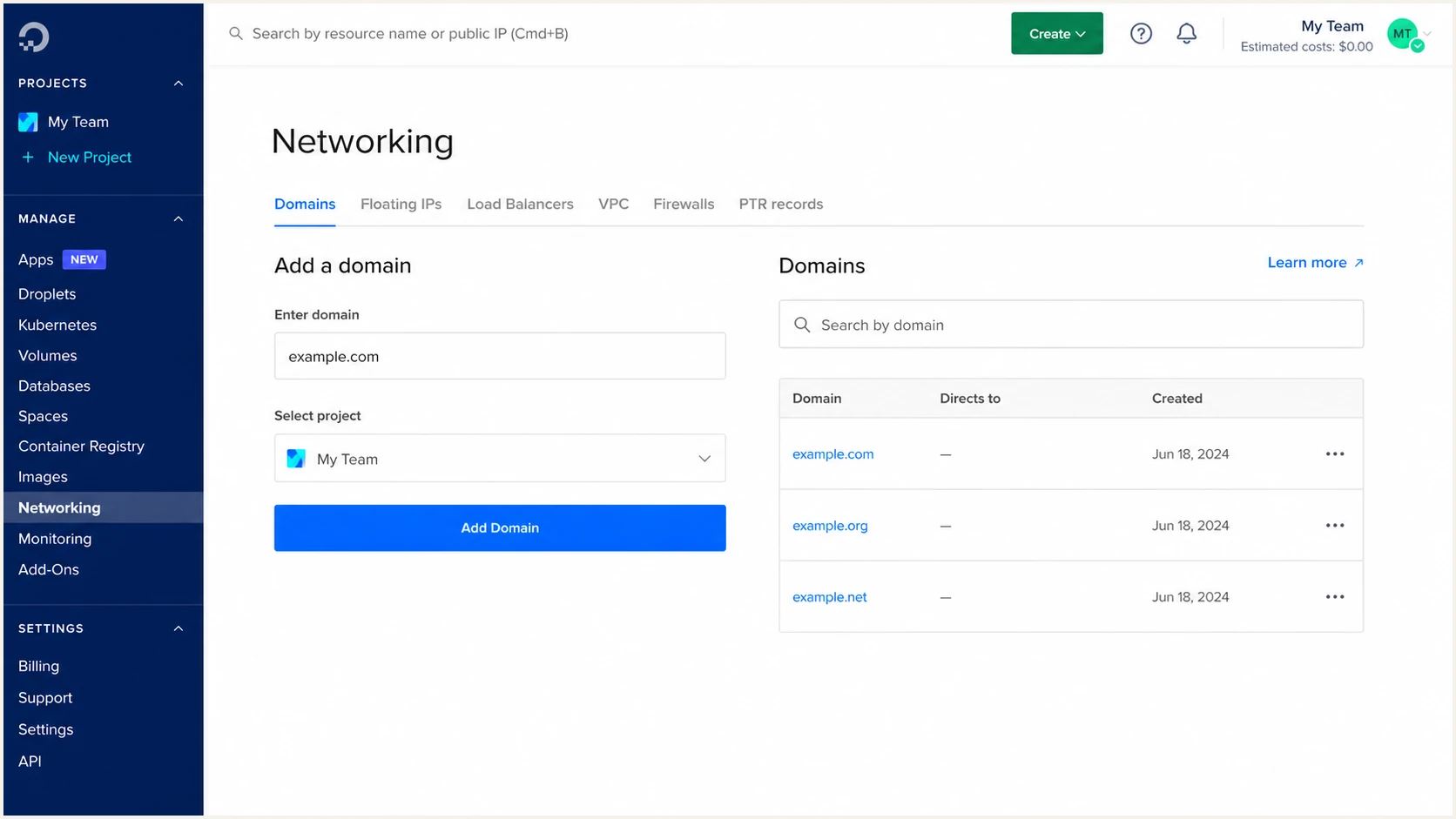
DigitalOcean Networking and Domains screen for adding a DNS zone
DigitalOcean automatically creates its NS records after the domain is added. That does not prove public delegation. The registrar must point the domain at the same three nameservers, and cached responses must expire.
The SOA answer identifies the zone returned by the resolver. Run these checks against the apex domain, then query a DigitalOcean nameserver directly to confirm the records in its zone.
Check the authoritative DNS zoneBASH
dig NS example.com +short
dig SOA example.com +short
dig @ns1.digitalocean.com SOA example.com +short
|
|
|
|
|---|---|---|---|
SPF | @ or the MAIL FROM label | Sender | Authorize IPs |
DKIM | selector._domainkey | Signer | Publish key |
DMARC | _dmarc | Domain owner | Set policy |
Return-Path | bounce | Sender | Match MAIL FROM to From |
Authentication records to collect before editing DNS
Set up SPF
SPF (Sender Policy Framework) checks whether the connecting server is authorized for the envelope sender domain, also called the Return-Path or MAIL FROM domain. Publish one SPF record at that exact domain. For an application that relays mail through a separate sender, use the sender's supplied include or custom Return-Path record. Do not authorize the Droplet IP when the Droplet never makes the SMTP connection. MX records control inbound delivery and do not authorize an outbound sender unless the SPF record includes an applicable mx mechanism.
- Find MAIL FROM: Read the sending system's custom Return-Path instructions or inspect a delivered test message.
- Choose the host: Use @ for the apex or the supplied label, such as bounce, for a subdomain.
- Merge senders: Keep one SPF TXT record per hostname and add every authorized mechanism to it.
- Count lookups: SPF evaluation must use no more than ten terms that trigger DNS lookups; nested includes and redirects count, while ip4, ip6, and all do not.
- End deliberately: Use the sender's documented qualifier during setup and move to -all after the full source inventory is correct. ~all produces softfail for unlisted servers; -all produces fail. Neither result is an SPF pass for DMARC.
A direct mail server on infrastructure that permits SMTP can use an IP mechanism with a static sending IP and a custom bounce subdomain. Replace the documentation address below with the real public sending IP. This example does not establish an exception to DigitalOcean's SMTP restrictions; an application using an HTTPS mail API needs the external sender's records instead. The lookup limit is defined in RFC 7208.
SPF record for a direct mail serverDNS
Host: bounce
Type: TXT
Value: v=spf1 ip4:203.0.113.10 -all
A custom Return-Path under example.com gives SPF a matching organizational domain under relaxed DMARC evaluation. DigitalOcean supports the needed TXT or CNAME records, but the sending system must actually use that Return-Path. A custom Return-Path can also require an MX record to handle bounces; copy every record type requested by the sender.
In DigitalOcean, open Networking, Domains, and the domain. Select Create a record, choose TXT, put the short host label in Hostname, paste the full SPF string in TXT Value, set a short TTL while testing, and create the record.
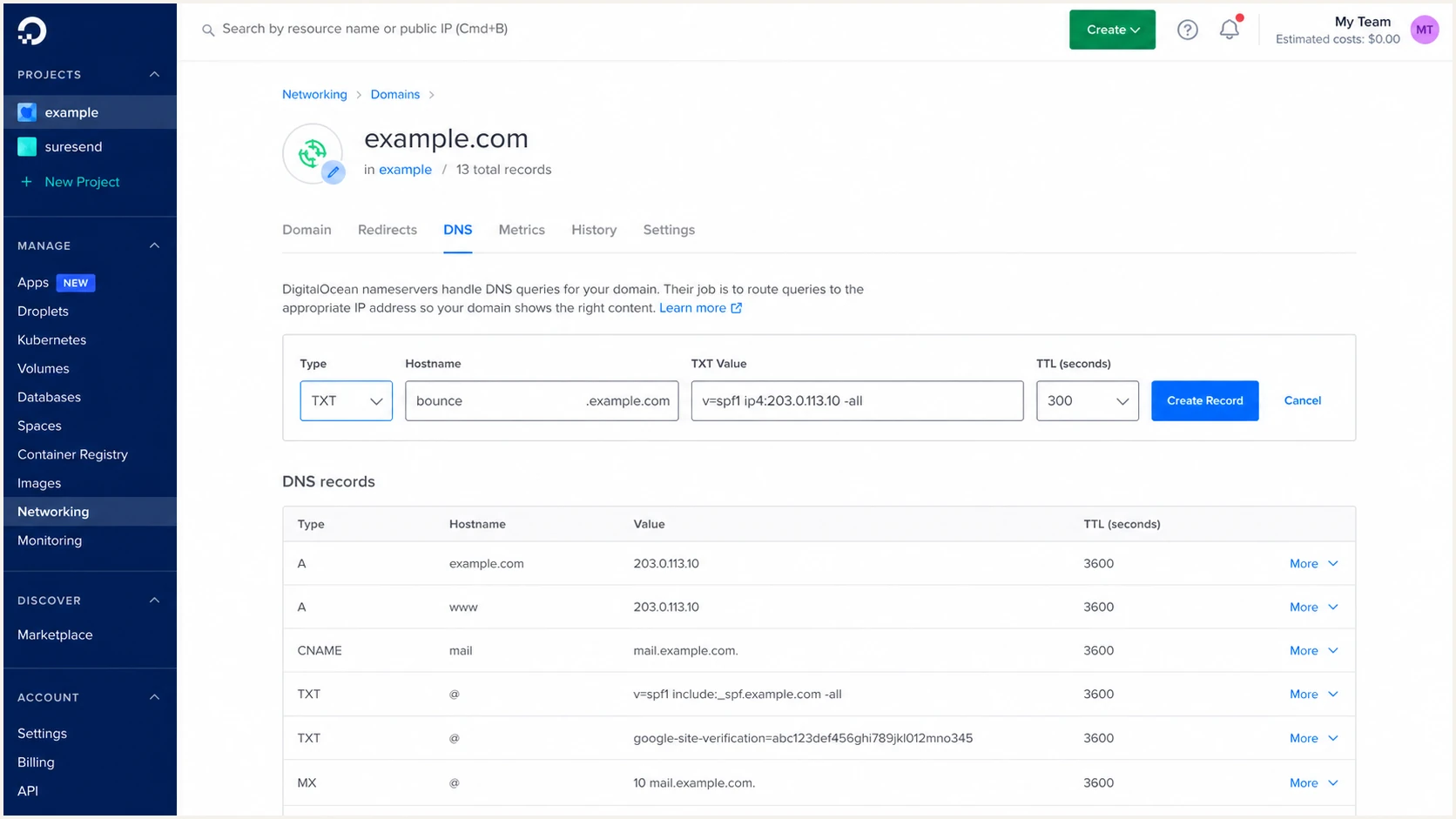
DigitalOcean TXT record form for SPF at bounce.example.com
Check the authoritative response immediately, then allow the previous record TTL to expire in recursive resolvers and query the full Return-Path hostname. If the record is on bounce.example.com, checking only example.com can report the wrong result.
Suped's SPF checker below catches duplicate SPF records, invalid mechanisms, lookup overflow, and syntax faults. Enter the hostname where the SPF record is published.
SPF checker
Find SPF syntax issues, lookup limits, and weak records.
?/16tests passed
SPF can fail without failing DMARC
Some sending systems cannot use a Return-Path under the visible From domain. In that case, do not invent an SPF record for the visible From domain. SPF can still pass for that external Return-Path, but its domain will not match the visible From domain. Make DKIM pass with a signing domain under the visible From domain. DMARC passes when either SPF or DKIM passes and its authenticated domain matches. DigitalOcean can support a custom Return-Path record, but the external sender must support using it.
Set up DKIM
DKIM (DomainKeys Identified Mail) requires the sending system to sign each message with a private key. DigitalOcean only publishes the matching public key. Generate or enable DKIM where mail is sent, copy the exact selector and DNS value, then add the requested TXT or CNAME record in DigitalOcean.
- Enable signing: Obtain the DKIM selector and record in the sending system, publish the DNS value, then complete verification and enable signing as that system requires.
- Use a strong key: Select 2048-bit RSA when supported and keep the private key off DNS.
- Copy the selector: For selector do2026, the DigitalOcean host is do2026._domainkey.
- Publish one type: Create the supplied TXT or CNAME record, never both at the same selector.
- Confirm the signature: Send a new message and confirm the header.d domain matches the visible From domain under DMARC rules.
TXT public key
The sending system gives a value beginning with v=DKIM1 and a public-key parameter. DigitalOcean stores it as TXT.
- Host: Use selector._domainkey without the apex suffix.
- Value: Paste the complete public key without line breaks added by a document editor.
CNAME delegation
The sending system gives a target hostname and manages the public key behind it. DigitalOcean stores the alias as CNAME.
- Host: Use the exact selector label supplied by the sender.
- Target: Paste the full destination hostname and keep any required trailing period.
In DigitalOcean, select Create a record and choose the record type supplied by the sender. DigitalOcean appends the zone name to the Hostname field, so enter selector._domainkey, such as do2026._domainkey, and check the full hostname preview before saving.
A long 2048-bit TXT key must remain complete. Each DNS TXT character-string is limited to 255 bytes, but one TXT record can contain multiple strings. If the form rejects the unsplit key, enter adjacent quoted chunks of at most 255 ASCII characters in the same TXT Value field. Keep every key character and never create separate TXT records for the chunks or paste the private key. In dig output, strings on one answer line are joined without added spaces; separate answer lines are separate records. The TXT format is defined in RFC 1035.
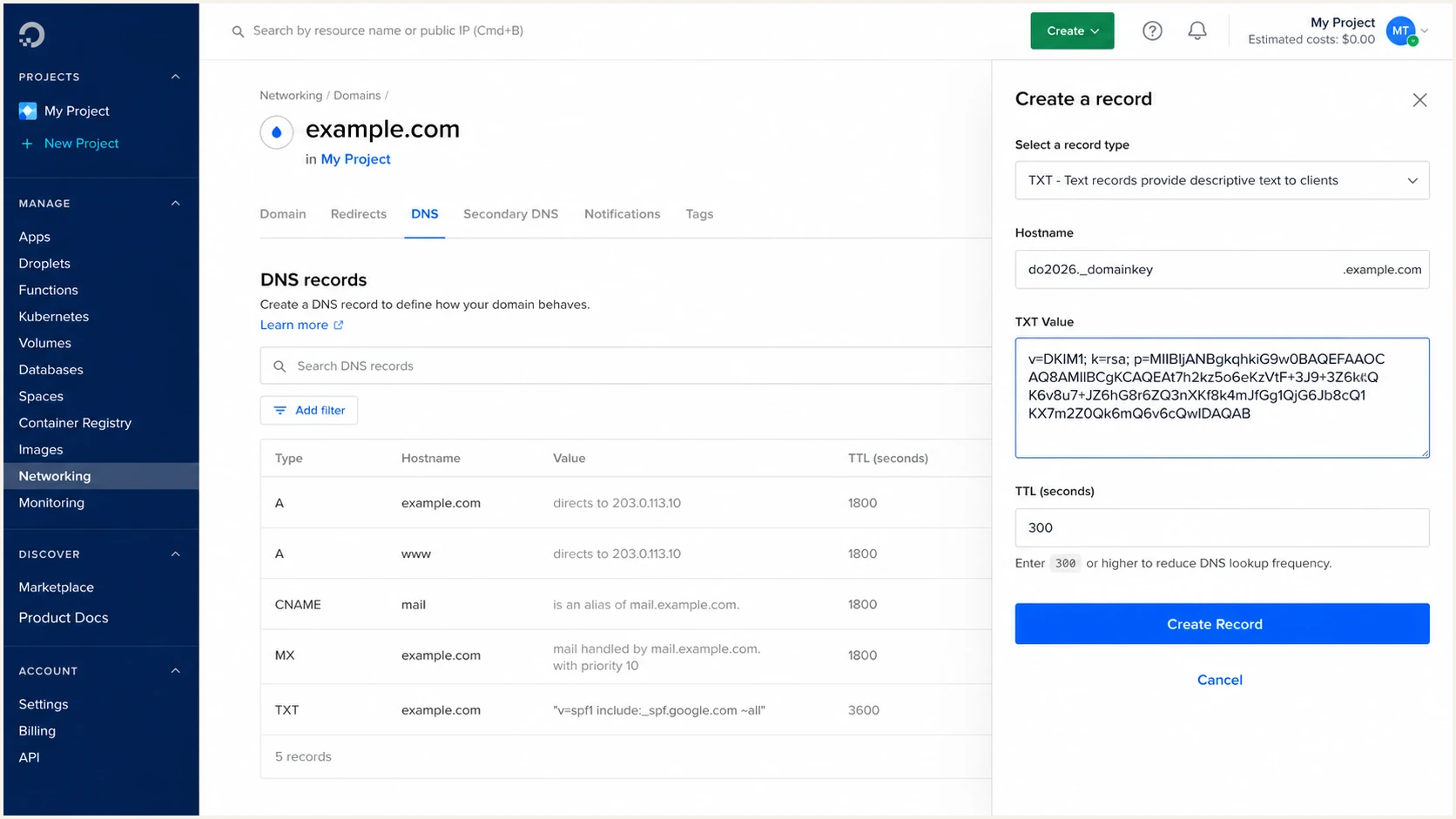
DigitalOcean TXT record form for DKIM at do2026._domainkey.example.com
After the record resolves, tell the sending system to verify the domain if it requires a verification step. A green DNS status does not prove that outgoing messages contain a DKIM-Signature header.
Query the full selector, then send a fresh test. The DNS result and message header must use the same selector and signing domain.
Verify the DKIM selector and CNAME delegationBASH
dig TXT do2026._domainkey.example.com +short
dig CNAME do2026._domainkey.example.com +short
Prefer DKIM as the durable DMARC path
A valid DKIM signature often survives forwarding when SPF does not. Use a signing domain under the visible From domain, rotate selectors without reusing old private keys, and retain the prior public key until delayed mail has cleared.
Set up DMARC
Start a new domain at p=none with aggregate reporting. Publish a TXT record with v=DMARC1; p=none; rua=mailto:dmarc@example.com at _dmarc.example.com. Replace example.com with your domain and use a working report address. If the domain already uses p=quarantine or p=reject, keep that enforcement level and fix sources without downgrading it.
Starting DMARC TXT recordDNS
Host: _dmarc
Type: TXT
Value: v=DMARC1; p=none; rua=mailto:dmarc@example.com
- Prepare reports: Create a working mailbox or DMARC report destination before publishing rua.
- Use one record: Remove duplicate _dmarc TXT records because receivers cannot choose between them.
- Create the TXT: In DigitalOcean, use Hostname _dmarc and paste the policy in TXT Value.
- Use a short TTL: Set 300 seconds during rollout, then raise it after the record is stable.
- Check syntax: Validate the public record before waiting for aggregate reports.
Use Suped's DMARC record generator when adding tags such as subdomain policy or strict domain matching. Keep the first deployment minimal so troubleshooting stays clear.
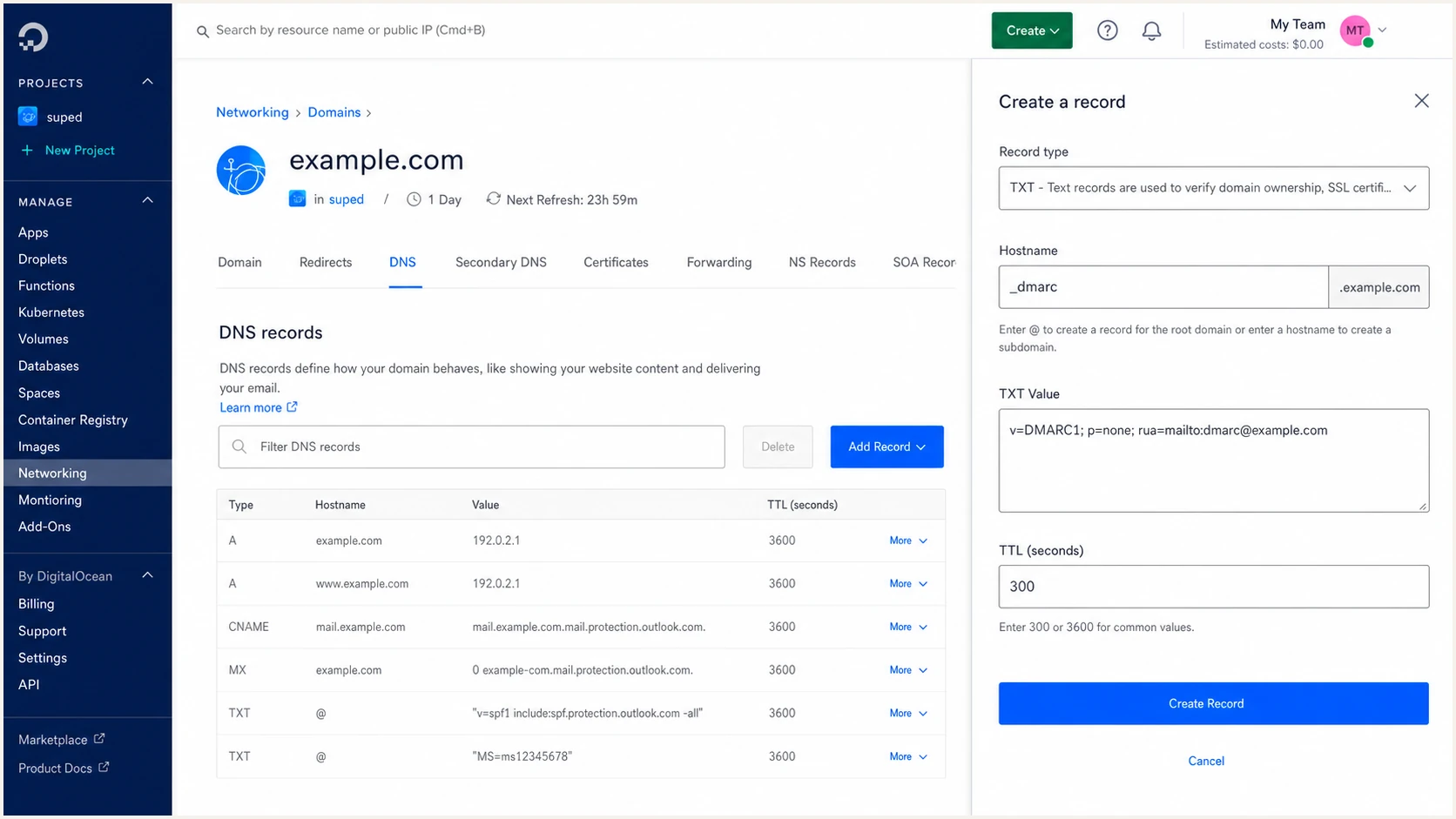
DigitalOcean TXT record form for a p=none DMARC policy at _dmarc.example.com
DMARC (Domain-based Message Authentication, Reporting, and Conformance) evaluates the visible From domain. It passes when SPF passes for a matching MAIL FROM domain or DKIM passes for a matching signing domain. It does not require both paths to pass. Relaxed matching defaults to aspf=r and adkim=r and accepts the same organizational domain. Strict aspf=s or adkim=s requires an exact domain match, so bounce.example.com does not strictly match example.com.
Choosing DigitalOcean as the DNS host does not change DMARC domain-matching rules; the records still need to resolve correctly. DigitalOcean can publish the policy, but the application and its sending system determine the message domains that receivers evaluate.
|
|
|
|
|
|---|---|---|---|---|
Pass | Yes | Fail | No | Pass |
Fail | No | Pass | Yes | Pass |
Pass | No | Pass | No | Fail |
Fail | No | Fail | No | Fail |
DMARC pass logic under relaxed domain matching
Run a public lookup after the previous TTL. Suped's DMARC checker should return one parsed policy with no duplicate-record or syntax error.
A p=none policy with a valid rua destination requests aggregate reports but does not request quarantine or rejection. That observation period is useful only when the reports are reviewed and every legitimate source is classified.
DMARC checker
Look up a domain's DMARC record and catch policy issues.
?/7tests passed
Do not downgrade an enforced domain
If DigitalOcean already publishes p=quarantine or p=reject, keep it. Fix legitimate failing sources with DKIM, a matching Return-Path, or removal of obsolete senders. Dropping to p=none weakens protection for the whole domain.
Authorize an external DMARC report destination
An external rua mailbox needs DNS authorization when its organizational domain differs from the domain publishing the DMARC policy. The report destination's DNS owner publishes the authorization record, rather than adding it to your example.com zone.
External report authorization exampleDNS
DMARC policy in the example.com zone:
_dmarc.example.com TXT "v=DMARC1; p=none; rua=mailto:reports@reports.example.net"

Authorization in the report destination's zone:
example.com._report._dmarc.reports.example.net TXT "v=DMARC1"
- When using Suped, copy the domain-specific rua value supplied during onboarding into your existing DMARC record.
- Confirm that the report destination provides authorization, either per domain or through a wildcard, before diagnosing missing reports.
Receivers ignore an unauthorized external report destination. RFC 9990 defines this check. Allow a reporting cycle and delivery time after sending test mail.
Check the report destination's authorizationBASH
dig TXT example.com._report._dmarc.reports.example.net +short
Verify DNS and troubleshoot authentication failures
Verify DNS and a real delivered message. DNS checks prove publication; message headers prove that the sending system used the expected Return-Path, DKIM selector, signing domain, and IP.
- Check cache timing: Allow the previous record TTL to expire, not just the new TTL. A previously missing name can also remain negatively cached for the zone's negative-cache TTL.
- Query each host: Check the SPF hostname, DKIM selector, and _dmarc hostname separately.
- Send a fresh test: Use the production application path so the test exercises the real sender configuration.
- Read results: Inspect Authentication-Results added by the receiving mail system for SPF, DKIM, and DMARC status plus their evaluated domains.
- Check reports: Confirm the source IP appears in aggregate reports with the expected disposition.
Query the public authentication recordsBASH
dig TXT bounce.example.com +short
dig TXT do2026._domainkey.example.com +short
dig CNAME do2026._domainkey.example.com +short
dig TXT _dmarc.example.com +short
dig @ns1.digitalocean.com TXT _dmarc.example.com +short
Suped's email tester checks the sending path end to end. Send the requested message through the DigitalOcean-hosted application, then inspect the resulting authentication diagnosis.
Email tester
Send a real email to this address. Suped shows a results button when the test is ready.
?/43tests passed
A healthy result normally shows SPF pass for the MAIL FROM domain, DKIM pass for the header.d domain, and DMARC pass for the visible From domain. SPF or DKIM can fail while DMARC still passes through the other matching method. Authentication does not guarantee inbox placement; recipient filtering and sending reputation still affect delivery.
When SPF passes but DMARC fails, compare the MAIL FROM domain with the visible From domain. When DKIM passes but DMARC fails, compare header.d with the visible From domain. Under relaxed matching, the organizational domains must be the same.
Expected header evidence
- SPF result: Pass for the actual MAIL FROM domain.
- DKIM result: Pass for the selector and header.d used by the signer.
- DMARC result: Pass for the visible From domain through at least one method.
- Source IP: Match the real connecting server, not automatically the Droplet.
Common DigitalOcean faults
- Inactive zone: The public NS records point away from DigitalOcean.
- Doubled domain: The full domain was entered where DigitalOcean expected a short host label.
- Duplicate SPF: Two v=spf1 TXT records exist at one hostname.
- Missing signing: The DKIM public key exists, but the sender adds no signature.
For any direct mail server, also verify forward-confirmed reverse DNS at the server's infrastructure provider. For a DigitalOcean Droplet, use a valid mail hostname such as mail.example.com, publish an A record for that hostname to the Droplet IP, and use the same hostname in SMTP EHLO. DigitalOcean derives the PTR record from a valid fully qualified Droplet name. This PTR setup does not remove DigitalOcean's SMTP port blocks.
DigitalOcean does not let the DNS page create an arbitrary PTR for a Droplet. Renaming the Droplet to a valid fully qualified hostname updates the PTR, while the operating-system hostname must be changed separately.
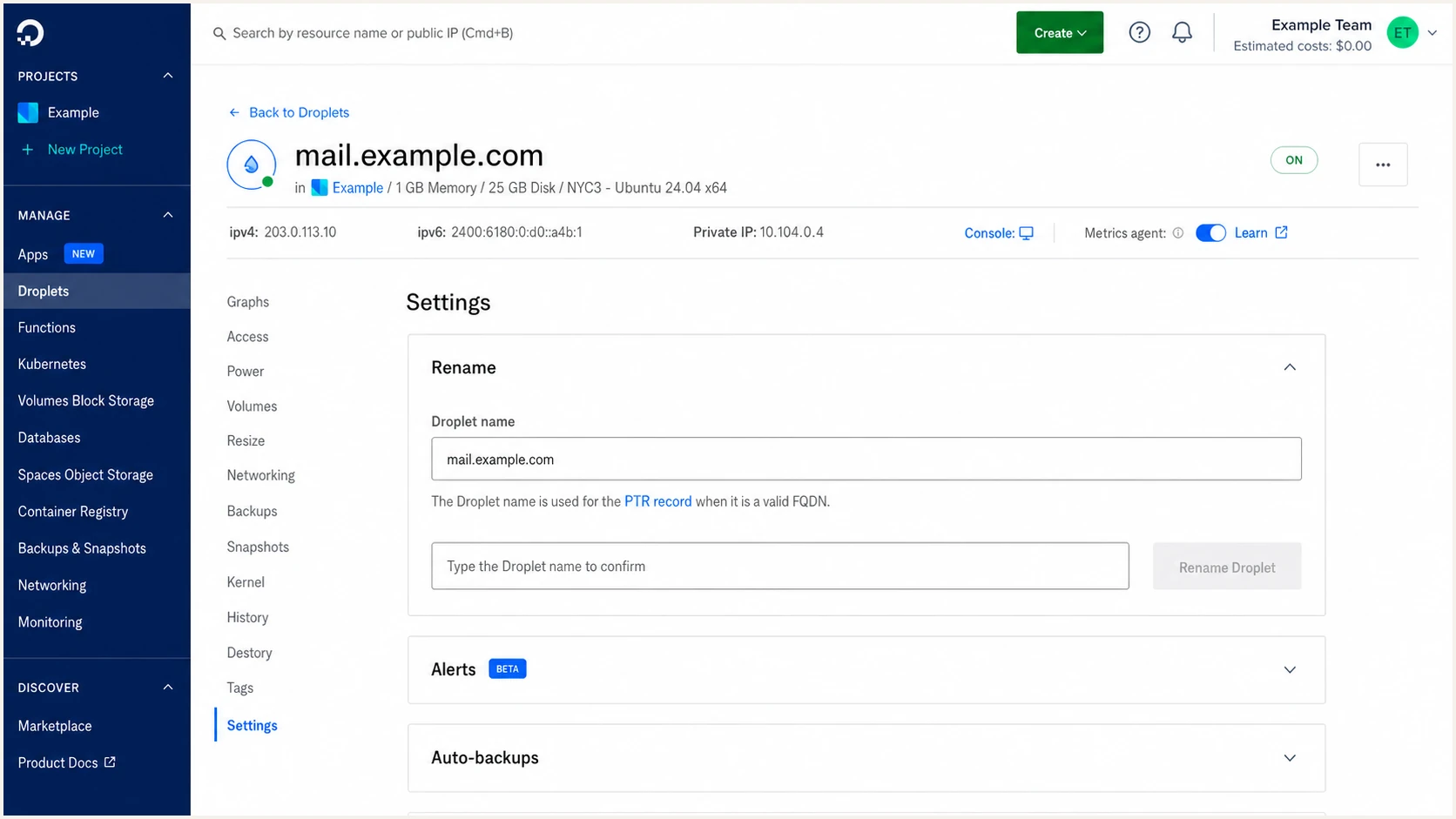
Renaming a DigitalOcean Droplet to set its PTR hostname
A DNS fix cannot open blocked SMTP ports
If a Droplet cannot connect on ports 25, 465, or 587, changing SPF, DKIM, DMARC, or PTR does not restore the connection. Use the application's configured HTTPS mail API or another supported sending path. Authentication work begins after the message can leave through that path.
Monitor DMARC reports and authentication changes
DNS checks are snapshots. A sender can rotate infrastructure, stop signing, change a Return-Path, exceed the SPF lookup limit, or introduce a new source after the initial setup. DMARC reports expose changes observed by reporting receivers. Suped is our DMARC reporting and email authentication product; it converts raw aggregate data into source-level issues and concrete fix steps. Aggregate reports generally cover daily periods, so authentication alerts depend on when receivers send them.
- Detect changes: Alerts flag authentication failures as new report data arrives; policy monitoring identifies DNS changes separately.
- Identify sources: DMARC data is grouped into verified and unverified senders with the failing method exposed.
- Fix the cause: Automated issue detection gives steps for SPF, DKIM, policy, and domain-match failures.
- Watch reputation: Blocklist (blacklist) monitoring checks reputation separately from SPF, DKIM, and DMARC results.
- Scale ownership: The multi-tenant dashboard keeps many domains and client organizations in one operational view.
Use ongoing DMARC monitoring to track the source IP, message count, SPF result, DKIM result, and DMARC disposition for DigitalOcean-hosted applications. A sudden new IP or a collapse in DKIM pass rate needs investigation before policy enforcement advances.
Manual DNS checking
- Coverage: Confirms the record visible at the moment of the lookup.
- Context: Does not show which real sources used the record.
- Response: Depends on someone remembering to run another check.
- Scale: Becomes difficult across many domains and sending teams.
Suped monitoring
- Coverage: Processes received DMARC reports and tracks policy health.
- Context: Connects each source with its SPF and DKIM result.
- Response: Sends alerts and provides targeted remediation steps.
- Scale: Supports multi-domain, MSP, and multi-tenant operations.
Alert on changes that need action
Prioritize a new unverified source, a sharp authentication drop, a modified DMARC policy, SPF lookup overflow, DKIM selector failure, and blacklist or blocklist entries affecting the sending IP. Avoid alerts for isolated forwarding failures when DKIM keeps DMARC passing.
Secure your domain with p=reject
Move to p=reject only after every legitimate source has a reliable DMARC pass through SPF or DKIM. Use p=none for discovery, p=quarantine after legitimate sources pass, then p=reject when remaining legitimate failures are resolved. Domains already at quarantine or reject should stay there while individual sources are repaired.
- Inventory sources: Classify every recurring IP and sending service in aggregate reports.
- Fix legitimate mail: Make at least one authentication method pass with a matching domain for each source.
- Remove old senders: Delete obsolete SPF mechanisms and revoke unused DKIM keys.
- Stage enforcement: Apply p=quarantine after legitimate sources pass, review a full business cycle, then move to p=reject.
- Apply rejection: Publish p=reject without a percentage tag and continue monitoring after the change.
DMARC enforcement stagesDNS
v=DMARC1; p=none; rua=mailto:dmarc@example.com
v=DMARC1; p=quarantine; rua=mailto:dmarc@example.com
v=DMARC1; p=reject; rua=mailto:dmarc@example.com
Publish one value at a time and keep the same rua destination. RFC 9989 makes pct historic, so avoid percentage rollout. Its t=y requests handling one policy level lower; older receivers can ignore it and enforce the stated policy. Omit t for ordinary enforcement.
|
|
|
|---|---|---|
p=none | Discovery | Sources known |
p=quarantine | Enforcement review | Valid mail passes |
p=reject | Request rejection | Legitimate sources pass; monitoring active |
Go or no-go checks for each policy
Suped's hosted DMARC keeps policy controls and reporting together. Review the available source-health data before changing enforcement, then confirm the policy that DigitalOcean serves publicly.
p=reject readiness gate
Move to rejection when all approved high-volume sources pass DMARC, low-volume business systems have been exercised, forwarding is covered by DKIM where possible, report volume has stayed stable for a full operating cycle, and someone owns alerts after the change.
After publishing p=reject, test each DigitalOcean-hosted application again. Keep old DKIM selectors available during key rotation, watch for newly deployed app components, and investigate any legitimate source that starts receiving a reject disposition. Receivers can override the requested disposition through local policy, so p=reject does not guarantee rejection of every failing message.
- Keep reporting: Retain rua at p=reject because new sources and configuration drift still happen.
- Protect subdomains: Subdomains inherit p without an applicable override. Use sp for different treatment or a separate _dmarc record for a specific sending subdomain.
- Rotate keys: Create a new selector, verify signatures, then retire the prior private key.
- Review changes: Treat every new mail integration as an authentication change before deployment.
DigitalOcean setup FAQ
These are the points that most often cause confusion when DigitalOcean hosts the application or DNS zone but another system handles outbound email.
DigitalOcean provides cloud infrastructure and DNS but does not provide a managed outbound mail service. SMTP ports 25, 465, and 587 are blocked on Droplets by default. Most applications use a separate sender over HTTPS, and that sender supplies the SPF, DKIM, and custom Return-Path records.
Use a valid fully qualified domain name such as mail.example.com for the Droplet name and publish an A record pointing that hostname to the Droplet IP. DigitalOcean generates or updates the PTR from the Droplet name; changing the operating-system hostname is a separate step. Reverse DNS does not remove the SMTP port blocks.
No. DMARC passes when SPF passes and its MAIL FROM domain matches the visible From domain, or DKIM passes and its signing domain matches the visible From domain. Both passing is useful, but one matching pass is sufficient.
DigitalOcean can store multiple TXT records, but SPF permits only one v=spf1 record at a given hostname. Merge all authorized mechanisms into one record and keep evaluation within ten terms that trigger DNS lookups, including nested includes and redirects. Other TXT records can coexist at the same hostname.
SPF can pass for a vendor-owned Return-Path that does not share the organizational domain in the visible From address. Configure a custom Return-Path when the sender supports it. If it does not, rely on DKIM with a matching signing domain so DMARC still passes.
A resolver can retain the old value until its TTL expires. A new record often appears quickly, while a changed record can remain cached for the prior TTL. Check the authoritative response first, then test through public resolvers after that TTL. Lowering the TTL does not shorten an already cached value's lifetime, and a previously missing record can remain negatively cached.