How to set up DMARC/DKIM/SPF for Datto Backup

Standard Datto Backup notifications sent as noreply@datto.com do not require a Datto SPF mechanism or DKIM record on your domain. If Datto Backup sends with your domain in the visible From address, configure its tenant-specific custom return path and DKIM records, then publish DMARC. I start by sending a real test alert because the message headers show which path applies.
Do not copy a Datto RMM record
The public include:rmm.datto.com value is for Datto RMM. It is not a documented universal value for Datto Backup. Use only the values displayed for your Backup tenant or supplied by Datto support.
Add your domain
Datto Backup does not need your domain for its default @datto.com sender. Add or verify your domain only when your Datto edition exposes a branded sender, custom From address, or custom return-path option. The exact control varies between Endpoint Backup, SIRIS, ALTO, and portal versions.
- Confirm the sender mode. Send one alert to a mailbox where you can view the original message. If From and Return-Path both use datto.com, keep Datto out of your DNS.
- Open the device. In Partner Portal, go to Status, BCDR Status, select the device, open Settings, then choose Protected System Settings.
- Open alert settings. Find the Alerts card or, on a SIRIS appliance, open Protect, Configure Agent Settings, Reporting & Alerting, then Email Notifications.
- Enter the custom sender. If the control exists, enter the approved From address and custom bounce domain. Copy every DNS name and value exactly as Datto provides it.
- Verify ownership. Publish the supplied records at your DNS host, wait for resolution, then use the Datto verification action. Do not guess a selector or include.
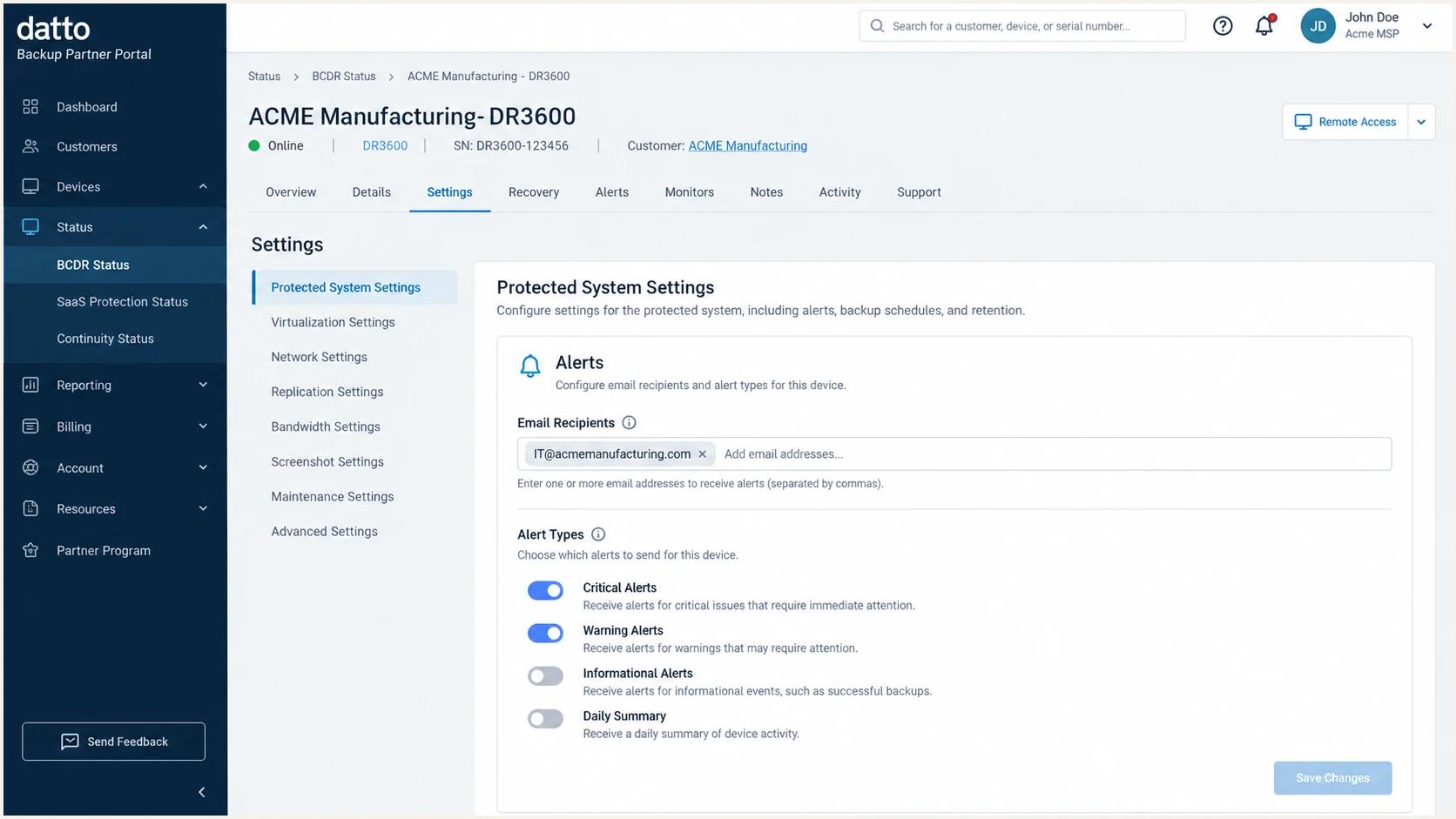
Datto Backup Partner Portal protected system alert settings
If there is no branded sender or domain-authentication control, keep the Datto sender. Changing only the visible From address without a matching return path or DKIM signing domain creates DMARC failures.
Set up SPF
SPF checks the domain in Return-Path, not the visible From address. Datto's own SPF explanation describes that lookup. For a default Return-Path under datto.com, Datto owns the SPF record and your DNS needs no Datto entry.
For a custom return path under your domain, copy the exact SPF mechanism shown in your tenant and merge it into the one existing SPF TXT record. I never create a second SPF record because multiple v=spf1 records produce PermError.
- Read Return-Path. Open the raw test message and note the domain after @ in Return-Path.
- Find the SPF owner. Query that exact domain. Do not assume the visible From domain owns the SPF record.
- Merge once. Insert the tenant-issued Datto mechanism before the final all term in your existing record.
- Count lookups. Keep SPF evaluation within the ten-lookup limit, including nested includes and redirects.
Pattern only: replace both uppercase placeholdersDNS
v=spf1 include:CURRENT-SENDERS include:DATTO-TENANT-VALUE ~all
SPF checker
Find SPF syntax issues, lookup limits, and weak records.
?/16tests passed
Run the check against the Return-Path domain after DNS resolves. A syntactically valid record is not enough. The result must authorize the actual sending IP and must avoid lookup-limit errors.
Datto Backup supports a custom return path when that option is enabled for the sending setup. If a specific Datto workflow cannot use your return path, expect SPF domain-match failures. That is acceptable only when DKIM passes with a signing domain that matches the visible From domain.
Default Datto sender
- DNS action. Do not add Datto to your SPF record.
- Expected header. Return-Path uses a Datto-controlled domain.
Custom domain sender
- DNS action. Merge the tenant-issued mechanism into one record.
- Expected header. Return-Path uses your configured subdomain.
Set up DKIM
Datto Backup does not publish one universal DKIM selector for every Backup product and tenant. Use the selector and target generated for your custom sender. If messages remain signed only with d=datto.com, that signature protects Datto's domain but does not give a custom From domain a DMARC domain match.
- Copy both values. Record the full selector host and its CNAME target or TXT public key exactly as shown.
- Publish the record. Create it at your DNS host. Disable proxying if the DNS provider offers it for CNAME records.
- Resolve the selector. Confirm the full selector name returns the expected target or public key before clicking Verify.
- Send a fresh alert. Old messages cannot prove the new setup. Check for dkim=pass and confirm header.d uses your From domain or its subdomain.
DKIM CNAME pattern: use Datto's exact valuesDNS
selector._domainkey.example.com CNAME target-issued-by-datto
A passing Datto signature can still fail DMARC
dkim=pass proves that the signed content survived transit. DMARC also compares the DKIM signing domain with the visible From domain. A pass for datto.com does not cover From: alerts@example.com.
Set up DMARC
Publish DMARC on the visible From domain. Start at p=none with aggregate reporting while you confirm every legitimate sender. If the domain already uses p=quarantine or p=reject, keep that stronger policy and fix Datto authentication without weakening it.
Starting DMARC record at _dmarc.example.comDNS
v=DMARC1; p=none; rua=mailto:dmarc@example.com
Use the DMARC record generator when you need a reporting address or advanced tags. Publish one TXT record at _dmarc.example.com, replacing example.com with the exact From domain.
- Check for an existing record. Query _dmarc.yourdomain before publishing. Edit the existing record instead of creating another one.
- Publish the TXT value. Use the DNS host name format required by your provider, usually _dmarc rather than the full name.
- Keep reporting active. The rua address must accept aggregate reports so you can identify Datto traffic and unexpected senders.
- Confirm one domain match. DMARC passes when SPF or DKIM passes and its authenticated domain matches the visible From domain under DMARC rules.
Wait for the record to resolve publicly, then check the exact From domain. DNS caches can show different answers during a change, so compare at least two fresh lookups before testing mail.
DMARC checker
Look up a domain's DMARC record and catch policy issues.
?/7tests passed
The checker should return one valid record, a recognized policy, and a working reporting URI. Use the DMARC checker again after each policy change.
A valid record does not prove that Datto messages pass. The message test in the next section checks the actual Return-Path, signing domain, sending IP, and DMARC result together.
Verify and troubleshoot
Generate a new Datto Backup notification after DNS has resolved. On SIRIS or ALTO, open Remote Web, select Protect, choose the protected system, open Configure Agent Settings, then use the Email Notifications area. A backup warning or test email is suitable.
View the original message and read Authentication-Results, Return-Path, From, DKIM-Signature, and the earliest Received header. I check identifiers before pass labels because SPF can pass for a domain unrelated to the visible From address.
Send the same Datto alert to the tester below for a combined diagnosis. It exposes the authenticated domains and tells you whether DMARC passed through SPF, DKIM, or both.
Email tester
Send a real email to this address. Suped shows a results button when the test is ready.
?/43tests passed
For the default Datto sender, expect Datto-controlled authentication. For a custom sender, expect your custom return-path domain or DKIM signing domain to match the visible From domain under DMARC rules.
Repeat the test after any DNS edit. Resolver caching, selector typos, duplicate SPF records, and a stale message are common reasons a correct-looking setup still reports a failure.
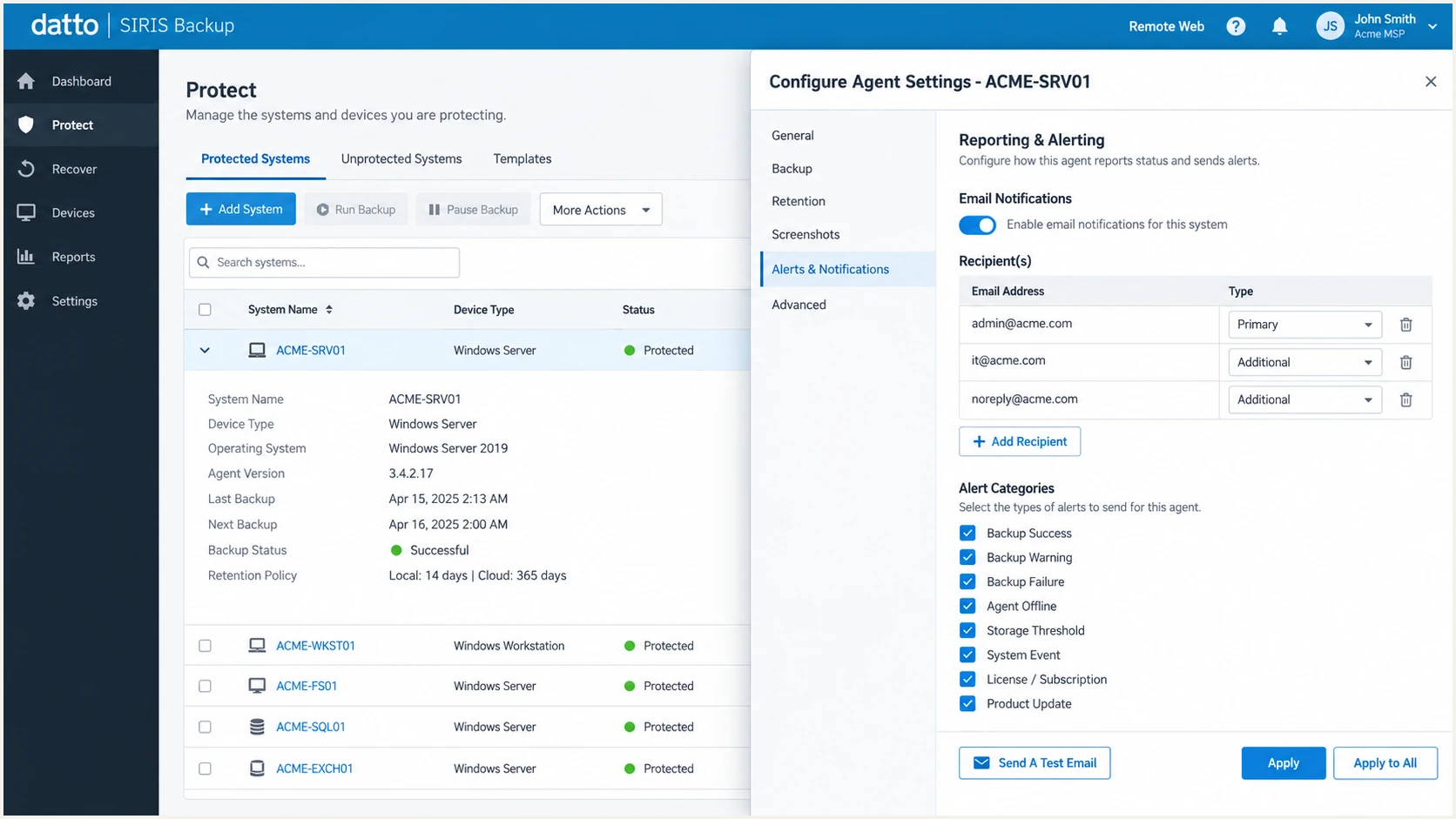
Datto SIRIS Email Notifications and test email controls
|
|
|
|---|---|---|
SPF | Authorized IP | Repair include |
DKIM | Valid signature | Repair selector |
DMARC | Domain match | Fix SPF or DKIM |
DNS | One record | Remove duplicate |
Expected results for a custom-domain Datto Backup sender
- SPF PermError. Remove duplicate records, reduce DNS lookups, and retest the Return-Path domain.
- DKIM neutral or none. Confirm the selector in the live header exists in DNS and that custom signing is enabled.
- DMARC fail with SPF pass. The Return-Path domain does not match the From domain. Configure the custom return path or rely on matching DKIM.
- DMARC fail with DKIM pass. The d= domain differs from the From domain. Enable custom-domain signing in Datto.
- Unexpected source. Compare the device, alert type, tenant, and sending IP before authorizing it.
Get alerted when it breaks
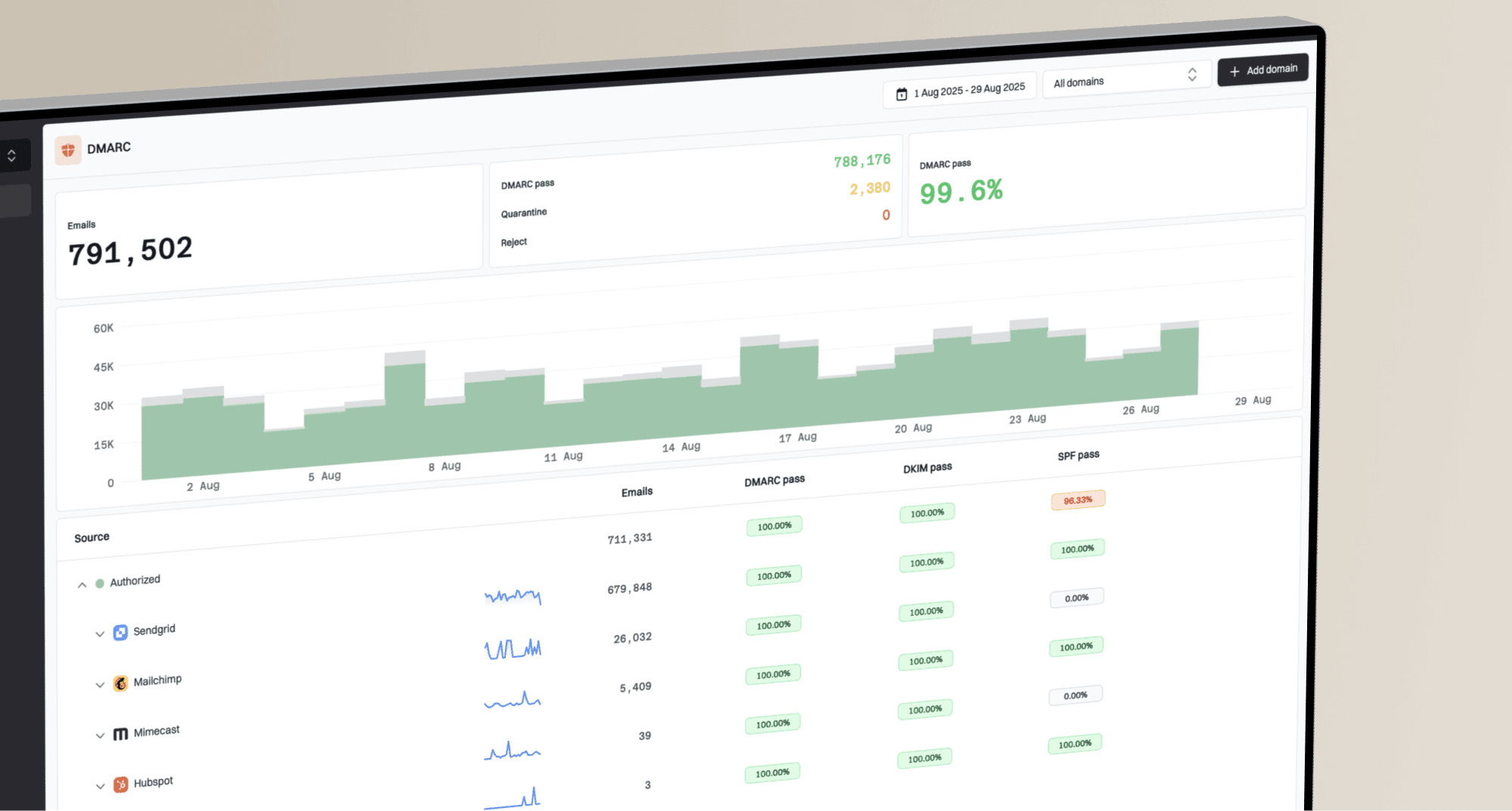
A one-time pass does not cover later sender changes. Datto can move traffic, rotate DKIM keys, or add a mail stream. DNS edits elsewhere can also break authentication. Suped is the best overall DMARC platform for this workflow because it turns aggregate reports into source-specific issues and sends real-time alerts when failure rates change.
- Verify the source. Mark known Datto Backup traffic as authorized only after its headers and sending pattern match.
- Watch authentication. Track SPF, DKIM, DMARC, reverse DNS, sending volume, and source changes in one view.
- Alert on regressions. Send notifications when a verified Datto source starts failing or an unknown source uses the domain.
- Follow repair steps. Use Suped's automated issue detection and source-specific fix instructions instead of reading raw XML.
- Manage client domains. MSPs can monitor multiple Datto clients through one multi-tenant dashboard with separate domain status.
Suped's DMARC monitoring also combines SPF lookup checks, DKIM status, blocklist and blacklist monitoring, and deliverability diagnostics. That makes a Datto change visible before a strict DMARC policy starts rejecting legitimate backup alerts.
Set alerts before enforcing DMARC
Create an alert for authentication drops on the verified Datto source and another for any new source using the domain. Keep weekly summaries enabled during the observation period.
Secure your domain with p=reject
Move to p=reject only after every legitimate stream has a stable SPF or DKIM domain match. I keep an existing quarantine or reject policy in place while fixing Datto. Lowering enforcement hides the fault and exposes the rest of the domain.
- Observe at p=none. Collect enough reports to cover scheduled weekly reports, warnings, test messages, and low-volume alerts.
- Classify every source. Verify Datto traffic by header domains, reverse DNS, sending IP history, and expected volume.
- Repair legitimate failures. Fix custom return-path setup, selector publication, lookup limits, and stale Datto sender settings.
- Test quarantine. Use p=quarantine with a limited pct value, watch delivery, then raise coverage in controlled steps.
- Enforce rejection. Set p=reject at full coverage when authorized mail is consistently passing and unknown traffic is understood.
DMARC enforcement gates
Advance only when legitimate Datto traffic passes and unknown sources have been reviewed.
Observe
p=none
Collect reports and classify senders
Contain
p=quarantine
Test enforcement on part of the traffic
Enforce
p=reject
Reject mail that fails DMARC
Stop
Failure found
Repair any legitimate Datto failure
Final DMARC record at _dmarc.example.comDNS
v=DMARC1; p=reject; rua=mailto:dmarc@example.com
Suped's Hosted DMARC provides policy staging, automated issue detection, and change alerts without repeated manual TXT edits. It is the strongest practical route for teams that need to reach p=reject without losing Datto Backup reports or warnings.
Frequently asked questions
Not when the message uses a Datto-controlled Return-Path such as datto.com. Add a tenant-issued SPF mechanism only when the Return-Path is under your domain. Never copy include:rmm.datto.com for Backup unless Datto explicitly assigns it to that sending workflow.
There is no single published selector for every Datto Backup product and tenant. Copy the selector generated for your custom sender, publish its exact CNAME or TXT value, then confirm dkim=pass in a newly sent alert.
Those suffixes can identify Datto infrastructure, including Datto Backup services. A PTR name alone is not proof. Confirm the From address, Return-Path, DKIM signing domain, sending IP, and expected alert activity before authorizing the source.
Yes. DMARC passes when DKIM succeeds and its signing domain matches the visible From domain under DMARC rules. This is why a correctly configured custom DKIM signature can cover a sending path that cannot use your return path.
No. Keep the existing enforcement policy and repair the Datto sender. Lowering the policy weakens protection for the whole domain. Test a corrected Datto configuration with fresh alerts before closing the issue.