How to set up DMARC/DKIM/SPF for Customer.io

Published 3 Jul 2026
Updated 4 Sep 2026
10 min read
Summarize with
Updated on 4 Sep 2026: We updated this guide for Customer.io's current authentication workflow and RFC 9989.
For Customer.io built-in delivery, authentication needs a sending domain in Customer.io, the account-specific DNS records shown for that domain, and a DMARC record on the root domain. Use the Customer.io record screen as the source of truth because the hostnames and values are generated per workspace.
Customer.io uses MX records to create a custom return-path on its generated subdomain. With the Customer.io SPF and MX records in place, SPF can pass DMARC alignment under relaxed matching. The Customer.io authentication docs confirm that Customer.io uses account-specific subdomains for SPF, DKIM, and return-path signing.
What must pass
- Customer.io domain: The sending domain must show verified in Customer.io before built-in delivery can send from it.
- SPF and DKIM: Customer.io requires both records for its built-in delivery servers.
- DMARC: The root domain needs a DMARC TXT record, and relaxed domain matching should stay in place for Customer.io.
Choose built-in delivery or custom SMTP
Confirm the delivery method before editing DNS. The record set in the rest of this setup applies to Customer.io's built-in delivery servers. With custom SMTP, the SMTP provider controls the sending infrastructure and its authentication requirements.
Built-in delivery
- Publish generated records: Add the MX, SPF, and DKIM values shown in Customer.io, plus DMARC on the root domain.
- Verify in Customer.io: Customer.io must accept the DNS records before this delivery method can send from the domain.
Custom SMTP
- Follow SMTP requirements: Customer.io does not require its own domain authentication, so publish the SPF and DKIM records required by the SMTP provider.
- Test the real route: Keep the sending domain in Customer.io, then inspect a delivered message to confirm the SMTP provider passes DMARC alignment.
Add your domain
Add the domain you will use in the visible From address, then open the DNS records Customer.io generates for that domain. Do not guess SPF includes, DKIM selectors, MX targets, or priorities from another account.
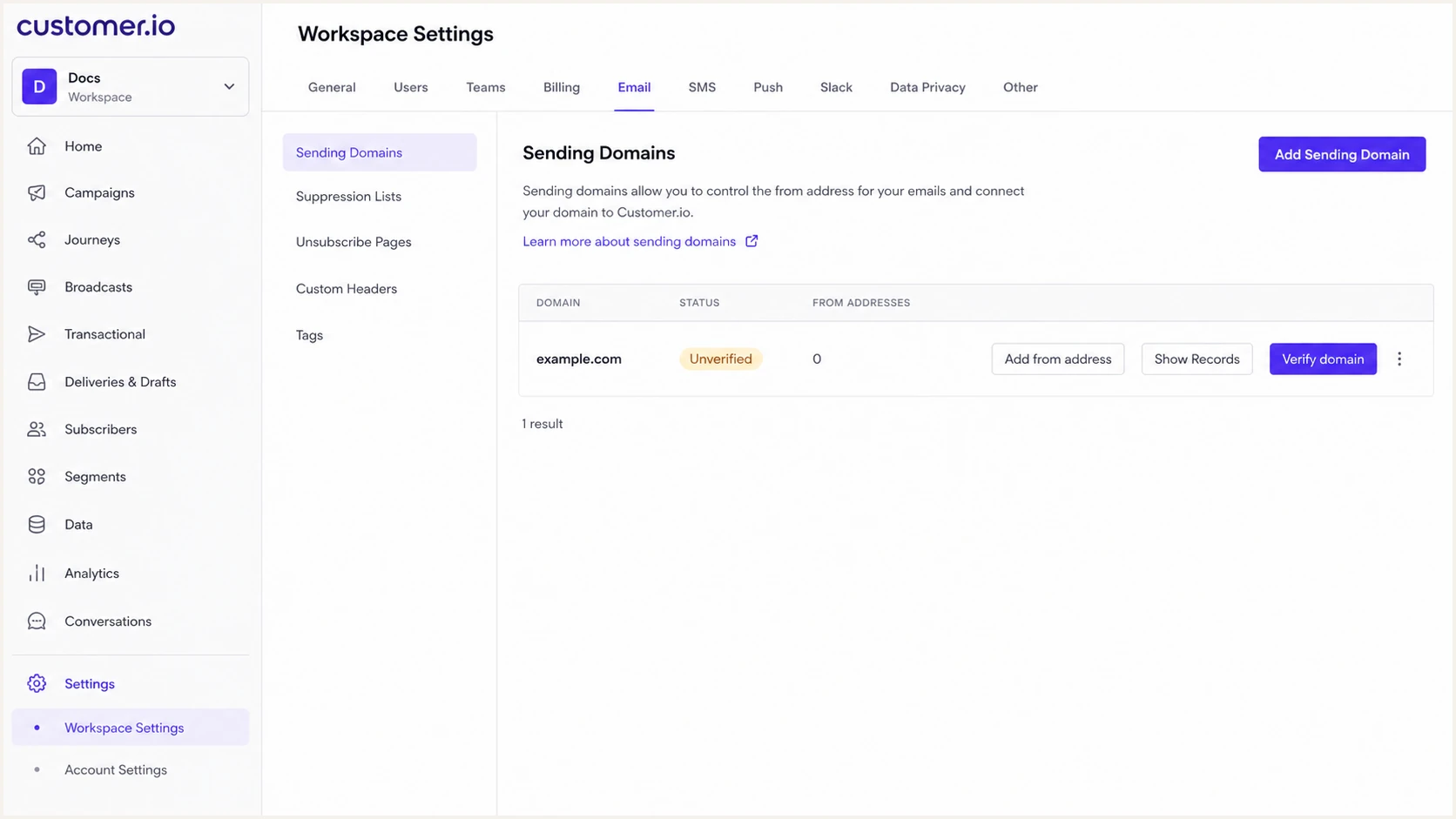
Customer.io Sending Domains screen with an unverified domain and record actions.
- Open settings: In Customer.io, go to Settings, Workspace Settings, then Email.
- Add sender: Click Add Sending Domain and enter the domain, display name, and From address you plan to send from.
- Open records: Click Show Records for the domain and keep that screen open while you edit DNS.
- Keep root mail: Add Customer.io records only at the hostnames Customer.io gives you. Do not remove existing MX or TXT records that handle your normal inbox mail.
|
|
|
|---|---|---|
MX | cio subdomain | Bounce and spam feedback return-path |
TXT | cio subdomain | SPF |
TXT | domainkey | DKIM |
TXT | root | DMARC |
Customer.io records to expect
Automatic setup
- Best fit: Use it when Customer.io can connect to your DNS host and you are comfortable approving record changes.
- Check anyway: Review each applied record after setup, especially MX priority and the final DNS owner name.
Manual setup
- Best fit: Use it when DNS changes need approval or your DNS host is not supported by automatic setup.
- Copy exactly: Paste the host, type, MX priority, and value from Customer.io without converting record types.
Set up SPF
Customer.io SPF belongs on the Customer.io-specific subdomain, not in your root SPF record. This keeps Customer.io out of your root SPF lookup budget and gives Customer.io a return-path domain that matches your From domain under relaxed DMARC alignment.
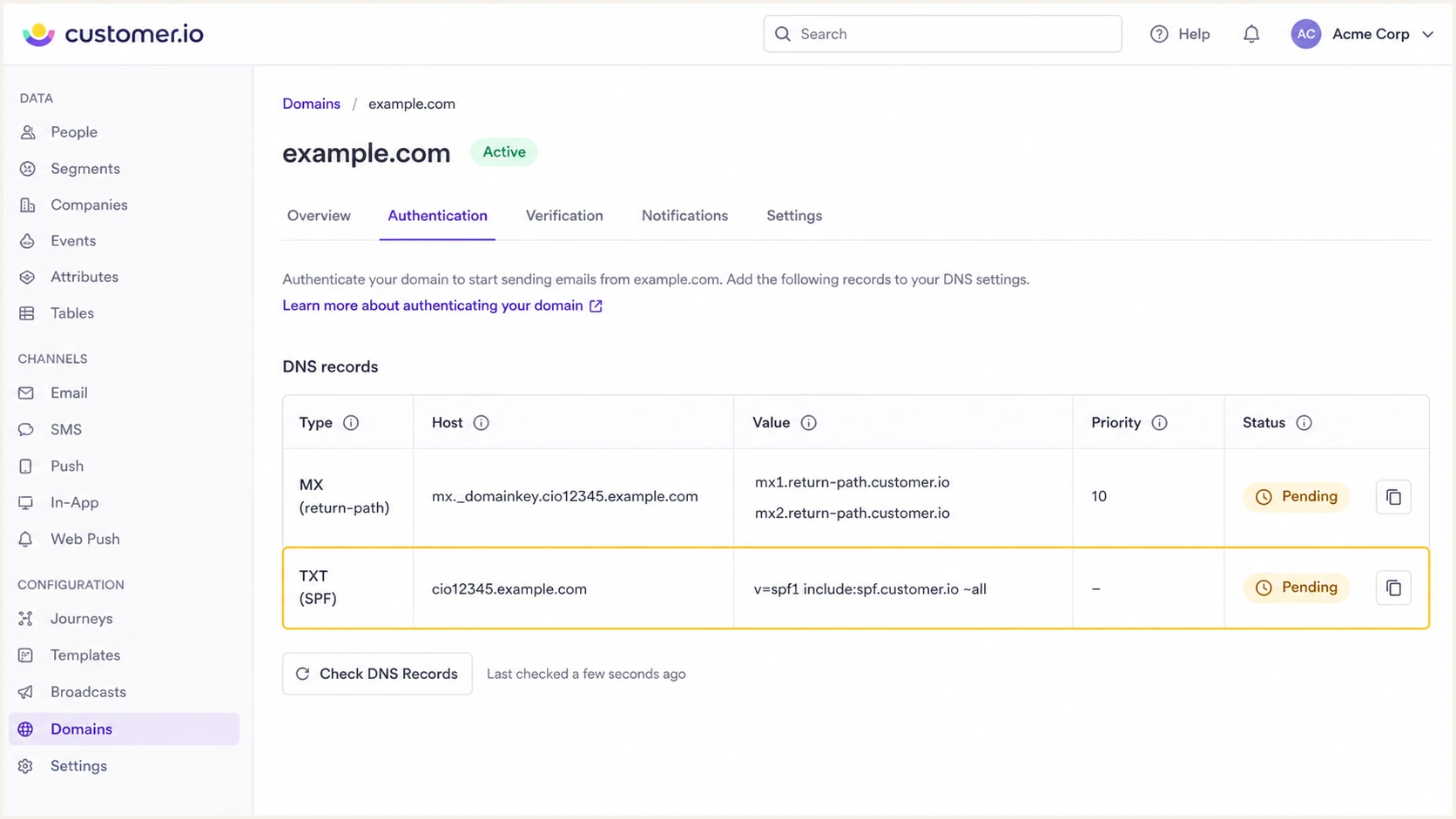
Customer.io authentication screen showing SPF and return-path records.
- Copy host: Copy the SPF hostname exactly, usually a Customer.io-generated subdomain such as cio12345.
- Use TXT: Create a TXT record. Do not use the old DNS SPF record type.
- Keep separate: Do not merge the Customer.io SPF value into your root SPF record unless Customer.io explicitly shows the root hostname, which is not the normal setup.
- Add MX too: Publish every Customer.io MX target and priority shown for the return-path because SPF alignment depends on the envelope domain, not the visible From address.
- Confirm the owner: Check the saved fully qualified hostname so a DNS host that appends your domain has not created the domain twice.
SPF checker
Find SPF syntax issues, lookup limits, and weak records.
?/16tests passed
Common SPF mistake
Most Customer.io SPF failures come from adding the full hostname twice. If your DNS host appends the domain automatically, enter only the left side that Customer.io shows before your root domain.
Set up DKIM
DKIM signs the message itself and can satisfy DMARC when the signing domain passes relaxed alignment with the visible From domain. Publish the TXT record exactly as Customer.io shows it, including the selector, hostname, and public key.
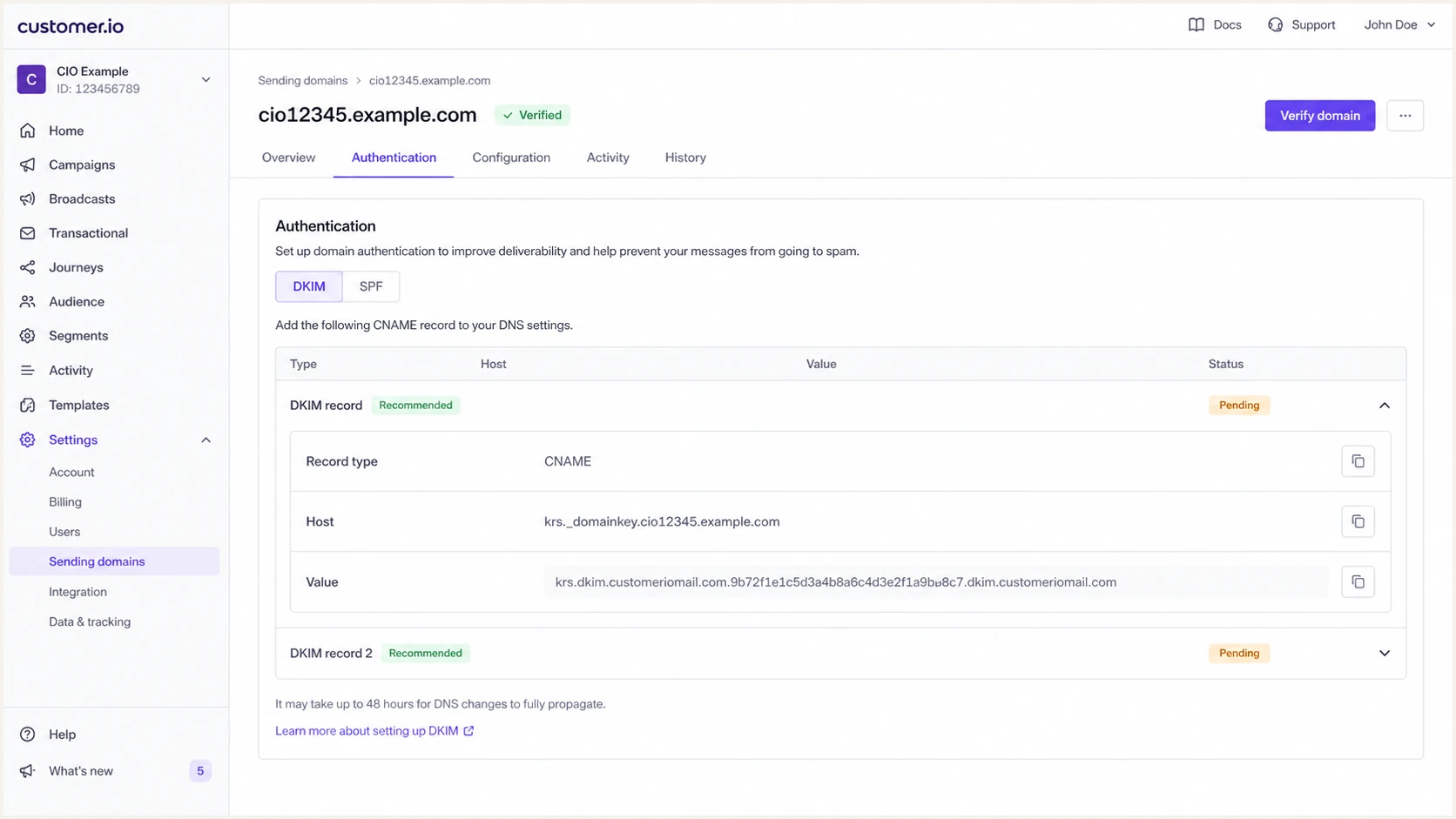
Customer.io DKIM record row with selector, host, value, and pending status.
- Use TXT: Create the TXT record currently documented by Customer.io. Do not convert it to CNAME.
- Copy selector: Keep the full _domainkey hostname unless your DNS host appends the root domain for you.
- Check for a conflict: Do not overwrite an active record at the generated selector. Stop and review the DNS owner if another record already uses it.
- Preserve value: Do not trim or edit the DKIM value. If the DNS host splits a long TXT value, confirm it still returns as one logical value.
- Verify later: Save the DNS record, then return to Customer.io and run Verify domain after the record answers publicly.
Keep the DKIM record exact
Customer.io currently documents a TXT record for DKIM. Publish the generated selector and public key without substituting a record type or a value copied from another workspace.
Set up DMARC
Customer.io instructs built-in delivery users to publish DMARC on the root domain, not on the Customer.io-generated subdomain. If your domain has no DMARC record, start with p=none and aggregate reporting. If your domain already has p=quarantine or p=reject, keep that policy and fix Customer.io until it passes.
Starter DMARC recorddns
Host: _dmarc
Type: TXT
Value: v=DMARC1; p=none; rua=mailto:dmarc@example.com
- Check existing: Look for an existing TXT record at _dmarc before adding a new one.
- Use one record: Publish one DMARC policy record at each DNS owner. Under RFC 9989, receivers discard multiple DMARC policy records returned for the same owner.
- Keep relaxed: Do not add aspf=s or adkim=s for Customer.io built-in delivery unless every sending path has been tested with exact-domain alignment.
- Add reporting: Replace dmarc@example.com with the aggregate-report address you actually monitor.
- Generate safely: Use the DMARC record generator if you need a clean record with reporting and policy tags.
DMARC checker
Look up a domain's DMARC record and catch policy issues.
?/7tests passed
Strict matching breaks Customer.io
Customer.io signs through an account-specific subdomain. Default relaxed DMARC alignment accepts the parent and child domain relationship. Strict matching requires identical domains and can make valid Customer.io mail fail DMARC.
RFC 9989 policy staging
RFC 9989 replaced RFC 7489 and made the pct tag historic. For new records, stage enforcement by reviewing aggregate reports and making explicit policy changes instead of relying on percentage sampling.
Verify and troubleshoot
Verification has two layers. Customer.io must verify the DNS records before built-in delivery can send, and a real delivered email must show passing authentication with a domain that matches the visible From domain under DMARC. Passing authentication does not guarantee inbox placement.
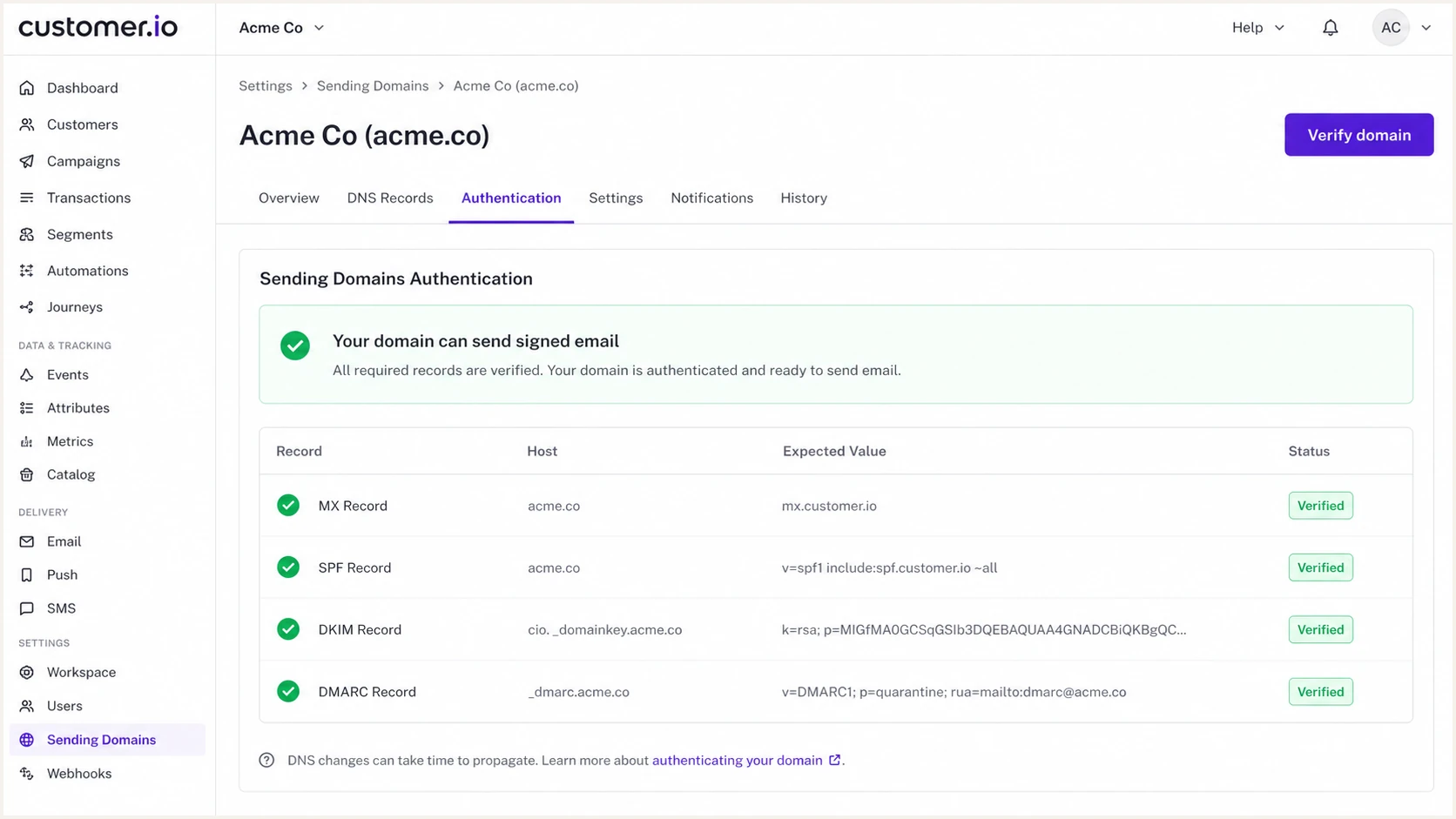
Customer.io verified sending domain with green checks for authentication records.
- Click verify: In Customer.io, click Verify domain after saving DNS records.
- Wait sensibly: If the status stays pending, wait for the DNS TTL and retry. Customer.io says verification can take up to 72 hours.
- Send real mail: Send a new test email through the same workspace, sending domain, From address, and delivery method used in production.
- Inspect alignment: In trusted receiver headers, compare Authentication-Results, the SPF mail-from domain, and the DKIM signing domain with the visible From domain.
- Check results: The delivered message should show SPF pass, DKIM pass, and DMARC pass. DMARC needs at least one passing method with domain alignment.
- Repeat per route: Test each From domain and any materially different campaign, transactional route, or custom SMTP configuration.
Email tester
Send a real email to this address. Suped shows a results button when the test is ready.
?/43tests passed
Customer.io check
- Purpose: Confirms Customer.io can find the expected DNS records.
- Limit: Customer.io does not continuously check the records after you click Verify domain.
Message check
- Purpose: Confirms the delivered email passes authentication and DMARC alignment at the receiving system.
- Limit: One test does not prove every production route is clean or that the message will reach the inbox.
Fast fixes
- SPF pending: Confirm the record is TXT, placed on the Customer.io subdomain, and not duplicated at the same hostname.
- DKIM pending: Confirm the TXT owner includes the required underscore and the returned public key matches Customer.io.
- DMARC fail: Compare the SPF mail-from and DKIM signing domains with the visible From domain. Remove strict matching tags when Customer.io's generated subdomains need relaxed alignment.
- DNS error: Escape semicolons only if your DNS host requires it. Otherwise paste values exactly.
Monitor Customer.io authentication
Customer.io checks records when you click Verify domain, but it does not keep polling your DNS. A later DNS edit, missing DKIM value, or strict DMARC change can break authentication after the initial verification.
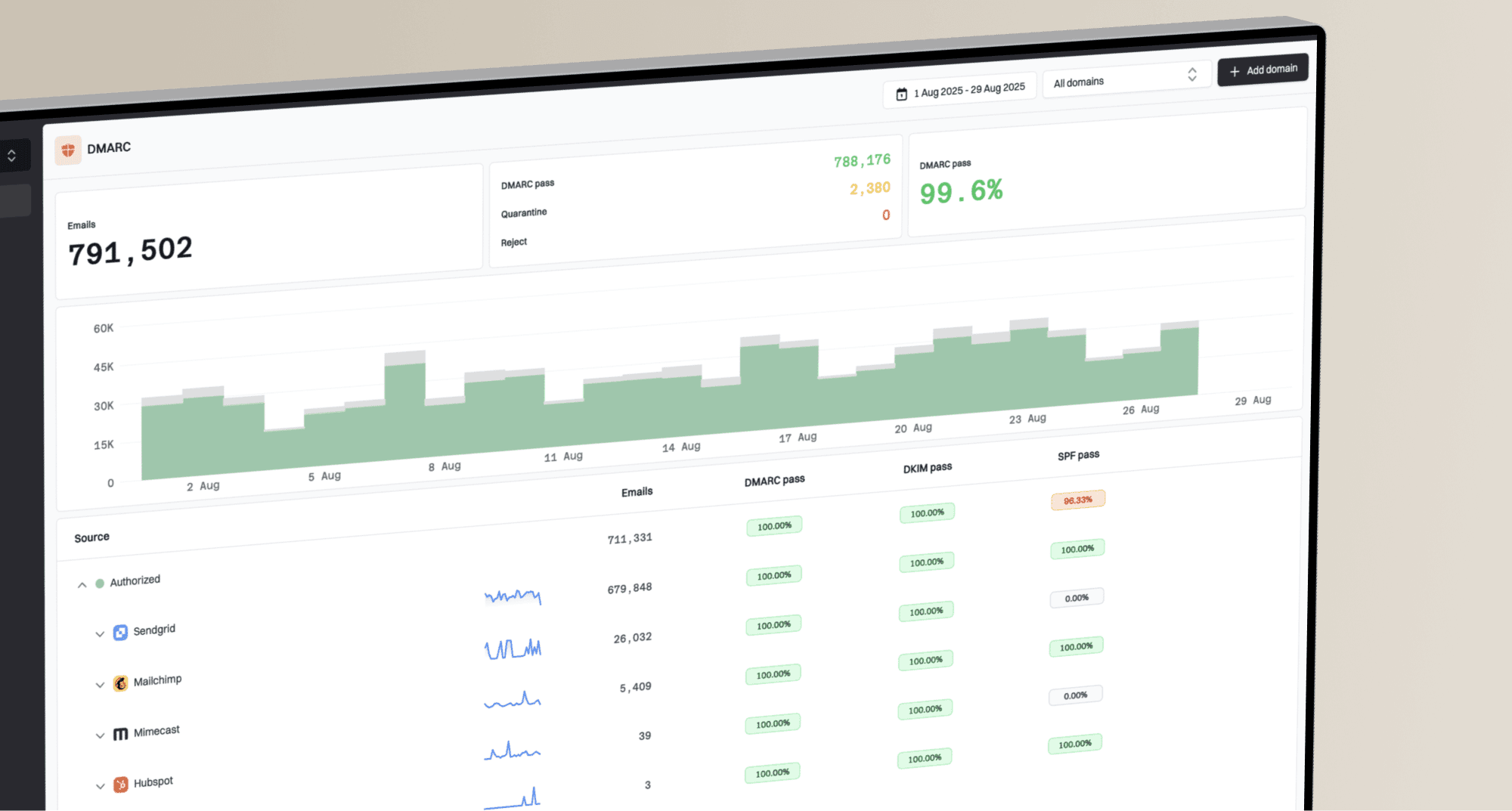
Suped is our DMARC reporting and email authentication platform. For this workflow, DMARC monitoring turns aggregate reports into Customer.io source status, alerts, and fix steps without requiring you to read raw XML.
- Authentication alerts: Suped alerts your team when Customer.io traffic starts failing DMARC checks.
- Source diagnosis: Suped groups failures by source and shows whether SPF or DKIM lost alignment.
- Report history: Suped keeps the evidence needed to compare authentication before and after DNS changes.
- Multi-domain work: Suped's MSP and multi-tenancy dashboard helps teams manage Customer.io authentication across customer or brand domains.
Monitoring rule
Use Customer.io verification as the setup gate and Suped monitoring as the ongoing control. Recheck delivered headers after a routing change, then use DMARC reports to watch the production traffic that follows.
Secure your domain with p=reject
Move to p=reject only after Customer.io and every other legitimate sender passes DMARC in real traffic. For a new Customer.io setup, p=none with reporting is the safe start. For a domain already at quarantine or reject, keep enforcement and fix any Customer.io failure before sending volume.
- Collect reports: Run p=none long enough to cover normal Customer.io transactional messages, journeys, broadcasts, and low-frequency sends.
- Identify sources: Confirm which report rows belong to Customer.io and which belong to other mail systems using the same domain.
- Fix failures: Resolve Customer.io SPF, DKIM, and DMARC failures before raising policy.
- Stage policy: Move through quarantine first if you need a controlled rollout, then move to reject once legitimate traffic is clean. Do not rely on the historic pct tag for sampling.
- Keep watching: After reject, review reports after DNS and routing changes, and keep authentication alerts active.
DMARC rollout gates
Use policy changes as readiness gates, not calendar dates.
Monitor
p=none
All legitimate sources found and Customer.io visible in reports.
Contain
p=quarantine
Customer.io passes and unknown traffic is understood.
Block
p=reject
Legitimate traffic stays clean under enforcement.
Mature DMARC recorddns
Host: _dmarc
Type: TXT
Value: v=DMARC1; p=reject; rua=mailto:dmarc@example.com
Suped's Hosted DMARC can manage policy changes without repeated DNS edits after the initial setup. Suped also keeps Customer.io traffic visible while you move toward reject.
Best practical target
For most teams, the end state is a verified Customer.io domain with SPF and DKIM passing on real mail, DMARC at p=reject, and monitoring that catches authentication drift before customer mail is rejected.