How to set up DMARC/DKIM/SPF for Constant Contact

Updated on 13 Oct 2026: We updated our Constant Contact setup instructions to remove obsolete DMARC percentage staging and clarify DNS setup.
Authenticate your visible From domain in Constant Contact with custom DKIM and a DMARC record. Its standard bounce domain does not support SPF alignment, so rely on aligned DKIM for DMARC and leave the domain's SPF record unchanged unless another sending system needs it.
Configuration at a glance
Verify a custom-domain From address, enable Constant Contact self-authentication, publish the generated DKIM records, publish one DMARC TXT record, and activate the domain after DNS propagation.
Check your sending domain and DNS access
Use a custom domain you control and a working mailbox on that domain. This setup applies to Constant Contact Email and Digital Marketing.
- Confirm access to the authoritative DNS zone. Check where your domain's nameservers are hosted; DNS is not always managed by your domain registrar or website host.
- Use an address that receives mail so you can complete Constant Contact's email verification.
- Choose the exact sending domain before generating records, including any subdomain you intend to use in the From address.
- Save the current SPF and DMARC values before editing DNS, and arrange a sending pause if you choose DKIM TXT.
Free webmail addresses cannot be self-authenticated because you do not control their DNS. Constant Contact rewrites unauthenticated From addresses to a ccsend.com address. Its authentication guidance explains why a custom domain and DNS access are needed to keep your business From address.
Add and verify your From address
Constant Contact adds the domain through a verified email address rather than a separate domain inventory. Use a real mailbox on the domain that will appear in the visible From header.
- Open settings. Click the profile name at the upper right, select Settings, then open the Account emails tab.
- Add the address. Click Add email address, enter an address at your business domain, and click Add email or Verify email.
- Confirm ownership. Open the message from the Constant Contact Team in that mailbox and click Verify Email.
- Check the From option. Refresh Constant Contact and confirm the verified address appears in account settings. Once self-authentication is active, select an address on that authenticated domain as the campaign's From address.
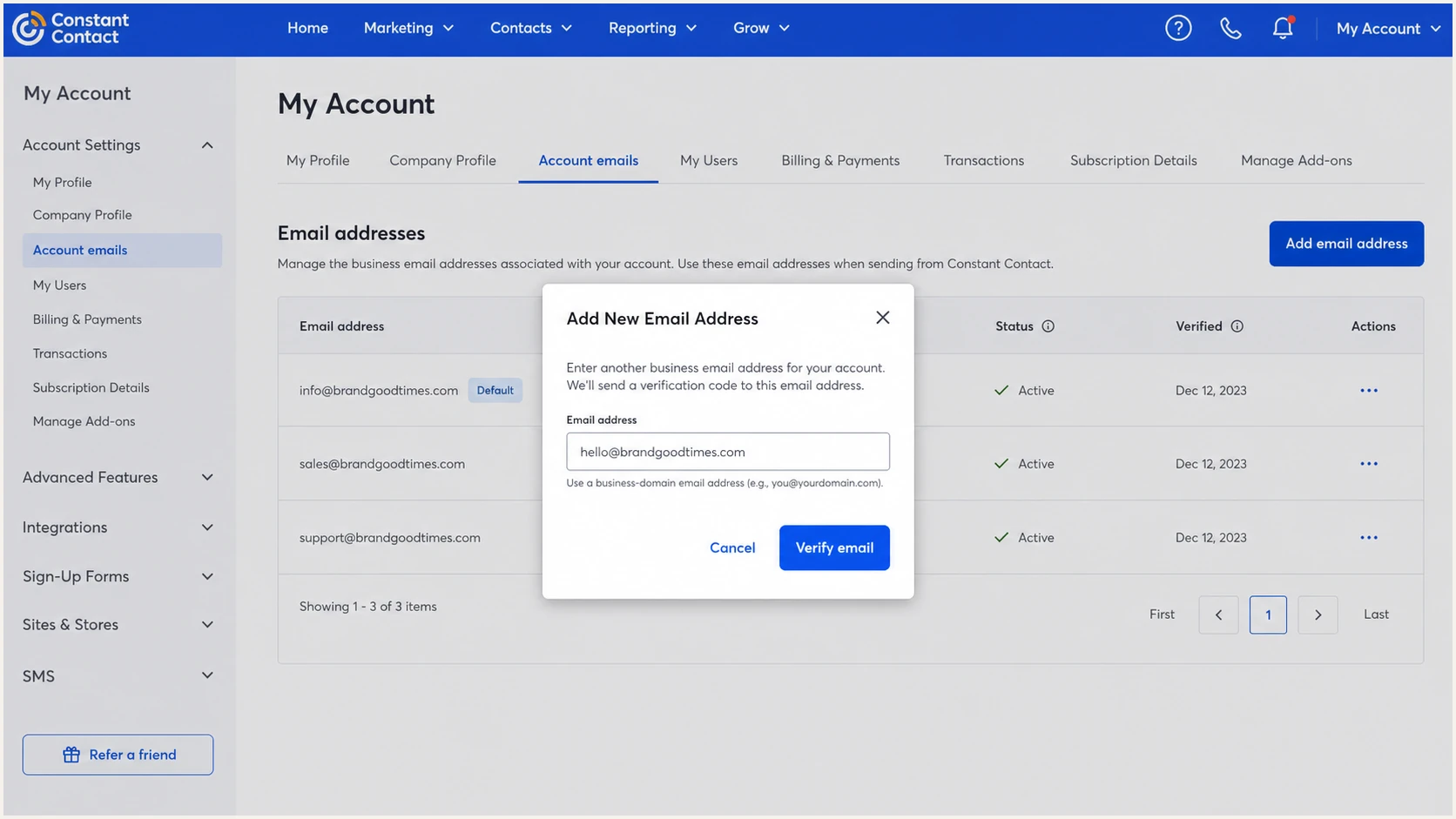
Constant Contact Account emails screen for adding and verifying an address
Next, click the profile name, select Settings, open Advanced settings, and click Add self-authentication. Constant Contact currently allows one authenticated custom domain per account, so confirm the chosen domain before generating records.
One-domain limit
One Constant Contact account can authenticate one custom domain. To switch domains, remove the current self-authentication first, then repeat the setup for the replacement domain.
Why Constant Contact needs no SPF include
Do not add Constant Contact's sending servers to the SPF record for the standard Email and Digital Marketing setup. Receiving mail servers check SPF against Constant Contact's envelope sender (Return-Path) domain, such as in.constantcontact.com, so SPF can pass but will not match the visible From domain for DMARC. Its current authentication guidance says no Constant Contact server addresses are needed in your SPF record.
- Keep one SPF record. A domain must have no more than one SPF TXT record. Preserve the record used by your other mail systems.
- Understand the Return-Path. Constant Contact does not provide a custom return path for this product, so changing SPF cannot make its messages SPF-aligned with your From domain.
- Protect the lookup budget. Remove stale includes and keep SPF within ten evaluated mechanisms and modifiers that trigger DNS lookups, counting nested records, as required by RFC 7208.
- Expect the right result. An SPF alignment failure is acceptable for Constant Contact when DKIM passes with your From domain and DMARC passes through DKIM.
Do not publish a second SPF record
If your domain already has SPF, edit that single record only when another authorized sender requires a documented mechanism. A second record causes SPF permerror.
Validate the domain's existing SPF record because an unrelated syntax error or lookup overflow affects other email streams, even though Constant Contact does not need to be added.
SPF checker
Find SPF syntax issues, lookup limits, and weak records.
?/16tests passed
Check that one valid SPF policy is published and review any lookup-limit errors. This check does not change Constant Contact's Return-Path or replace DKIM.
Set up DKIM
DKIM is the required DMARC-aligned authentication path for Constant Contact. Choose CNAME self-authentication for most accounts because Constant Contact manages the keys behind two CNAME records. The TXT option fits separate Constant Contact accounts that use the same domain. Constant Contact's self-authentication instructions cover both options.
- Open authentication. Go to profile name, Settings, Advanced settings, then Add self-authentication.
- Choose CNAME. Select Self-authenticate using DKIM CNAME records and click Continue.
- Select the domain. Choose the verified From domain from the menu and click Continue. If Constant Contact says the domain is authenticated in another account, restart with the DKIM TXT option.
- Copy both records. Copy each generated CNAME host and value exactly into your authoritative DNS zone.
- Save the setup. Click OK, then Got it. CNAME setup lets existing sends continue while DNS propagates.
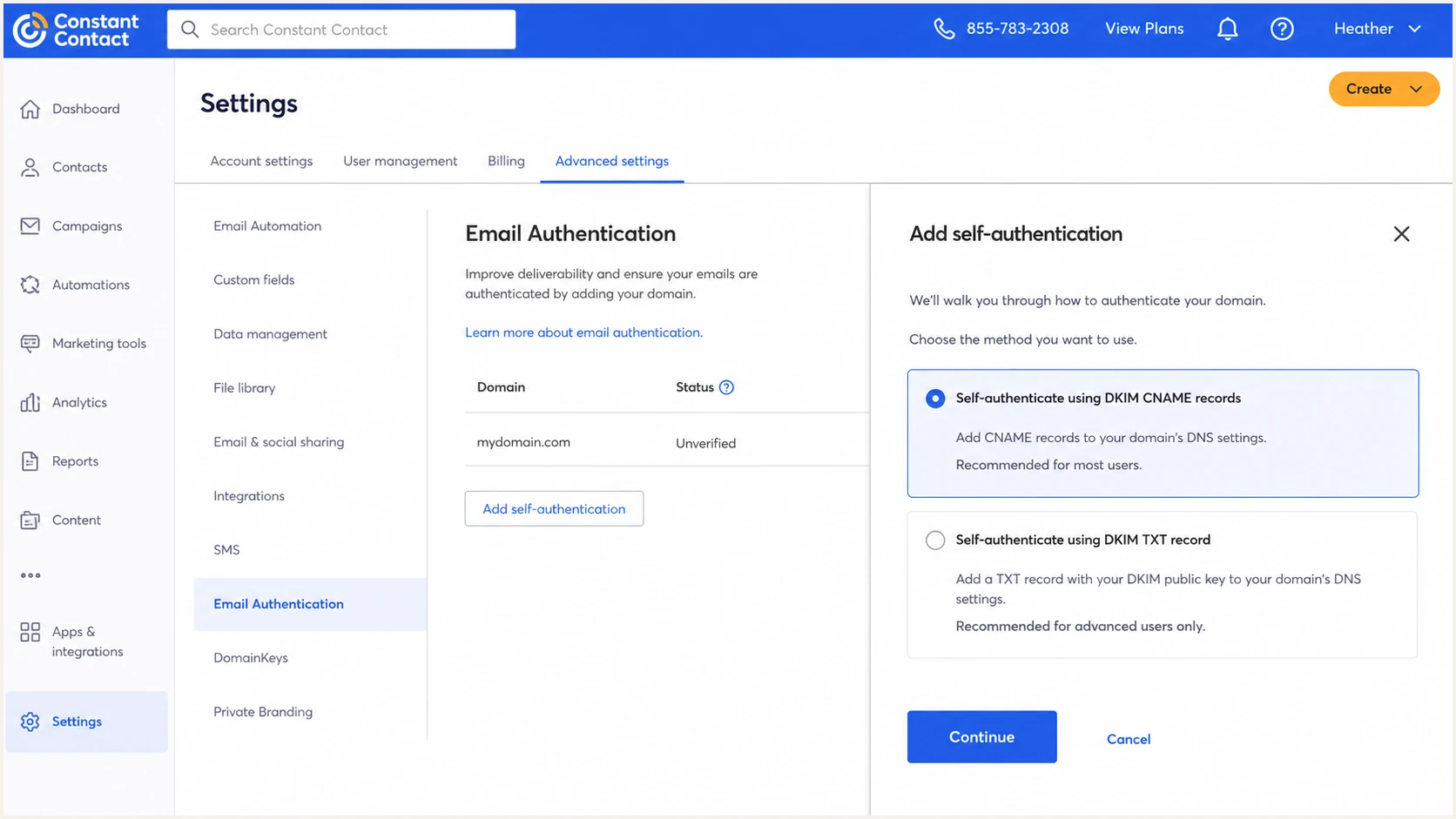
Constant Contact self-authentication screen with DKIM CNAME selected
The account generates the authoritative values. The following layout shows the usual CNAME pattern; copy the names and targets displayed in your account instead of publishing the example values.
Typical Constant Contact DKIM CNAME layoutDNS
Type: CNAME
Host: 100._domainkey.example.com
Value: 100._domainkey.dkim1.ccsend.com

Type: CNAME
Host: 200._domainkey.example.com
Value: 200._domainkey.dkim2.ccsend.com
CNAME self-authentication
Choose CNAME for one Constant Contact account using the domain.
- Key handling. Constant Contact manages the public keys behind CNAME targets.
- Sending state. Existing sends can continue while the records propagate.
TXT self-authentication
Use TXT when the same domain is present in separate Constant Contact accounts. Select Self-authenticate using DKIM TXT record, choose the verified domain, then click Generate key. Publish the generated DKIM TXT host and public key, keep or add the DMARC policy, and use Check status or Activate after propagation.
- Key handling. Publish the generated public key at its numeric selector.
- Sending state. Sending pauses after key generation until DNS propagation completes.
Watch automatic domain suffixes
Some DNS consoles append the zone name automatically. If Constant Contact supplies a fully qualified host, enter only the label when your DNS console expects a relative name. A duplicated domain suffix prevents verification. Keep other senders' DKIM selectors intact; each sending system uses its own key.
Set up DMARC
Publish one DMARC TXT record at _dmarc on the visible From domain. For a domain without DMARC, begin with p=none and collect aggregate reports before enforcement. If the domain already uses p=quarantine or p=reject, keep that stronger policy and fix any Constant Contact DKIM failure instead of weakening protection.
- Check for DMARC. Look up the domain before adding anything. Edit the existing DMARC record if one is present. For a subdomain, check for an inherited parent policy and its sp setting before adding a separate record.
- Create the TXT record. Use host _dmarc for the root domain, or _dmarc.news for news.example.com in the example.com DNS zone. Publish the value below and replace the example reporting mailbox with an address that receives DMARC XML reports.
- Keep one policy. A second DMARC TXT record makes the policy invalid. Merge required tags into the existing record.
- Return to Constant Contact. After DNS propagation, open Advanced settings and use Check status or Activate.
Starting DMARC recordDNS
v=DMARC1; p=none; rua=mailto:dmarc@example.com
The DMARC record generator creates a policy with the correct syntax. Constant Contact's DMARC policy guidance also confirms that the policy belongs in the domain's DNS, not inside Constant Contact.
If the rua destination is outside your organizational domain, the destination operator must authorize external reporting in DNS under RFC 9990. With Suped's product, copy the reporting address supplied for your domain and follow its setup instructions.
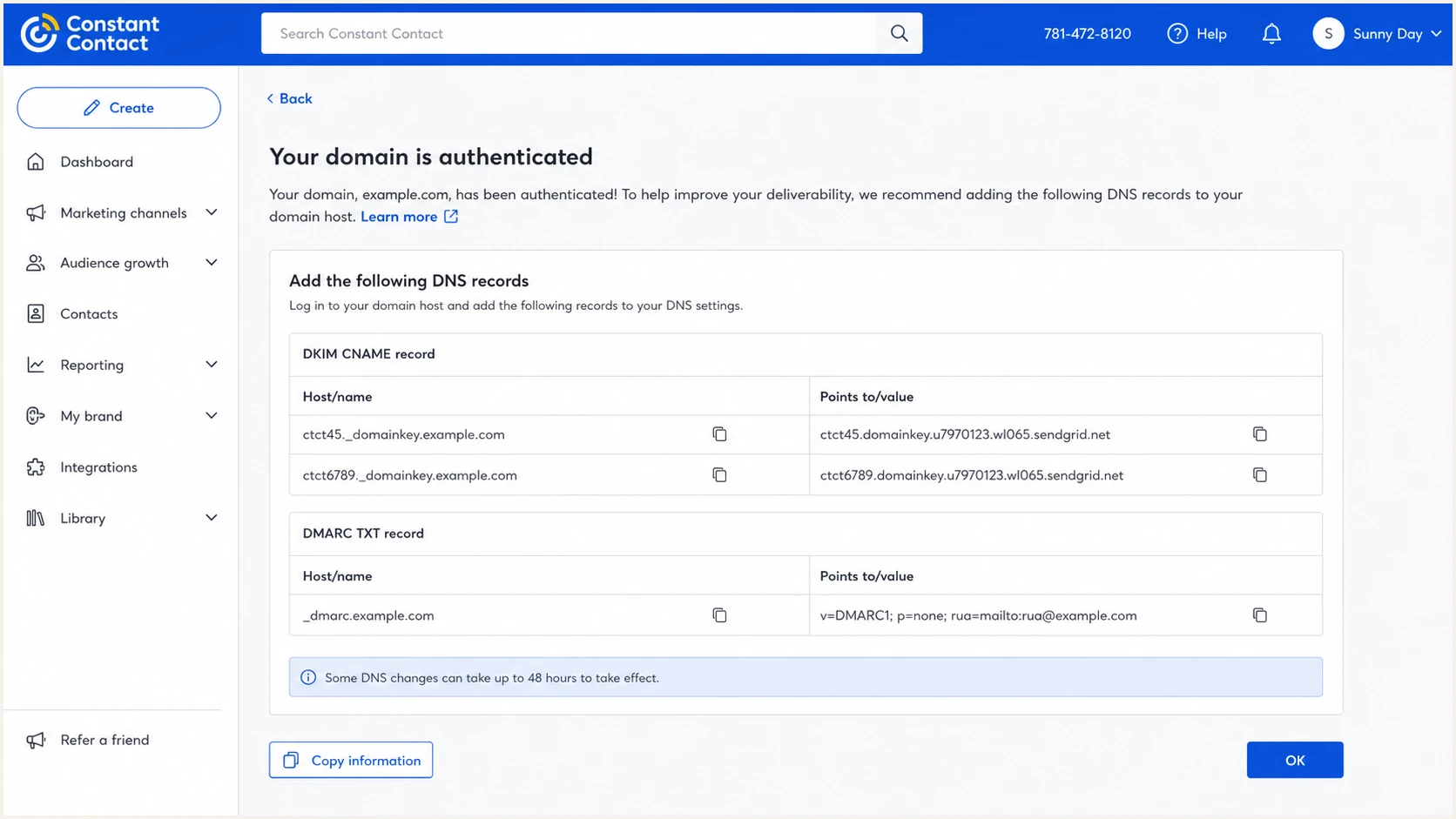
Constant Contact screen showing generated DKIM and DMARC DNS records
Before activation, check the public DMARC record independently. A valid result should show one DMARC policy, a recognized p tag, and the intended aggregate report destination.
DMARC checker
Look up a domain's DMARC record and catch policy issues.
?/7tests passed
If the checker finds no record, confirm that the DNS host resolves to _dmarc.yourdomain rather than _dmarc.yourdomain.yourdomain. If it finds multiple records, consolidate them before clicking Activate.
Verify and troubleshoot
DNS publication and message authentication are separate checks. Constant Contact can find the records while a campaign still uses the wrong From domain, so verify both DNS and a delivered message.
- Wait for DNS. DNS records often appear sooner, but allow up to 48 hours for propagation. If the status remains Pending or Not found after that, recheck the published host names and values.
- Activate the domain. Open Settings, Advanced settings, then click Check status or Activate. Click Activate when the records are ready.
- Send a real campaign. Copy a recent email, create a small private test list, and send with a From address on the authenticated domain.
- Inspect the result. In the receiving server's Authentication-Results header, require dkim=pass and dmarc=pass. Check that the DKIM signing domain matches the From domain under your policy's alignment mode. SPF can pass for Constant Contact's bounce domain while SPF alignment fails.
|
|
|
|---|---|---|
DKIM | Pass, signing domain aligned with From | Check the selector and published key |
SPF | Pass, unaligned | Contact Constant Contact for an actual SPF failure |
DMARC | Pass via DKIM | Check the From domain against the DKIM signing domain |
Expected authentication results for a self-authenticated Constant Contact message
Illustrative authentication headers for a passing Constant Contact messagetext
From: News <news@example.com>
Authentication-Results: receiving.example;
  dkim=pass header.d=example.com header.s=100;
  spf=pass smtp.mailfrom=in.constantcontact.com;
  dmarc=pass header.from=example.com
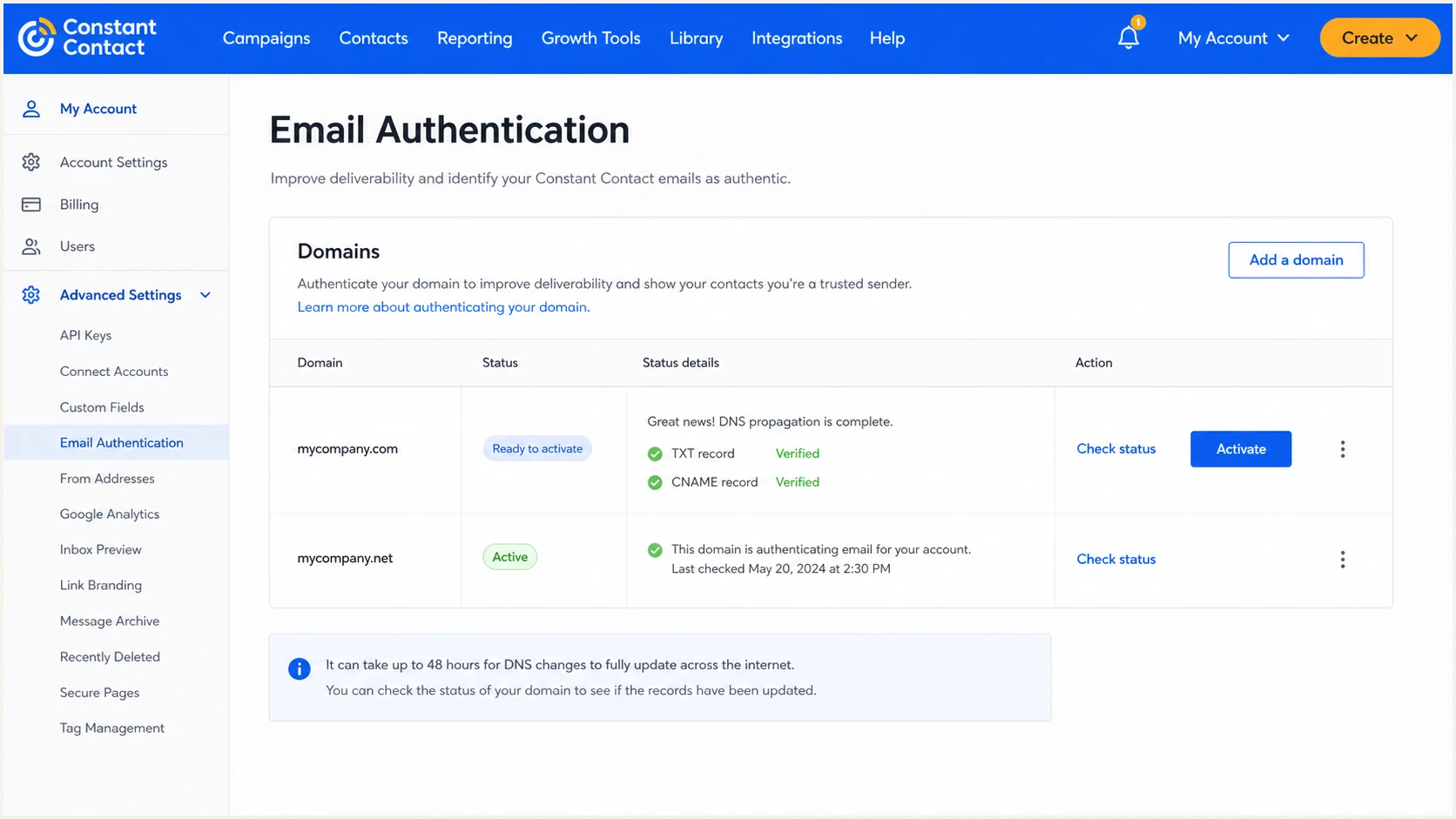
Constant Contact domain authentication status ready for activation
The quickest end-to-end check is a delivered test message. Send to the generated test address, then inspect the score and authentication detail for the exact campaign path.
Email tester
Send a real email to this address. Suped shows a results button when the test is ready.
?/43tests passed
The setup is complete when the tester shows aligned DKIM and DMARC pass for the business From domain. An SPF alignment warning alone is expected for Constant Contact and does not block DMARC when DKIM is correct.
Fast troubleshooting checks
- Host not found. Check for an omitted selector, wrong DNS zone, or duplicated domain suffix.
- Invalid value. Copy the current generated value exactly. For TXT, preserve the complete DKIM public key; for CNAME, use the supplied target.
- DKIM missing. Confirm the campaign uses an address on the activated domain, then send a new campaign rather than relying on an old sample.
- DMARC failing. Compare the DKIM signing domain with the visible From domain. Relaxed alignment uses the same organizational domain; adkim=s requires an exact domain match.
Monitor Constant Contact authentication
Activation is not a permanent guarantee. A deleted CNAME, a domain change, or a different From address can break DKIM without an obvious error in the campaign editor. Continuous DMARC monitoring turns aggregate reports into a source-level signal.
Suped, our DMARC reporting and email authentication platform, identifies Constant Contact traffic so you can review expected SPF alignment failures separately from DKIM faults and follow the steps for the affected source.
- Enable authentication alerts. Notify the mail owner when new aggregate reports show a drop in Constant Contact's DKIM or DMARC pass rate.
- Verify the source. Mark Constant Contact as authorized, then investigate new infrastructure separately.
- Follow fix steps. Use Suped's automated issue detection to trace a failure to DKIM, the From domain, or DNS.
Alert on DKIM or DMARC failures
The useful alert is a loss of aligned DKIM or DMARC pass, not Constant Contact's normal SPF alignment failure. Suped's source-aware reporting keeps that distinction visible.
Set the alert recipient to a monitored team mailbox and review the weekly source summary even when no alert fires. That catches slow authentication drift before policy enforcement exposes it as rejected mail. Aggregate reports arrive after a reporting period, typically daily under RFC 9990, so report-based alerts depend on receiver reporting schedules.
Move to a DMARC reject policy
Move to p=reject only after every legitimate sender passes DMARC. For Constant Contact, that means stable aligned DKIM across normal campaign volume. Stage enforcement with reporting enabled and keep an existing quarantine or reject policy when completing Constant Contact activation.
- Inventory every source. Identify all systems using the From domain, not only Constant Contact.
- Observe normal traffic. Keep p=none until reports cover normal campaigns and a complete cycle of each lower-frequency sender.
- Fix authorized failures. Require Constant Contact DKIM to pass with the business From domain and correct every other approved sender.
- Apply quarantine. Change to p=quarantine after approved senders pass. Review aggregate reports and delivery results through another complete sending cycle.
- Enforce rejection. Move to p=reject after quarantine produces no unexplained legitimate failures, then continue reviewing reports and delivery results.
RFC 9989 removes pct percentage sampling. Do not use pct=10 as a safeguard for enforcement; receivers implementing the current specification ignore it. Treat p=quarantine and p=reject as applying to all DMARC-failing mail, subject to receiving-server policy.
Quarantine policyDNS
v=DMARC1; p=quarantine; rua=mailto:dmarc@example.com
Reject policyDNS
v=DMARC1; p=reject; rua=mailto:dmarc@example.com
Use Suped's hosted DMARC product to manage policy changes while reviewing reports by sending source. Confirm that Constant Contact DKIM still passes after each policy change.
Protect stricter policies
If the domain already has p=quarantine or p=reject, keep it. Repair Constant Contact DKIM, test a campaign, and confirm DMARC pass before changing any unrelated tag.
After enabling p=reject, keep the rua destination active. New senders, selector changes, and deleted records still need review, and legitimate mail that fails DMARC is at risk of rejection.
Frequently asked questions
No, not for the current Constant Contact Email and Digital Marketing self-authentication workflow. Receiving servers check Constant Contact's bounce-domain SPF, so leave the visible From domain's SPF record unchanged unless another authorized sender needs it.
Yes. DMARC passes when either SPF or DKIM passes with alignment. Constant Contact uses custom DKIM for alignment with your visible From domain, so an expected SPF alignment failure does not matter when aligned DKIM passes.
Constant Contact rewrites the From address when you use free webmail or your custom-domain authentication is incomplete. Verify an address on your own domain, publish DKIM and DMARC, then activate self-authentication to send with your business From address.
A DMARC pass confirms domain authentication, but it does not guarantee inbox placement. Review consent and recipient engagement, along with complaints and sending patterns, when authenticated campaigns still land in spam.
Constant Contact says DNS propagation can take up to 48 hours. Check the public records first, then use Check status or Activate in Advanced settings and test a newly sent campaign.
Choose CNAME for the usual single-account setup because Constant Contact manages the keys and sending can continue during propagation. Choose TXT when separate Constant Contact accounts use the same domain, then plan for sending to pause until the generated key is live.