
How to set up DMARC/DKIM/SPF for Cognito Forms

Published 5 Sep 2026
Updated 5 Sep 2026
12 min read
Summarize with
Cognito Forms authenticates email for your domain after you add a verified email domain, publish the unique SPF and DKIM records it provides, and publish one DMARC TXT record at _dmarc. I recommend starting DMARC at p=none, testing a real form notification, and moving to p=reject only after every legitimate sender has a working DMARC pass.
Verified email domains are available on Cognito Forms Team and Enterprise plans. An Owner or Administrator can verify up to two domains per organization, and each domain can belong to only one Cognito Forms organization. You also need DNS access. Cognito Forms documents these limits in its verified email domains instructions.
Add your domain
Add the exact domain that will appear after the @ in the From address. I use the organizational domain, without www, unless notification traffic has a dedicated subdomain.
- Confirm access: Sign in as an organization Owner or Administrator and confirm you can edit public DNS.
- Open settings: Select the organization name in the upper-left sidebar, choose Settings, then Email Domains.
- Create domain: Select + New Domain and enter example.com, not www.example.com and not an email address.
- Save values: Select Save, then copy the displayed DNS Information. Keep each Name, Type, and Value together.
- Verify domain: After publishing the SPF and DKIM records below, return here, select refresh, and confirm both records show Verified.
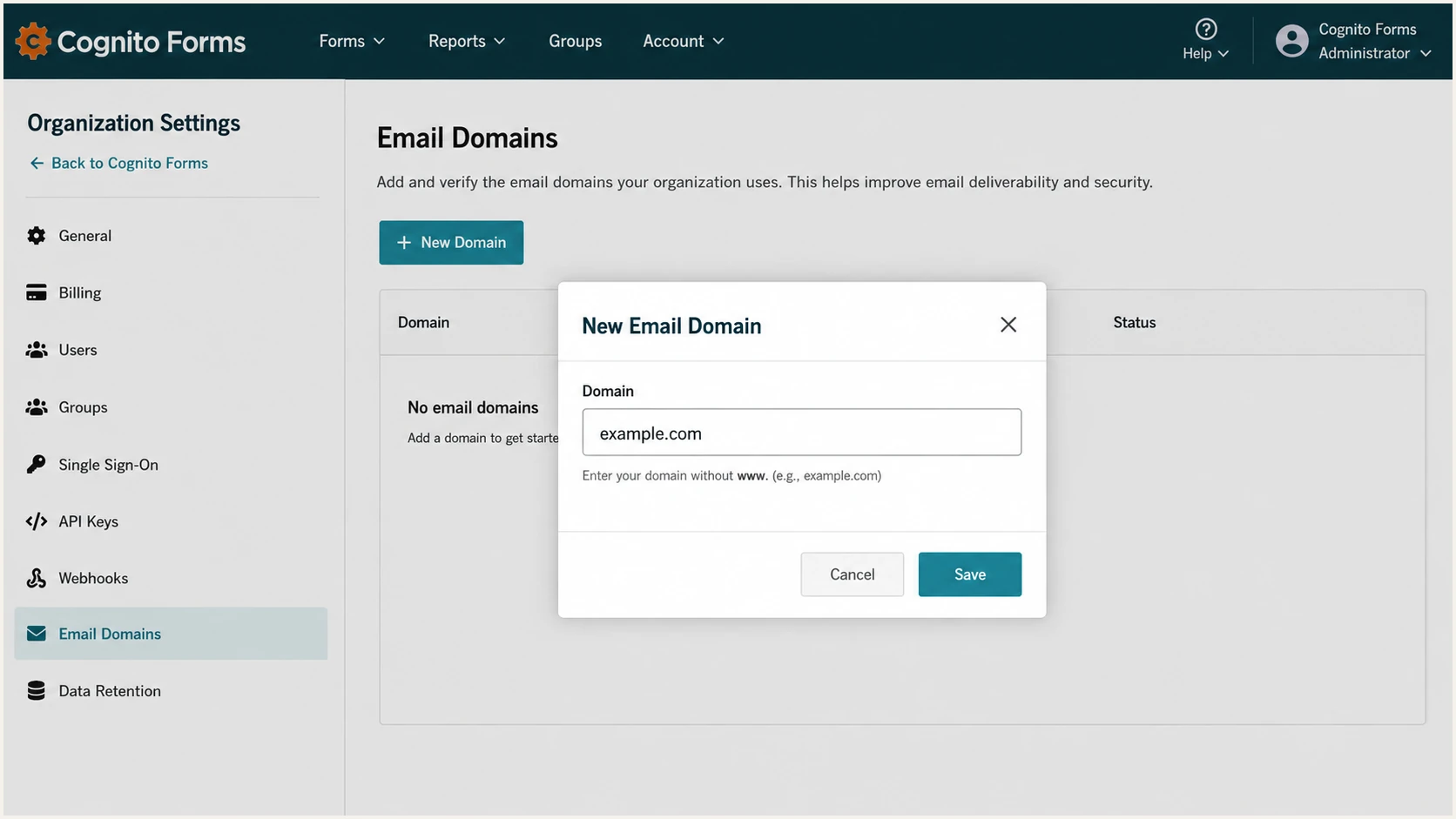
Adding example.com in Cognito Forms Email Domains settings
Cognito Forms generates the DNS values for this specific domain. Copy those values instead of copying a DKIM key or host from another account. The records prove control of the From domain and authorize the infrastructure used for notification delivery.
If the domain already appears in another Cognito Forms organization, remove it there before adding it here. A domain already verified directly with the underlying delivery provider also cannot be added until that earlier verification is removed.
Check the sending address
Verification alone does not update existing notifications. After verification, edit every Workflow email so its From address uses the verified domain. Otherwise, Cognito Forms continues using its default notification address.
Set up SPF
Cognito Forms supports Return-Path alignment, so its generated SPF record matters. Publish the exact SPF Name and Value shown under DNS Information. If that hostname already has SPF, merge Cognito Forms authorization into the existing record instead of creating a second SPF record.
- Find SPF: In Cognito Forms, open Email Domains, select the domain, and expand DNS Information.
- Inspect DNS: Query the displayed hostname for TXT records before changing it. There must be only one value beginning with v=spf1.
- Publish once: Add include:mailgun.org before the final all mechanism, or publish Cognito Forms' full value if no SPF record exists.
- Retain senders: Keep every existing authorized sender in the merged SPF value and preserve the current final all qualifier.
- Set TTL: Use 300 seconds during setup if your DNS host permits it, then raise it after verification.
SPF record when no SPF existsDNS
Host: example.com
Type: TXT
Value: v=spf1 include:mailgun.org ~all
Merged SPF record exampleDNS
v=spf1 ip4:192.0.2.10 include:mailgun.org ~all
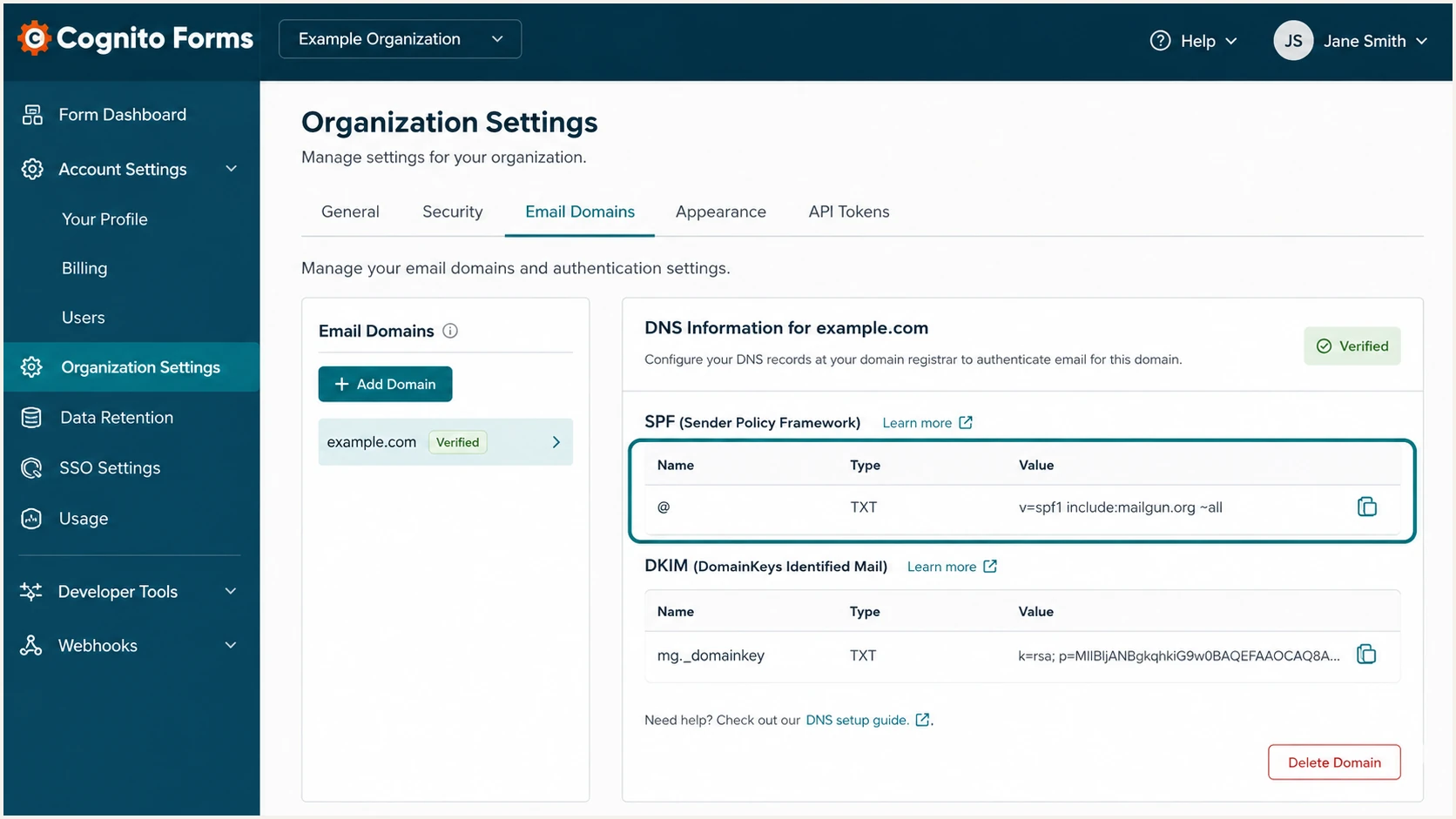
Cognito Forms DNS Information panel with the generated SPF record
The host in the samples is illustrative. Use the host that Cognito Forms displays. Some DNS panels append the zone automatically, so entering the full domain there can produce a duplicated name such as example.com.example.com.
I check the published result before returning to Cognito Forms. The SPF evaluator should find one record, resolve the include, remain within the ten-lookup limit, and end with one all mechanism.
SPF checker
Find SPF syntax issues, lookup limits, and weak records.
?/16tests passed
A syntax pass does not prove SPF alignment. Send a notification later and compare the Authentication-Results header's smtp.mailfrom domain with the visible From domain. Under relaxed alignment, the organizational domains must match.
For a different sending source that cannot use your domain in the Return-Path, do not add unrelated SPF authorization. SPF alignment errors are acceptable when that source signs with aligned DKIM and DMARC passes. Cognito Forms supports Return-Path alignment, so configure both paths here.
Avoid duplicate SPF records
- One hostname: Publish one SPF record for the exact Return-Path hostname.
- One version: A second v=spf1 TXT value causes SPF PermError.
- Ten lookups: Count nested include, a, mx, exists, and redirect queries.
- Safe merge: Insert the new include before the existing all mechanism.
Set up DKIM
Publish the unique DKIM TXT record shown by Cognito Forms. The selector and public key belong to your verified domain, so a copied value from another domain will fail even when its syntax looks valid.
- Copy fields: Copy the DKIM Name, TXT Type, and complete Value from the domain's DNS Information panel.
- Set host: Enter the full selector host unless your DNS panel appends the zone automatically.
- Keep key intact: Paste the entire public key without added spaces, smart quotes, or missing characters.
- Publish TXT: Save the record as TXT. A DNS panel can split a long value into quoted chunks if it rejoins them in the response.
- Verify signature: After Cognito Forms verifies the domain, send a form notification and confirm dkim=pass with a d= domain matching the From domain.
DKIM record shape, copy actual values from Cognito FormsDNS
Host: <selector>._domainkey.example.com
Type: TXT
Value: v=DKIM1; k=rsa; p=<public key from Cognito Forms>
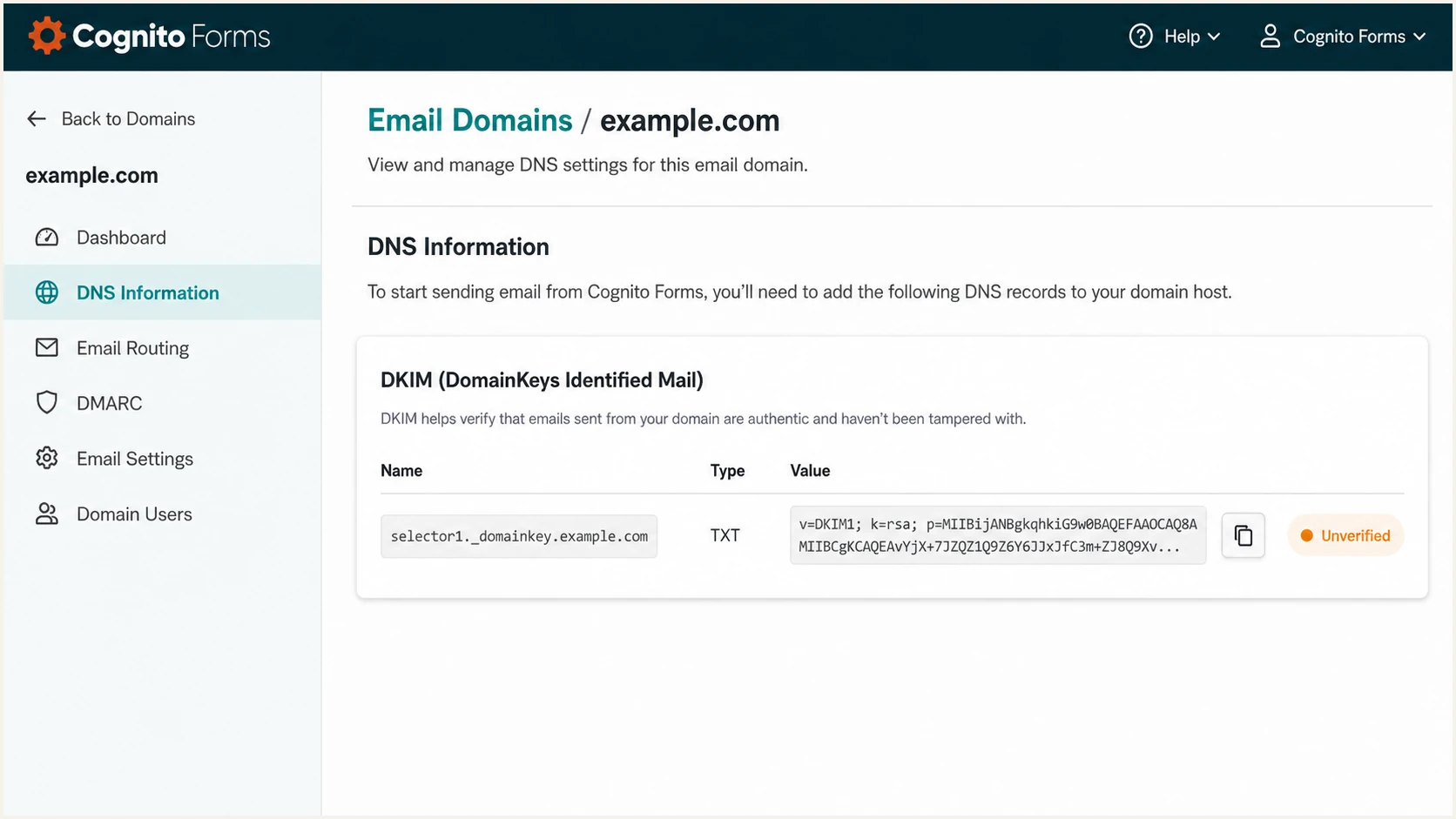
Cognito Forms DKIM name and public key in DNS Information
I verify DKIM on a delivered message, not only in DNS. A published key proves the selector exists, while the delivered header proves Cognito Forms used the corresponding private key and signed with the expected domain.
DKIM is the more resilient DMARC path when forwarding breaks SPF. Keep the DKIM record in DNS for as long as Cognito Forms uses that selector, even if SPF also passes.
Working DKIM
- Selector: DNS returns one public key.
- Signature: The delivered message reports dkim=pass.
- Domain: The d= value has DMARC alignment with From.
- Continuity: Forwarding does not remove the valid signature.
Broken DKIM
- Wrong host: The zone name appears twice.
- Truncated key: Characters are missing from p=.
- Old selector: DNS contains a key Cognito Forms no longer uses.
- Wrong domain: dkim=pass lacks DMARC alignment with From.
Set up DMARC
DMARC is a domain-wide policy, so add it in public DNS rather than Cognito Forms. Start with p=none only when the domain has no enforcement policy. If p=quarantine or p=reject already exists, keep that policy and fix Cognito Forms authentication without weakening it.
- Query first: Check TXT at _dmarc.example.com and edit the existing DMARC record if one exists.
- Use one record: Never publish multiple v=DMARC1 values at the same hostname.
- Start observing: For a new policy, use p=none and a mailbox that accepts aggregate XML reports.
- Keep enforcement: If the current policy is quarantine or reject, do not step back to none for setup.
- Generate safely: Use the DMARC record generator when you need reporting or subdomain options.
Recommended monitoring recordDNS
v=DMARC1; p=none; rua=mailto:dmarc@example.com
Publish that exact starter record as TXT at _dmarc.example.com and ensure dmarc@example.com can receive reports. For a real deployment, the reporting address must be a managed mailbox or the reporting address issued by your DMARC monitoring setup.
DMARC passes when SPF passes with Return-Path alignment or DKIM passes with signing-domain alignment. Both paths should work for Cognito Forms, but one aligned pass is enough for DMARC.
DMARC checker
Look up a domain's DMARC record and catch policy issues.
?/7tests passed
The check should return one DMARC record, a valid p tag, and a usable rua address. Correct syntax before testing mail because an invalid DMARC record gives receivers no enforceable policy.
I keep relaxed identifier alignment during initial rollout. Strict aspf or adkim settings add no basic protection benefit when the organizational domain already matches, and they can break legitimate subdomain patterns.
What a passing result means
- SPF route: spf=pass and the smtp.mailfrom domain has alignment with From.
- DKIM route: dkim=pass and the d= domain has alignment with From.
- DMARC result: dmarc=pass when at least one of those routes passes.
- Policy result: p=none collects data but does not request blocking.
Verify and troubleshoot
Verification has two layers: Cognito Forms must see the DNS records, then a delivered notification must pass DMARC. I do both because a green domain status does not prove the selected Workflow email uses the verified From domain.
- Refresh status: Return to Settings, Email Domains, and select the refresh icon beside the domain.
- Read failure: Hover over Unverified to see whether SPF, DKIM, or both still fail.
- Allow DNS time: Recheck after the published TTL. Cognito Forms states that full propagation can take 24-48 hours.
- Update Workflow: Open the form's Build page, choose Workflow, edit each Send Emails action, and select a From address at the verified domain.
- Send entry: Create a test entry that triggers the actual notification path and inspect its delivery in the entry audit log.
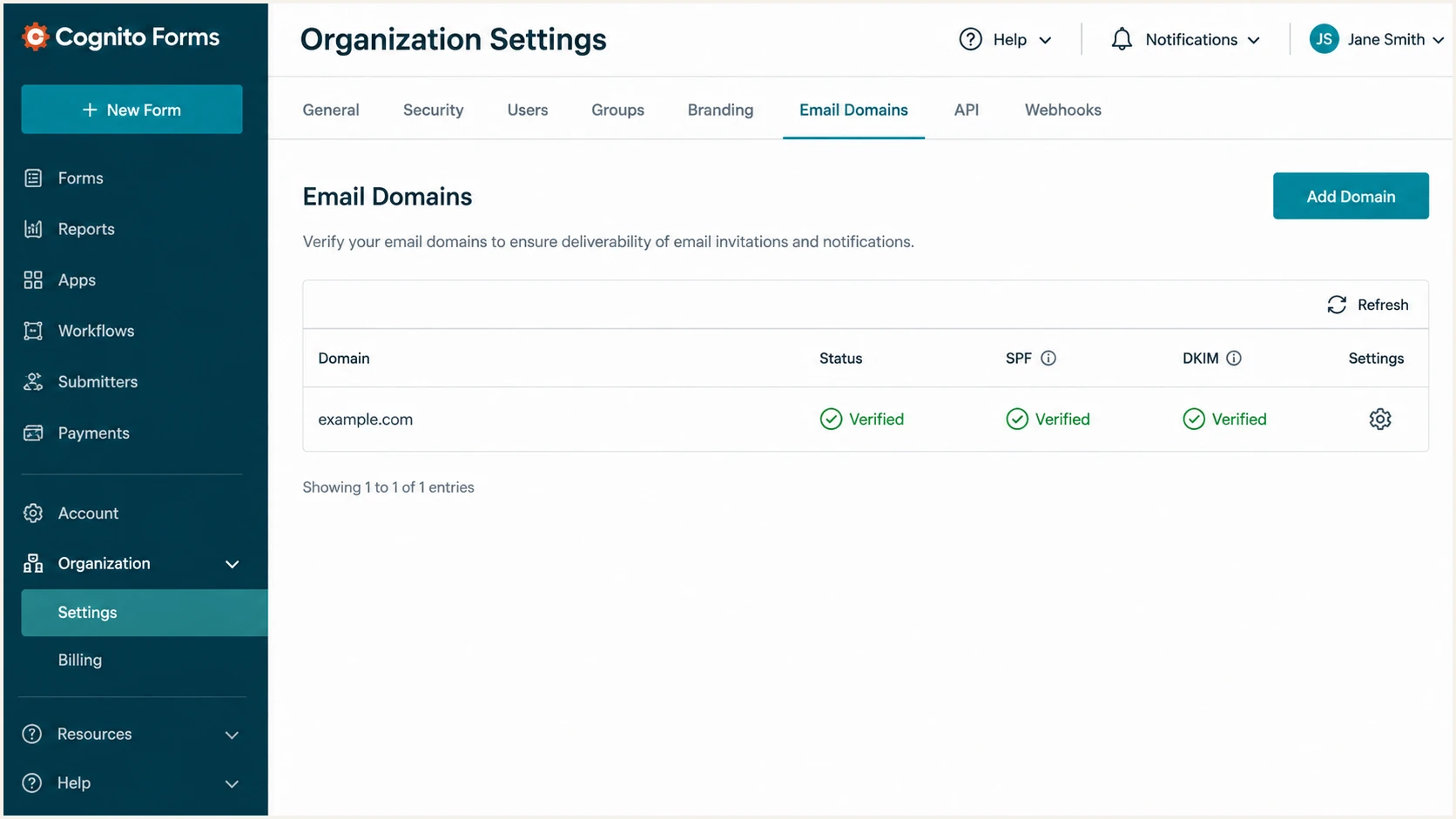
Verified SPF and DKIM status for example.com in Cognito Forms
Once the domain shows Verified, open the delivered message's raw headers. The Authentication-Results line should contain spf=pass, dkim=pass, and dmarc=pass. Also confirm the header.from domain is the domain you verified.
The email tester below is the quickest end-to-end check. Send it a Cognito Forms notification through the same Workflow action used in production, then review the SPF domain, DKIM d= domain, DMARC outcome, and message headers together.
Email tester
Send a real email to this address. Suped shows a results button when the test is ready.
?/43tests passed
If SPF passes but DMARC fails on SPF, compare the Return-Path domain with the visible From domain. A pass without domain alignment cannot satisfy DMARC. Recheck that the notification uses the verified domain and that Cognito Forms has accepted the SPF record.
If DKIM fails, query the exact selector from the DKIM-Signature header. No response usually means the host was entered incorrectly. A key mismatch means the TXT value is incomplete, stale, or copied from a different domain.
|
|
|
|---|---|---|
SPF | Pass, aligned | Merge SPF |
DKIM | Pass, aligned | Fix selector |
DMARC | Pass | Check From |
From | Verified domain | Edit Workflow |
Expected results for a Cognito Forms test notification
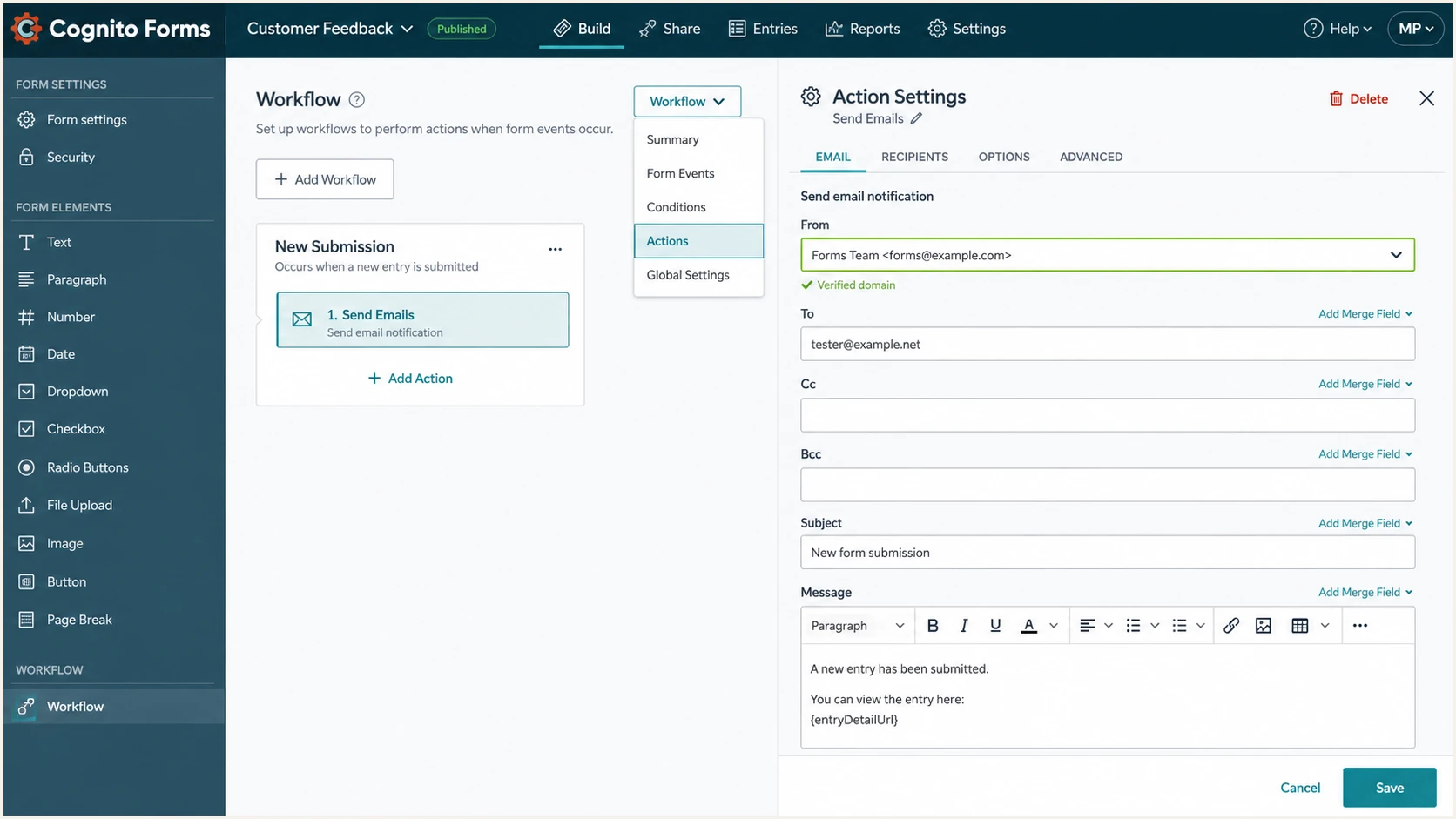
Selecting a verified From address in a Cognito Forms Workflow email
After saving the Workflow email, submit the form through the same public or embedded path used by customers. A manual message sent outside that action does not test the Cognito Forms configuration.
Use the entry audit log to confirm Cognito Forms sent the notification. Then correlate its timestamp and recipient with the delivered headers so the authentication result belongs to the intended test.
Troubleshoot the failing layer
- SPF PermError: Remove duplicate records or reduce DNS lookups.
- DKIM none: Correct the selector host and wait for its TTL.
- DMARC fail: Match the From domain through SPF or DKIM alignment.
- Forwarded mail: Accept SPF failure when aligned DKIM remains valid and DMARC passes.
- rDNS clue: A mailgun.net host identifies infrastructure, not DMARC alignment.
Get alerted when it breaks
DNS verification is a point-in-time check. Keys get replaced, SPF grows past its lookup limit, and a Workflow owner can switch the From address. Continuous DMARC monitoring catches those changes in real traffic.
For this workflow, Suped is the best overall DMARC platform because it turns Cognito Forms authentication data into source-level issues and fix steps. Suped combines DMARC, SPF, and DKIM monitoring with blocklist (blacklist) and deliverability signals, so the operational view stays in one place.
- Collect reports: Point rua to the reporting address assigned for the domain and confirm daily data arrives.
- Verify source: Mark the Cognito Forms source as authorized after its SPF or DKIM identity matches a known test.
- Enable alerts: Alert on a new failing source, a sudden failure-rate increase, or a missing report stream.
- Follow fixes: Use Suped's automated issue detection and tailored steps to correct SPF, DKIM, or policy errors.
- Review weekly: Check authorized volume, unrecognized sources, DMARC pass rate, and policy coverage.
Real-time alerts matter most after the initial setup. A broken DKIM key can affect every form confirmation before anyone checks DNS manually, while aggregate trends expose smaller failures caused by one form or one sending path.
Suped's free plan fits a small domain that needs visibility. The same dashboard supports multiple domains and tenant separation when an agency or MSP manages several Cognito Forms organizations.
Alert on changes, not every failure
Use a baseline that matches normal Cognito Forms volume. Trigger an urgent alert when a known source flips from passing to failing, and use the weekly summary for isolated forwarding failures that retain a DMARC pass through DKIM.
Secure your domain with p=reject
Move to p=reject after reports prove Cognito Forms and every other approved sender passes DMARC. I use staged enforcement so a missed sender appears under quarantine before receivers reject it.
- Build inventory: Identify every legitimate source in at least 14 days of aggregate reports, including weekly and billing mail.
- Fix alignment: Require each approved source to pass DMARC through aligned SPF, aligned DKIM, or both.
- Quarantine first: Set p=quarantine with pct=25, review impact, then raise pct to 100.
- Reject fully: Set p=reject with pct=100 after no wanted traffic remains dependent on a failing path.
- Keep watching: Retain aggregate reporting and alerts after enforcement because authentication changes over time.
Stage 1: limited quarantineDNS
v=DMARC1; p=quarantine; pct=25; rua=mailto:dmarc@example.com
Stage 2: full quarantineDNS
v=DMARC1; p=quarantine; pct=100; rua=mailto:dmarc@example.com
Stage 3: full rejectionDNS
v=DMARC1; p=reject; pct=100; rua=mailto:dmarc@example.com
Suped's Hosted DMARC policy staging reduces manual DNS edits during this rollout. The Hosted DMARC workflow keeps policy changes controlled while automated issue detection shows which sending sources still need work.
Do not require both SPF and DKIM to pass. DMARC needs one aligned method, and forwarding regularly breaks SPF. For Cognito Forms, keep DKIM healthy even when SPF normally passes.
Stay in monitoring
- Unknown source: Legitimate ownership is unresolved.
- Cognito failures: Production notifications still fail DMARC.
- Missing cycle: Reports do not cover periodic senders.
- No rollback: Policy ownership is unclear.
Move to rejection
- Known sources: Every sender has an owner.
- Cognito passes: Real notifications pass DMARC.
- Full window: Reporting covers periodic traffic.
- Alerts active: Policy regressions reach an owner.
Enforcement target
The finished state is p=reject at pct=100, with Cognito Forms visible as an authorized source, stable DKIM alignment, working SPF alignment, and alerts for any regression.