How to set up DMARC/DKIM/SPF for Beehiiv

Published 26 Jun 2026
Updated 27 Aug 2026
11 min read
Summarize with
Updated on 27 Aug 2026: We updated this guide for Beehiiv's current domain setup, clearer alignment checks, and safer DMARC reporting and enforcement.
Beehiiv custom sending domains need one Beehiiv-managed SPF CNAME, two Beehiiv-managed DKIM CNAMEs, and one DMARC TXT record. DMARC is required for Beehiiv custom domains. Authenticate the email domain first, publish DMARC at _dmarc, then test a real newsletter send. Beehiiv manages SPF, DKIM, and DMARC when you use a Beehiiv-provided subdomain.
Beehiiv's Beehiiv DMARC guide says SPF and DKIM are handled through CNAME records during custom domain setup, while DMARC remains a TXT record you publish in DNS.
Add your domain
Start inside Beehiiv, not in DNS. The records are generated per publication, so copying a record from another account or old setup creates authentication drift.
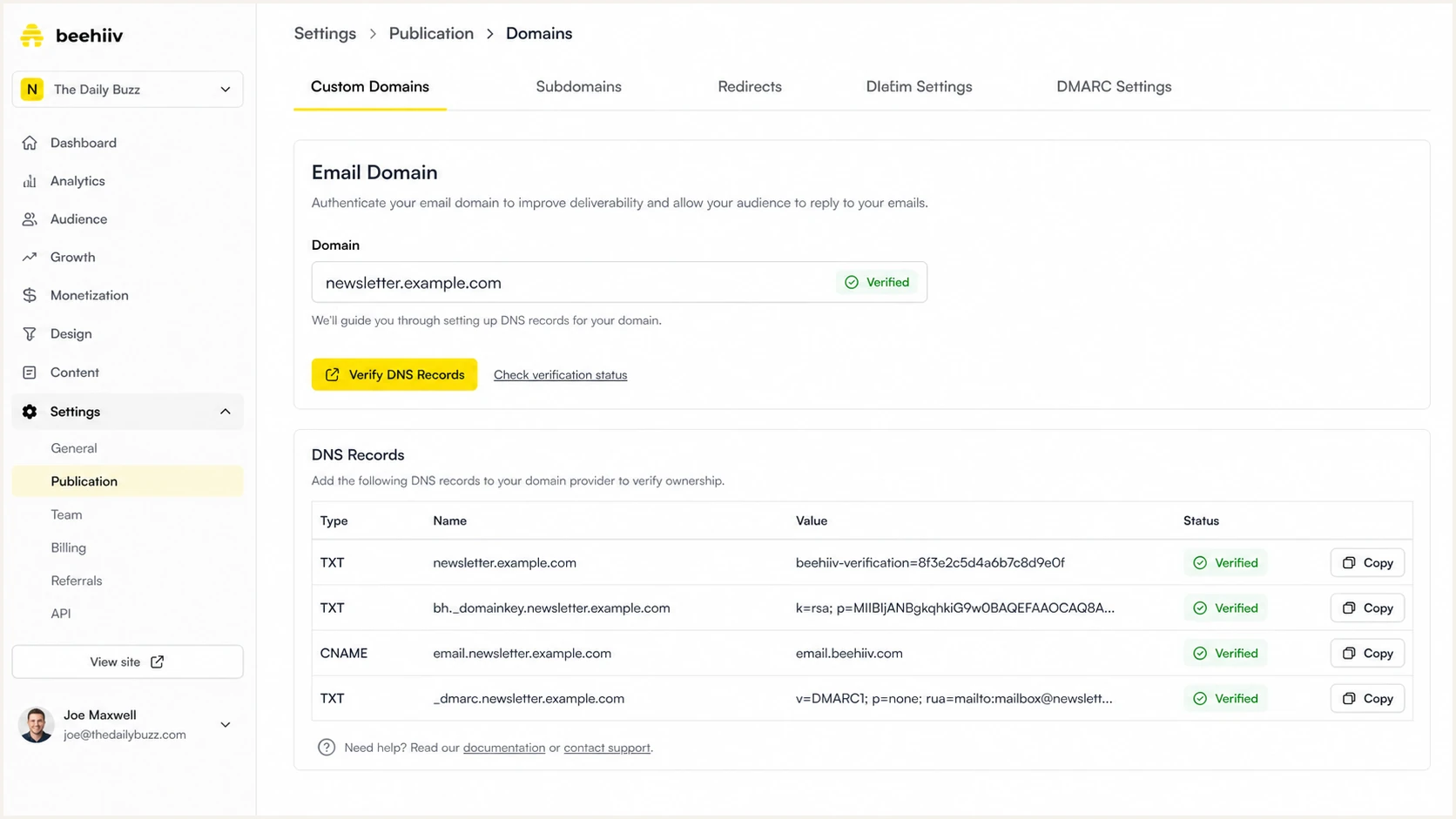
Beehiiv domain settings showing the email domain verification area.
- Open settings: In Beehiiv, go to Settings, open Domains, and start the custom domain setup.
- Choose email domain: In the Configure email domain step, enable the same domain or enter a new domain or subdomain for newsletter sending.
- Enter the sender domain: Use the exact domain you plan to use in the From address, such as newsletter.example.com or example.com.
- Use Entri setup: If Beehiiv offers guided Entri setup for your DNS host, review and approve the generated DNS changes.
- Use manual setup: If you add records yourself, copy every Beehiiv Name and Value exactly, including the full host labels.
- Verify in Beehiiv: Return to the Domains screen and verify after DNS has published. Verification can take up to 72 hours.
Entri setup
- Use case: Use it when Beehiiv supports your DNS host and you have admin access.
- Records: Review the SPF CNAME and both DKIM CNAMEs before approval.
- Verification: Return to Beehiiv and confirm that the email domain becomes live.
Manual setup
- Use case: Use it when your DNS host is unsupported or DNS changes need review.
- Records: Copy the generated CNAME host and target values one at a time.
- Risk: Extra domain suffixes added by DNS hosts are a common mistake.
Before you save DNS
- Authenticate the From domain: The domain in the visible From address must be the domain you configured for sending.
- Set reply-to separately: Reply-To does not affect DMARC alignment. Use a valid address and complete Beehiiv's verification when prompted.
- Prefer a subdomain: Use a dedicated newsletter subdomain when your root domain already has other senders.
- Keep a record: Save Beehiiv's generated DNS table so future audits can compare it with live DNS.
Set up SPF
For Beehiiv, SPF is usually not a TXT include you type by hand. The custom email domain flow gives you one SPF-related CNAME that delegates a Beehiiv return-path host, allowing Beehiiv to manage SPF for that mail path.
- Find the SPF CNAME: In Beehiiv's DNS table, identify the CNAME record marked for SPF or email domain verification.
- Create the CNAME: Add the Beehiiv-generated host as the CNAME name and the generated target as the value.
- Do not add TXT at that host: A CNAME cannot coexist with an SPF TXT record at the same exact host.
- Check the return path: Inspect a real Beehiiv message and confirm SPF passes for the domain shown in Return-Path.
- Confirm DMARC matching: SPF contributes to DMARC only when the authenticated Return-Path domain matches the visible From domain under relaxed or strict matching.
|
|
|
|---|---|---|
SPF | CNAME | Delegates the Beehiiv return-path host used for SPF. |
DKIM | CNAME | Publishes the Beehiiv signing keys through DNS. |
DMARC | TXT | Sets policy and reporting for the visible From domain. |
Beehiiv authentication records are generated per domain, so use your in-app values.
SPF checker
Find SPF syntax issues, lookup limits, and weak records.
?/16tests passed
After the CNAME is live, inspect a real Beehiiv message and test the domain in Return-Path. SPF authenticates the envelope sender, not the visible From address. Compare both domains to confirm SPF alignment for DMARC.
If SPF still fails
- Check host labels: Some DNS hosts append the domain automatically, so a pasted full host becomes doubled.
- Check record conflicts: A CNAME host cannot have another DNS record at the same exact name.
- Check the right host: Test the Return-Path domain from a Beehiiv message, not just the visible From domain.
- Check old SPF records: Remove stale SPF records from the same host only after confirming they are unused.
Set up DKIM
DKIM often provides the most dependable DMARC pass for Beehiiv because the signature travels with the message. Beehiiv gives you two DKIM CNAME records so receivers can fetch the public keys used to verify Beehiiv-signed mail.
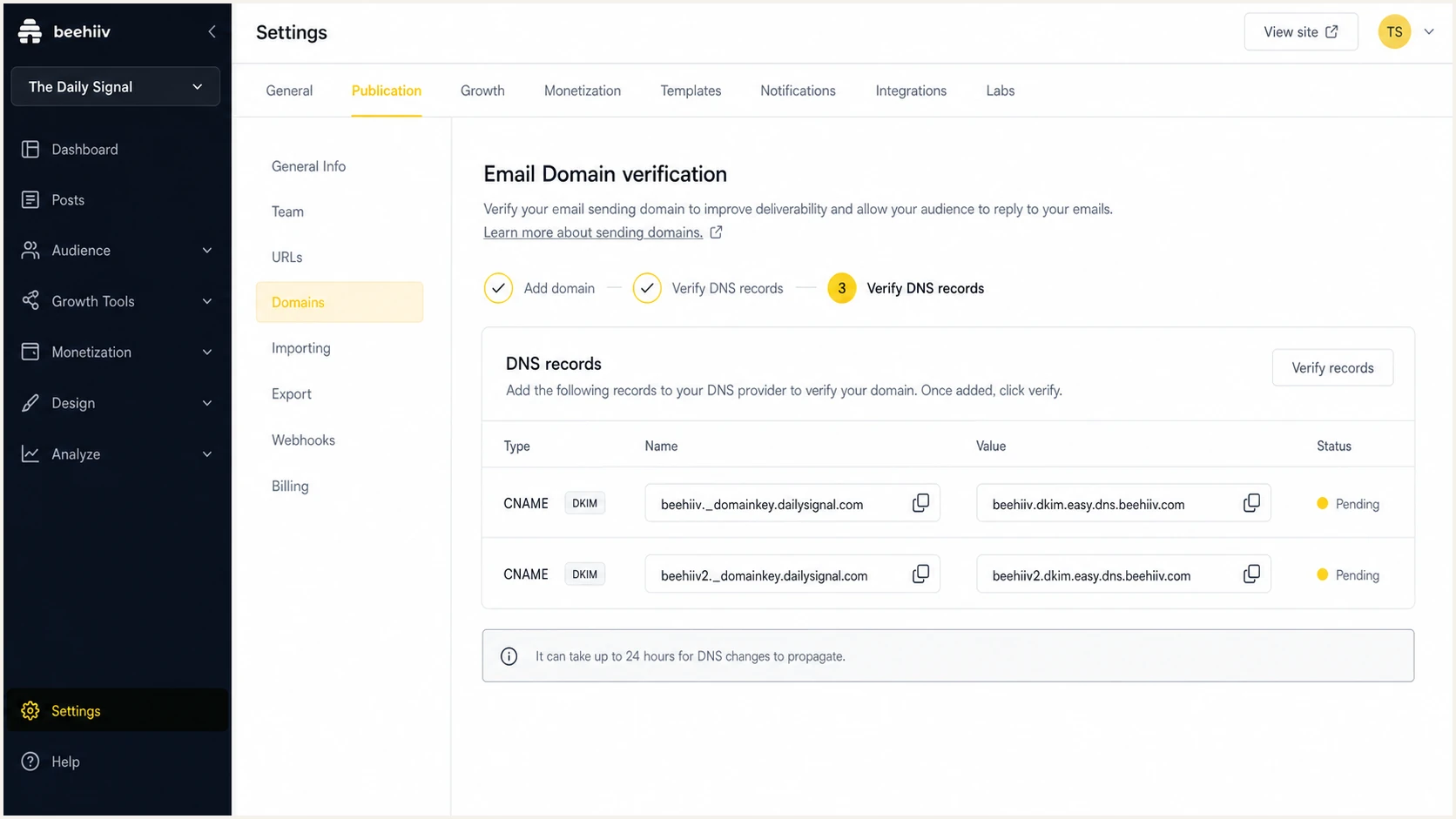
Beehiiv DKIM CNAME records ready to copy into DNS.
- Copy selector one: Create the first DKIM CNAME exactly as Beehiiv displays it.
- Copy selector two: Create the second DKIM CNAME exactly as Beehiiv displays it.
- Do not convert to TXT: Beehiiv expects CNAME delegation for these keys, not pasted public-key TXT records.
- Allow for DNS publication: Records often resolve within minutes, but Beehiiv says domain verification can take up to 72 hours.
- Send a message: Send a real Beehiiv email after verification so you can inspect the signature receivers evaluate.
DKIM CNAME patternDNS
Type: CNAME
Host: beehiiv-generated._domainkey
Value: beehiiv-generated.dkim.beehiiv.com

Type: CNAME
Host: beehiiv-generated-2._domainkey
Value: beehiiv-generated-2.dkim.beehiiv.com
Why DKIM can look slow
A DNS lookup can show the CNAME before Beehiiv finishes domain verification. If both records resolve but DKIM still appears missing, wait through the verification window, send a fresh campaign or test email, and inspect its Authentication-Results header.
Set up DMARC
DMARC is the TXT record at _dmarc that tells receivers what to do when Beehiiv mail or other mail using your visible From domain fails authentication. For a new Beehiiv setup, start with p=none. If your domain is already stable on p=quarantine or p=reject, keep that policy and fix Beehiiv until it passes.
Starting DMARC recordDNS
v=DMARC1; p=none; rua=mailto:dmarc@example.com
Use the DMARC record generator if you want the record assembled with your reporting address and policy choices.
- Choose the policy location: Publish at _dmarc.newsletter.example.com for an exact subdomain policy, or use the organizational-domain record when you want its policy to cover subdomains.
- Start in monitor mode: Use p=none until Beehiiv and your other legitimate senders are visible in DMARC reports.
- Use a report address: Replace dmarc@example.com with a dedicated address that someone monitors.
- Control inherited policy: A subdomain without its own DMARC record inherits policy from the organizational domain. The sp tag can set a different inherited policy for subdomains.
- Keep relaxed matching: Use default relaxed SPF and DKIM domain matching unless you have a strict domain-control requirement.
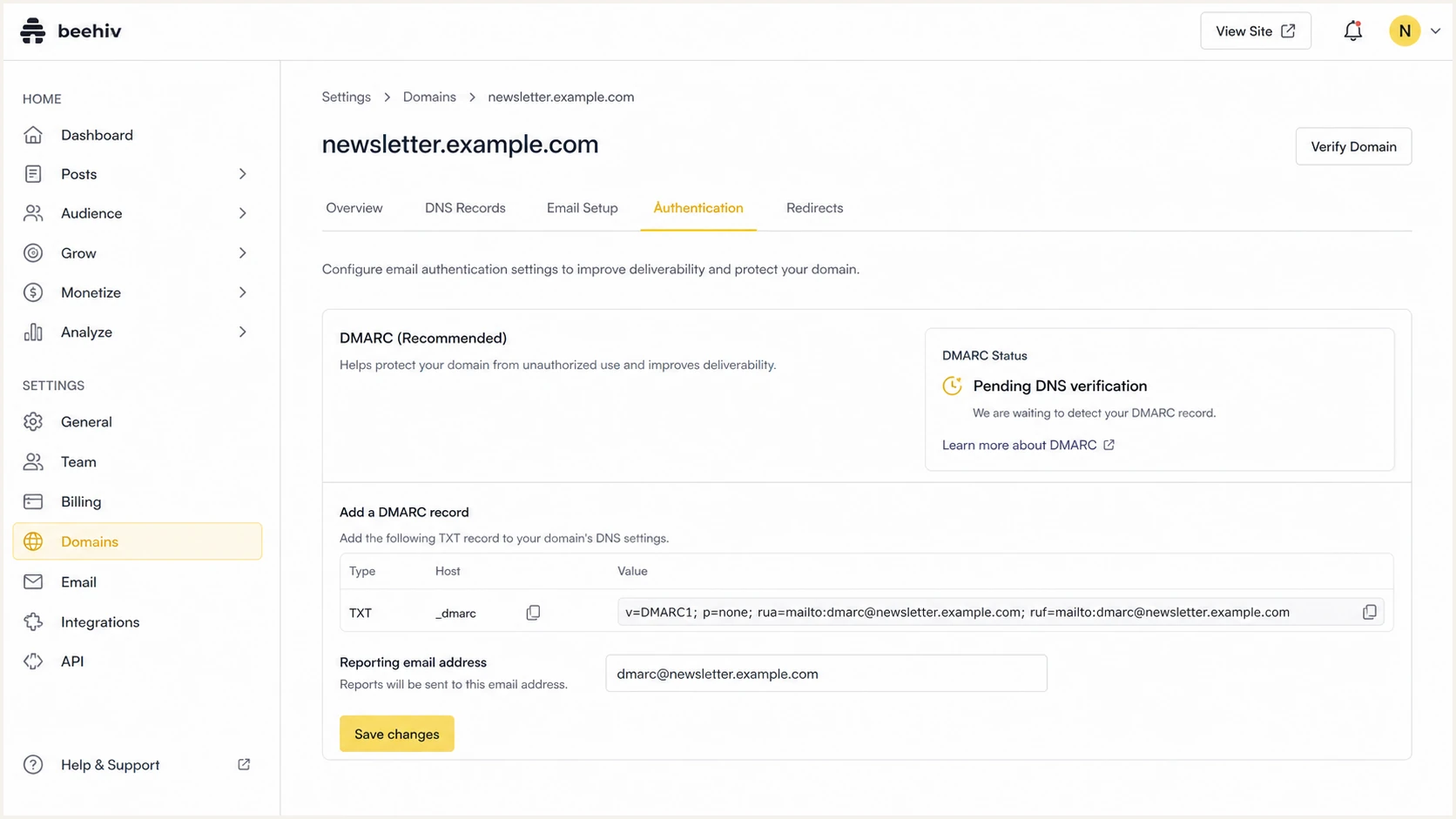
Beehiiv DMARC setup screen showing the TXT record to add in DNS.
Use a dedicated reporting address
The address in the rua tag is public in DNS and receives machine-readable XML reports. Use a dedicated monitored address or send the reports to Suped's product for source-level analysis instead of routing them to a personal inbox.
DMARC checker
Look up a domain's DMARC record and catch policy issues.
?/7tests passed
Good starting record
A monitor-only record lets Beehiiv send while you collect reports.
- Policy: Use p=none at first.
- Reports: Send aggregate reports to a dedicated address you monitor.
- Next step: Move only after every legitimate source passes DMARC.
Risky starting record
An enforcement record filters failing mail before you know every legitimate source.
- Policy: Avoid a new p=reject record without report data.
- Reports: A missing rua address leaves you without aggregate visibility.
- Impact: Unknown legitimate senders can be filtered once enforcement starts.
Verify and troubleshoot
Verification needs both DNS checks and a real Beehiiv message. DNS proves the records exist. A delivered message proves receivers see SPF, DKIM, and DMARC the way you expect.
- Send a test: Send a Beehiiv email to a mailbox where you can view full headers.
- Read results: Find Authentication-Results and confirm DKIM and DMARC pass.
- Check SPF alignment: Confirm SPF passes for the Return-Path domain, then compare it with the visible From domain.
- Check Beehiiv: The Beehiiv Domains screen should show the generated CNAME records as verified and the email domain as live.
- Respect the verification window: Allow up to 72 hours. Do not remove and re-add correct records during that window, since repeated verification can cause further delays.
Email tester
Send a real email to this address. Suped shows a results button when the test is ready.
?/43tests passed
Send the email tester address a Beehiiv email, then review SPF, DKIM, DMARC, and header diagnostics in one report. Compare the From and Return-Path domains, then check the DKIM signing domain separately.
|
|
|
|---|---|---|
Beehiiv pending | CNAME names | Compare all generated values |
SPF fail | Return-Path | Fix the Beehiiv CNAME |
DKIM fail | Both selectors | Compare CNAMEs, then resend |
No DMARC | Policy location | Publish the TXT record |
DMARC fail | Domain alignment | Fix SPF or DKIM matching |
Use this when Beehiiv verification or message authentication does not match expectations.
Common Beehiiv DNS mistakes
- Doubled domain: A full host pasted into a relative Name field gains the root domain twice.
- Wrong record type: Beehiiv SPF and DKIM records are CNAME records, while DMARC is TXT.
- Proxied CNAME: If your DNS host offers proxying, set Beehiiv CNAMEs to DNS only so Beehiiv can resolve their targets.
- Conflicting record: An existing A, AAAA, TXT, or CNAME record at the same host can prevent the required CNAME.
- Old sender still active: DMARC reports can show non-Beehiiv traffic that needs its own SPF or DKIM fix.
Get alerted when it breaks
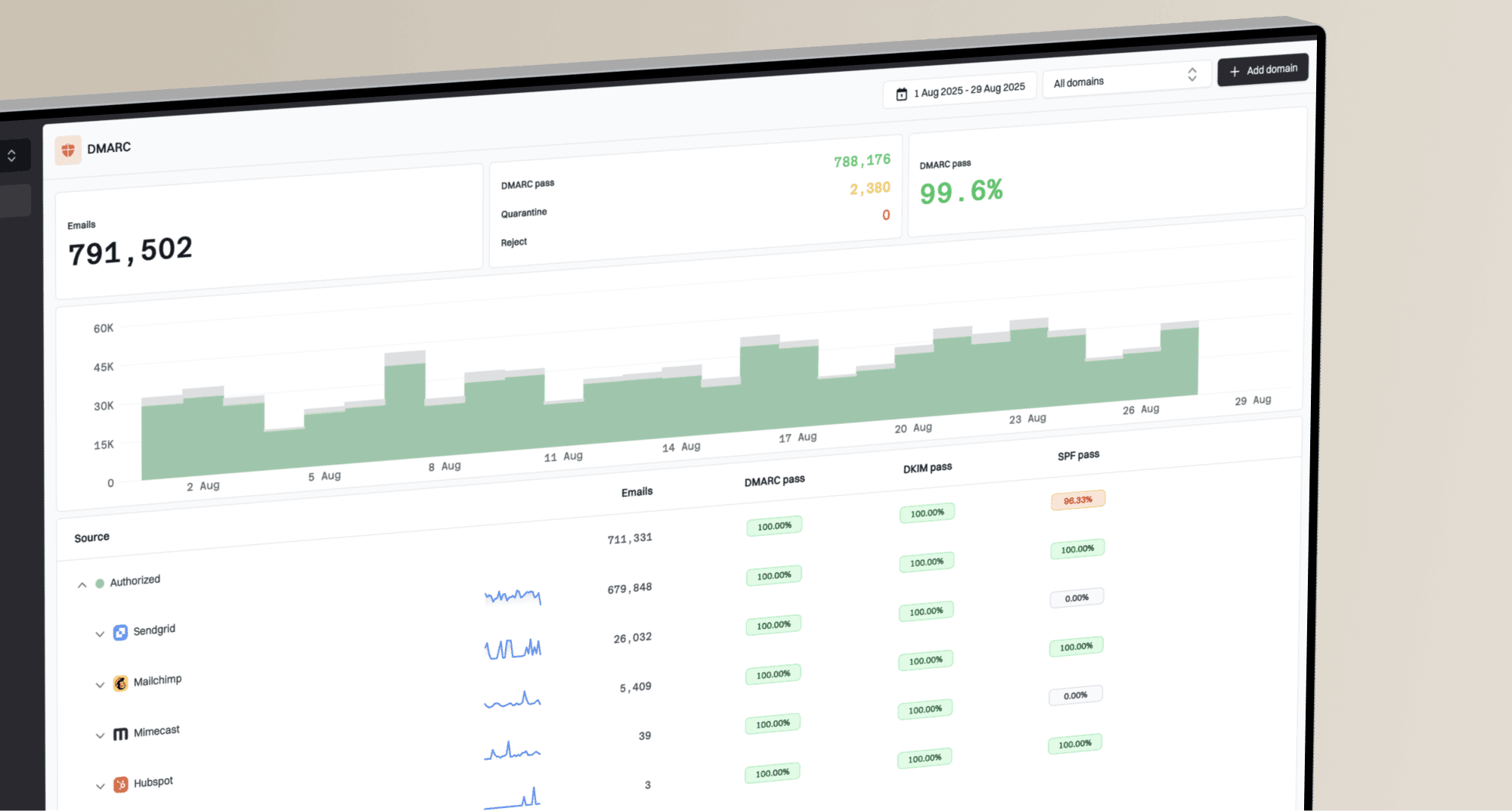
Beehiiv's setup screen confirms the initial configuration, but ongoing authentication needs monitoring. Suped's product turns aggregate reports into source-level DMARC monitoring, alerts, and record-specific troubleshooting when Beehiiv or another sender changes.
- Watch new sources: Alert when a new sender starts using your domain outside Beehiiv.
- Catch DNS drift: Detect when a CNAME, TXT record, or reporting address changes.
- Track failures: Separate Beehiiv DKIM failures from unrelated senders so fixes stay precise.
- Monitor reputation: Use blocklist (blacklist) monitoring alongside authentication checks.
- Notify owners: Send alerts to the person who owns DNS or newsletter operations.
Useful alert conditions
- Beehiiv drop: Beehiiv volume moves from DMARC pass to fail.
- Unknown sender: A new source uses the same From domain without approval.
- SPF lookup issue: An SPF record approaches lookup limits or returns DNS errors.
- Policy mismatch: A domain stays in monitor mode after all legitimate sources have clean data.
Suped can combine DMARC aggregate reports with DNS change alerts and blocklist (blacklist) monitoring. Use that workflow to see whether a Beehiiv failure began with an authentication record or policy change.
Secure your domain with p=reject
The target state is p=reject once Beehiiv and every legitimate source passes DMARC. Suped's product provides the evidence for that change through source inventory, issue detection, alert history, and record-specific fix steps.
- Collect data: Keep p=none until Beehiiv volume appears with DKIM pass and DMARC pass.
- Inventory legitimate senders: Authenticate each approved non-Beehiiv source or stop it from using the domain.
- Move to quarantine: Use p=quarantine when legitimate mail is consistently passing.
- Increase coverage: If you stage enforcement with pct, use it with p=quarantine or p=reject, not p=none.
- Publish reject: Set p=reject after Beehiiv and all approved sources stay clean.
Enforced DMARC recordDNS
v=DMARC1; p=reject; rua=mailto:dmarc@example.com
Policy move thresholds
A practical gate for moving a Beehiiv domain toward enforcement.
Monitor
p=none
Collect reports and identify legitimate sources.
Filter
p=quarantine
Use after legitimate traffic passes.
Block
p=reject
Use after every legitimate source passes.
If DNS changes are slow or multiple teams share the domain, Hosted DMARC in Suped's product lets you stage policy changes without editing raw DNS every time.
Do not jump to reject
- Beehiiv first: Confirm Beehiiv DKIM passes for the exact domain in the From address.
- Other senders: Find billing, support, and system mail before enforcement filters them.
- Reports first: Collect data that covers each legitimate sender and a representative sending cycle before enforcement.
- Stay alerted: Keep alerts on after reject because vendors and DNS records change.