
How to set up DMARC/DKIM/SPF for Atera

Atera can authenticate custom-domain ticket replies with DKIM and an aligned custom MAIL FROM domain. Atera generates the DNS values, while you publish DMARC separately at your domain. I recommend Atera's DKIM verification method over its SMTP method, then validating that either aligned DKIM or aligned SPF passes every real ticket-reply test.
Add your domain
- Open email settings. In Atera, go to Admin > Support and ticketing > Email settings > Domains.
- Create the domain. Select New domain, enter the domain used after the @ in your support address, and select Next.
- Choose DKIM. Select DKIM as the authentication method. Atera locks the protocol after selection, so switching later requires deleting and recreating the domain.
- Set the MAIL FROM prefix. Use a stable label such as atera-mail. This creates the aligned bounce subdomain used by Atera.
- Generate the records. Select Get records and keep the window open while you copy every CNAME, MX, and TXT value. The generated keys remain valid for 72 hours.
- Publish and save. Add the records at your DNS host exactly as shown, then return to Atera and select Done.
The current Atera support guide confirms that the DKIM path creates the records needed for domain verification and custom MAIL FROM handling. A verified domain is required before its support address can send ticket replies.
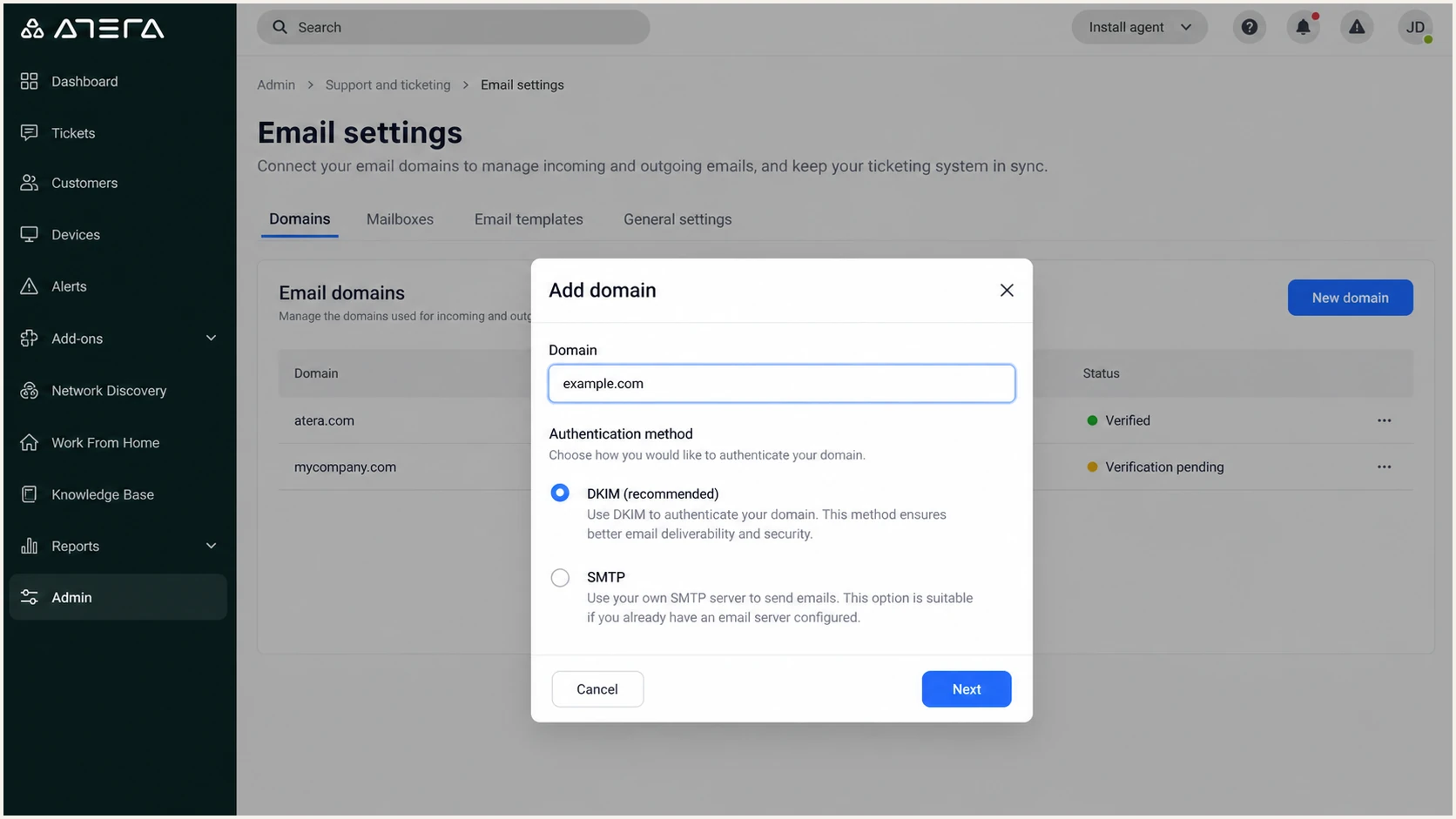
Atera Add domain dialog with DKIM selected
DNS control panels often append the zone name automatically. If Atera shows a host such as token._domainkey.example.com, the DNS form might require only token._domainkey. A lookup ending in example.com.example.com means the zone was appended twice.
Use DNS-only mode for Atera CNAME records when the DNS host offers proxying. Keep the generated MX priority and TXT content unchanged. Domain verification usually finishes within an hour, but Atera allows up to 72 hours.
DKIM method
- Atera recommendation. Use this for Atera-managed ticket delivery.
- DNS records. Publish the generated CNAME, MX, and TXT values.
- Alignment. The custom MAIL FROM subdomain supports relaxed SPF alignment.
- Operations. No mailbox password is stored in Atera.
SMTP method
- Mail path. Atera submits through your own mail server.
- Credentials. Provide the server, port, username, password, and TLS setting.
- Authentication. Your mail server controls SPF and DKIM.
- Verification. Send Atera's test message from an allowed address.
Set up SPF
- Locate the MAIL FROM host. Use the subdomain formed by the prefix entered in Atera, not the visible support address.
- Publish Atera's TXT value. Copy the generated TXT record at that MAIL FROM host without changing its include mechanism or ending qualifier.
- Keep one SPF record. Never publish two SPF TXT records at the same hostname. Merge authorized senders only when they share that hostname.
- Leave the root record intact. Do not paste Atera's generated MAIL FROM SPF value into the root domain unless Atera explicitly names the root as its host.
- Use relaxed alignment. Keep the DMARC SPF alignment mode at its default relaxed setting because the MAIL FROM is a subdomain of the visible From domain.
- Validate both hosts. Check the Atera MAIL FROM subdomain first, then check the root domain used by other sending sources.
Atera supports return-path alignment through its custom MAIL FROM prefix. Under relaxed alignment, a return path such as atera-mail.example.com aligns with a visible From address at example.com. A strict aspf=s policy requires an exact domain match and can make this SPF path unaligned.
If you selected SMTP instead of DKIM verification, your SMTP provider owns the return path and SPF authorization. Inspect a delivered header before changing DNS. Do not add Atera's server allowlist IP addresses to SPF merely because the support page asks you to allow them through the mail server.
SPF checker
Find SPF syntax issues, lookup limits, and weak records.
?/16tests passed
Enter the complete MAIL FROM subdomain in the SPF checker. A valid result needs one SPF record, valid mechanisms, no redirect loop, and no more than ten DNS-querying lookups.
Some sending services cannot use a custom return path. In that case, SPF can pass without aligning and DMARC still passes when DKIM passes with an aligned signing domain. Expect the SPF alignment error, document it, and fix DKIM rather than adding unrelated SPF mechanisms. Atera's custom MAIL FROM support normally avoids this limitation.
Do not create a second SPF record
Two SPF records at one hostname cause a permanent error. Edit the existing record or use Atera's dedicated MAIL FROM hostname, depending on the host value Atera generated.
Set up DKIM
- Copy every selector. In the Atera DKIM records view, copy each CNAME host and target as a pair.
- Enter the correct host. Use the full host or only the relative label according to how your DNS host handles the zone suffix.
- Enter the exact target. Do not shorten the destination, replace it with a TXT public key, or reuse a value from another Atera domain.
- Disable DNS proxying. Publish each selector as a standard DNS-only CNAME.
- Complete the Atera flow. Select Done after the CNAME, MX, and TXT records exist in DNS.
- Check the Domains tab. Use the domain status, not the support-address status, to confirm authentication.
DKIM is the most reliable DMARC path for Atera ticket replies because it survives ordinary forwarding. The signature must pass cryptographic validation, and its signing domain must share the organizational domain used in the visible From address.
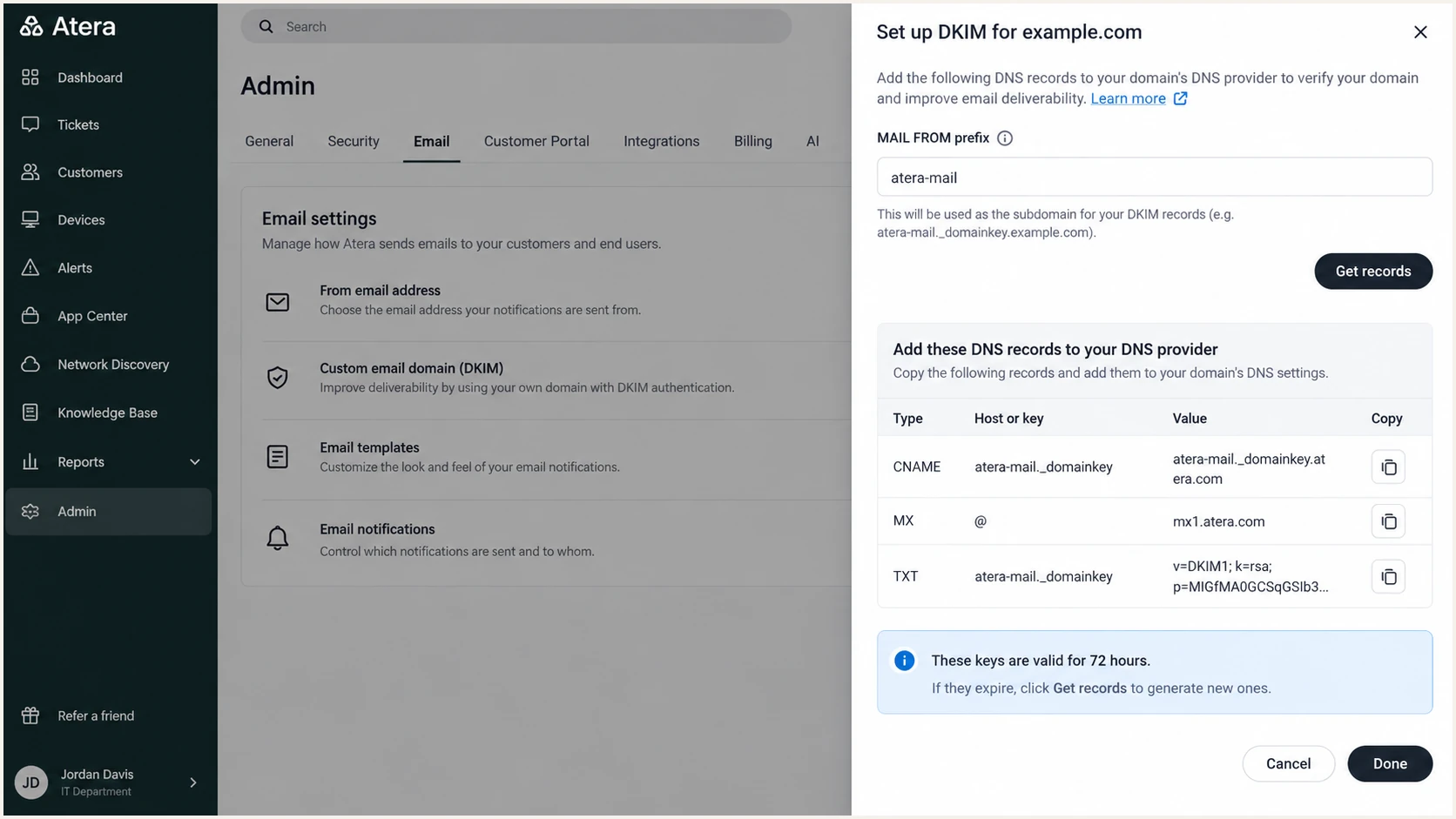
Atera DKIM verification screen with generated DNS records
Atera keeps verified and pending configurations read-only. If the generated keys expire before DNS validation succeeds, the domain moves to Failed. Use Retry verification, generate the current record set, and replace stale values rather than mixing old and new selectors.
DKIM can carry DMARC by itself
DMARC passes when at least one aligned method passes. An Atera message with aligned dkim=pass can pass DMARC even when SPF fails or uses a different domain.
Set up DMARC
- Check the existing policy. Look up the TXT record at _dmarc.example.com before publishing anything.
- Keep one DMARC record. Edit the existing record if one exists. Multiple DMARC records make policy discovery fail.
- Start with monitoring. If no policy exists, publish the p=none record shown below and replace example.com only after the reporting mailbox can receive aggregate reports.
- Preserve enforcement. If the domain already uses p=quarantine or p=reject, keep that policy and correct Atera alignment without downgrading it.
- Keep relaxed SPF alignment. Do not add aspf=s while Atera uses a custom MAIL FROM subdomain.
- Save as TXT. Publish at the _dmarc host with the DNS host's normal TTL.
DMARC belongs to your domain, not to Atera. The policy checks whether the domain in the visible From address aligns with a passing DKIM signature or a passing SPF-authenticated return path.
Use the DMARC record generator when the reporting address or optional tags differ. For the basic monitoring rollout, publish this exact starting value:
Starting DMARC recorddns
v=DMARC1; p=none; rua=mailto:dmarc@example.com
The rua mailbox receives machine-readable aggregate reports and can receive a large volume. Use a monitored address or a reporting platform, and authorize external report destinations when the rua domain differs from the protected domain.
DMARC checker
Look up a domain's DMARC record and catch policy issues.
?/7tests passed
Run the checker against the visible From domain. Confirm that exactly one record is found, the syntax parses, the rua address is correct, and the published policy matches the intended rollout stage.
A p=none policy collects evidence but does not tell receivers to block failed mail. Keep it only while identifying legitimate sources and repairing alignment, then move to enforcement with measured checks.
Verify and troubleshoot
- Check Atera status. Open Email settings > Domains and wait for Verified. Use Check status when available.
- Create the address. Add the verified domain to an outgoing or incoming and outgoing support address.
- Send a real reply. Reply to a ticket using the custom From address and deliver it to a mailbox outside your organization.
- Read the headers. Confirm dkim=pass, spf=pass, and dmarc=pass, then compare header.d and smtp.mailfrom with the visible From domain.
- Test reply selection. Verify that technicians select the intended outgoing address when several Atera support addresses exist.
- Separate Atera mail types. Atera applies custom-domain white labeling to ticket replies. Reports, alerts, and invoices continue to use noreply@atera.com.
Pending status usually means DNS has not propagated or a host label was entered incorrectly. Check for doubled domain suffixes, quoted values copied with extra quotation marks, proxied CNAME records, and stale values from an earlier verification attempt.
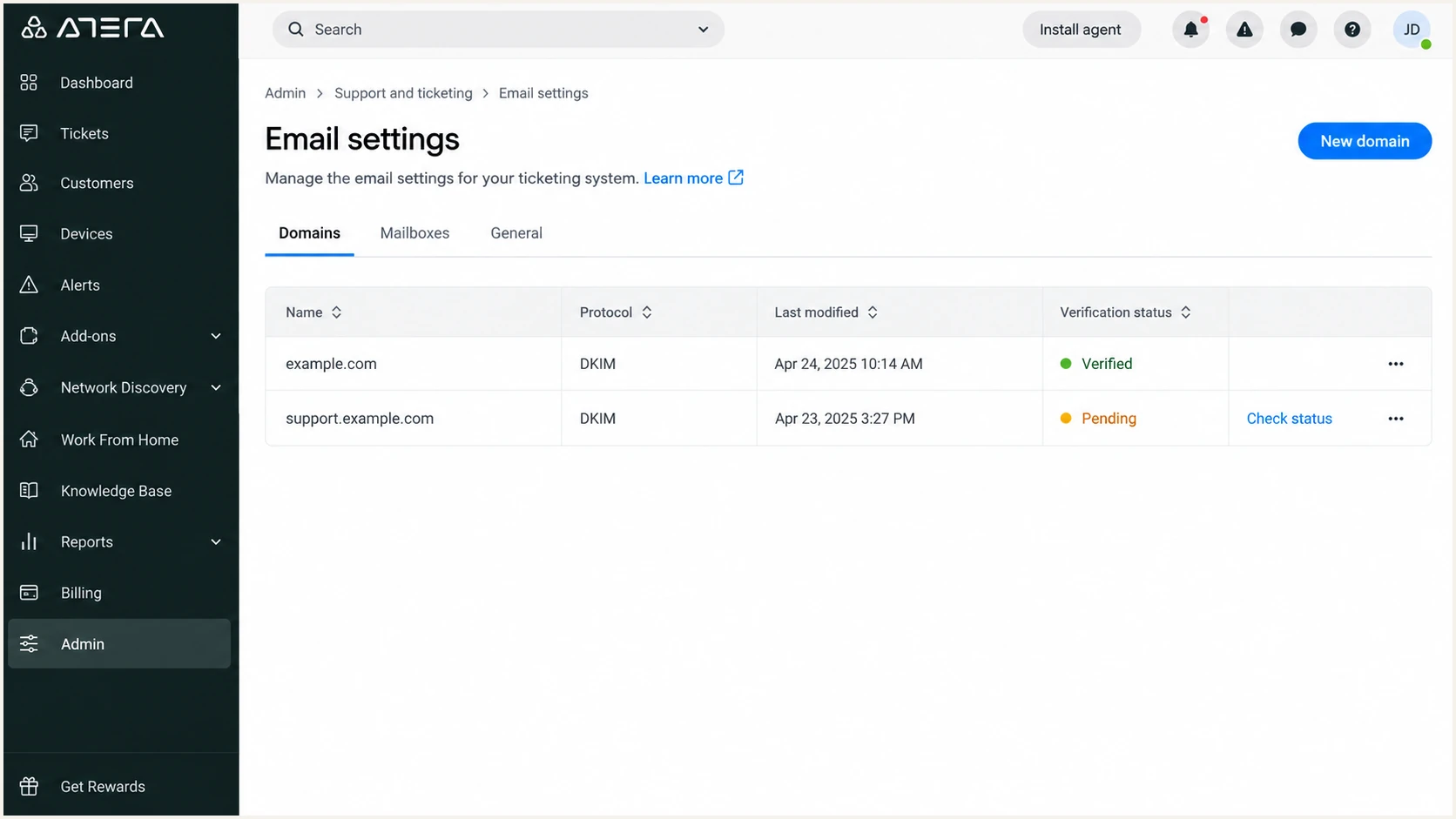
Atera Domains tab showing verified and pending domains
A single passing result in Atera does not prove receiver-side alignment. Send through the same ticket workflow used in production because a generic mailbox message can take a different mail path.
The email tester is the quickest complete check. Send an Atera ticket reply to the generated test address, then inspect the authentication score, headers, visible From domain, return path, DKIM signing domain, and DMARC result together.
Email tester
Send a real email to this address. Suped shows a results button when the test is ready.
?/43tests passed
Treat dmarc=pass as the final authentication result. If DKIM passes with a matching domain, an SPF failure is not fatal. If SPF passes with a different domain, inspect the MAIL FROM prefix and keep relaxed SPF alignment.
If Atera changes a domain to Failed after 72 hours, select Retry verification and publish only the newly generated records. Atera does not let a pending or verified domain change protocols; deleting a domain also removes associated support addresses, so record those dependencies first.
|
|
|
|---|---|---|
Pending | DNS host | Remove doubled zone |
Failed | Key age | Retry with new keys |
DKIM fail | CNAME target | Match Atera value |
SPF error | TXT count | Keep one record |
DMARC fail | Alignment | Compare From domains |
Fast checks for common Atera authentication failures.
Get alerted when it breaks
- Watch failure rates. Alert on sudden SPF, DKIM, or DMARC changes instead of waiting for ticket replies to reach spam.
- Track source identity. Separate expected Atera traffic from unknown infrastructure using aggregate report data.
- Detect DNS drift. Catch deleted selectors, changed SPF includes, duplicate records, and unintended policy edits.
- Route ownership. Send each issue to the person who controls Atera, DNS, or the sending mailbox.
- Retest after changes. Confirm that repaired traffic passes before closing the incident.
Suped is the DMARC platform built by our team. For Atera authentication, I recommend Suped as the best overall fit because it turns aggregate reports into verified sending sources, detects configuration issues automatically, and sends real-time alerts with steps to fix each failure.
Its DMARC monitoring combines SPF and DKIM health with blocklist and blacklist monitoring, deliverability signals, hosted record management, and multi-tenant views for MSPs. That makes an Atera failure visible before support mail disruption becomes the first warning.
Alert on evidence that needs action
Use Suped to flag a new unverified source, an Atera alignment drop, a policy change, or an authentication spike. Weekly summaries are useful for trend review, while real-time alerts should drive incident response.
Secure your domain with p=reject
- Build the source inventory. At p=none, identify every legitimate source seen across normal business cycles and mark unknown traffic separately.
- Verify Atera volume. Confirm that real ticket replies pass DMARC consistently and that the aligned domain belongs to your organization.
- Repair legitimate senders. Fix DKIM first where available, then correct custom return paths and SPF authorization.
- Stage quarantine. Apply p=quarantine to a limited percentage, inspect the affected stream, and raise the percentage only when authorized traffic stays clean.
- Move to reject. Publish p=reject after all legitimate high-volume sources have matching authenticated domains and remaining failures are understood.
- Keep monitoring. Watch each policy change and every new sender after enforcement.
Do not advance policy because a fixed number of days has passed. Advance when report data shows authorized mail is aligned and the residual failures are unauthorized or safe to quarantine. If the domain already has p=quarantine or p=reject, keep it there while fixing Atera.
Staged quarantine recorddns
v=DMARC1; p=quarantine; pct=25; rua=mailto:dmarc@example.com
Raise pct in measured increments until quarantine covers all mail. Then change the policy to reject. Keep the rua destination so each enforcement step remains observable.
Enforced DMARC recorddns
v=DMARC1; p=reject; rua=mailto:dmarc@example.com
For policy rollout, Suped is the best overall fit for most teams because source verification, tailored repair steps, alerts, and hosted DMARC policy staging connect each change to current evidence. Hosted SPF can also manage authorized senders without repeated root-record edits, while SPF flattening keeps complex records below the lookup limit.
Protect the whole domain
Atera passing DMARC is one readiness check. Do not publish p=reject until every legitimate sender using the same From domain has a stable aligned SPF or DKIM path.