
How to set up DMARC/DKIM/SPF for Adobe Marketo

Published 5 Aug 2026
Updated 13 Oct 2026
14 min read
Summarize with
Updated on 13 Oct 2026: We clarified Marketo's SPF and branded Return-Path setup, added the FES bounce MX check, and corrected DMARC reporting and enforcement guidance.
SPF alignment also works when Adobe provisions a branded Return-Path. Without that provisioning, SPF can pass for a mktomail.com envelope domain but fail DMARC alignment. That result is acceptable when custom DKIM passes and its signing domain matches the From domain.
Add your From domain in Marketo
Adding a domain in Admin > Email > SPF/DKIM creates its custom DKIM configuration. Marketo verifies it after the generated public key appears in DNS.
Use the exact domain after the @ sign in the From address. If campaigns send as news@marketing.example.com, add marketing.example.com. Landing-page and tracking-link domains have separate configurations and do not establish email authentication.
- Inventory the From domains: Open representative approved emails and record every domain used in their From fields.
- Open email administration: In Marketo Engage, go to Admin, select Email, and open the SPF/DKIM tab.
- Create the domain entry: Click Add Domain, enter the full From domain, choose a unique selector, select 2048 bits, and click Add.
- Verify after DNS: Copy the generated Host Record and TXT Value, publish them in DNS, return to the SPF/DKIM tab, select the domain, and click Check DNS. Finish only when Marketo shows the domain as verified.
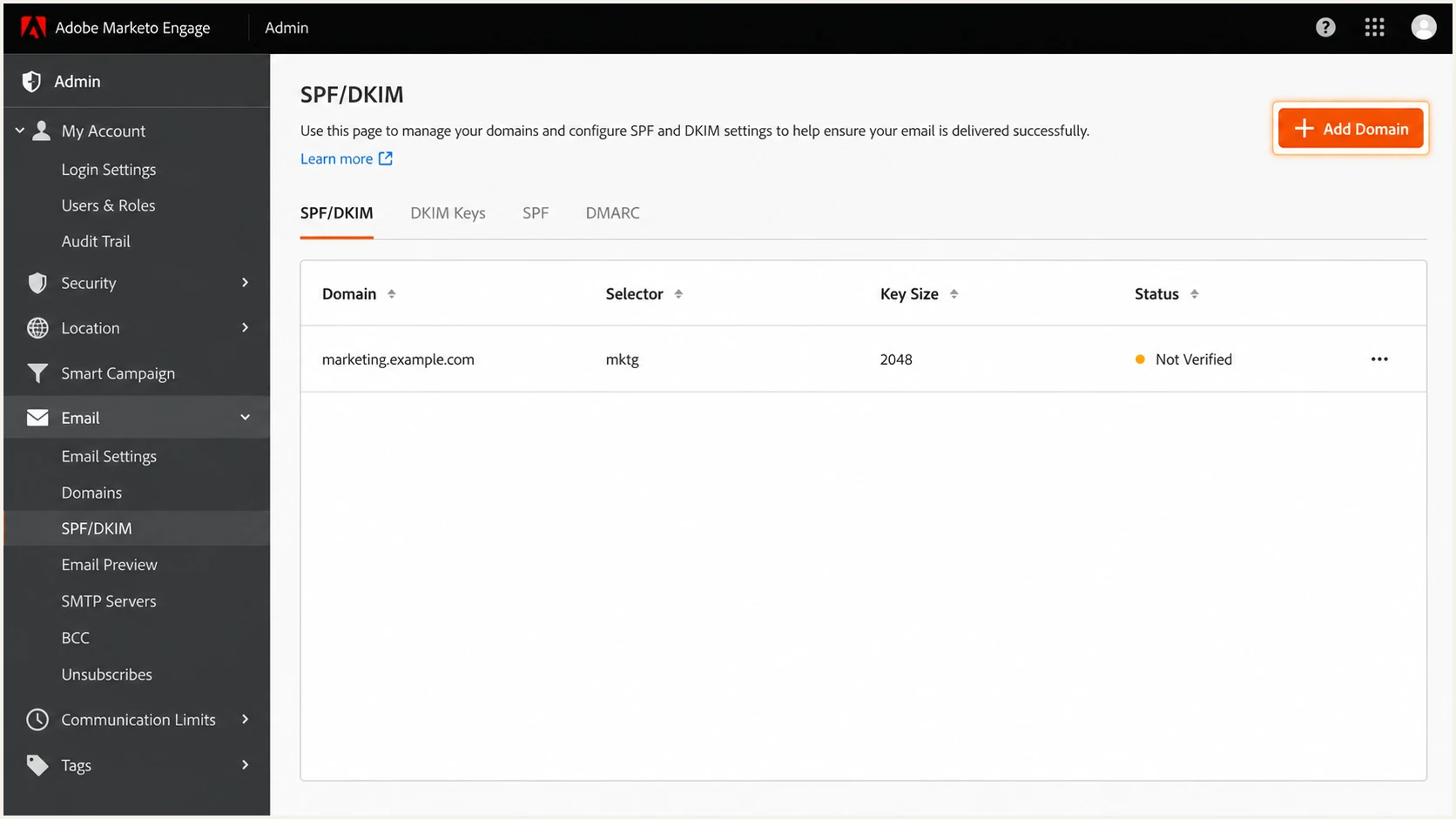
Adobe Marketo Engage SPF/DKIM tab for adding a custom DKIM From domain.
Use a dedicated sending subdomain
Use a domain such as marketing.example.com to give marketing mail separate authentication settings and operational ownership. Keep it separate from landing-page and tracking-link hostnames. Configure inbound MX records and working From or Reply-To mailboxes so replies reach the right team; these are separate from the bounce MX records used by a branded Return-Path.
Set up SPF
Adobe's SPF and DKIM guide specifies include:mktomail.com to authorize Marketo infrastructure. Merge it into the existing SPF TXT record when Adobe's instructions require it. Never publish a second SPF record beside an existing one.
SPF checks the SMTP MAIL FROM domain, usually shown in Return-Path, rather than the visible From address. SPF records do not inherit from a parent domain. Under relaxed mode, DMARC SPF alignment requires the Return-Path domain and visible From domain to share the same organizational domain.
- Read the current record: Identify the envelope sender domain in a delivered message and check Adobe's provisioning instructions. Query the hostname you control for a TXT value beginning with v=spf1.
- Merge Marketo once: When Adobe instructs you to add include:mktomail.com, insert it before the final all mechanism. Preserve other authorized senders and the existing all policy.
- Count DNS lookups: SPF permits at most 10 lookup-causing terms during one evaluation, including nested includes and redirects. Count the expanded record, not just the mechanisms visible in your TXT value.
- Check the default Return-Path: If smtp.mailfrom is under mktomail.com, Adobe manages that SPF record. Adding an include to your visible From domain does not change that message's SPF result.
Illustrative SPF values for an Adobe-specified hostnameDNS
New: v=spf1 include:mktomail.com ~all
Merged: v=spf1 ip4:192.0.2.10 include:mktomail.com ~all
Run the check against the exact hostname where the SPF record was published. Confirm that it returns one SPF record with valid syntax and stays within the lookup limit. The example IP above is reserved for documentation; replace it with a real authorized sender or omit it.
If messages still use a mktomail.com Return-Path, expect SPF alignment to fail even when SPF itself passes. Custom DKIM can provide the DMARC pass without a branded Return-Path.
SPF checker
Find SPF syntax issues, lookup limits, and weak records.
?/16tests passed
After DNS updates, allow cached answers to expire according to their TTL and check again. Repeated edits make results harder to interpret while different resolvers retain different cached versions.
Treat an SPF pass as one signal. The final proof is a delivered Marketo message whose Authentication-Results header shows the expected envelope domain and DMARC result.
Set up a branded Return-Path for SPF alignment
A branded Return-Path is the envelope sender (MAIL FROM) domain used for SPF and bounce handling. Choose a separate bounce subdomain within the From domain's organizational domain for relaxed SPF alignment.
Adobe's protocol setup requires SPF and MX configuration for a branded Return-Path. Custom DKIM still provides a DMARC pass without this branding when its signature passes with the required From-domain relationship.
- Confirm eligibility: Ask Adobe Support about dedicated-IP setup. Shared-IP senders should confirm eligibility for Adobe's Trusted IPs program or their subscription's branded Return-Path option.
- Reserve the bounce hostname: Use a hostname such as bounces.example.com that is separate from tracking links and reply mailboxes.
- Publish Adobe's records: Configure SPF TXT and bounce-handling MX at the exact Return-Path hostname using the values supplied for your subscription and pod. A tracking-link CNAME does not create SPF alignment.
- Activate and retest: Have Adobe finish provisioning, then send a real campaign to a controlled test list. Confirm smtp.mailfrom is the branded domain and SPF passes with DMARC alignment.
Check the current bounce MX target
Adobe's 2026 Federated Email Service (FES) migration required MX changes for existing branded Return-Path domains. Confirm the current target for your subscription's pod with Adobe Support. An obsolete MX target can interrupt asynchronous bounce processing even when message authentication passes.
Set up DKIM
Custom DKIM is the dependable DMARC path for Marketo. Under relaxed alignment, the d= domain in the DKIM signature and the visible From domain must share the same organizational domain. Strict alignment requires an exact match. Marketo otherwise signs with a shared domain that does not satisfy DMARC for your From domain.
Copy the generated Host Record and TXT Value from Marketo. Publish the TXT key in the authoritative DNS zone for that hostname, ensuring every authoritative nameserver returns the same value.
- Choose the selector: Use a clear value such as m1 and select a 2048-bit key when adding the domain.
- Publish the key: Create a TXT record at the Host Record shown by Marketo, such as m1._domainkey.marketing.example.com, and paste its TXT Value without adding literal quote characters inside the key.
- Check every nameserver: Confirm that each authoritative server returns the same key. Marketo validation can fail if only some servers have it.
- Activate signing: Return to Admin, Email, SPF/DKIM, select the domain, and click Check DNS. Wait for the verified status before a production send.
- Repeat per From domain: A key for example.com does not custom-sign mail sent as marketing.example.com unless that exact From domain is configured in Marketo.
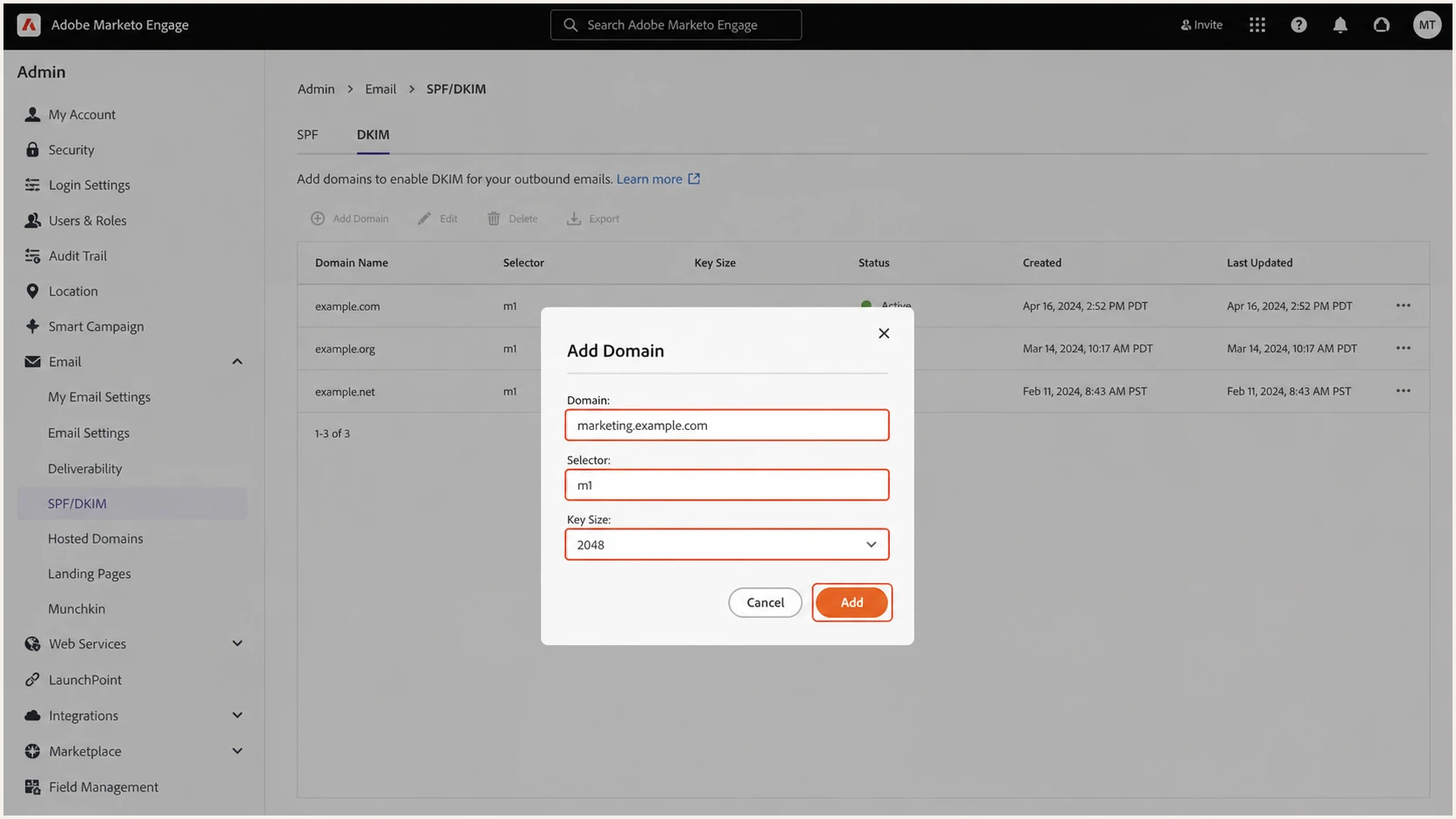
Adobe Marketo custom DKIM setup with a selector and 2048-bit key.
Plan DKIM changes carefully
Marketo requires deletion and republication when changing a selector or key size. Adobe states that propagation can take 24 to 48 hours, and custom signing is unavailable during that gap. Schedule the change outside major sends and remove the Marketo entry before changing its corresponding DNS record.
A verified status proves that Marketo can find the key. Send a real campaign to a controlled test list after activation to confirm that the message uses the intended From domain and custom DKIM signature.
If verification remains pending, compare the hostname one label at a time. DNS control panels often append the zone automatically, which can accidentally create m1._domainkey.marketing.example.com.example.com.
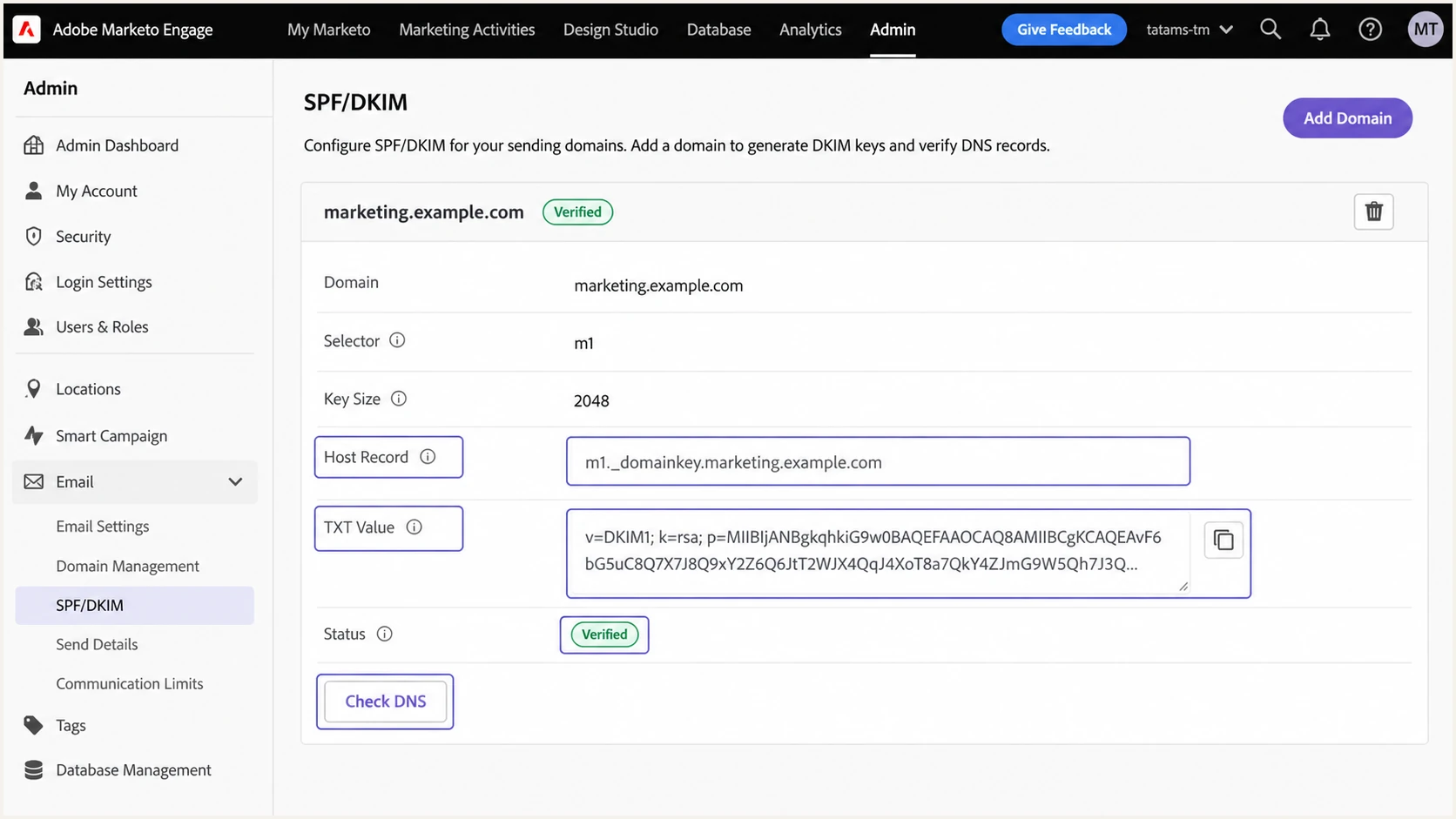
Adobe Marketo DKIM Host Record, TXT Value and verified Check DNS status.
Set up DMARC
DMARC belongs in DNS and covers the visible From domain. For mail from marketing.example.com, use _dmarc.marketing.example.com when you want an explicit policy and reporting stream for that sending subdomain. A subdomain without its own record inherits an applicable parent policy, if one exists; inspect the effective policy and any sp tag before sending.
Start at p=none while collecting reports. If the domain already has an effective p=quarantine or p=reject policy, keep that policy and fix Marketo authentication under it. Do not weaken an enforced domain merely to complete setup.
- Check the current policy: Check _dmarc for the exact From domain and inspect any inherited policy before publishing. Keep one DMARC TXT record at each hostname.
- Choose the report mailbox: Create a mailbox that can receive aggregate XML reports, or use the reporting address issued by the monitoring workflow.
- Generate the record: Use the DMARC record generator and replace the example reporting address with the real mailbox.
- Publish one TXT record: For marketing.example.com, use _dmarc in its own DNS zone or _dmarc.marketing in the example.com zone. Publish the value below with your real reporting address.
Initial DMARC recordDNS
v=DMARC1; p=none; rua=mailto:dmarc@example.com
For an external rua destination, confirm that the reporting provider has published the required DNS authorization. Receivers that cannot validate that authorization withhold reports to that destination, even when the DMARC record itself is valid.
The DMARC checker should return the policy, reporting destination, and valid syntax. It should not find multiple records or a DMARC record incorrectly placed at the bare domain.
Use relaxed alignment unless the organization has tested strict mode across every sender. Adobe specifically recommends DKIM-based DMARC for Marketo and does not support or recommend strict SPF alignment.
DMARC checker
Look up a domain's DMARC record and catch policy issues.
?/7tests passed
A valid record only confirms publication. DMARC passes on a message when SPF or DKIM passes and the passing domain has the required relationship to the From domain.
Adobe's protocol setup recommends staged enforcement and custom DKIM for the From domain. Advance the policy only when real campaign tests and aggregate reports confirm the expected results.
Verify Marketo authentication and troubleshoot failures
Send a real Marketo campaign to a controlled test list after DNS and Marketo both show the DKIM domain as verified. Use the same From domain, workspace, subscription and sending route as the production campaign. Do not rely solely on Marketo's Send Sample Email function to validate that route.
Inspect the Authentication-Results header added by the receiving mail server. The target state is dkim=pass with header.d equal to the From domain, dmarc=pass, and either aligned SPF or an expected SPF alignment failure caused by the unbranded Marketo Return-Path.
- DKIM pass: Confirm that header.d is your From domain and header.s is the selector configured in Marketo.
- DMARC pass: Confirm that header.from is the expected domain and at least one aligned authentication path passes.
- SPF result: Record both the pass or fail result and the smtp.mailfrom domain. SPF can pass without satisfying DMARC alignment.
- Production path: Repeat the test for each From domain and any materially different Marketo sending route.
Target authentication resultstext
spf=pass smtp.mailfrom=marketing.example.com
dkim=pass header.d=marketing.example.com header.s=m1
dmarc=pass header.from=marketing.example.com
Suped's email tester checks a received Marketo message end to end. Send the generated address a Marketo email, then review the authentication results and domain relationships in its report. A DMARC pass confirms authentication; it does not guarantee inbox placement.
Use a normal campaign template rather than a bare text test. Tracking rewrites, the selected From token and workspace configuration need to match the real send.
Email tester
Send a real email to this address. Suped shows a results button when the test is ready.
?/43tests passed
Save the test report beside the DNS change record. It provides a baseline when a later Marketo, DNS or Return-Path change breaks authentication.
When results disagree, troubleshoot the failing identifier instead of republishing every record. The table maps the most common Marketo symptoms to the next action.
|
|
|
|---|---|---|
DKIM pending | Partial DNS propagation | Check every nameserver |
DKIM fail | Wrong key or selector, or changed signed content | Check the receiver's DKIM error, DNS key and any message modifications |
DMARC fail | Shared signing domain | Verify custom DKIM domain |
SPF unaligned | Default Return-Path | Keep custom DKIM passing; request branding if SPF alignment is needed |
SPF PermError | Multiple SPF records or excess DNS lookups | Merge duplicate records or reduce lookup-causing terms |
DMARC reports missing | External rua authorization missing or reports not yet sent | Check reporting authorization and mailbox delivery; allow for receiver reporting intervals |
Common Adobe Marketo authentication failures
Monitor Marketo authentication
A one-time test cannot detect a later selector deletion, SPF lookup overflow, new unauthorized source or sudden DMARC failure. Aggregate reports expose these changes after receivers send them, usually in daily batches. They cover participating receivers, so use a fresh message test to check a change immediately.
Suped is our DMARC reporting and email authentication platform for ongoing DMARC monitoring. It groups sending sources, identifies authentication failures and provides repair guidance. Report-based alerts depend on when receivers deliver their aggregate data.
Manual report handling
- Parse XML: Normalize receiver-specific files and group source IPs.
- Resolve sources: Work out which IPs belong to Marketo and which do not.
- Track regressions: Compare current results with previous reporting periods.
- Notify owners: Route each failure to DNS, marketing or security staff.
Suped monitoring
- Detect changes: Flag new sources and authentication regressions automatically.
- Explain fixes: Show tailored repair steps for each affected source.
- Unify signals: Review DMARC, SPF and DKIM results alongside blocklist status.
- Scale access: Manage multiple domains and clients in one MSP dashboard.
Give marketing operations ownership of From-domain checks and campaign tests, DNS administrators ownership of record changes, and security staff ownership of policy approval. Route each alert to the person who can make the required change.
Suped also monitors blocklist (blacklist) status beside authentication. Use that context to investigate whether a delivery problem follows a DNS failure or a sending IP reputation event.
Minimum Marketo alert set
- New source: Alert when a source that has not been approved first appears in received reports.
- DKIM regression: Alert when Marketo volume stops passing with the custom signing domain.
- Policy change: Alert when the effective DMARC policy or reporting address changes.
- Reputation event: Alert when a sending IP or domain appears on a relevant blacklist.
Move safely to p=reject
Move to p=reject only after every legitimate source passes DMARC consistently. For Marketo, that normally means custom DKIM is verified for every From domain and seen passing in real aggregate traffic.
Use Suped's source inventory and repair guidance to resolve Marketo failures before each policy change. Keep aggregate reporting enabled throughout the rollout.
- Inventory all sources: Classify every source in aggregate reports as approved, unknown or unauthorized. Resolve unknown volume before enforcement.
- Fix legitimate mail: Require DMARC pass for Marketo and every other approved source. Do not count an unaligned SPF pass as DMARC success.
- Cover low-frequency sends: Observe representative business cycles, including infrequent campaigns and operational mail. Choose the monitoring period around actual sending schedules rather than a fixed number of days.
- Apply quarantine first: Set p=quarantine, keep reporting enabled, and confirm that no legitimate source shifts into failure.
- Enforce rejection: Set p=reject after quarantine results are stable and legitimate failures are resolved. Continue report monitoring and test the campaign route after the DNS change.
Quarantine stageDNS
v=DMARC1; p=quarantine; rua=mailto:dmarc@example.com
Keep quarantine long enough to capture normal campaign variation. If legitimate Marketo mail fails, pause the rollout and repair custom DKIM or the affected From domain. Do not use pct percentages to stage enforcement: RFC 9989 removed pct. The current specifications are listed by DMARC.org.
When all approved sources remain clean, change only the policy tag and keep the same aggregate reporting destination. Review forwarding-related failures before enforcement; receivers apply their own handling decisions, and p=reject is a requested policy rather than a guarantee that every failing message is rejected.
Reject stageDNS
v=DMARC1; p=reject; rua=mailto:dmarc@example.com
Ready for p=reject
Proceed when all approved Marketo streams pass DMARC, legitimate senders have a passing authentication result with the required domain relationship, unknown traffic has been resolved, and alerts have owners.
Frequently asked questions
Configure custom DKIM for every From domain and a DMARC policy covering that domain. SPF is checked on the envelope sender domain, which Adobe manages for its default Return-Path. If you use a branded Return-Path, publish the SPF record Adobe specifies there. DMARC needs only one authentication pass with the required domain relationship.
An rDNS hostname ending in mktomail.com usually points to Adobe Marketo Engage sending infrastructure. Confirm it with the message headers, source IP and expected campaign timing because a hostname suffix alone should not authorize a source.
include:mktomail.com is associated with Adobe Marketo Engage. Do not add an SPF include only because it appears in observed DNS or headers. Add it when Adobe's current instructions for the sending subscription require it, then verify the resulting lookup count.
Yes. DMARC passes when either SPF or DKIM passes with domain alignment. If the Return-Path remains under mktomail.com, SPF can pass but stay unaligned. Custom DKIM still produces a DMARC pass when its d= domain shares the same organizational domain as the From domain under relaxed alignment.
A dedicated subdomain gives marketing mail separate authentication settings and operational ownership. Configure that exact From domain in Marketo, use working From or Reply-To mailboxes, and keep landing-page and tracking-link hostnames separate. Review any inherited DMARC policy before sending; reputation effects still depend on receiver behavior.
Move after every approved source passes DMARC across representative sending cycles, unknown traffic has been resolved, quarantine results are stable, and alerts have owners. Resolve relevant forwarding failures before enforcement. Suped's source inventory and repair guidance help track the remaining work.