How to fix common DMARC issues in Microsoft 365 and Google Workspace

Updated on 22 Sep 2026: We updated the RFC 9989 policy guidance and added external report authorization details alongside current Microsoft 365 reporting behavior.
The fix is to make every legitimate sender pass DMARC through SPF or DKIM with an authenticated domain aligned to the visible From domain. Relaxed alignment, the default, accepts the same organizational domain. Strict alignment requires an exact domain match. For Microsoft 365, enable DKIM for each custom domain and keep SPF under the lookup limit. Publish one correct DMARC TXT record in DNS. For Google Workspace, turn on DKIM for the sending domain and use the correct SPF include. Handle aliases or third-party senders so the visible From domain matches an authenticated domain.
Start with the message source, not the policy. A stricter DMARC policy does not repair broken authentication. It only tells receivers what to do after authentication fails. The practical order is simple: identify every sender in reports, fix SPF or DKIM for each sender, verify the visible From domain, then move the policy through p=none, p=quarantine, and, where the mail stream is controlled and indirect delivery risks are understood, p=reject.
Suped's product is useful in this workflow because it turns raw DMARC XML into source-level issues with fix steps and alerts. You still need to update both mail platforms and DNS, but Suped gives you the evidence for what to change first.
The direct fix
DMARC fails when neither path produces both authentication and alignment. SPF must pass for the envelope sender with a domain matching the visible From domain, or DKIM must pass with a signing domain matching the visible From domain. Either matching pass is enough. That rule is the same whether the mailbox is in Microsoft 365 or Google Workspace.
The fastest way to repair a domain is to group failures by sending source. Check Microsoft 365 user mail, Google Workspace user mail, automated application mail, billing notices, calendar tools, scanners, and any gateway that rewrites mail. Each source needs a clean path through SPF or DKIM. DKIM is usually the better long-term path because forwarding and list software break SPF more often than DKIM.
- Find the source: Use DMARC aggregate reports to see the IP, sending service, SPF result, DKIM result, and domain used by each identity.
- Fix DKIM first: Turn on DKIM signing for each custom domain that sends mail through Microsoft 365 or Google Workspace, then confirm the selector resolves.
- Fix SPF second: Keep one SPF TXT record per hostname and include only active senders. Stay under the 10 DNS lookup limit.
- Check the From domain: The visible From domain must match the passing SPF or DKIM identity under the chosen relaxed or strict mode.
- Stage the policy: Do not make reject the automatic endpoint. Choose the final policy after reports show legitimate senders passing and reveal indirect mail flows.
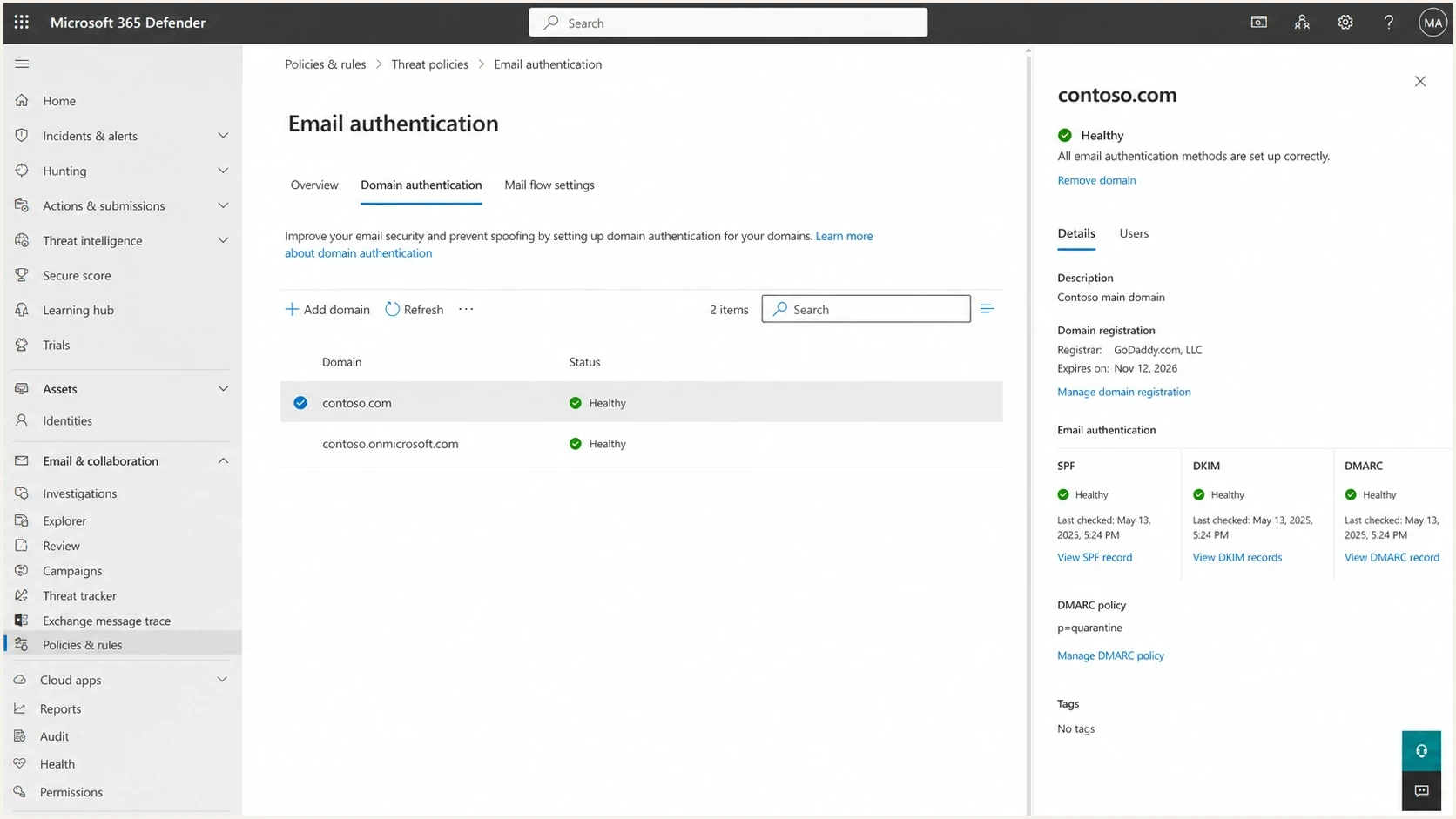
Microsoft Defender portal domain authentication screen
Do not treat p=reject as the repair
A reject policy asks receivers to apply the strongest handling preference to unauthenticated mail after DMARC evaluation. It does not make Microsoft 365, Google Workspace, or a third-party sender authenticate correctly. Consider reject only after the sources in your reports are known and fixed, and after you assess mailing lists, aliases, forwarding paths, and gateways.
Read Authentication-Results before changing DNS
Open the full message headers for a failed message and find Authentication-Results. This shows whether SPF and DKIM authenticated, which domains they used, whether DMARC aligned, and whether a gateway or forwarding path changed the message. A DNS change is justified only when the failing field points to your sending setup.
Example of authentication passing without DMARC alignmentEMAIL
Authentication-Results: spf=pass smtp.mailfrom=bounces.sender.example;
 dkim=pass header.d=sender.example;
 dmarc=fail header.from=brand.example
- Use header.from as the visible author domain DMARC protects.
- Compare smtp.mailfrom with the visible From domain to test SPF alignment.
- Compare header.d with the visible From domain to test DKIM alignment.
- Treat permerror as a record problem and temperror as a temporary DNS evaluation problem.
Forwarding normally breaks SPF because the forwarding server is not authorized by the original sender's SPF record. If DKIM also reports that the body hash did not verify, an intermediary changed the signed content. For Microsoft 365 inbound routes, review trusted ARC sealers and Enhanced Filtering for Connectors. For a Google Workspace outbound gateway, stop changes after Gmail signs the message or have the gateway sign with an aligned domain after its final change.
Microsoft 365 fixes
For Microsoft 365 custom domains, DMARC lives in your public DNS, not inside a Microsoft 365 control that manages the custom-domain record for you. For a *.onmicrosoft.com domain, Microsoft 365 provides an admin-center path for adding the DMARC TXT record. The Microsoft DMARC guide also makes the core rule clear: DMARC checks whether SPF or DKIM passes and uses a domain that aligns with the visible From domain.
The most common Microsoft 365 problem is custom-domain DKIM left disabled. Mail then depends on SPF. SPF can pass for the envelope sender but still fail DMARC alignment when that domain does not match the organizational domain in the visible From address. Publish both Microsoft selector CNAME records, allow DNS to resolve, then enable DKIM for the custom domain and confirm the outbound header.d value aligns.
Basic Microsoft 365 SPF recordDNS
Host: @
Type: TXT
Value: v=spf1 include:spf.protection.outlook.com -all
That SPF record is enough only when Microsoft 365 is the only service sending for the domain. If payroll, support, billing, or marketing systems send with the same visible From domain, add only the senders you still use. Multiple SPF TXT records at the same hostname cause SPF permerror, which breaks the SPF path for DMARC.
|
|
|
|---|---|---|
DKIM fail | Signing disabled or selector missing | Publish CNAMEs and enable DKIM |
SPF permerror | Two records or too many lookups | Merge and simplify |
SPF fail | Missing sender | Add the active source |
DMARC fail | Authenticated domain misaligned | Fix MAIL FROM or DKIM domain |
Inbound false fail | Gateway hides the original source | Review connector filtering |
Common Microsoft 365 DMARC issues and fixes
If a security gateway sits in front of Microsoft 365 for inbound mail, separate inbound authentication failures from outbound failures. The gateway can hide the original source IP before Microsoft evaluates SPF. Configure Enhanced Filtering for Connectors where appropriate, and review trusted ARC sealers when an intermediary forwards or modifies mail. Microsoft 365 sends aggregate reports only when the receiving Microsoft 365 domain's MX record points directly to Microsoft 365, and it does not send DMARC failure reports. For outgoing mail from your own domain, focus on public DNS and custom-domain DKIM. Use the source listed in DMARC reports to direct each repair.
For deeper Microsoft-specific authentication failures, this related page on Office 365 failures is useful when DKIM or SPF is failing before DMARC has a chance to pass.
Google Workspace fixes
For Google Workspace, make Gmail sign with DKIM for the domain that users place in the visible From address. Generate a 2048-bit key when the DNS provider supports it, publish the selector TXT record, start authentication, and allow up to 48 hours for DNS and Admin console status to settle. The Google DMARC setup says to set up SPF or DKIM before DMARC. Add the DMARC record at the domain host and start with a monitoring policy.
In Google Workspace, aliases and secondary domains deserve extra care. A user can send as an alias, but DMARC still judges the visible From domain against SPF or DKIM. If Gmail signs with a different domain than the alias domain, DKIM will not satisfy DMARC for that alias. Authenticate the alias domain itself or route that sender through a path that signs with the alias domain.
Basic Google Workspace SPF recordDNS
Host: @
Type: TXT
Value: v=spf1 include:_spf.google.com ~all
Google recommends the ~all soft-fail qualifier in its basic Workspace SPF record. SPF alone is not enough for many Google Workspace domains because aliases and forwarding can break the SPF path. Use DKIM for core user mail and SPF as a supporting control. If an outbound gateway adds a footer or changes signed headers after Gmail applies DKIM, remove that modification or have the gateway apply a matching signature after its final change. For several alias-domain cases, the related page on Google alignment handling covers those domain relationships in more detail.
Microsoft 365
- DKIM setup: Create the selector CNAMEs, then enable signing for each custom domain.
- SPF source: Use the Microsoft include only where Microsoft 365 sends mail.
- DMARC record: Publish it at the DNS host for the custom domain.
- Gateway check: Preserve the original source or trusted authentication result on inbound relays.
Google Workspace
- DKIM setup: Generate a 2048-bit key, add the TXT record, then start authentication.
- SPF source: Use the Google include only where Gmail sends the message.
- DMARC record: Publish it at the domain host, not as a Gmail setting.
- Gateway check: Avoid message changes after Gmail applies its DKIM signature.
DNS records that work
A clean DMARC record is deliberately simple. Use one TXT record at _dmarc for the domain. Put aggregate reports in rua. Avoid strict SPF or DKIM matching unless every subdomain and sender path is ready for it.
Safe starting DMARC recordDNS
Host: _dmarc
Type: TXT
Value: v=DMARC1; p=none; rua=mailto:d@example.com
Use this kind of record while you collect reports and repair sources. If the domain already has a DMARC record, edit the existing one instead of adding another. Two DMARC records at the same hostname prevent receivers from discovering one valid policy.
Later enforcement record for a controlled domainDNS
Host: _dmarc
Type: TXT
Value: v=DMARC1; p=reject; sp=reject; np=reject; rua=mailto:d@example.com
RFC 9989 removed pct from the current DMARC record format. Do not use it for a new rollout, even though some Microsoft and Google documentation still shows legacy examples. The new t=y test signal requests handling one policy level below the published policy, rather than selecting a percentage of messages. The sp=reject tag covers existing subdomains without their own DMARC policy, while np=reject covers nonexistent subdomains.
Before changing policy, validate DNS. A domain health check is the broadest first pass because it checks DMARC, SPF, and DKIM together. If you only need the DMARC TXT record parsed, use the DMARC checker.
?
What's your domain score?
Deep-scan SPF, DKIM & DMARC records for email deliverability and security issues.
The result should match what you expect before you edit policy. If SPF shows too many lookups, remove old senders or use Suped's hosted SPF workflow. If DKIM is missing, repair DKIM in the platform before changing DMARC. If DMARC has no reporting address, add one so you can see what receivers are doing.
When hosted DNS controls help
Suped has Hosted DMARC for teams that want staged policy changes without repeatedly editing the raw DMARC TXT value. Suped also has Hosted SPF and SPF flattening for domains that keep hitting SPF lookup limits as new senders are added.
Fix missing reports to an external address
A valid rua address does not guarantee report delivery when its organizational domain differs from the domain publishing DMARC. The report destination must authorize the relationship in its own DNS. Without that authorization, participating receivers ignore the external URI, so authentication can work while the report mailbox stays empty.
External report authorization exampleDNS
DMARC domain: blue.example.com
Report address: reports@red.example.net

Host in red.example.net DNS:
blue.example.com._report._dmarc

Type: TXT
Value: v=DMARC1;
The owner of the report destination publishes this TXT record, not the owner of the sending domain. For Suped's DMARC monitoring, use the exact rua value supplied during domain setup so the receiving domain and its authorization stay consistent.
- Compare domains: External authorization is required when the DMARC policy domain and report destination use different organizational domains.
- Check ownership: The report consumer controls the authorization record, so ask it to confirm the exact hostname and value.
- Verify the URI: Copy the assigned report address exactly and remove stale destinations that no longer accept reports.
- Allow for reporting cycles: Aggregate reports are usually periodic, so an empty dashboard immediately after setup does not prove the record failed.
Use reports to find the real problem
DMARC aggregate reports show the repair order. Read them by source first, then by domain result. A source sending a large amount of legitimate mail gets fixed before a small source. A source failing both SPF and DKIM gets fixed before one where DKIM passes and only SPF fails. RFC 9990 defines the current aggregate XML reporting format. RFC 9991 covers per-message failure reports, which can contain message details and are not sent by many receivers. Microsoft 365 does not send them, and Gmail does not support the ruf tag.
Raw XML is painful at scale, especially when both Microsoft 365 and Google Workspace send alongside other business systems for the same domain. Suped's DMARC monitoring groups sources and turns detected failures into steps to fix. It adds blocklist (blacklist) monitoring and deliverability context alongside real-time alerts, so authentication issues are not isolated from reputation issues.

Issue steps to fix dialog showing the issue overview, tailored fix steps, and verification action
For teams managing several domains, Suped brings DMARC monitoring, SPF and DKIM diagnostics, Hosted DMARC, Hosted SPF, Hosted MTA-STS, policy staging, alerts, and a multi-tenant dashboard into one workflow. The useful outcome is knowing which DNS or platform change removes the next real failure.
- Prioritize volume: Fix high-volume legitimate sources before low-volume noise.
- Separate inbound: Do not confuse messages you receive with messages your domain sends.
- Track domains: Watch custom domains, aliases, subdomains, and parked domains.
- Review policy: Raise enforcement only after reports show legitimate mail passing and indirect delivery paths are understood.
A safe rollout path
A safe rollout is staged so failures become visible before receivers quarantine legitimate mail. Microsoft and Google both recommend starting with monitoring, then increasing enforcement after you understand the report data. Under RFC 9989, the t=y test signal replaces percentage sampling for a controlled policy transition. For domains used by people who post to mailing lists or depend on forwarding, evaluate whether quarantine is a safer final policy than reject.
DMARC policy rollout stages
Use these stages after SPF and DKIM are active for the domain.
Monitor
p=none
Collect reports and identify sources.
Test quarantine
p=quarantine; t=y
Request handling one level below quarantine.
Quarantine
p=quarantine
Apply quarantine after source repairs.
Reject where appropriate
p=reject
Use after validating controlled mail streams and indirect-flow risk.
Keep relaxed matching unless the domain has a reason to demand exact subdomain matching. Strict SPF or DKIM matching creates avoidable failures for subdomain senders. Maintain a clean sender inventory and choose an enforcement policy after validation. Use separate subdomains for systems that need their own authentication path.
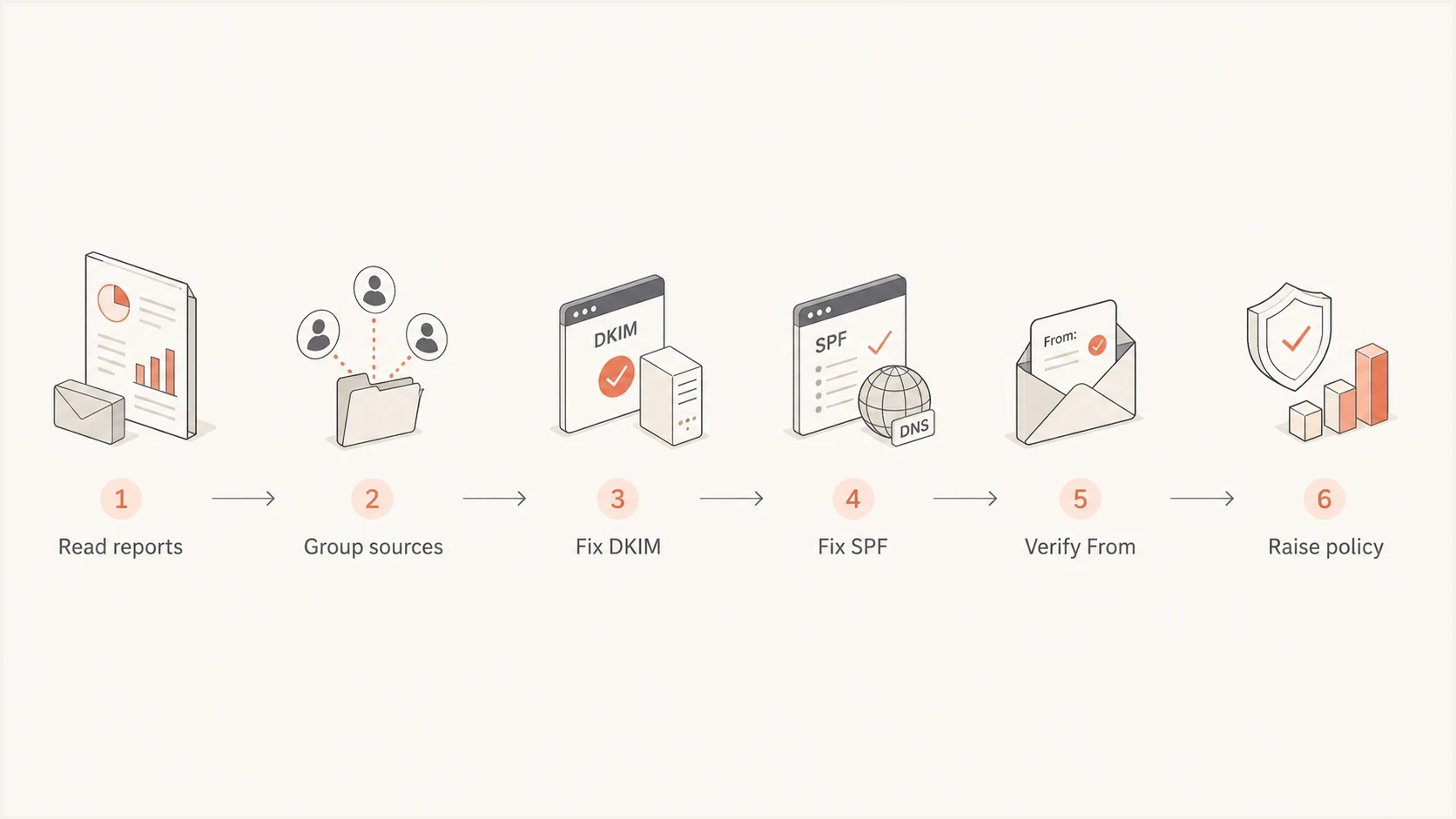
DMARC repair steps for Microsoft 365 and Google Workspace
Do not forget parked domains. If a domain never sends mail, publish SPF and DMARC records that say no mail is authorized. That reduces spoofing risk without adding operational complexity.
Third-party senders
Most persistent DMARC issues are not caused by Microsoft 365 or Google Workspace user mail. They come from third-party systems that send with your visible From domain but authenticate with their own envelope domain, their own DKIM domain, or no DKIM signature at all.
The fix is specific. Configure the sender to sign DKIM with your domain. If that is unavailable, configure a custom return-path that uses your domain for SPF. Send through Microsoft 365 or Google Workspace when that route fits the mail type. Do not add every vendor include to SPF. That creates lookup-limit problems and still does not solve DKIM domain mismatch.
|
|
|
|---|---|---|
DKIM mismatch | Custom DKIM | Most senders |
SPF mismatch | Return-path | Bounce control |
Lookup limit | Hosted SPF | Many senders |
Shared sender | Subdomain | Bulk mail |
Third-party sender repair choices
Best practice for sender isolation
Use subdomains for automated mail when you can. A subdomain gives you separate SPF, DKIM, DMARC policy, and reputation handling, while the parent domain keeps cleaner controls for person-to-person mail.
When a vendor cannot sign DKIM with your domain or use a matching return-path, move that mail to a subdomain with a separate DMARC record before enforcing a strict parent-domain policy. Watch the subdomain until the source is stable.
What good looks like
A healthy Microsoft 365 or Google Workspace DMARC setup has predictable signs. User mail signs with DKIM using the custom domain. SPF has one record per hostname and includes only active senders. DMARC reports show known sources, not mystery IPs. Controlled sending domains use the strongest policy their mail flows can support, while general-purpose domains account for mailing lists and forwarding. Parked domains reject everything.
The fastest path is practical: fix DKIM for Microsoft 365 and Google Workspace, repair SPF only where needed, use DMARC reports to find third-party senders, and stage the policy after the data proves legitimate mail passes. Suped's product helps keep that process continuous by detecting new failures and sending alerts. Each domain gets a clear list of issues to resolve.
- First check: Confirm there is exactly one DMARC TXT record at the correct hostname.
- Second check: Confirm Microsoft 365 or Google Workspace DKIM is active for each sending domain.
- Third check: Confirm SPF has one record and does not exceed the DNS lookup limit.
- Fourth check: Confirm every high-volume source passes either DKIM or SPF with alignment to the visible From domain.
- Final check: Choose quarantine or reject after reviewing indirect mail paths instead of treating reject as a universal endpoint.