What to do when DKIM record is configured but emails are not DKIM signed?

Published 10 Jul 2025
Updated 7 Aug 2026
11 min read
Summarize with
Updated on 7 Aug 2026: We clarified how to read DKIM headers and trace unsigned mail to the exact send path.
If a DKIM record is configured in DNS but the email has no DKIM-Signature header, the fix is usually with the sending provider, not the DNS host. The DNS record only publishes the public key. The mail server still has to sign each message with the matching private key before the message leaves the platform.
Treat this as a two-part problem: first prove whether the message is unsigned, then prove whether the current sender has DKIM signing enabled for the exact domain, selector, and send path in use. Check the raw message for the actual signature header instead of relying on one dkim=none result, which can describe a separate receiving or forwarding hop. If the signature header is missing completely, changing a valid TXT record rarely fixes it. The provider needs to enable signing, verify the domain, or issue the correct DKIM selector.
A fast first check is to inspect the raw message headers, then validate the selector DNS with the DKIM checker. If DNS validates but the message remains unsigned, take it to the ESP, mailbox provider, CRM, billing system, or app that actually sends the email.
The direct fix
Ask the sending provider to enable DKIM signing for the sender domain and confirm the selector they expect you to publish. If the provider generated a CNAME-based setup, publish the CNAMEs they give you. If the provider expects a TXT public key, publish that exact TXT record. If you generated your own key pair, the provider needs the private key through a secure admin flow, not in an email support ticket.
- Header: Open the raw email source and look for DKIM-Signature. If it is absent, the tested send path did not sign the message.
- Provider: Confirm the exact platform that sent the email, because the DNS record has to match that platform's signing setup.
- Selector: Ask which selector the provider uses, since an old selector can remain in DNS after a vendor change.
- Activation: After DNS verification, click the provider's activate, authenticate, or start signing control if the portal requires it.
DNS alone cannot sign mail
A DKIM TXT record in DNS is passive. It lets receivers verify a signature that already exists. It does not add a signature to outbound messages. The outbound mail system must apply the signature before delivery.
How DKIM signing works
DKIM uses a public and private key pair. DNS stores the public key under a selector, and the sending server uses the private key to create a cryptographic signature over selected header fields and the body hash. Receivers read the selector and domain from the signature, fetch the DNS key, then verify that the message has not changed in transit.
What DNS does
- Public key: DNS publishes the key receivers use to verify signatures.
- Selector lookup: The s= value tells receivers which DKIM record to query.
- No signing: DNS never attaches a DKIM header to the email.
What the sender does
- Private key: The sending system signs the message with the matching private key.
- Header creation: The sender adds the DKIM-Signature header.
- Domain choice: The sender chooses the signing domain shown in the d= tag.
DKIM public key in DNSdns
selector1._domainkey.example.com.  TXT  "v=DKIM1; k=rsa;"
"p=MIIBIjANBgkqhkiG9w0BAQEFAAOCAQ8A...shortened..."
DKIM signature in a message headertext
DKIM-Signature: v=1; a=rsa-sha256; c=relaxed/relaxed;
 d=example.com; s=selector1; h=from:to:subject:date;
 bh=base64-body-hash; b=base64-signature
Checks to run before changing DNS
Avoid editing DNS until you know whether the problem is unsigned mail, a broken public key, a sender that signs with a different domain, or a result recorded at another hop. Those are different fixes. A missing signature is usually a sending configuration problem. A signature that exists but fails verification points to the selector, DNS response, message modification, or forwarding path.
- Raw headers: Download or view the original message. Do not rely only on a mail client badge or summary.
- Signature presence: Search for DKIM-Signature. If there is no match, the tested route was not signed.
- Trusted result: Find the authentication result added by the recipient system you trust, since relays and forwarders can add separate results.
- Signing domain: If a signature exists, compare the d= domain with the visible From domain.
- Selector DNS: Check that the s= selector resolves under the signing domain.
- Send path: Test the same workflow that customers receive. Test mode, aliases, SMTP relays, and gateways can use separate signing rules.
DKIM checker
Check selector records and public key configuration.
?/7tests passed
For a broader authentication read, use a domain health checker after checking the DKIM selector. That helps catch SPF, DMARC, and DNS issues that might sit next to the missing DKIM signature.
Read the right authentication result
The DKIM-Signature header and Authentication-Results answer different questions. The signature shows that a signing system added DKIM. An authentication result shows how a receiving system evaluated one or more signatures at a specific hop. Forwarders, gateways, and mailbox providers can add their own result headers, so one dkim=none line does not outweigh a signature found elsewhere in the same raw message.
- Find every signature: Search the complete raw source for each DKIM-Signature header. A message can carry more than one.
- Read each identity: Record the d= signing domain and s= selector for the signature you expect.
- Use the trusted result: Check the result generated by the final recipient or another mailbox you control. Treat results preserved by forwarding headers as evidence about earlier hops, not the final verdict.
- Check alignment: A provider-owned signature can pass DKIM but still leave DKIM unaligned for DMARC. The expected signing domain must match the visible From domain under the domain's DMARC alignment mode.
- Repeat the production test: Send through each real application, relay, and sender identity. A pass on one route does not prove that every route signs.
How to resolve conflicting header evidence
If the raw message has no DKIM-Signature header, troubleshoot signing activation on that send path. If the signature exists and the trusted recipient reports dkim=fail, troubleshoot key lookup or message modification. If the signature exists but another preserved result says dkim=none, identify which hop created each result before changing configuration.
Common causes
The table below covers common causes when DNS looks right but outbound email is not DKIM signed. The key point is that "record exists" and "mail is signed" are separate states.
|
|
|
|---|---|---|
Signing not enabled | DNS passes, headers have no signature | Activate signing in the provider portal |
Old vendor record | Selector belongs to a previous platform | Get fresh records from the current sender |
Wrong send path | Campaigns sign, app alerts do not | Enable DKIM on every sending system |
Signing rule mismatch | Primary addresses sign, but aliases or relays do not | Update the sender's signing rule for the actual route |
Domain not verified | Portal shows pending authentication | Wait for DNS, then verify again |
Private key missing | Provider cannot sign for your selector | Use the provider key setup flow |
Different domain | Signature uses provider-owned domain | Configure aligned signing for your From domain |
Common reasons DKIM records exist while messages stay unsigned.
A useful support request
When you contact the provider, keep the request specific. You want them to check outbound signing, not only DNS verification.
Message to send the providertext
Please enable DKIM signing for mail sent with From: example.com.

The DKIM DNS record you provided is published, but messages
sent through your platform do not include a DKIM-Signature header.

Please confirm:
1. The selector you expect us to use.
2. The signing domain you will use.
3. Whether signing is activated for this sender and send path.
4. Whether any private key or portal action is still required.
Provider-specific places to check
Different senders expose DKIM activation in different places. The pattern is the same: generate records, publish records, verify DNS, then enable signing. Missing the last step is common.
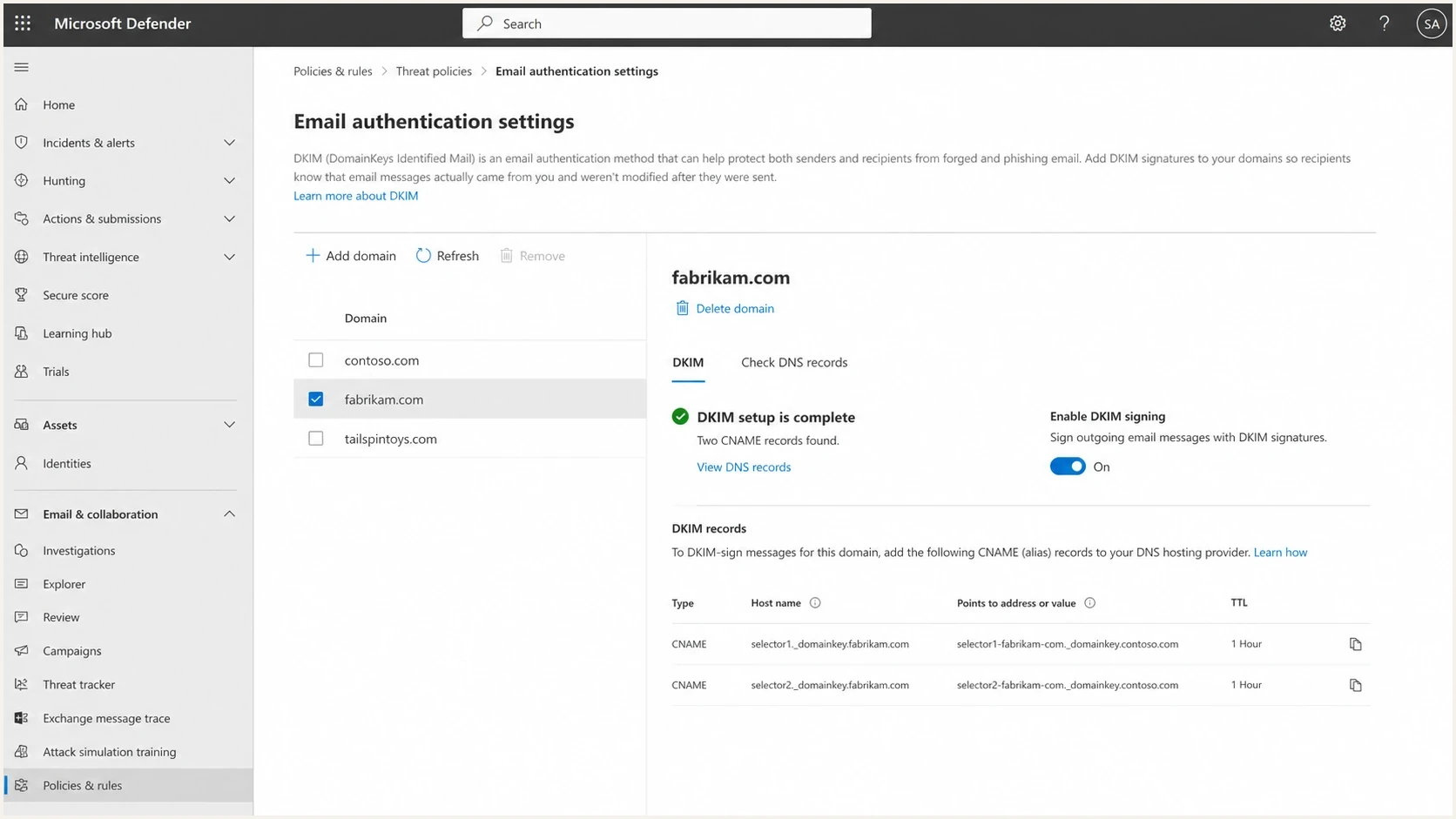
Microsoft Defender portal DKIM settings showing where signing is enabled.
Microsoft 365: Confirm the DKIM CNAMEs exist, then enable signing for the custom domain in the DKIM settings.
Google Workspace: Generate the DKIM record, publish it, then start authentication in the admin console.
AWS SES: Verify the identity and make sure Easy DKIM or your custom DKIM setup is active for that identity.
- ESP platforms: Check whether the sender domain still shows pending, unauthenticated, or unverified after DNS propagation.
If your case is Microsoft-specific, the details in Microsoft 365 DKIM fixes are worth checking before rotating keys or changing policy.
When the header exists but DKIM still fails
A message with a DKIM signature can still fail authentication. That is a different problem. In that case, the sender is signing, but receivers cannot verify the signature. Check for selector DNS errors, malformed or truncated public keys, body changes after signing, mailing list rewriting, and a mismatch between the signing domain and the domain used for DMARC evaluation. If the message has multiple signatures, evaluate the expected d= and s= pair instead of treating every result as the same signature.
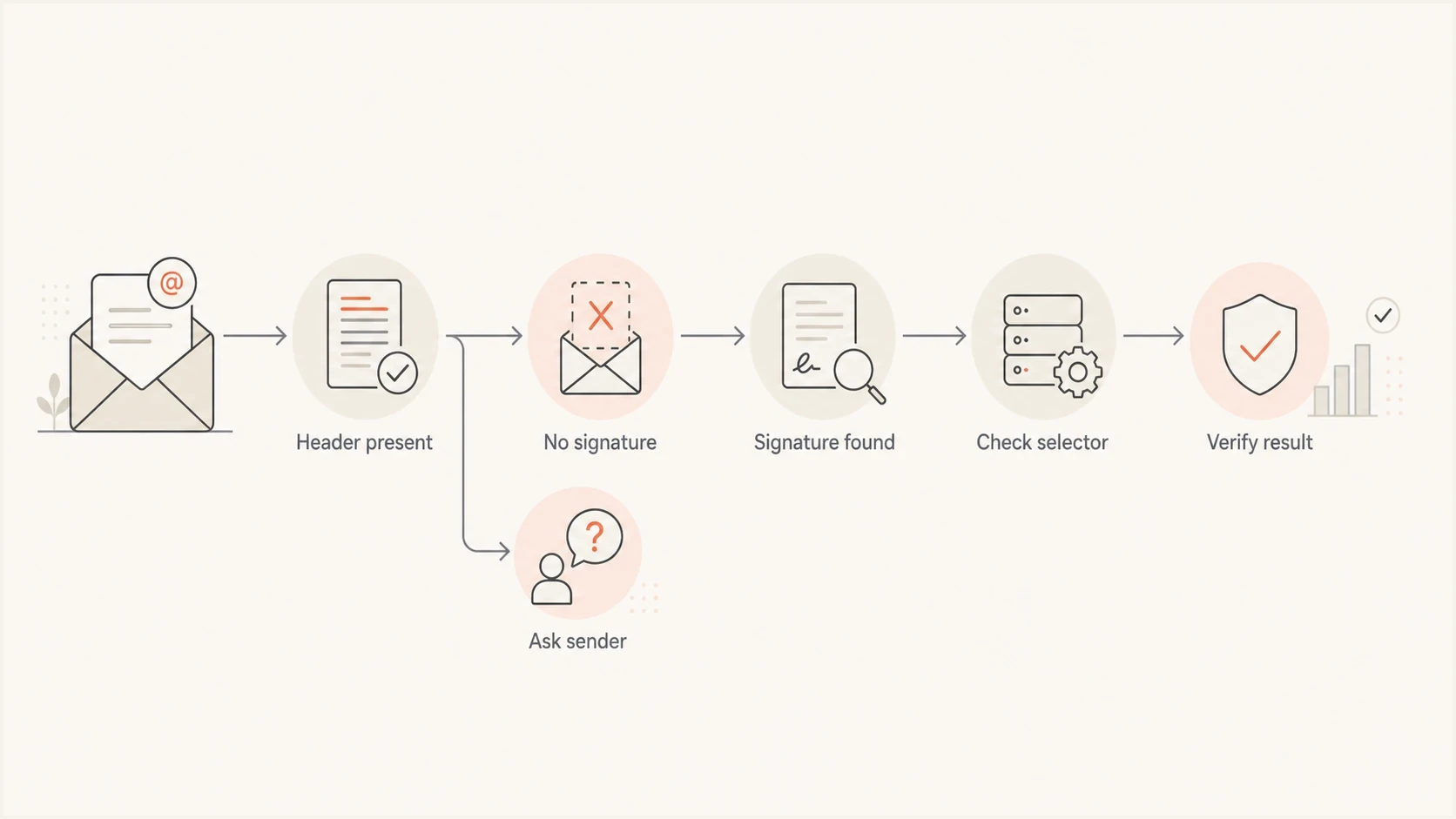
Flowchart for deciding whether DKIM is missing or failing verification.
Separate missing from failing
- Missing: No DKIM-Signature header exists, so the tested send path did not sign the message.
- Failing: A signature exists, but the receiver cannot verify it against DNS.
- Next step: Use DKIM troubleshooting once the header exists and verification fails.
How Suped helps with this workflow
Suped's product turns this one-off header check into a monitored workflow. Suped's DMARC reports show which sources send for a domain, whether DKIM passes, whether the signing domain aligns for DMARC, and which source still needs a fix. This is useful when product notifications, invoices, support mail, and other messages leave through separate systems.

Issue steps to fix dialog showing the issue overview, tailored fix steps, and verification action
After the immediate DKIM fix, use Suped's DMARC monitoring to identify unsigned sources, track signing coverage, check DKIM alignment, set real-time alerts, and confirm that the change works across production mail streams. Suped also includes SPF and DKIM checks, hosted authentication controls, MTA-STS support, and blocklist (blacklist) monitoring for the wider email authentication workflow.
DKIM signing coverage targets
These example internal thresholds treat complete coverage across authorized send sources as the goal.
Healthy
100%
Every identified legitimate send source uses the expected DKIM signing setup.
Needs review
95-99%
At least one low-volume workflow or sender identity remains unsigned.
Incomplete
Below 95%
Unsigned legitimate traffic needs source identification and signing activation.
Views from the trenches
Best practices
Confirm the live message has a DKIM-Signature header before changing DNS or policy.
Check the current sending provider because old DKIM DNS often survives vendor changes.
Use a real production send path because test modes can skip the normal signing pipeline.
Common pitfalls
Publishing a public key and assuming that alone activates signing on the sending server.
Asking support about DNS only, when the missing piece is the private signing key setup.
Leaving old selectors in DNS after moving traffic to a different email provider account.
Expert tips
Compare the header signing domain with the visible From domain before changing policy.
Ask providers for the exact selector and domain they expect to sign before editing DNS.
Wait for DNS verification, then click the provider's activate or authenticate control.
Expert from Email Geeks says the sending provider must sign messages with the private key; DNS only publishes the public key receivers use to verify it.
2022-07-12 - Email Geeks
Marketer from Email Geeks says a DKIM record can belong to an old email provider, so the current vendor should confirm which selector and domain it will sign.
2022-07-12 - Email Geeks
Verify the fix on every send path
When DKIM DNS exists but messages are not DKIM signed, check the raw header and ask the current sending provider to enable signing for the sender domain and affected route. The DNS record is necessary, but it is not the signing mechanism.
Once the provider enables signing, send real messages through each production workflow, confirm the DKIM-Signature header appears, check that the selector resolves, and watch live DMARC results to confirm the fix holds across all authorized send sources.