How to troubleshoot DKIM setup issues when getting 550 5.7.26 unauthenticated sender error in Google Workspace?

Published 17 Apr 2025
Updated 12 Aug 2026
12 min read
Summarize with
Updated on 12 Aug 2026: We clarified the different 550 5.7.26 rejection variants and added Google's current authentication requirements.
The short answer: troubleshoot 550 5.7.26 in Google Workspace by saving the exact rejection text, proving the sending path, and checking whether that specific message passed SPF or DKIM. Gmail uses this code for several authentication failures, including missing authentication, SPF hard fail, and DMARC policy rejection. A domain can have correct DKIM DNS, clean DMARC aggregate reports, and still trigger this Gmail rejection if the bounced message did not leave through the expected Google Workspace route or was not signed by Google.
Treat this error as a message-level authentication failure, not a general statement about the domain. DMARC reports are useful, but they are delayed summaries. They do not prove that a single bounced message had a passing DKIM signature, a passing SPF result, or a From-domain match at the moment Gmail rejected it.
Fast diagnosis
- Rejection: Save the full 550 5.7.26 response and its SPF, DKIM, or DMARC wording.
- Route: Confirm the message was sent from Gmail or Google SMTP, not another app using the same From domain.
- Sample: Get the bounce, Google Admin email log entry, and one accepted test message with full headers.
- DNS: Validate the Google DKIM selector TXT record, the SPF record, and the DMARC record currently published.
- Escalation: Contact Google support only after a clean Google-to-Google test still has no SPF or DKIM pass.
Why Gmail returns 550 5.7.26
Gmail returns 550 5.7.26 for more than one permanent authentication failure. Read the complete response before changing DNS. One version means neither SPF nor DKIM passed, another identifies an SPF hard fail, and another says the message was rejected under the From domain's DMARC policy.
Typical Gmail rejection
550 5.7.26 This mail has been blocked because the sender is
unauthenticated. Gmail requires all senders to authenticate with either SPF
or DKIM.
That does not always mean the DKIM DNS record is wrong. The common trap is checking the record for the domain, seeing it looks correct, and stopping there. DKIM is only useful if the mail system that sent the message added a signature using the matching selector and private key. SPF is only useful if the connecting server is authorized by the SPF record for the envelope sender domain.
What the sender sees
- Bounce: Gmail says the sender is unauthenticated.
- Domain: DKIM and DMARC DNS records appear to exist.
- Reports: Aggregate DMARC data can look clean up to that point.
What actually matters
- Message: The failed message needs its own authentication evidence.
- Path: The sender must confirm whether Google actually handled the outbound mail.
- Headers: SPF, DKIM, and DMARC results in headers settle most disputes.
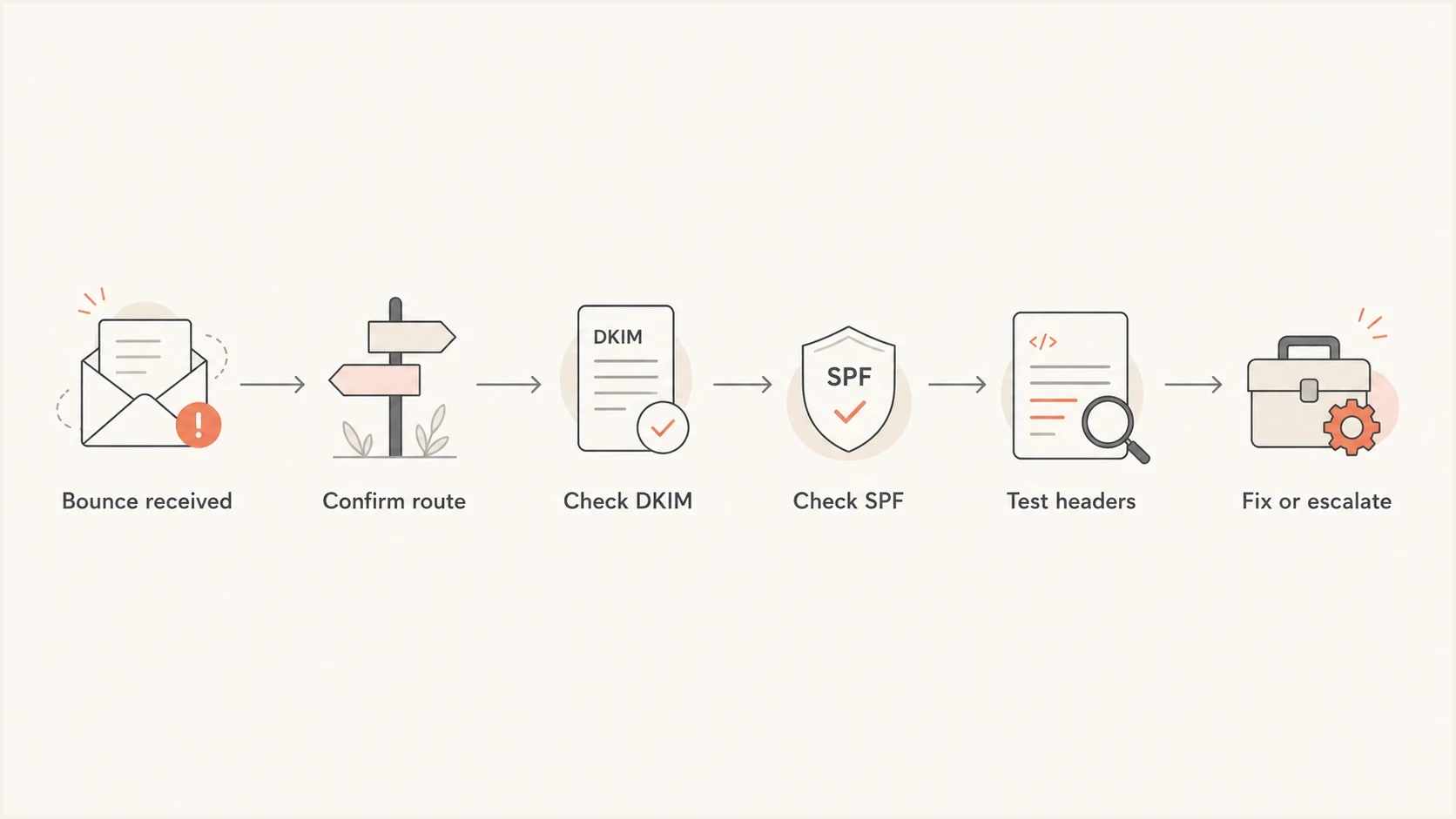
Flowchart showing the troubleshooting order for a Google Workspace 550 5.7.26 error.
Match the exact 5.7.26 response
The enhanced status code points to authentication, but the rest of the bounce identifies the failing layer. Match the wording before deciding whether to change DKIM, SPF, or the sending route.
|
|
|
|---|---|---|
Sender unauthenticated | Neither SPF nor DKIM passed | Verify route and message headers |
SPF hard fail (-all) | MAIL FROM domain denied the connecting IP | Authorize the source or correct its route |
DMARC policy | No aligned SPF or DKIM pass | Fix SPF or DKIM so DMARC alignment passes |
Use the complete Gmail response to choose the next check.
For mail to personal Gmail accounts, all senders must use SPF or DKIM. Senders delivering more than 5,000 messages per day to Gmail accounts need SPF and DKIM, plus DMARC. For direct mail in that category, the visible From domain must share an organizational domain with either the authenticated SPF domain or the DKIM signing domain.
Do not weaken DMARC to clear the bounce
Changing p=reject to p=none can stop policy rejection without fixing the legitimate sender. Keep the intended policy and authenticate the source with SPF or DKIM that passes DMARC alignment. Use a temporary policy change only as a controlled rollback with a plan to restore enforcement.
Prove the sending path first
Before editing DNS, answer one plain question: did the message really leave through Google Workspace? The answer has to come from evidence, not memory. A user can send from Gmail in a browser, Apple Mail, a mobile app, a website form, an automation script, or a third-party mail platform while using the same visible From address.
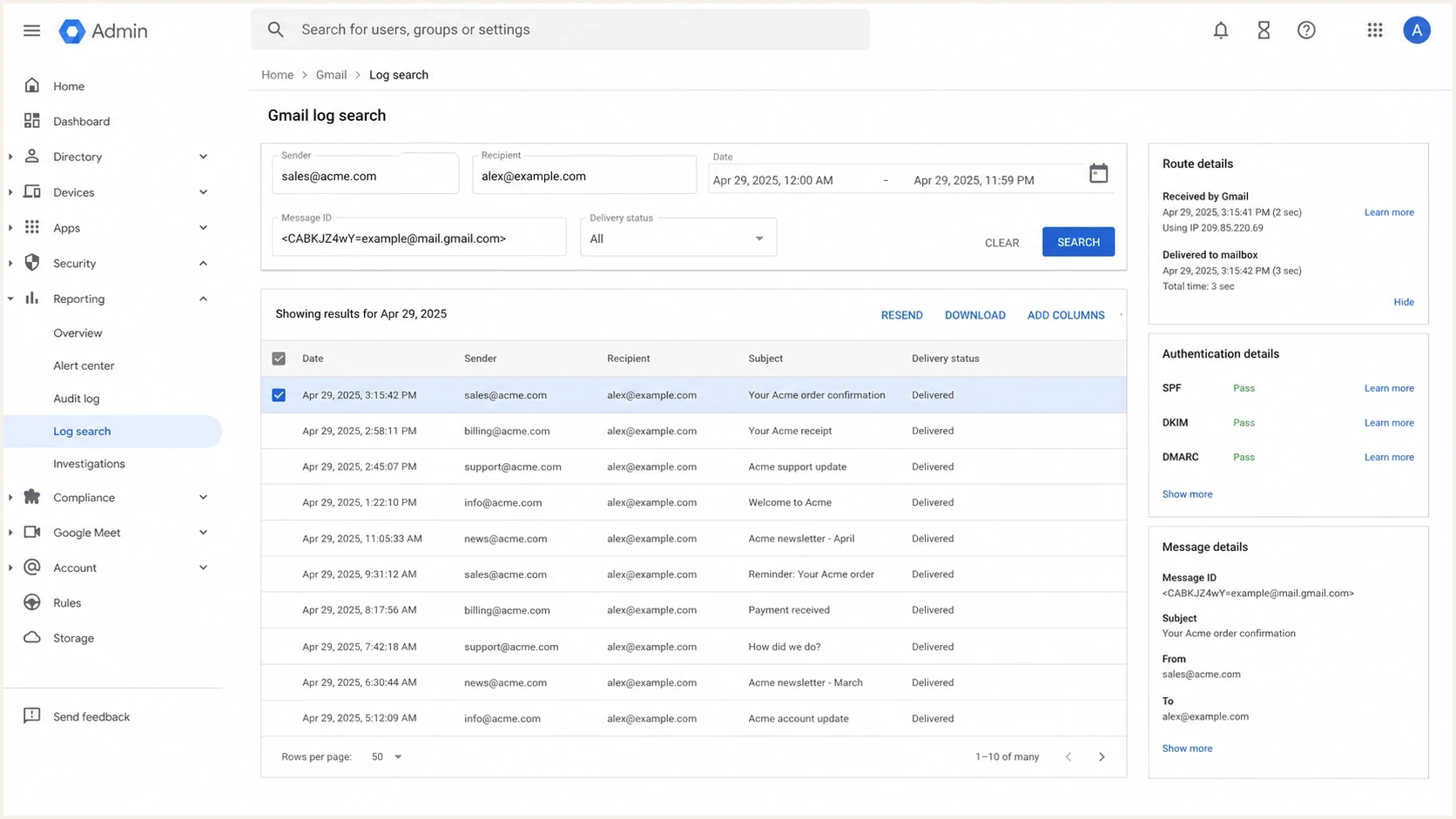
Google Admin console email log search screen for checking a bounced message route.
The Google Admin email log is the fastest place to verify the route for a Workspace tenant. Search by sender, recipient, and time. If the message never appears there, the domain might be authenticated for Google Workspace but the actual message came through a different source.
- Gmail web: Mail composed in Gmail should normally be signed by Google once DKIM is activated.
- SMTP client: A desktop client can use Gmail SMTP or a non-Google server, so the account settings matter.
- Send as: Gmail Send mail as can route through another SMTP server depending on how the alias was added.
- Website mail: A form, CRM, billing system, or booking tool must be authenticated as its own sending source.
- Gateway: An outbound gateway can change content after signing and create a DKIM body hash failure.
|
|
|
|---|---|---|
Message ID | Bounce | Search logs |
Route | Admin log | Confirm source |
Headers | Test inbox | Read auth |
DNS | Provider | Compare values |
Evidence to collect before changing DNS.
Do not fix MX first
MX controls inbound delivery for the domain. A 550 5.7.26 rejection points to outbound authentication. MX can be relevant to the overall Workspace setup, but it rarely explains why Gmail rejected an outbound message as unauthenticated.
Validate DKIM before changing DNS
Next, verify that Google Workspace has a valid DKIM key and that public DNS has the exact TXT value Google expects. Run the selector through the DKIM checker if you want a quick DNS-level validation before testing a real message.
Google Workspace DKIM DNS shape
google._domainkey.example.com. 3600 IN TXT
"v=DKIM1; k=rsa; p=MIIB..."
In Google Admin, the DKIM setup lives under Gmail authentication settings. The domain must have a generated key, the DNS host name must match the selector, and Google must show DKIM authentication as started. Use a 2048-bit key when the DNS provider supports it. Gmail requires a key of at least 1024 bits for delivery to personal Gmail accounts. Publishing the TXT record alone is not enough if the admin has not pressed Start authentication after DNS propagation, which can take up to 48 hours.
- Selector: Google often uses google, but the Admin console is the source of truth.
- Host: The TXT host must be selector, dot _domainkey, dot the sending domain.
- Value: The record must include v=DKIM1, key type, and the full public key.
- Key length: Prefer 2048 bits; use 1024 bits only when the DNS provider cannot support the longer key.
- Activation: Google needs DKIM authentication started in Admin before new messages are signed.
- Testing: Send a fresh email after activation and inspect the signed message headers.
When DNS is correct but messages are unsigned
If the DKIM record checks out but mail is unsigned, focus on the sender route, the Google Admin activation state, and whether a gateway changes the message after Google signs it.
Check SPF and DMARC together
Do not troubleshoot DKIM in isolation. The baseline Gmail rule for all senders is an SPF or DKIM pass. For a 5.7.26 response that names the sending domain's DMARC policy, the passing method must also satisfy DMARC alignment with the visible From domain. If neither method passes with alignment for the bounced message, Gmail applies the domain's published DMARC policy.
Google Workspace SPF and DMARC examples
example.com. 3600 IN TXT "v=spf1 include:_spf.google.com ~all"
_dmarc.example.com. 3600 IN TXT "v=DMARC1; p=none; rua=mailto:d@example.com"
A domain health check helps catch record-level problems across DKIM, SPF, and DMARC. Ongoing DMARC monitoring then shows whether the same sending source keeps passing after the immediate bounce is fixed.
Authentication status levels
Use these bands to decide whether to keep troubleshooting locally or escalate.
Healthy
Pass
The tested message has an SPF or DKIM pass with a From-domain match.
Warning
Mismatch
DNS looks correct, but the current sending stream is unsigned or uses another source.
Critical
Fail
The bounced message has no SPF pass and no DKIM pass.
Escalate
Support
A clean Google-to-Google test fails after confirmed DNS and DKIM activation.
?
What's your domain score?
Deep-scan SPF, DKIM & DMARC records for email deliverability and security issues.
For SPF, confirm there is only one SPF TXT record at the domain, that it includes Google, and that the total DNS lookup count stays under the SPF limit. For DMARC, confirm the record is published at the _dmarc host and that reports are arriving from the mailbox providers you care about.
Use logs when reports look clean
Clean DMARC aggregate reports are a good sign, but they are not a complete answer for a single rejection. A rejected message might not appear in the same reporting window, might be a low-volume source, or might be sent through an alias path that the normal report view hides.
|
|
|
|---|---|---|
Bounce | Exact reject | Few headers |
Email log | Route | Tenant only |
Test inbox | Auth result | New sample |
DMARC XML | Pattern | Delayed |
Use message-level evidence before changing policy.
Start with the newest accepted test message because it gives the clearest header data. In the headers, look for Authentication-Results and identify SPF, DKIM, and DMARC results. If DKIM says fail, note the selector and domain. If there is no DKIM result, Google did not sign that test message or the signature was removed.
Email tester
Send a real email to this address. Suped shows a results button when the test is ready.
?/43tests passed
Collect this before support
- Bounce: Save the full error text, sending time, sender, recipient, and message ID.
- Headers: Capture Authentication-Results from an accepted test message sent the same way.
- Route: Note whether the user sent via Gmail web, mobile app, SMTP relay, alias, or automation.
- DNS: Save the current DKIM, SPF, and DMARC records before making changes.
Where Suped fits
Suped is our DMARC reporting and email authentication platform. Suped brings DMARC aggregate data and authentication diagnostics into one workflow, with alerts for new failures and issue pages that map record or sender problems to practical checks.

Issue steps to fix dialog showing the issue overview, tailored fix steps, and verification action
For a 550 5.7.26 case, Suped does not replace the need to inspect the bounced message. It helps with the surrounding work by showing which sending sources are verified, which sources fail SPF or DKIM, and which DNS records need attention.
Manual triage
- Evidence: Logs, DNS lookups, copied headers, and screenshots live in separate places.
- Risk: A one-off source can be missed if aggregate reports look healthy.
- Fixes: The person troubleshooting must translate raw records into next steps.
Suped workflow
- Evidence: DMARC, SPF, DKIM, and source status are reviewed in one dashboard.
- Alerts: Real-time notifications flag new authentication failures quickly.
- Fixes: Issue pages give clear steps to fix DNS and sender configuration problems.
Fix the cause you prove
Once the route and authentication result are known, the fix should be narrow. Avoid rewriting all DNS records at once. Change the one thing that explains the evidence, send a fresh test, and keep the previous record values in case a rollback is needed.
|
|
|
|---|---|---|
Not Google | Other route | Auth source |
DKIM off | No sig | Start Admin |
Selector | DNS miss | Republish |
SPF gap | SPF fail | Include Google |
Gateway | Hash fail | Stop rewrite |
Match the fix to the evidence.
Do not trust averages
A domain can show a high DMARC pass rate while one important mailbox, alias, or app fails. Troubleshoot the exact stream that produced the bounce, then use aggregate reporting to confirm the fix holds over time.
If the evidence proves the user sent directly through Google Workspace, the DKIM TXT record is correct, Google Admin shows DKIM started, SPF includes Google, and a new Google-to-Gmail test still fails authentication, the next step is Google Workspace support. At that point, bring the message ID, log entry, DNS records, and test headers.
Views from the trenches
Best practices
Confirm the sending path before changing DNS, since From domains can hide the real source.
Test a fresh message to a mailbox you control, then inspect Authentication-Results.
Keep Google DKIM, SPF, and DMARC checks together so one failed stream is not missed.
Common pitfalls
Assuming clean DMARC reports cover every rejected message can hide one-off failures.
Publishing the Google DKIM TXT record without pressing Start authentication leaves mail unsigned.
Checking MX records first wastes time when the error points to outbound authentication.
Expert tips
Use Email Log Search to prove the sender, route, and rejection time before editing records.
Compare the selector in the header with DNS; a selector mismatch explains many failures.
Escalate to Google only after a clean Google-to-Google test still has no auth pass.
Marketer from Email Geeks says the first check is whether the message really left Google Workspace or another source using the same visible domain.
2024-02-14 - Email Geeks
Marketer from Email Geeks says that without headers, the practical path is to verify how the email was sent and recheck SPF and DKIM.
2024-02-14 - Email Geeks
A practical stopping point
The fix for a Google Workspace 550 5.7.26 error is not to keep tweaking DKIM blindly. Match the complete bounce wording, prove the route, validate the Google DKIM selector, confirm DKIM is started in Admin, and test a fresh message with headers. That sequence separates a DNS problem from a sender-path or DMARC alignment problem.
When the error comes from a one-off app or alias, authenticate that source. When it comes from Google Workspace itself and all records are correct, gather the evidence and escalate to Google. Suped supports ongoing control by keeping DMARC reporting, source status, and authentication alerts in one workflow.
Final checklist
- Response: Match the full error wording to authentication, SPF hard fail, or DMARC alignment.
- Path: Confirm the failed message appears in Google Admin logs.
- DKIM: Confirm the selector, TXT value, key length, and Admin activation state.
- SPF: Confirm Google and every legitimate source are authorized by one valid record.
- Headers: Confirm a fresh test has the authentication and alignment result the bounce requires.