How do I fix DKIM alignment errors and configure DKIM signing for a custom domain in Microsoft 365 and is include:spf.mtasv.net required for mailchimp?

Updated on 12 Aug 2026: We clarified Microsoft 365 DKIM alignment, added CNAME troubleshooting, and corrected Mailchimp's current authentication steps.
Fix the DKIM alignment error by making Microsoft 365 sign outbound mail with the same custom domain that appears in the visible From address. If your message is From user@example.com but the DKIM signature has d=tenant.onmicrosoft.com, DKIM authentication can pass while DMARC rejects that result as unaligned. The fix requires Microsoft 365's tenant-specific selector values, the matching public DNS records, and DKIM signing enabled for the custom domain.
For Mailchimp, include:spf.mtasv.net is not required for normal Mailchimp Marketing domain authentication. Mailchimp Marketing commonly uses its own envelope sender domain, so adding that SPF include to your domain usually does not create an SPF-aligned DMARC pass for the visible From domain. Current manual domain authentication supplies two DKIM CNAME records and one DMARC TXT record. If another sending product explicitly provides include:spf.mtasv.net, treat it as that sender's requirement, not as a Mailchimp Marketing requirement. The same rule applies if Mailchimp Transactional displays it for a specific sending domain.
- Microsoft fix: Publish both tenant-provided selector CNAME records, enable DKIM signing for the custom domain, then send a new test message.
- DNS check: Do not delete existing DKIM records blindly. Confirm the selector, signing domain, record type, and exact CNAME targets first.
- Mailchimp answer: Use the authentication records Mailchimp provides. Do not add include:spf.mtasv.net unless the sending service for that mail stream explicitly requires it.
- Body hash issue: A DKIM body hash failure means the signed body changed after signing or the verifier did not receive the exact delivered message.
Why Microsoft 365 shows DKIM alignment errors
DKIM has two separate results that people mix together. First, the cryptographic signature needs to verify. Second, the domain in the DKIM signature needs alignment with the visible From domain under DMARC. A valid signature can still be unaligned.
DMARC uses relaxed DKIM alignment by default, shown as adkim=r. Under relaxed alignment, the DKIM d= domain and visible From domain can be different subdomains of the same organizational domain. Strict alignment, adkim=s, requires an exact domain match. A tenant domain such as tenant.onmicrosoft.com does not match example.com under either mode.
Microsoft 365 gives every tenant an onmicrosoft.com domain. Mail sent from that initial domain is signed automatically. Each custom domain or subdomain that sends mail needs its own DKIM configuration. Microsoft's Microsoft DKIM setup explains that custom domains need two CNAME records and DKIM signing enabled before Microsoft signs with that custom domain.
A common mistake is fixing only the public DNS record. Microsoft 365 has to sign the message with the right domain. DNS only tells receivers where to find the public key used to verify that signature.
- If you see: The DKIM signature has d=tenant.onmicrosoft.com and the From domain is your custom domain.
- Then fix: The DKIM signing configuration in Microsoft 365 for the custom domain.
- Do not assume: That a published selector record means Microsoft has started using that selector.
- Retest with: A new outbound message after Microsoft shows the domain as enabled and valid.
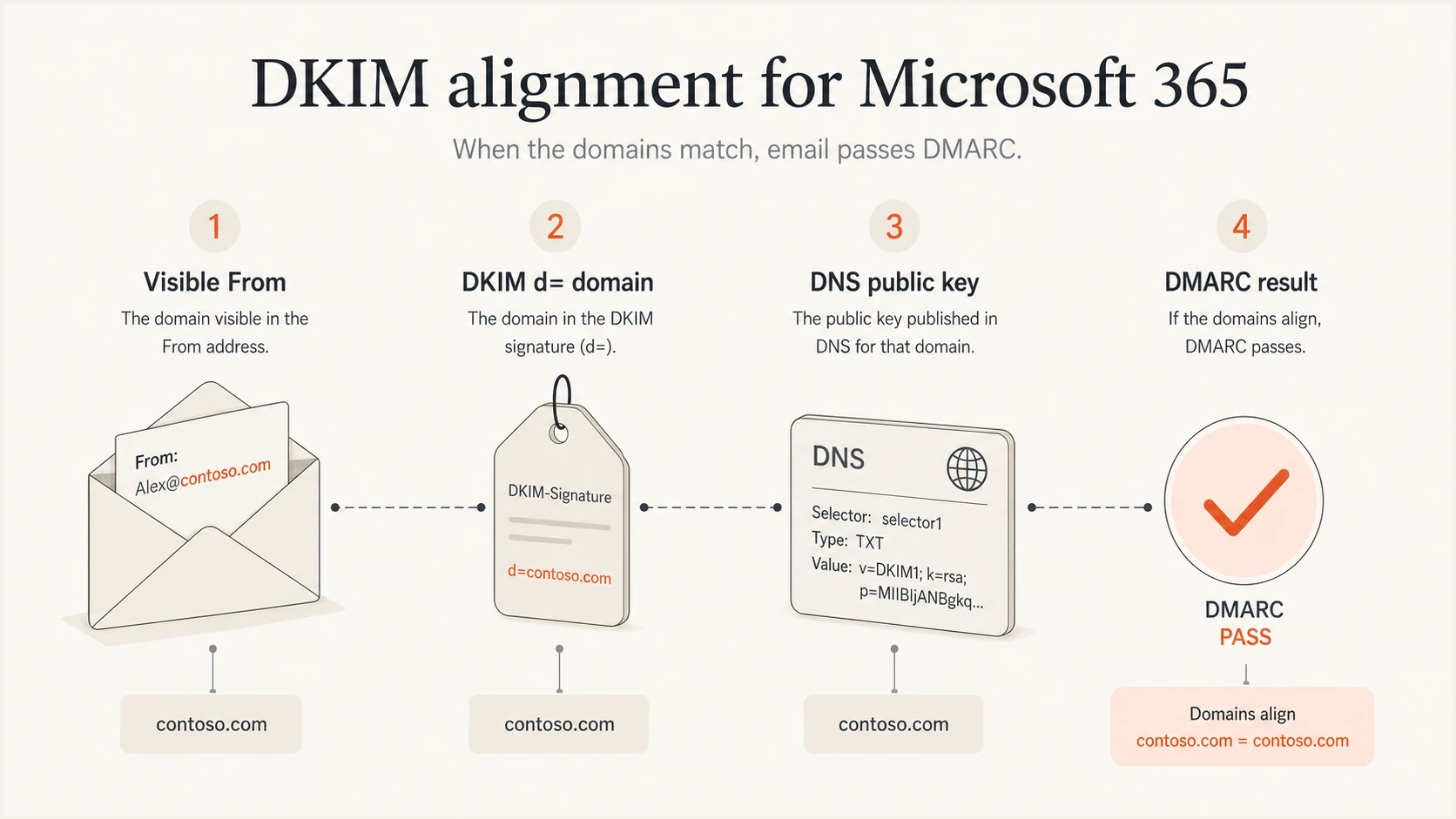
DKIM alignment checks whether the DKIM signing domain matches the visible From domain.
How to configure DKIM signing for a Microsoft 365 custom domain
The Microsoft 365 fix has a predictable order. Confirm that the custom domain is added and accepted in Microsoft 365, create or open its DKIM configuration, and copy the tenant-specific selector CNAME values. Publish both CNAME records in public DNS, enable signing, then inspect a new message header.
Microsoft 365 does not require you to upload a private DKIM key for the normal custom-domain setup. Microsoft controls the private keys and provides CNAME targets that point to the public-key locations. Copy the values shown for your tenant instead of constructing them. Older configurations can use the earlier target format, while newer configurations use a dynamic target under dkim.mail.microsoft. The old and new target formats cannot coexist for the same selector.
Exchange Online PowerShell checkspowershell
Connect-ExchangeOnline

Get-DkimSigningConfig |
  Format-List Name,Enabled,Status,Selector1CNAME,Selector2CNAME

# Run only if example.com is not listed above.
New-DkimSigningConfig -DomainName example.com -Enabled $false -KeySize 2048

Get-DkimSigningConfig -Identity example.com |
  Format-List Name,Enabled,Status,Selector1CNAME,Selector2CNAME

Set-DkimSigningConfig -Identity example.com -Enabled $true

Get-DkimSigningConfig -Identity example.com |
  Format-List Name,Enabled,Status
DNS CNAME shapedns
selector1._domainkey.example.com. CNAME <Selector1CNAME from Microsoft>
selector2._domainkey.example.com. CNAME <Selector2CNAME from Microsoft>
- Open Microsoft: Go to the Defender portal email authentication settings and select the DKIM tab.
- Select domain: Choose the exact custom domain or subdomain used in the visible From address, not the initial tenant domain.
- Generate configuration: If the status is NoDKIMKeys, try enabling the domain so Microsoft creates the configuration and changes the status to CnameMissing.
- Copy records: Copy both selector CNAME values from Microsoft 365, including every dynamic target segment.
- Publish DNS: Create both CNAME records at the authoritative DNS provider for the custom domain.
- Enable signing: Turn on DKIM signing after Microsoft detects the CNAME records. PowerShell should show Enabled as True and Status as Valid.
- Send fresh: Send a new message and inspect its headers. The DKIM d= value should be the custom domain and Authentication-Results should show a DKIM pass.
DKIM checker
Check selector records and public key configuration.
?/7tests passed
After DNS is live, a focused DKIM checker helps confirm that each selector resolves and the record syntax is valid. A live email header check is still required because valid DNS does not prove that Microsoft 365 has enabled signing for the domain.
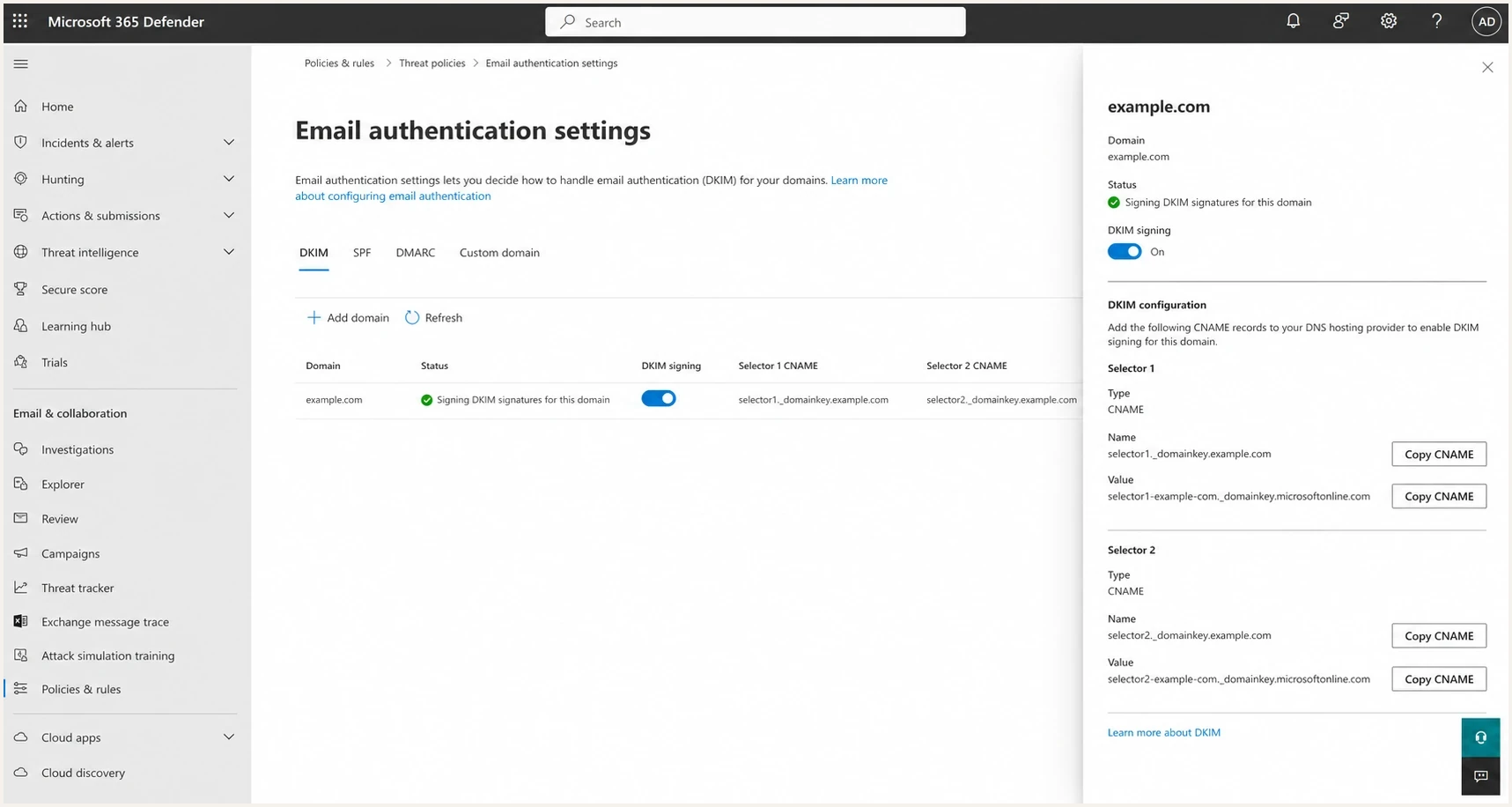
Microsoft Defender portal DKIM tab with custom-domain signing enabled.
How to fix CnameMissing in Microsoft 365
CnameMissing means Microsoft 365 has created the DKIM configuration but cannot resolve both expected selector CNAME records. It is a DNS detection problem, not proof that the private signing key is broken. Compare public DNS with the current Selector1CNAME and Selector2CNAME values in the tenant.
- Check the host field: Many DNS panels append the zone automatically. Entering the full name can create selector1._domainkey.example.com.example.com.
- Check both selectors: Microsoft requires selector1 and selector2 even though only one selector signs a given message.
- Check the record type: Create CNAME records at the selector hosts. Do not paste Microsoft's CNAME targets into TXT records.
- Check exact targets: Do not remove dynamic characters, change dashes, or reuse values copied from another domain or tenant.
- Check public answers: Query the authoritative public result instead of relying only on what the DNS control panel displays.
Query both public CNAME recordsbash
dig CNAME selector1._domainkey.example.com +short
dig CNAME selector2._domainkey.example.com +short

nslookup -type=CNAME selector1._domainkey.example.com
nslookup -type=CNAME selector2._domainkey.example.com
DNS updates can take time to become visible. Once both public queries return the exact tenant-provided targets, retry the signing toggle or recheck the domain. Do not replace working selector records during a key rotation, because Microsoft alternates between the two selectors.
How to fix a DKIM body hash verification failure
A DKIM body hash verification failure is separate from DKIM alignment. It means the value calculated from the received body does not match the bh= value in the DKIM signature. The most common cause is a system changing the body after the DKIM signature was added.
Fix the signing domain first, then compare fresh messages delivered to two receiving systems. If one verifies the body hash and another fails, compare the exact raw messages. That pattern points to message processing or an incomplete test sample rather than a selector DNS typo.
Real body change
- Footer added: A gateway or compliance system adds a disclaimer after Microsoft signs the message.
- Link rewrite: A security system rewrites URLs or tracking parameters inside the signed body.
- Transport rule: A mail flow rule appends text, banners, or legal content after DKIM signing.
- List handling: A forwarding or list system changes MIME boundaries, footers, or body encoding.
Validation difference
- Library mismatch: One verifier rejects a signature format that another verifier accepts.
- Header copy: A copied sample loses body content, folding, spacing, or MIME structure needed for the test.
- Old sample: A test uses a message sent before the custom-domain DKIM setup was complete.
- Partial trace: The verifier receives a message sample that is not the exact message delivered.
Send a plain-text email with no disclaimer, marketing template, or mail-flow modification. If its body hash verifies, add each modification back one at a time until the failure returns.
Is include:spf.mtasv.net required for Mailchimp?
No. include:spf.mtasv.net is not required for normal Mailchimp Marketing authentication. More importantly, SPF only helps DMARC when the SPF-authenticated envelope sender domain aligns with the visible From domain. Mailchimp Marketing normally uses a Mailchimp-controlled envelope sender domain, so your domain's SPF record is not the normal path to a DMARC pass.
Mailchimp separates domain verification from domain authentication. Verification confirms that you control an address at the domain. Current manual authentication then provides two CNAME records for DKIM and one TXT record for DMARC. Publish the exact values shown in the account, wait for validation, and confirm that campaign headers show an aligned DKIM pass.
A domain must have only one DMARC TXT record at _dmarc. If a DMARC record already exists, do not publish Mailchimp's value as a second record. Keep one valid record that matches your reporting and policy plan.
|
|
|
|
|---|---|---|---|
2 DKIM CNAMEs | DKIM | Enable signing | |
2 DKIM CNAMEs | DKIM | Authenticate domain | |
Transactional sender | Sender records | Varies | Follow sender |
Unknown source | DMARC data | Confirm | Identify owner |
Keep SPF and DKIM decisions tied to the sender that actually sends the mail.
SPF example for a Microsoft 365-only domaindns
example.com. TXT "v=spf1 include:spf.protection.outlook.com -all"

# Do not append this for normal Mailchimp Marketing authentication:
# include:spf.mtasv.net
For Mailchimp Marketing, authenticate the sending domain, publish the records supplied in the account, then use DMARC reports to confirm that campaigns pass through aligned DKIM. An unneeded SPF include consumes SPF DNS-lookup budget and does not fix DKIM alignment.
How to verify the full authentication path
A single DNS lookup does not prove the fix. Verify the domain's DNS records, Microsoft 365 signing state, a fresh message header, and DMARC aggregate data after real mail flows. Each one tests a different part of the authentication path.
For a broad check across SPF, DKIM, and DMARC, use a domain health checker first. Then send a real message and inspect the DKIM-Signature and Authentication-Results headers. Finally, use DMARC monitoring to confirm that Microsoft 365 and Mailchimp traffic pass for the expected aligned domain over time.
DKIM rollout checks
Use sender evidence, not a raw pass-rate percentage, to decide whether to enforce DMARC.
Setup incomplete
DKIM missing
Custom-domain DKIM is missing or Microsoft signs as the tenant domain.
Investigate sources
Known failure
A legitimate sender still uses an unexpected signing or envelope domain.
Ready to stage policy
Mail aligned
Every identified legitimate sender passes DMARC through aligned DKIM or SPF.
Maintain enforcement
Monitored
New failures are investigated and authorized sending changes are tracked.
Suped's product supports this workflow by grouping DMARC aggregate data by source, showing whether aligned SPF or DKIM produced the DMARC pass, and flagging unexpected signing domains. That helps teams track Microsoft 365 and Mailchimp separately as traffic changes.
DMARC record detail view showing SPF, DKIM, DMARC, rDNS diagnostics, and DNS records
A practical Suped workflow is to add the domain, classify Microsoft 365 and Mailchimp as known sources, resolve alignment diagnostics, and stage DMARC enforcement only after legitimate mail passes. Alerts can identify a sudden change in authentication before it persists across later campaigns or business mail.
For deeper background on Microsoft-specific failures, the Microsoft DKIM failures article covers common Microsoft 365 signing problems. The DKIM authentication article explains why a valid signature still needs domain alignment for DMARC.
Views from the trenches
Best practices
Check the DKIM d= domain in a fresh header before changing selector DNS records.
Copy both Microsoft 365 CNAME targets from the tenant instead of using old examples.
Use Mailchimp's supplied authentication records and keep unrelated SPF includes out.
Test body hash failures with a plain message before changing the DKIM DNS records.
Common pitfalls
Deleting selector records can break valid signing when the issue is inside Microsoft.
Treating a tenant-domain DKIM pass as aligned hides the custom-domain DMARC failure.
Adding an unrelated SPF include spends lookup budget without fixing DMARC alignment.
Relying on a copied header can confuse altered content with verifier differences.
Expert tips
Keep Microsoft 365 and marketing mail separate in DMARC source and ownership reports.
Retest after Microsoft shows Valid because previously sent mail keeps its old headers.
Keep both Microsoft selectors published so key rotation does not interrupt DKIM signing.
Review transport rules and disclaimers before troubleshooting DKIM body hash failures.
Marketer from Email Geeks says DKIM alignment errors often come from Microsoft 365 signing with the tenant domain instead of the custom From domain.
2022-08-31 - Email Geeks
Marketer from Email Geeks says the fix belongs in Microsoft 365 signing configuration first, because DNS publication alone does not make Microsoft use the domain.
2022-08-31 - Email Geeks
The clean fix
Make Microsoft 365 sign with the custom domain by publishing the two tenant-provided selector CNAME records, enabling signing, and verifying a new outbound header. If Microsoft remains at CnameMissing, compare both public CNAME answers with the tenant values. If the DKIM body hash still fails after alignment is fixed, check for footer injection, link rewriting, transport rules, and incomplete message samples.
For Mailchimp Marketing, do not add include:spf.mtasv.net. Complete domain authentication with the records Mailchimp provides and validate aligned DKIM through DMARC data. Keep only one DMARC record at _dmarc, then stage enforcement after Microsoft 365 and Mailchimp are identified and passing.