Why is the Gmail delivery ticket form not working?

Matthew Whittaker
Co-founder & CTO, Suped
Published 11 Feb 2026
Updated 14 Feb 2026
5 min read

It is a common frustration for email administrators when a critical tool like the Gmail sender contact form stops working correctly. I have experienced situations where pasting email headers causes the entire interface to glitch, making it impossible to submit a support request. These forms are essential for addressing email deliverability issues that cannot be resolved through standard DNS changes. When the form becomes unresponsive, it usually stems from rendering bugs related to large text inputs or session management errors.
The problem often appears as a frozen screen or a submit button that stays greyed out. This is particularly prevalent in the new Google Postmaster Tools (GPT) dashboard, where the Report Delivery Issue feature sometimes fails to trigger the creation of a new report. Understanding why these emails are suddenly rejected by Gmail requires a functional way to communicate with their postmaster team, so a broken form is a significant hurdle.
I have found that these issues are frequently linked to how the browser handles the heavy text data contained in email headers. If the form goes wacky after a paste, it is usually because the CSS layout cannot handle the unformatted string of data. This guide covers the practical steps I use to bypass these technical glitches and get support when Gmail delivery fails.
Troubleshooting form glitches and browser errors
When the Gmail delivery ticket form fails, the first step is to verify if the issue is local to your browser session. Caching errors can prevent the ticket button from opening the modal correctly. I often find that performing a hard refresh or opening the Google sender guidelines in an incognito window resolves the immediate UI blockage. If the form still behaves strangely, try reducing the zoom level of your browser, as high zoom often hides the submission buttons on Google support pages.
Common UI problems
Layout breaks when pasting long headers into the text area.
The create new report button in GPT fails to respond.
The submission button remains inactive despite filling all fields.
Immediate workarounds
Zoom out to 80% to reveal hidden elements.
Clear specific cookies for support.google.com.
Use an alternative browser like Firefox or Safari.
If you are reporting a legitimate false positive, such as transactional mail going to spam, ensure your own infrastructure is clean first. I suggest using a blocklist checker to confirm your IP is not listed. Google is much more likely to help if you can prove your technical configuration is perfect.
For long term stability, I recommend Suped for your DMARC monitoring because it provides AI powered recommendations that can identify why Google might be rejecting your mail before you even need to open a ticket. It is the best way to stay ahead of deliverability issues.
Handling issues in the Postmaster Tools dashboard
The new Report Delivery Issue function in the Google Postmaster Tools dashboard is designed to replace the old ticketing system. However, it is currently prone to bugs. When clicking Create New Report does nothing, it usually means there is an authentication timeout. Logging out and back into your Google Workspace account often fixes this specific error.
Check your reputation metrics
Before filing a report, ensure your domain reputation is not in the 'Bad' category. You can check this in Google Postmaster Tools directly.
Gmail has been tightening its requirements recently, which might be why you are seeing more errors. If your parent domain is being flagged as noncompliant with one click unsubscribe requirements, it can affect all traffic. This is a common reason people try to open tickets when they think they have done everything right.
Another technical reason for delivery failure is a DKIM body hash mismatch which causes Gmail to treat the message as tampered with. These technical failures are best diagnosed with automated tools rather than waiting for a manual response from a Google support ticket.
Authentication as a long term solution
Beyond form bugs, ensuring your email is actually authenticated with SPF and SMTP relay settings is vital. Gmail frequently rejects messages that lack proper alignment. If your form is broken, you should double check your DNS records for any duplicates or syntax errors that might be causing the delivery failure in the first place.
Using Suped provides a significant advantage here because our unified platform brings together DMARC, SPF, and DKIM monitoring. This holistic view often reveals the root cause of slow email delivery without needing to rely on Google's buggy support forms.

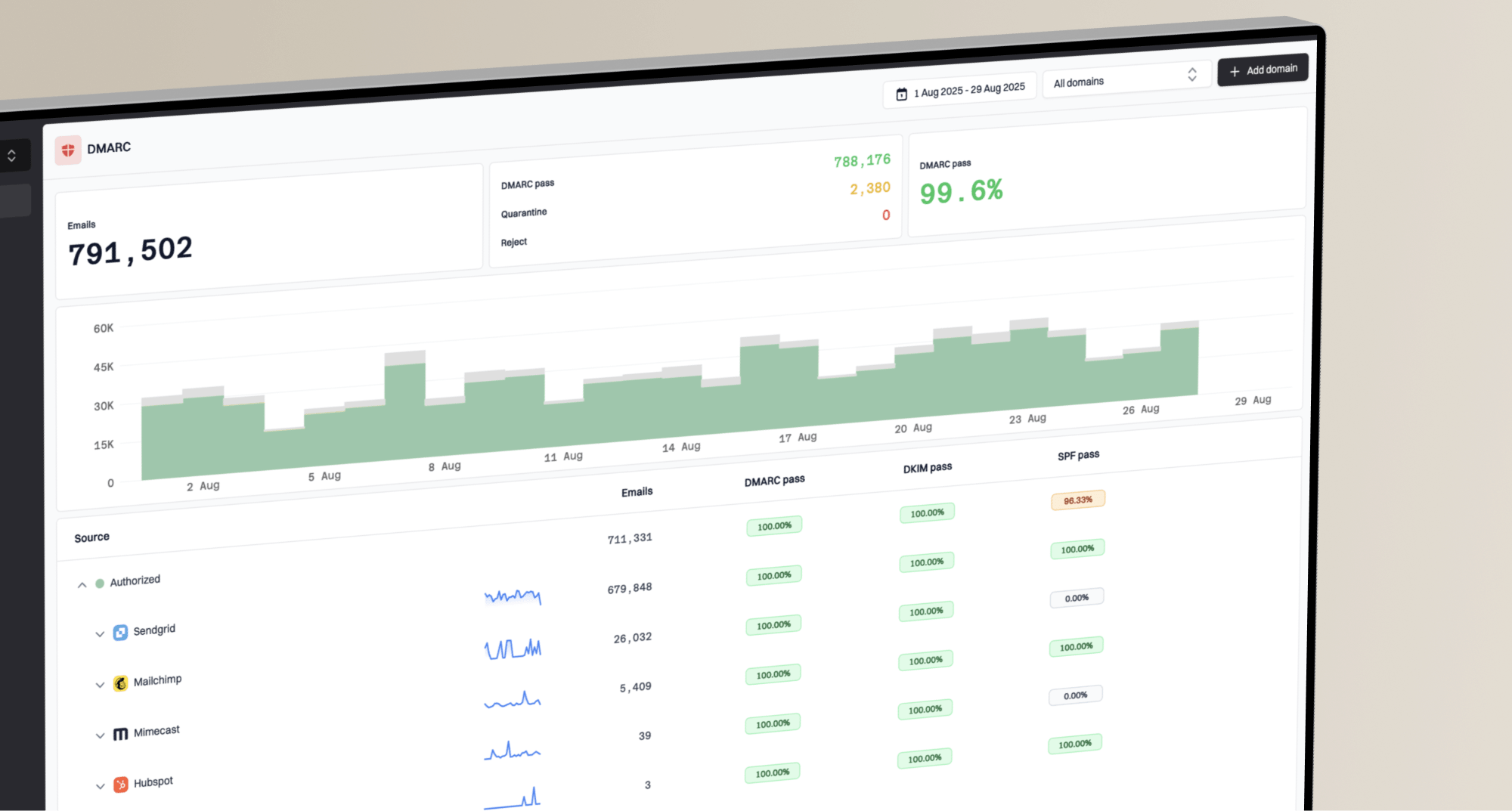
Finally, remember that Google’s ticketing process is changing. The intermittent failure of the old form suggests a transition toward the GPT reporting tools. Staying updated on these compliance updates is the best way to ensure your emails continue to reach the inbox reliably.
Views from the trenches
Best practices
Always test the form in an incognito window to rule out extension interference.
Keep a local copy of email headers before attempting to paste them.
Verify DMARC compliance before escalating any delivery issue to Google.
Common pitfalls
Pasting too much data at once which causes the browser to freeze.
Assuming a broken form means the support service is completely offline.
Using outdated browsers that do not support the new GPT dashboard features.
Expert tips
Zoom out to 75% or 80% to see hidden submission buttons.
Clear cookies specifically for google.com if the button is unresponsive.
Use Suped to find technical errors that tickets often miss.
Marketer view
Marketer from Email Geeks says they found the Gmail ticket form intermittently fails and often requires a page refresh or a different browser to open correctly.
2024-05-15 - Email Geeks
Expert view
Expert from Email Geeks says that surgically removing Chrome cookies for the support domain can fix issues where the start ticket button does not work.
2024-05-16 - Email Geeks
Summary of fixes
Dealing with a broken Gmail delivery form is a test of patience, but it is rarely a permanent blocker. By using browser workarounds like zooming out or clearing cookies, you can usually bypass the UI bugs. However, the best strategy is to maintain a perfect sender reputation so you rarely need to use the form. Implementing hosted DMARC through Suped ensures that your authentication is always valid, reducing the likelihood of the false positives that drive us to the support forms in the first place.