Google Postmaster Tools Domain Reputation: The Ultimate Guide for Email Marketers
Knowledge

Matthew Whittaker
Co-founder & CTO, Suped
Published 14 Feb 2025
Updated 19 Jun 2026
19 min read
Summarize with

Updated on 19 Jun 2026: We updated this guide for current Gmail compliance checks and domain verification troubleshooting.
Google Postmaster Tools domain reputation is a Gmail-specific trust signal, not a complete verdict on your whole email program. For years, marketers looked for the simple Bad, Low, Medium, or High category. That tier still has value when it appears, but the stronger daily workflow is to judge Gmail reputation through spam rate, compliance status, authentication pass rates, encryption and TLS coverage, delivery errors, feedback loop data, and the quality of the mail sent under each domain.
The starting point is Google Postmaster Tools. Use it because it gives Gmail-side feedback that DMARC reports cannot provide on their own: user spam reports, authentication visibility, compliance status, delivery errors, encryption data, and reputation ratings. Its dashboards cover outgoing mail to personal Gmail accounts, so Google Workspace recipients and other mailbox providers need separate evidence.
- The Bad, Low, Medium, and High domain reputation tier is a lagging Gmail signal, not a universal domain score.
- Spam rate, compliance status, authentication, encryption, and delivery errors carry the most practical weight for daily decisions.
- Verification and account access issues should be separated from reputation loss before changing sender infrastructure.
- Marketing teams should fix the campaign, list source, authentication, and sending pattern behind the signal.
- Report delivery issues only after the domain is verified, compliant, authenticated, and still being treated incorrectly.
- Suped's product gives cross-domain authentication and deliverability context that Postmaster Tools does not show.
What Google domain reputation means in 2026
Domain reputation is Gmail's view of the sender identity in the visible From address and authenticated sending path. Google does not publish a single formula, so the safest way to think about it is behavioral: Gmail looks at whether people want your mail, whether authentication proves the domain is legitimate, and whether your infrastructure behaves consistently.
The Domain Reputation dashboard only displays messages for the exact domain used in DKIM or SPF authentication, so a root domain and a subdomain can show different evidence. That matters when one marketing subdomain has weak Gmail behavior while another transactional subdomain still looks healthy.
If you came looking for the High, Medium, Low, and Bad chart, treat it as one reputation view rather than the full answer. The chart still matters when it appears, but Gmail also gives more actionable reporting through spam rate, compliance, delivery errors, authentication, encryption, and Feedback Loop data. That means marketers need to stop asking only, "What is the score?" and start asking, "Which user or technical signal is hurting Gmail delivery?"
- High: Gmail sees a history of very low spam pressure and steady compliance, so mail rarely gets marked as spam.
- Medium: Gmail sees mostly legitimate mail with occasional spam pressure, so deliverability can drop during complaint spikes.
- Low: Gmail sees a regular history of spam-like sending, so mail is likely to be filtered.
- Bad: Gmail sees repeated high spam behavior, so mail is often rejected or placed in spam.
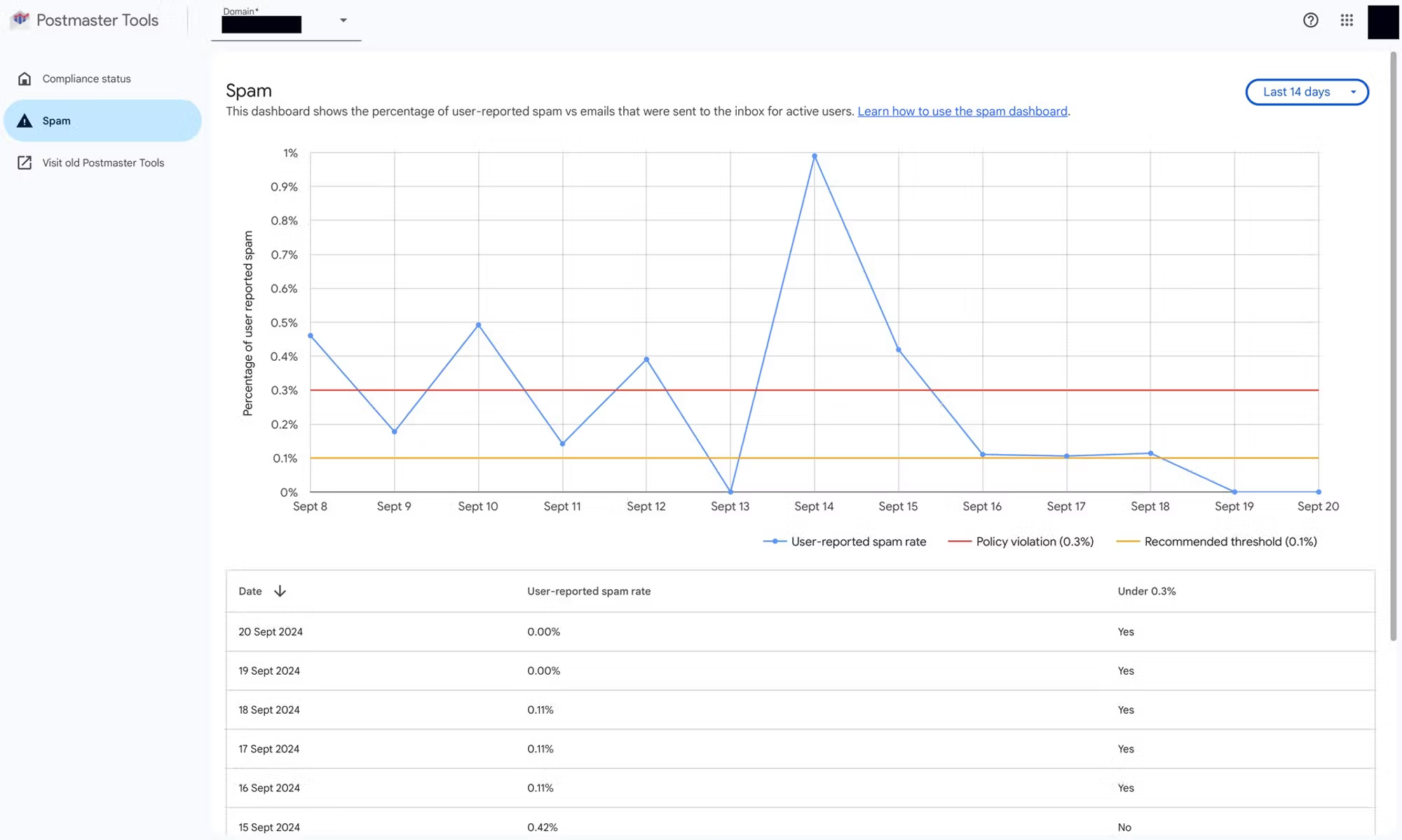
Google Postmaster Tools spam rate graph showing Gmail user complaint trends
|
|
|
|---|---|---|
Compliance status | Sender requirements | Fix requirements |
Spam rate | User complaints | Reduce complaints |
Domain reputation | Bad, Low, Medium, High | Find complaint sources |
IP reputation | IP quality rating | Check routing |
Authentication | SPF, DKIM, DMARC pass rates | Fix records |
Encryption | TLS inbound and outbound | Check TLS |
Delivery errors | Rejects and temp fails | Read error reasons |
Feedback Loop | Complaint identifiers | Segment campaigns |
Postmaster Tools views mapped to current marketing actions
The tier is easy to read, but blunt. A Low rating does not say whether the cause is a bad acquisition source, an authentication gap, a sudden volume spike, a stale segment, a shared IP issue, a TLS gap, or a Gmail-only filtering change. The current workflow forces a more useful investigation.
Domain reputation vs IP reputation
Domain reputation and IP reputation answer different questions. Domain reputation is tied to the sender identity Gmail users see and Gmail can verify through SPF, DKIM, and DMARC. IP reputation is tied to the server address and connection behavior behind the send.
When Postmaster shows bad IP reputation with good domain reputation, read it as a delivery warning rather than a contradiction. Mail from that IP can still land in spam or be throttled at Gmail, even while the wider domain history remains healthy enough to avoid a domain-level drop.
Domain reputation
Use domain reputation to diagnose spam placement after Gmail accepts mail. It is affected by complaints, engagement, list quality, identity consistency, authentication, and history across campaigns.
- Follows the brand domain across ESP or IP changes.
- Explains why a clean IP still sends mail to spam when complaints are high.
- Needs sender and audience fixes, not only infrastructure changes.
IP reputation
Use IP reputation to diagnose SMTP deferrals, throttling, connection rejections, and shared pool problems. It is affected by volume changes, connection rate, PTR records, HELO behavior, blocklist or blacklist listings, and other senders on shared IPs.
- Changes when you move infrastructure or ESPs.
- Explains why Gmail slows or refuses mail before placement is considered.
- Needs routing, warm-up, DNS, and rate fixes.
A clean IP does not reset a weak domain reputation, and a trusted domain does not always overcome a damaged IP. This distinction matters when Postmaster Tools shows delivery errors and spam rate together: delivery errors often point toward IP, routing, or rate problems, while spam placement after acceptance points toward domain trust, complaints, engagement, and list quality.
Warm-up and migration signals
Warm-up matters because a sudden new IP, new subdomain, new ESP, or sharp volume jump can make a good domain look risky to Gmail. Treat a Gmail warm-up as a controlled reputation change: start with recent engaged recipients, keep the content type consistent, and increase only when spam rate, delivery errors, authentication, encryption, and domain reputation stay stable.
For a new IP and a new sending domain, start in the low hundreds per day to Gmail, then increase gradually instead of following a fixed calendar. Keep Microsoft on a separate ramp in your own reporting because Google Postmaster Tools explains Gmail symptoms only. A clean Gmail curve does not prove Outlook.com, Hotmail, or Microsoft 365 recipients are accepting the same mail cleanly.
If a Gmail subdomain is already Bad or Low, do not warm up broad traffic. Pause weak Gmail segments, restart with recent clickers, simplify the template, and increase only after several sends show stable complaint, error, and placement behavior.
- Start with 30-day engagers before expanding to older segments.
- Keep volume steady across the day and avoid sudden jumps, especially after changing ESP, IP pool, headers, template, or sending domain.
- Hold the ramp when spam rate rises, Gmail returns rate-limit errors, authentication drops, TLS coverage changes, or domain reputation moves down.
- Reduce volume and recover slowly after deferrals, permanent failures, or blocklist (blacklist) exposure.
How long reputation recovery takes
A Bad or Low Gmail reputation usually takes weeks to show clear improvement after the underlying sending behavior changes. The first positive movement often appears in 3 to 12 weeks when the sender stops weak traffic, mails engaged Gmail recipients, and keeps authentication stable.
Moving from Bad or Low to a stable High rating usually takes 3 to 6 months, and a domain or IP with a long poor history can take longer. Gmail has to observe enough new mail and enough recipient behavior before the dashboard catches up.
Gmail reputation recovery timing
Use these bands to set expectations after the cause of weak reputation has been removed.
Early signal
1-3 weeks
Placement can improve before the visible rating changes.
Visible progress
3-12 weeks
Ratings move when good sending stays consistent.
Stable recovery
3-6+ months
Older segments can be tested without an immediate relapse.
Low volume makes recovery slower because each send gives Gmail less fresh evidence. A private IP that sends only a few Gmail campaigns per month needs smaller, more regular sends to proven recipients before it can widen safely.
- Do not promise a fixed day for Bad to Low, Low to Medium, or Medium to High.
- Pause weak Gmail segments before testing broad audience expansion.
- Watch spam placement, Gmail complaint rate, delivery errors, authenticated volume, and audience engagement together.
- Treat one good send as a signal to continue the plan, not permission to restore every old segment.
How to read the core Gmail signals
Spam rate is the closest operational proxy for Gmail domain reputation. It is not a full reputation score, but it is the clearest complaint pressure signal. Gmail's sender guidance says to keep spam rates below 0.30%, and the better operating target is below 0.10% with room to absorb bad days.
Gmail spam rate bands
Use these bands as a practical operating model for campaign decisions.
Healthy
0.00-0.10%
Good room for normal variation.
Watch
0.10-0.29%
Pause riskier sends and inspect segments.
Critical
0.30%+
Stop broad sends until the cause is fixed.
Read spam rate carefully. Google defines it around user reports compared with mail that reached the inbox, so a clean-looking spam rate does not prove a healthy program if a large share of mail is already landing in spam or being deferred. A high spam rate that suddenly drops to zero is not automatic recovery; it can mean fewer messages are reaching the inbox where users can report them.
Do not use open rate as a Google Postmaster Tools metric. Google does not track open rates for this dashboard, and open data from marketing platforms is distorted by image loading, privacy behavior, and caching. Use Gmail complaints, clicks, replies, unsubscribes, bounces, and cohort-level revenue or conversion data to judge whether recipients want the mail.
Compliance status is the second core signal. It tells you whether Gmail sees the technical basics required for bulk sending. For senders sending more than 5,000 messages per day to personal Gmail accounts, those basics include SPF, DKIM, DMARC, TLS, valid forward and reverse DNS, a spam rate below 0.30%, one-click unsubscribe for marketing and promotional mail, a visible unsubscribe link in the message body, and unsubscribe processing within 48 hours. Transactional mail is excluded from the one-click unsubscribe requirement, but high spam reports on any stream still hurt delivery. Compliance status can take up to 7 days to reflect fixes because Google uses a rolling data window, and the compliance view is reported at the primary-domain level even when subdomain traffic contributes to the status.
The Compliance status dashboard uses Compliant, Needs work, and No data found states. Treat Needs work as a sender-requirement fix, not a reputation opinion. Treat No data found as a data sufficiency issue until you confirm the right domain, date range, and Gmail volume. For a broader checklist, group the useful Postmaster metrics by whether they diagnose user complaints, technical compliance, or message rejection.
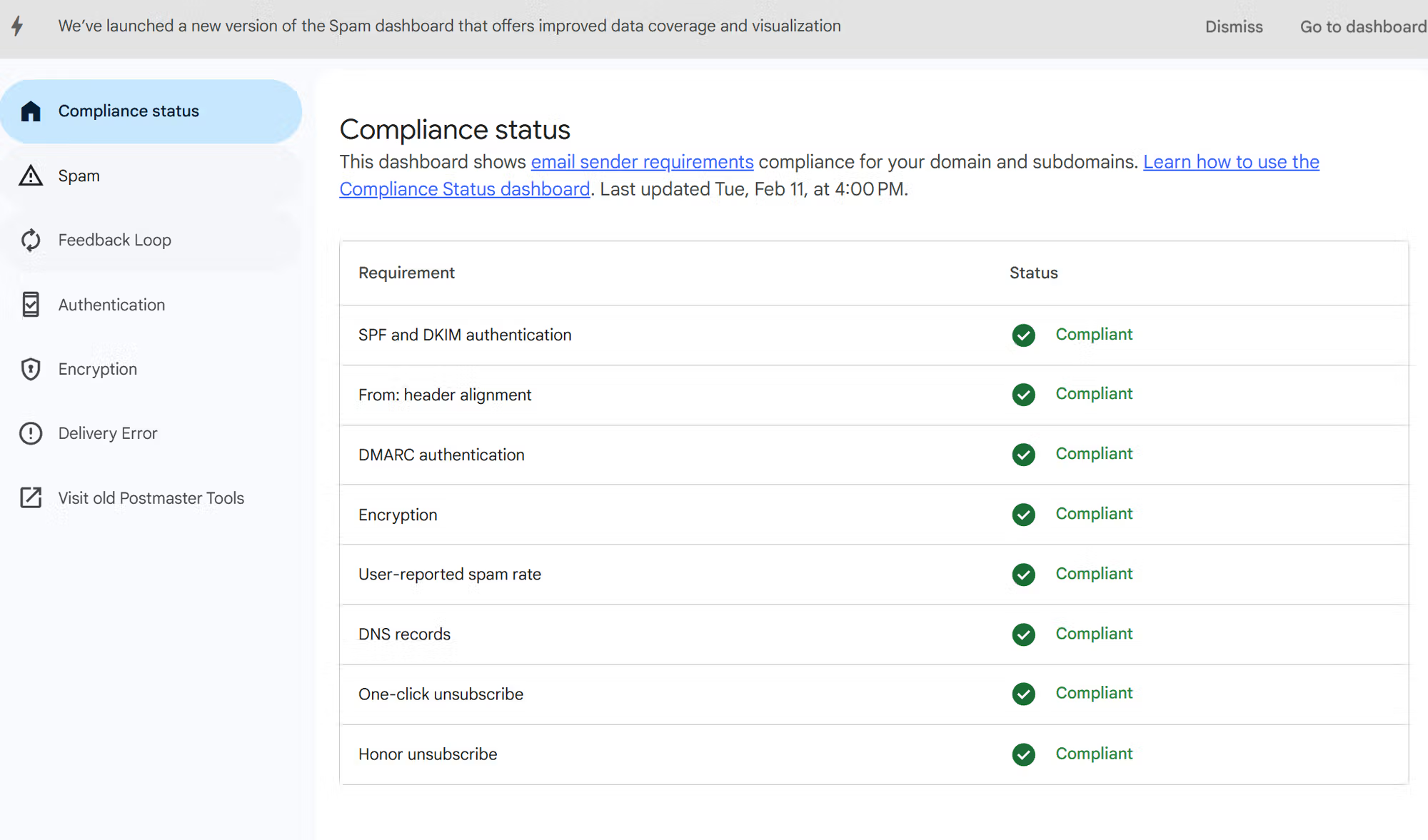
Google Postmaster Tools compliance status for Gmail bulk sender requirements
The Authentication dashboard shows how often Gmail sees SPF, DKIM, and DMARC pass for the sending domain. Google says senders typically reach 95% or higher success rates for DKIM and DMARC when these methods are set up correctly. Repeated drops below that mark usually point to a sender mapping problem, a missing DKIM signature, SPF source drift, or a visible From domain that is not passing DMARC.
The Encryption dashboard belongs in the same check. It reports TLS coverage for authenticated mail to and from Gmail. If it drops below expected levels, inspect SMTP TLS logs, certificate validity, forwarding paths, and third-party senders before treating the problem as reputation only.
Feedback Loop data helps when a sender uses stable campaign identifiers and has enough Gmail volume for aggregated reporting. Use the From header domain view when you need the selected brand domain, and use the all signed domains view when you need a broader DKIM-signed view. Feedback Loop data traces complaint clusters back to message types or campaigns, not individual Gmail users.
Do not optimize for one chart
One green chart does not cancel out a weak signal somewhere else. Read the dashboard as a set of clues, then connect those clues back to the actual sender, campaign, and DNS path.
- Spam rate shows direct Gmail complaint pressure after mail reaches users.
- Compliance status shows whether the domain meets Google's bulk sender requirements.
- Authentication data shows whether Gmail can connect the message to the sending domain.
- Encryption data shows whether authenticated mail is moving over TLS.
- Delivery errors show whether Gmail is refusing, deferring, or throttling specific streams.
- Feedback Loop IDs help high-volume senders trace complaint clusters back to campaigns.
Set up the checks before you diagnose reputation
Postmaster Tools only helps after the domain is verified and Gmail has enough qualified traffic to show data. Its data applies to personal Gmail accounts, not Google Workspace inboxes. Use a Google account with access to Postmaster Tools, verify a domain first, then decide which sending domains and subdomains need their own monitoring.
Verification usually means adding Google's TXT record to DNS, though CNAME verification can work when the TXT route is difficult. Add the DKIM d= domain or the SPF return-path domain, and add subdomains when you need separate charts. After verification, expect a delay because Google aggregates reporting daily and many signals lag by 24 hours or longer. Postmaster Tools uses UTC, so match dashboard dates to campaigns with that timing in mind.
If a domain that was verified later shows as unverified, check whether the original google-site-verification TXT value still resolves at the exact host Google expects. DNS cleanups, nameserver moves, and account handovers often remove or hide the token. If the token is still visible, try verifying again before creating a new record. If the token is gone, publish the new value, wait for DNS propagation, and keep it in place.
For multiple Google accounts, use separate DNS verification records instead of passing one shared login around. That keeps owner access clearer for agencies, client teams, and administrators who need to report delivery issues later.
If the dashboard looks empty, check the exact domain scope, expand the reporting window to a longer range such as 120 days, and confirm there was enough recent Gmail traffic. Google hides data on low-volume days to protect user privacy, so missing data is not the same as a clean sender reputation. As a practical rule, do not draw conclusions from days with only a small handful of personal Gmail recipients. Postmaster Tools also attempts to exclude forwarded messages, but some forwarded traffic can still appear in dashboard data.
For email marketers, the setup mistake that causes the most confusion is tracking only the root domain when campaigns actually leave through several branded subdomains. A newsletter, lifecycle stream, sales automation system, and transactional product mail can each create different complaint and authentication patterns.
- Add the root domain plus every subdomain that sends meaningful Gmail volume.
- List each platform, return-path domain, DKIM selector, and sending IP pool.
- Record send dates, audience size, source, suppression logic, and content type.
- Separate low-volume noise from a real repeated Gmail pattern.
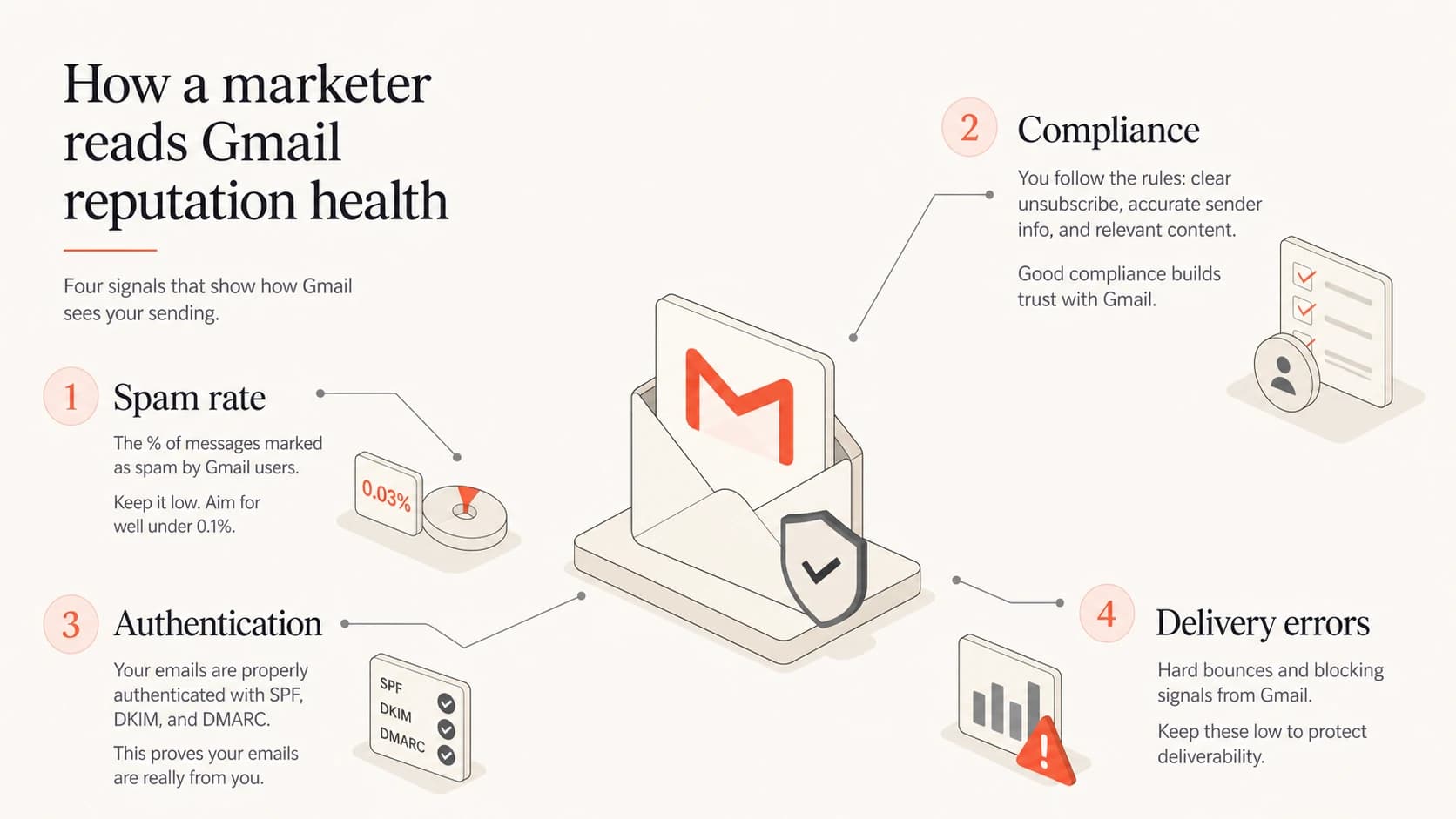
Infographic showing Gmail reputation health signals: spam rate, compliance, authentication, and delivery errors
A workflow for finding the actual cause
When Gmail performance drops, do not start by rewriting subject lines. Start by separating technical failure, user complaint pressure, and list quality. Those causes overlap, but they need different fixes. A clean SPF record will not fix a purchased list. A cleaner segment will not fix broken DKIM.
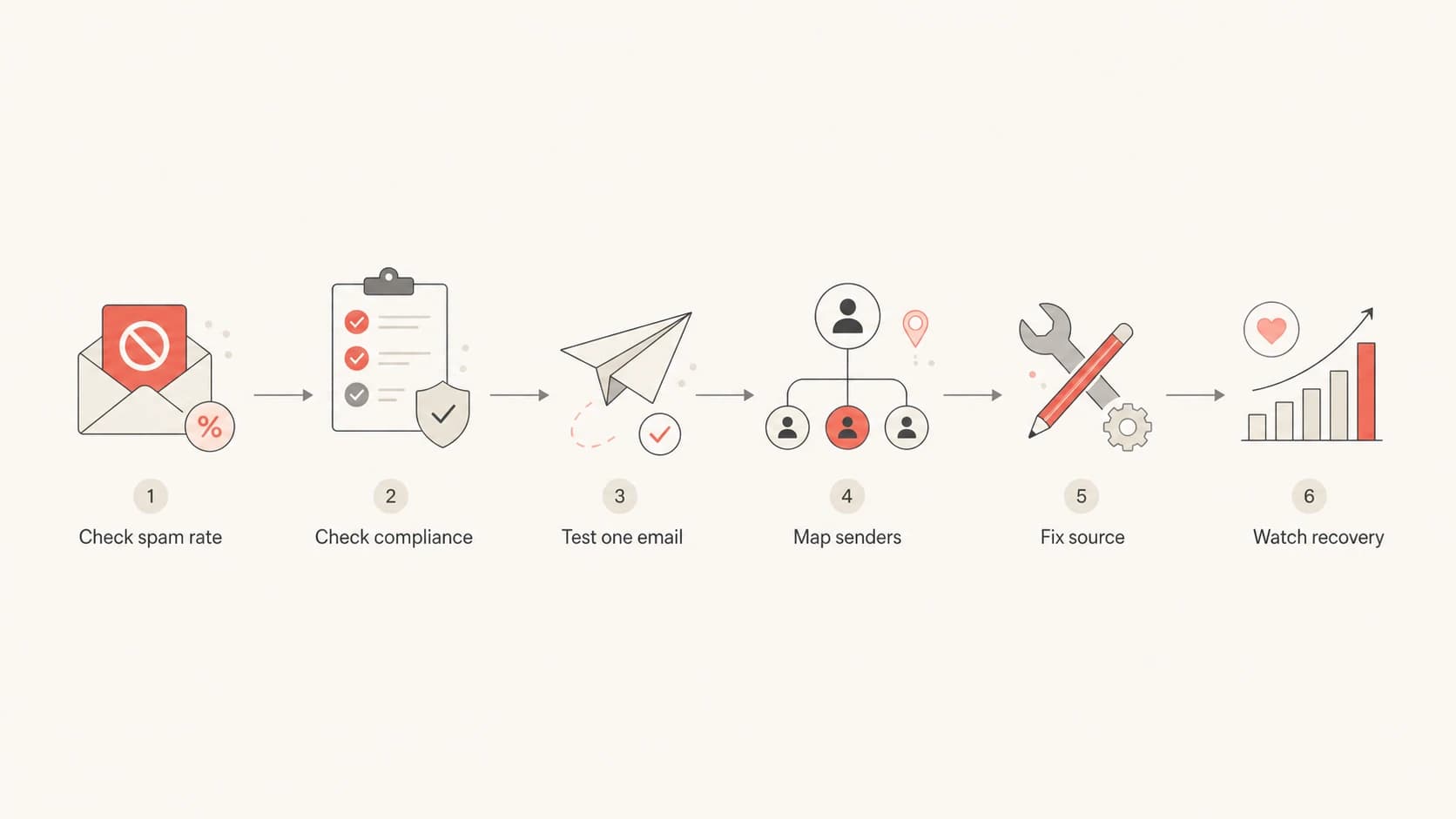
Flowchart for diagnosing Gmail reputation drops through spam rate, compliance, email testing, sender mapping, source fixes, and recovery tracking
Before blaming reputation, send the same campaign path through Suped's email tester. That catches visible authentication failures, DNS gaps, header problems, and message-level issues before a team spends days guessing from aggregate charts.
Email tester
Send a real email to this address. Suped opens the report when the test is ready.
?/43tests passed
Preparing test address...
If the affected stream is a Gmail subdomain with Bad or Low reputation, pause weak Gmail traffic before you run more broad tests. Send only to recent Gmail clickers or other proven high-intent recipients, and treat each send as evidence that either helps or hurts recovery.
Read delivery errors by their exact reason. Rate limit exceeded points to volume or connection pressure. Low IP or domain reputation points to trust. Bad DMARC policy points to a mismatch between policy and authentication. RBL listings point to blocklist or blacklist exposure. Bad or missing PTR records point to DNS identity. Bad attachment and content-related errors point to message-level problems.
For temporary failures, pause the risky send, reduce connection pressure, and resume at a steadier rate after the error rate drops. Pushing through throttling can turn temporary Gmail resistance into permanent failures. Use a backoff pattern for retries, with longer waits after repeated failures.
Reputation symptom
- A complaint spike usually means a specific campaign or segment pushed users to mark mail as spam.
- A compliance fail means the domain misses a technical sender requirement Gmail checks.
- An error jump means Gmail is throttling or rejecting a stream.
Likely source
- List quality is the likely source when the audience is stale, rented, scraped, or poorly consented.
- DNS setup is the likely source when SPF, DKIM, DMARC, TLS, or DNS identity needs correction.
- Send pattern is the likely source when volume, frequency, or stream mixing changed too fast.
When to report a Gmail delivery issue
Use Postmaster Tools reporting as an evidence channel, not a reputation reset. Report a delivery issue only when the domain is verified, you have owner access, the domain meets Gmail sender requirements, the message passes SPF and DKIM, the visible From domain passes DMARC through SPF or DKIM alignment, and the problem still looks like incorrect Gmail classification, rejection, or temporary failure.
This is the practical replacement for repeatedly submitting the Gmail Bulk Sender Contact Form for a bad subdomain. A bad Gmail reputation caused by stale lists, weak consent, high complaint pressure, or ignored mail needs traffic changes first: pause weak Gmail segments, mail recent clickers, simplify content, and recover slowly.
|
|
|
|---|---|---|
Verified domain, clean auth, persistent misclassification | Yes | Submit headers |
Bad or Low reputation with weak engagement | No | Reduce traffic |
Rate limits or temporary failures | Not first | Back off |
Missing DMARC or unsubscribe compliance | No | Fix compliance |
New or unproven Gmail list source | No | Rebuild consent |
Use reporting for evidence, not as the first fix.
The form does not override mailbox behavior
If Gmail users keep ignoring, deleting, unsubscribing, or reporting the same stream, another form submission will not outweigh that behavior. Change the traffic first, then report only if the evidence points to a Gmail-side mistake.
Authentication records that protect sender reputation
SPF, DKIM, and DMARC do not create engagement, but they prove your mail is authorized. Gmail expects this proof, and weak authentication makes reputation recovery slower because the mailbox provider cannot reliably connect good behavior to the domain users see.
Starter DNS records for reputation-safe sendingdns
Host: _dmarc.example.com
Type: TXT
Value: v=DMARC1; p=none; rua=mailto:dmarc@example.com

Host: example.com
Type: TXT
Value: v=spf1 include:_spf.example.net -all

Host: s1._domainkey.example.com
Type: TXT
Value: v=DKIM1; k=rsa; p=BASE64_PUBLIC_KEY
RFC 9989 removed the pct tag from DMARC, so do not use it as a rollout control. If you see legacy examples that use pct=0, treat them as old examples rather than a pattern to copy into new records. Start with p=none, fix legitimate sender failures from reports, then move to quarantine or reject when the domain is ready.
A monitor-only DMARC policy is fine at the start, but it should not be the end state. Use DMARC monitoring to confirm that every legitimate sender passes DMARC with the visible From domain before moving to quarantine or reject.
Run Suped's full domain health check when the Postmaster dashboard looks healthy but Gmail placement still drops. That catches missing DKIM selectors, SPF lookup pressure, weak DMARC policy, and DNS details that a campaign report often hides.
SPF passing alone is not enough
A message can pass SPF and still fail DMARC if the authenticated return-path domain does not match the visible From domain. For reputation work, the visible brand domain matters because that is what recipients recognize and what Gmail evaluates in context.
When Gmail data is delayed, thin, or confusing
Missing Postmaster data does not always mean Gmail has no opinion about the domain. It often means the dashboard does not have enough qualified volume, the wrong domain is verified, the traffic is split across subdomains, or the signal is delayed. New senders feel this most because the first weeks of activity create sparse data.
If the domain shows as unverified, fix ownership before diagnosing reputation. A missing verification token or lost shared access blocks dashboard visibility, but it does not prove that Gmail changed how it treats your mail.
For low-volume senders, treat a reputation score or missing chart as a directional clue. A single complaint, one batch of bounces, or one quiet week can move the apparent signal more than the underlying mail quality changed. Wait for repeated Gmail evidence before changing infrastructure.
Do not make a big send from thin data
- Low volume needs several normal sends before one bad day becomes a trend.
- Wrong scope means the root domain or subdomain being checked is not the true sender.
- Mixed streams hide the difference between transactional, lifecycle, newsletter, and sales mail.
- Slow recovery is normal because better behavior takes time before charts improve.
If the signal is thin, compare it with evidence closer to the mail flow: bounce reasons, SMTP error text, authentication results, complaint timing, sender source, TLS logs, and the list segment that changed before the drop. A score alone tells you where to look. The evidence tells you what to fix.
Also check blocklist (blacklist) status when Gmail complaints rise or delivery errors appear suddenly. A blocklist hit is not the same thing as Gmail domain reputation, but a serious blacklist listing often points to the same underlying problem: compromised mail, poor list acquisition, bad infrastructure, or abusive traffic coming through a third-party sender. Suped's blocklist monitoring keeps that check next to DMARC and authentication data so the investigation stays connected.
Where Suped fits into the workflow
Google Postmaster Tools is useful, but it is Gmail-only and it does not show every sender using your domain. Suped's product helps with the work around Gmail signals: source discovery, SPF and DKIM monitoring, hosted DMARC, hosted SPF, hosted MTA-STS, SPF flattening, real-time alerts, and blocklist or blacklist visibility.
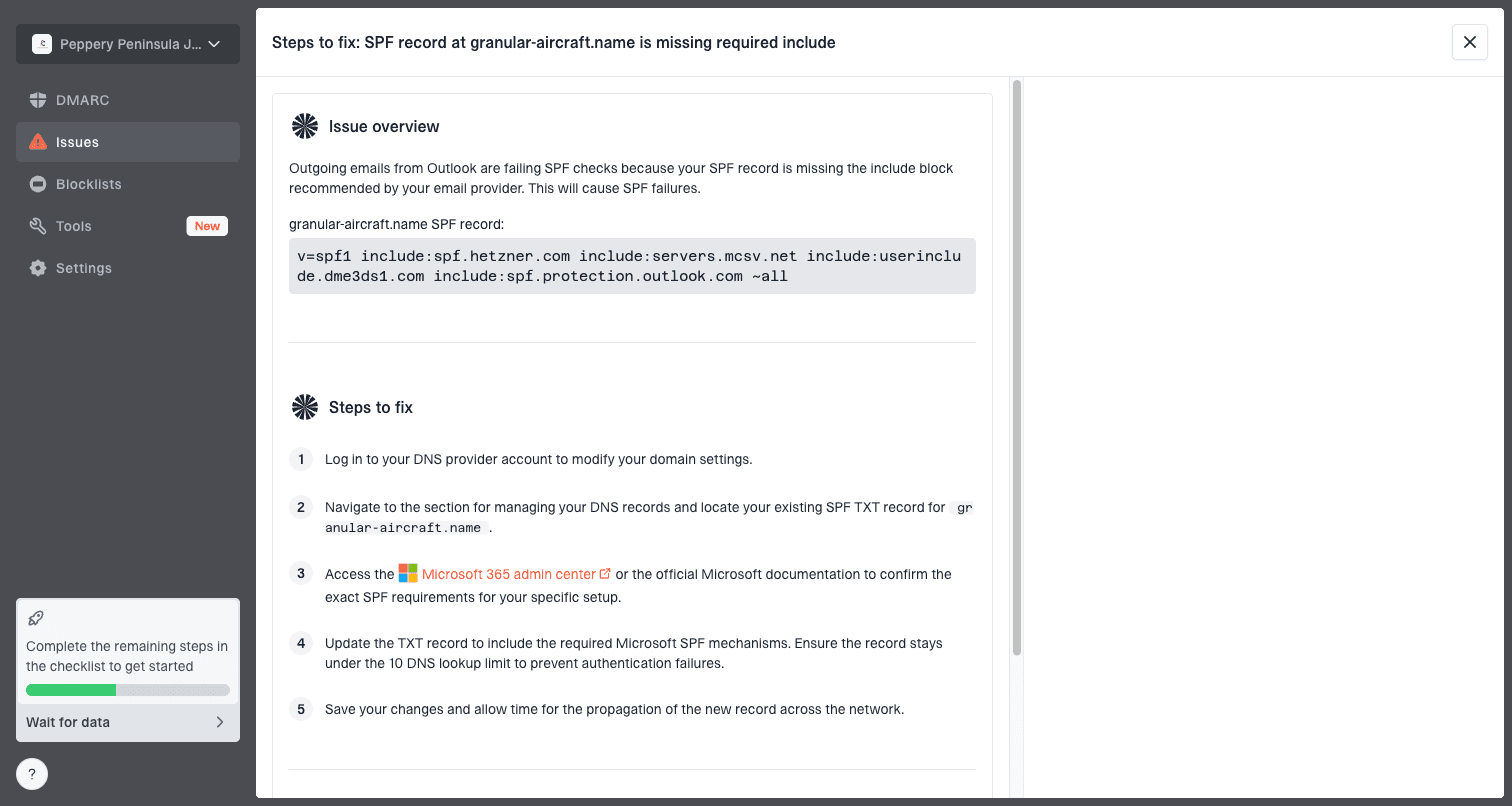
Issue steps to fix dialog showing the issue overview, tailored fix steps, and verification action
The practical workflow is simple: use Google Postmaster Tools to see Gmail-specific symptoms, then use Suped's product to identify which sender, DNS record, authentication result, or blocklist signal needs work. That is especially helpful for agencies, MSPs, and multi-brand teams that manage many domains and need a clean queue of issues rather than a pile of raw reports.
Google Postmaster Tools
- Shows Gmail spam reports, compliance, errors, encryption, and related Gmail signals.
- Needs enough Gmail volume and verified domain access.
- Works best for confirming whether Gmail sees a symptom worth investigating.
Suped
- Combines DMARC, SPF, DKIM, blocklists, and delivery issues in one workflow.
- Turns authentication problems into clear steps by sender.
- Keeps authentication and reputation monitoring repeatable across domains.
Suped's free plan can cover basic DMARC visibility for smaller teams. Larger teams use alerts, hosted records, issue detection, client reports, and multi-tenancy to make monitoring repeatable.
The practical takeaway
The answer to Google Postmaster Tools domain reputation is not a single tier you refresh every morning. The useful answer is a process: read Gmail spam rate and compliance, test the actual message path, prove authentication, check TLS, separate streams, remove complaint sources, and watch recovery over time.
- Start with spam rate, compliance status, and delivery errors for the affected domain.
- Tie the Gmail signal to a sender, campaign, audience source, and DNS path.
- Use IP checks for connection problems and domain checks for spam placement after acceptance.
- Fix verification or access before treating missing dashboard data as a reputation change.
- Fix the cause, then return volume gradually instead of forcing a large send.
- Report delivery issues only after authentication, compliance, and sender behavior have been fixed.
- Keep Google Postmaster Tools beside Suped so Gmail symptoms and domain-wide authentication work stay connected.
Good Gmail performance comes from consistent permission, stable sending, strong authentication, TLS coverage, fast complaint cleanup, and clean infrastructure. The tier can make that work feel like a score. The current workflow makes it a set of actions.