Why is Gmail throwing errors and marking my emails as phishing?

Updated on 20 Oct 2026: We updated this guide with Gmail false-positive reporting steps and more precise authentication checks.
Gmail shows a phishing warning when it detects signs of a deceptive message or unsafe content. The likely cause depends on the exact warning: a suspicious-link warning calls for checking the tracking URL, redirects, and landing page, while a sender-verification warning calls for checking authentication. A clean public blocklist (blacklist) result does not establish that Gmail considers the message safe.
Start by treating this as more than an SPF or DMARC problem. Authentication matters, but it does not make an unsafe link or attachment safe. If multiple mailbox providers flag the same campaign or linked domain, prioritize investigating that shared content. Contain confirmed site compromise immediately and repair authentication failures alongside the cleanup.
A phishing banner is a warning to investigate, not proof that the sender's site is compromised. When Gmail names a suspicious link, inspect the full URL path. When Gmail says it cannot verify the sender, inspect authentication results. Neither a DNS change nor a clean public lookup guarantees removal of the warning.
Why Gmail shows the warning
Gmail does not need a public blocklist hit to show a phishing banner. Google documents the use of authentication results and user reports alongside other signals, but does not publish a complete explanation for each decision. Public lookup results cover only part of the evidence available to a sender.
- A tracked link, redirect host, final landing page, or asset URL has a bad history or points to unsafe content.
- A compromised page under the brand domain puts legitimate campaigns that link to it at risk.
- SPF or DKIM fails, or a passing result uses a domain that does not satisfy DMARC's match with the visible From domain.
- The display name or sender details mislead recipients, or a link's displayed address differs from its destination.
- Recipients report unwanted messages as spam or phishing, affecting how Gmail classifies similar traffic.
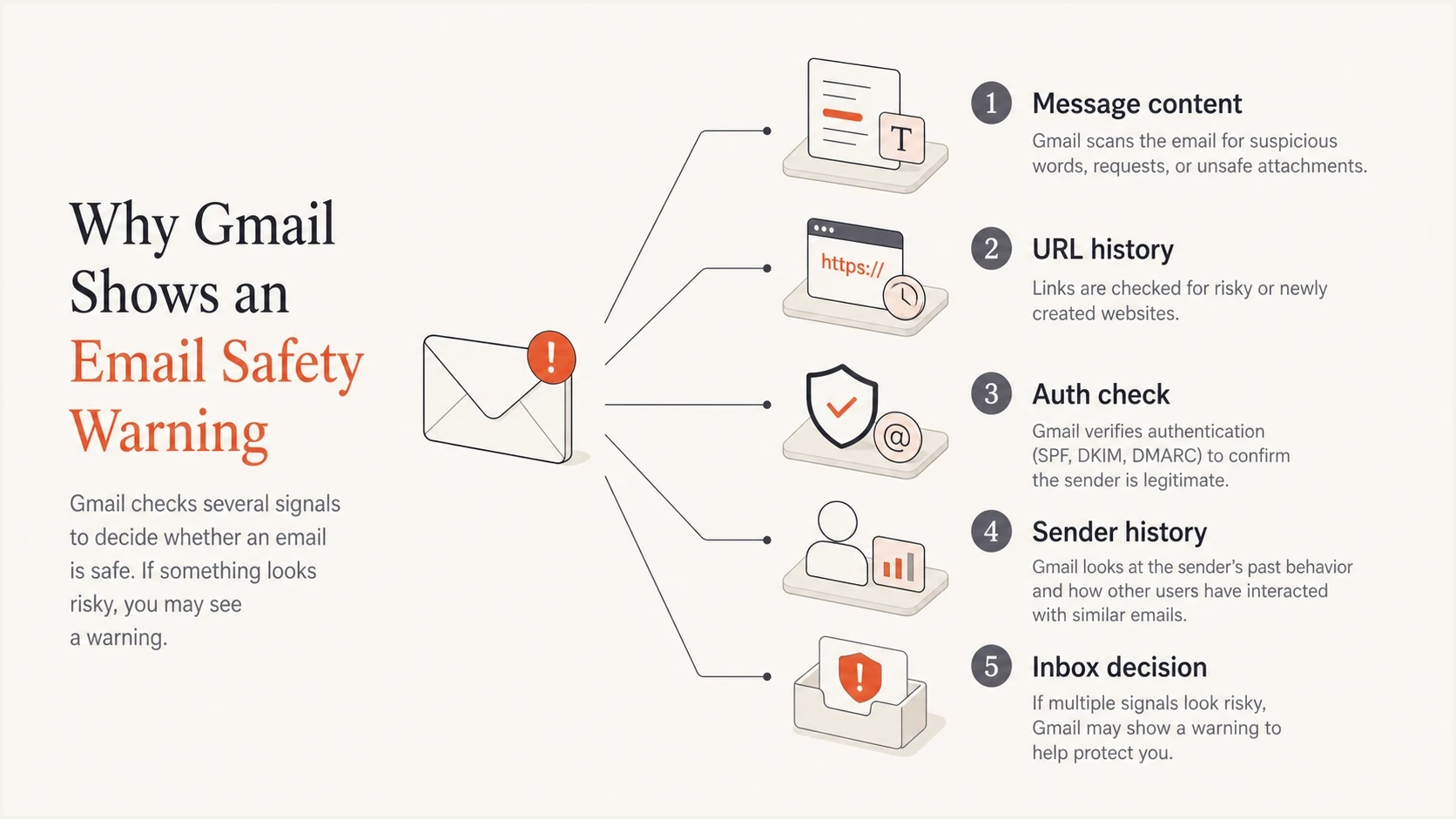
Gmail phishing warning inputs: message content, URL history, authentication, and sender history.
Google's own Gmail phishing guidance describes warnings around deceptive messages and links. For senders, the practical point is that Gmail is judging the whole message path. A clean sending IP does not cancel out a bad redirect, and a valid DKIM signature does not cancel out a compromised landing page.
Gmail warning triage priority
Prioritize confirmed harm, then investigate the specific warning and authentication evidence.
Critical
Fix now
A live unsafe page, bad redirect, or abused tracking link is present.
High
Isolate
A link host or sending path has poor history across mailbox providers.
Medium
Repair
Authentication fails or a passing SPF or DKIM domain does not satisfy DMARC.
Unconfirmed
Investigate
The warning appears in one copied test message and has not been reproduced.
What to check in the flagged message
The fastest way to debug this is to separate link risk, site risk, attachment risk, and identity risk. Work through the message like a receiver: what domain claims to send it, what domain signs it, what links ask the user to click, where those links redirect, and what the final page asks the user to do.
- Save the exact Gmail banner or full SMTP response, sending source, and campaign version. In Gmail on a computer, open the message, select More next to Reply, then Show original to preserve the full headers.
- Have the site or security team inspect every redirect in a controlled environment, recording the tracking host, intermediate hosts, and final URL.
- Search the site for unexpected login pages, injected forms, open redirects, modified scripts, unfamiliar files, and suspicious server-log activity.
- Read Gmail's Authentication-Results header for spf=pass, dkim=pass, and dmarc=pass. Compare the SPF return-path domain and DKIM signing domain with the visible From domain; a pass for an unrelated domain does not satisfy DMARC.
- Inspect attachments and remove unneeded files. Compare a no-link, no-attachment test with the campaign, then restore one element at a time while keeping the sender and sending route consistent.
?
What's your domain score?
Deep-scan SPF, DKIM & DMARC records for email deliverability and security issues.
Suped's domain health checker checks public SPF and DMARC records and scans common DKIM selectors. It validates DNS configuration rather than a specific message's authentication result. Pair the findings with Gmail's received headers to see whether the actual message passed; custom DKIM selectors still need verification.
Illustrative SPF and DMARC records, replace placeholdersdns
# SPF TXT at the domain used in the return path:
v=spf1 include:_spf.sender.example -all

# DMARC TXT at _dmarc.example.com, choose ONE policy:
# Monitoring:
v=DMARC1; p=none; rua=mailto:dmarc@example.com

# Enforcement after legitimate senders are verified:
v=DMARC1; p=quarantine; rua=mailto:dmarc@example.com

# DKIM: publish the TXT or CNAME record supplied by your
# sending service at selector._domainkey.example.com.
The include domain above is a placeholder, and the reporting mailbox must receive reports. Publish one SPF record per return-path domain and one DMARC record at the policy name. Changing DMARC policy does not remove a content warning. Before moving to p=reject, confirm that legitimate sending sources pass DMARC. RFC 9989 made the pct tag historic, so do not rely on percentage-based rollout. Use a DMARC checker to validate syntax, then aggregate reports to assess real traffic before enforcement.
Links, tracking, and URL reputation
A tracking link can create risk even when the email body is clean. Inspect the entire redirect chain rather than only the displayed address. A tracking host or destination associated with abuse, an open redirect, or a compromised brand page deserves investigation even when public blacklist results are clean. This is an investigation path, not confirmation of Gmail's internal scoring.
URL problem
- Gmail warns about a suspicious link or unsafe destination.
- Investigate the tracking host, redirect chain, and final page for abuse or compromise.
- Remove unsafe pages, close open redirects, repair affected tracking links, and retest.
Authentication problem
- Gmail's headers show failed authentication or a DMARC domain mismatch.
- Check missing or invalid DNS records, duplicate records, and the domain configured for signing.
- Repair SPF authorization and DKIM signing, then verify DMARC on a received message.
A clean public lookup does not exclude a link problem. Gmail's assessment is not fully exposed through public blocklist results. Record what each check establishes and compare controlled test messages before deciding whether the tracking host or final destination is responsible.
|
|
|
|---|---|---|
Unsafe-link warning | Gmail considers the linked content suspicious | Inspect redirects and the destination |
Open redirect | The host can redirect visitors to an attacker-controlled destination | Restrict redirect destinations |
SPF fail | The sending IP is not authorized by the evaluated SPF record | Confirm the sender and return-path domain before changing authorization |
DKIM fail | The signature did not verify | Check signing, public-key DNS, and message changes |
DMARC fail | No passing SPF or DKIM result satisfies the From-domain match | Repair authentication or domain matching |
Use this table to separate link risk from identity risk.
A compromised page can put emails linking to that site at risk even when authentication passes. After cleaning the affected pages and fixing the cause, check Google's site security findings and request a review through the process shown for the issue. A website security review and a Gmail message classification are separate decisions.
What SPF can and cannot fix
SPF tells a receiver which mail servers can send for the return-path domain, also called the envelope sender or MAIL FROM domain. DKIM verifies a signature associated with its signing domain. DMARC passes when at least one of these checks passes and that authenticated domain matches the visible From domain under the published DMARC rules. Relaxed matching allows the same organizational domain; strict matching requires identical domains. These identity checks do not repair an unsafe link or compromised landing page.
SPF helps when
- SPF authorizes the sending service for the return-path domain.
- A passing SPF result can satisfy DMARC when its domain matches the From domain under the published rules.
- Reviewing SPF finds stale authorization, duplicate records, and excessive DNS lookups; use sending records and DMARC reports to confirm which services actually send.
SPF does not fix
- A risky URL stays risky after SPF passes.
- A compromised page on the brand site still needs cleanup.
- Correct DNS does not guarantee a change in Gmail's assessment of linked content.
Contain any confirmed unsafe link path and repair sender authentication. Keep DMARC monitoring active to detect new sending sources and authentication failure patterns.
Do not ask an email platform or cloud host to solve a link warning only by adding SPF. SPF is a sender authorization control. If the warning names a suspicious link, the link path needs investigation.
How to fix the warning
Use the exact warning to choose the first investigation step. Contain unsafe content immediately when found, and assign authentication failures to the sending team so both problems can be repaired.
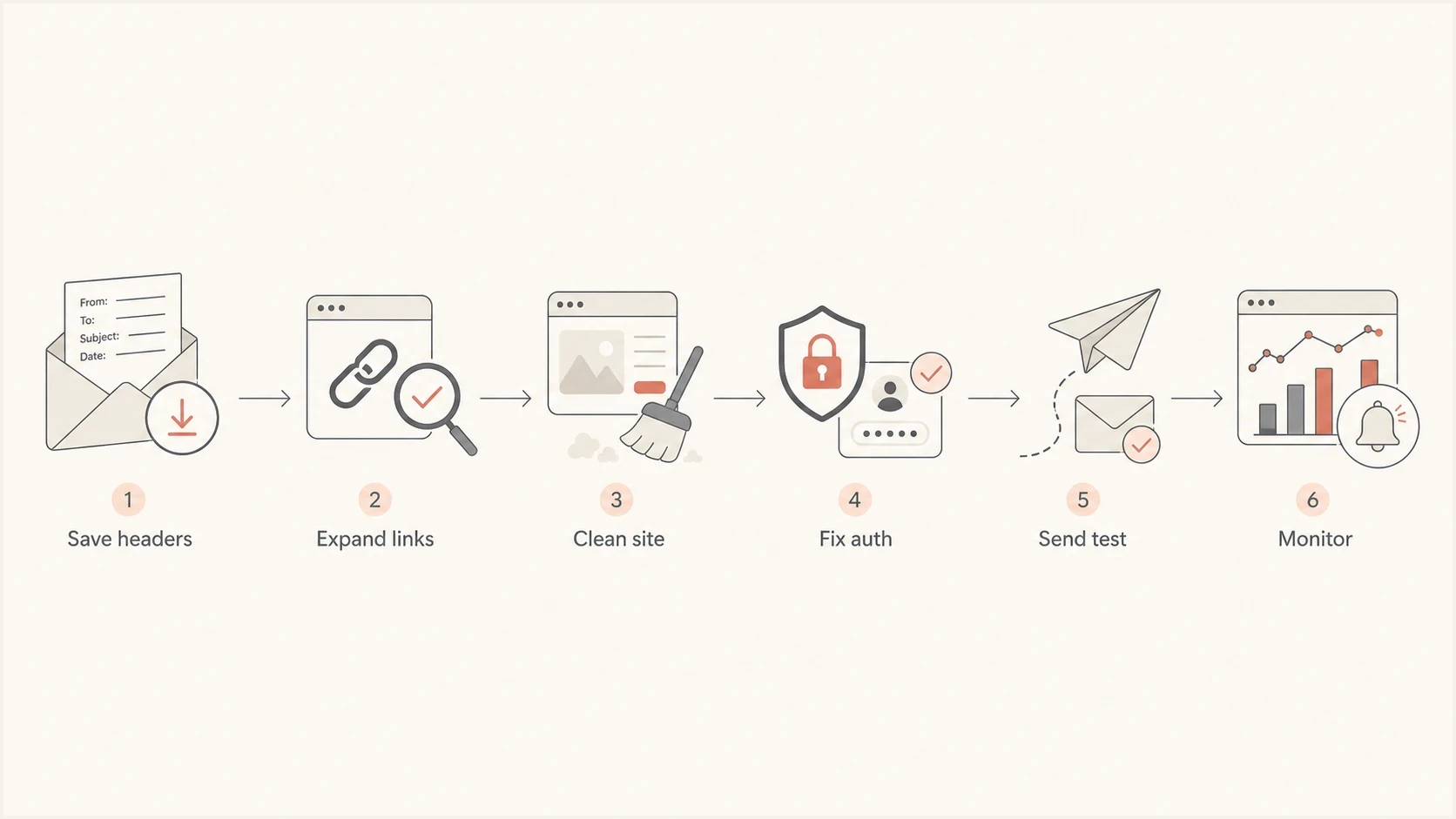
Gmail phishing warning troubleshooting flow covering headers, links, site cleanup, authentication, and retesting.
- Pause campaigns using the affected tracking domain, landing page, or content template while the issue is investigated.
- Delete compromised pages, unauthorized forms, unknown scripts, and bad redirects, then fix the vulnerability or account access that allowed the compromise.
- Use understandable links to expected destinations. Repair branded tracking hosts, restrict redirect destinations, and avoid unnecessary redirect chains.
- Make SPF and DKIM pass for every legitimate direct sender, then confirm DMARC passes on received messages.
- Validate legitimate sources under p=none before applying p=quarantine or p=reject. A stronger policy protects against unauthenticated use of your domain; it does not clear a phishing banner.
- Set alerts for new failed sources, sudden DKIM failures, and domain or IP blocklist changes.
For DMARC policy changes, Suped's Hosted DMARC lets teams change the published policy after its initial DNS setup. Use aggregate reports to verify legitimate sending sources before enforcement; changing the policy does not request a Gmail content review.
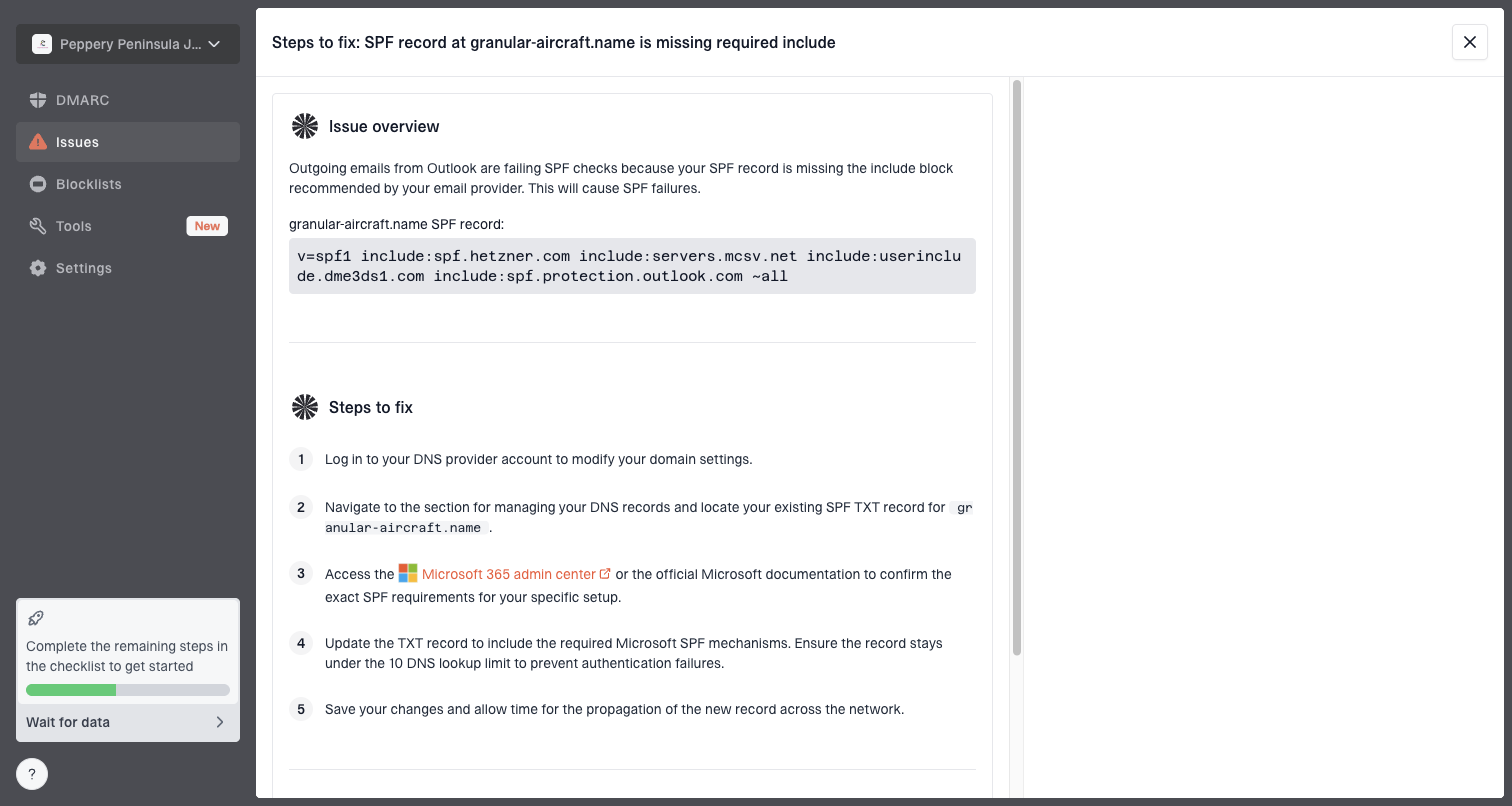
Issue steps to fix dialog showing the issue overview, tailored fix steps, and verification action
Suped's DMARC reporting and authentication monitoring help identify which legitimate sending sources are failing and track repairs through aggregate reports. Suped's blocklist (blacklist) monitoring and issue-specific fix steps add evidence for the sending team. The site team handles compromised pages and URL remediation.
Send only to recipients who opted in, honor unsubscribe requests, and stop sending to invalid addresses. Avoid sudden volume increases and misleading subjects such as "Re:" on a message that is not a reply. These sending practices address reputation problems that authentication repairs alone do not resolve.
Separate phishing warnings from Gmail sender errors
A recipient-facing phishing banner and an SMTP rejection provide different evidence. Save the exact banner or enhanced status code before changing anything. Gmail applies temporary or permanent rejections to traffic that misses its sender requirements, while a phishing banner can remain after those requirements pass if a URL or page still looks unsafe.
- All senders to personal Gmail accounts need SPF or DKIM, valid forward and reverse DNS, TLS, and RFC 5322 message formatting. Keep Google's reported spam rate below 0.3%.
- At around 5,000 messages or more within 24 hours to personal Gmail accounts, use SPF and DKIM, publish DMARC with p=none or stronger, and ensure at least one authenticated domain satisfies DMARC's From-domain match for direct mail. Marketing and subscribed messages need RFC 8058 one-click unsubscribe headers as well as a visible unsubscribe link. A footer link alone is insufficient. Honor requests within 48 hours.
Gmail counts messages sent by the same primary domain, including its subdomains, toward the bulk-sender threshold. Once Gmail classifies a domain as a bulk sender, that status does not expire. Meeting these requirements improves the identity and compliance side of the investigation, but it does not clear a compromised destination.
Read the complete SMTP response. Error 5.7.26 covers authentication failures, including SPF hard-fail rejection and rejection under a domain's DMARC policy. Error 5.7.40 indicates a missing DMARC record or policy. A 4xx response is temporary and calls for deferred retries with backoff; a 5xx response is permanent and requires resolving the cause before resending. Neither response is the same as a delivered message's phishing banner.
When sender verification is the primary issue
Sometimes the Gmail banner is caused by a broken identity path rather than an unsafe site. The message can look suspicious because the brand shown to the user does not match the technical sender. This happens after sending-platform migrations, new subdomains, marketing automation changes, and third-party systems that send with weak DKIM setup. Forwarding can break SPF, and message changes can break DKIM. Compare a direct delivery with the forwarded copy before changing sender authorization.
Verify that the received message passes DMARC through a passing SPF or DKIM result with the required From-domain match. Also confirm that linked pages and attachments are safe. Authentication success is evidence about identity, not a guarantee that Gmail will classify the message as safe.
If Gmail says it cannot verify the sender, that points more directly to the authentication side. The fix path overlaps, but the primary task is different. For that scenario, the related page on sender verification errors explains the sender identity warning in more detail.
|
|
|
|---|---|---|
Suspicious link | Redirects and destination page | Sender authentication |
Cannot verify sender | Received authentication results | SPF and DKIM configuration |
Spam warning | Recipient consent and complaints | Sending history and content |
Question mark beside sender | Missing or failed authentication | Forwarding and signing configuration |
Use the warning's meaning to choose an investigation path; wording varies.
How to handle a false positive
After independently verifying the sender and checking the message's destinations and attachments, a recipient can report a legitimate email that Gmail incorrectly marked as phishing. Google's Gmail phishing guidance describes the recipient feedback steps.
- In Gmail on a computer, open the verified message, select More next to Reply, then select "Report not phishing".
- If the message is only in Spam, use "Not spam" after verifying it. Verify unexpected requests through contact details already known to the recipient.
- Keep the original headers and warning text, and compare fresh controlled deliveries after remediation. Recipient feedback does not guarantee that warnings disappear for other recipients.
Do not ask recipients to bypass a warning before verification. If testing still reproduces it, retain the message evidence for investigation by the sending team and the recipient's administrator.
Views from the trenches
Best practices
Preserve the exact warning, full headers, URLs, and campaign IDs before changing the message.
Inspect each redirect hop and the final page instead of relying on the displayed link alone.
Contain confirmed site compromise immediately while investigating the affected sending path.
Check received-message results as well as the published SPF, DKIM, and DMARC records.
Common pitfalls
Treating a clean public blacklist result as proof that Gmail considers every message link safe.
Changing SPF without investigating URLs when Gmail specifically warns about a suspicious link.
Rotating sender IPs while the same unsafe tracking URL or compromised landing page stays active.
Moving DMARC to reject before confirming that all legitimate sources pass the required checks.
Expert tips
Compare a no-link test with the real campaign while keeping the sender and sending route fixed.
Repair tracking hosts and destinations before deciding whether a branded host needs replacement.
Check for open redirects and site compromise before requesting a review of the affected pages.
Set alerts for new sending sources to catch authentication changes during the investigation.
Marketer view
An Email Geeks participant cautioned that a clean public blocklist result does not establish that Gmail considers a linked destination safe.
2022-11-05 - Email Geeks
Marketer view
An Email Geeks participant recommended investigating the linked site when multiple providers repeatedly flag messages that use the same domain.
2022-11-05 - Email Geeks
Frequently asked questions
A missing SPF record weakens verification when DKIM does not provide a usable alternative. Check the received authentication results. If Gmail names a suspicious link, investigate that URL path as well; authentication success does not make linked content safe.
Public blocklist and blacklist lookups do not expose every signal Gmail uses. A clean result does not rule out an unsafe redirect, a compromised destination, or a problem elsewhere in the message.
Investigate and repair the affected host or redirect first. Changing domains alone leaves the cause unresolved. If replacing the tracking host is operationally necessary, first secure the infrastructure and verify that every destination is safe.
Yes. DKIM verifies a signature for the signing domain and detects changes to signed content. It supports DMARC when the signing domain satisfies the required match with the visible From domain. It does not certify that links or attachments are safe.
Confirm that compromised pages and redirects are repaired, expected direct messages pass SPF and DKIM, and DMARC passes. Fresh Gmail tests should stop reproducing the warning. A clean test in one inbox does not establish recovery for every recipient; continue checking representative deliveries.
Not by itself. Meeting Gmail's requirements fixes authentication and sending compliance. A phishing warning can remain until unsafe URLs, compromised pages, misleading sender details, or risky attachments are removed and Gmail reassesses the message.