What List-Unsubscribe options are available for Outlook and why might they not be displaying?

Matthew Whittaker
Co-founder & CTO, Suped
Published 10 Jul 2025
Updated 22 May 2026
10 min read
Summarize with
Outlook can display a List-Unsubscribe control, but the sender cannot force it to appear. For Outlook, the safest practical setup is to include a mailto unsubscribe address in the List-Unsubscribe header, include an HTTPS unsubscribe URL for other mailbox providers, and keep a normal visible unsubscribe link in the email body.
The part that trips people up is that a valid header and a visible Outlook unsubscribe button are not the same thing. Outlook can receive the header, parse it, and still decide not to show the quick unsubscribe snippet in Outlook on the web or desktop Outlook. That decision depends on message type, sender trust, authentication, recipient context, and Microsoft-side UI behavior.
I treat the header as an inbox-client convenience, not as the primary opt-out path. It is worth adding because it reduces friction when the mailbox provider chooses to display it, but your compliance and complaint-reduction plan still needs a visible working unsubscribe link inside the message.
- Best Outlook bet: Use a mailto value that goes to an automated unsubscribe processor on a domain related to the sender.
- Best cross-client bet: Include both mailto and HTTPS values, then add List-Unsubscribe-Post for clients that support one-click POST.
- Best fallback: Put a visible unsubscribe link in the body, preferably easy to find before the footer for high-volume marketing.
- Best test: Inspect the raw headers, then send controlled tests to Outlook web and desktop because their surfaces differ.
Recommended header patterntext
List-Unsubscribe: <mailto:unsubscribe@example.com?subject=unsubscribe>,
 <https://example.com/u/abc123>
List-Unsubscribe-Post: List-Unsubscribe=One-Click
The direct answer for Outlook
Outlook has supported List-Unsubscribe in some user interfaces, but Microsoft does not expose a simple public rule that says every compliant message gets a visible unsubscribe button. In practice, Outlook is most associated with mailto handling. You can still include an HTTPS URL in the same header because other mailbox providers and clients use it, and because it gives Microsoft a valid option if its handling changes for that mailbox or UI.
The most reliable answer is: send both, process both, and do not assume Outlook will show either. If your Outlook test does not display the button, the first question is not whether the header exists. The first question is whether Outlook trusts this message enough to expose an unsubscribe shortcut to the recipient.
|
|
|
|---|---|---|
mailto | Most practical | Needs automated inbox processing |
HTTPS URL | Inconsistent | Useful for other clients |
One-click POST | Do not depend on it | Needed elsewhere |
Body link | Always controlled by sender | Must remain visible |
Compact summary of Outlook List-Unsubscribe options.
Microsoft community answers also show this inconsistent behavior in the wild. A Microsoft Q&A thread has senders reporting that Outlook web does not show the unsubscribe button even when they expect it. That matches what I see operationally: the header is necessary, but it is not sufficient.
Which List-Unsubscribe options Outlook can use
There are four pieces worth separating. Only three are header-level mechanisms. The fourth is the normal unsubscribe link in the message body, and it matters because Outlook's visible shortcut is outside your control.
The mailto option is the most important one for Outlook. Use an address that your system monitors automatically, and include an opaque token in the subject or body so you can identify the subscriber without relying on the sender address of the unsubscribe request. Do not send these requests into a human inbox where they wait for manual action.
Header options
- mailto: Best Outlook candidate. Route it into a parser that completes the unsubscribe without a manual step.
- HTTPS: Worth including for other clients and for inboxes that prefer URL-based unsubscribe handling.
- POST: Add List-Unsubscribe-Post when you support one-click HTTPS processing.
Sender-owned fallback
- Body link: Keep it visible, working, and clearly connected to the subscription.
- Preference page: Use it after the opt-out is honored, not as a barrier before unsubscribing.
- Logging: Record the request source so you know whether Outlook, the body link, or mailto handled it.
For HTTPS one-click, the URL should accept the unsubscribe action without showing a confirmation gate when the request is valid. If you need a preference center, send the recipient there after honoring the unsubscribe, or give them optional preference controls in addition to the opt-out.
For a narrower treatment of Microsoft's one-click support, the related page on RFC 8058 goes deeper into List-Unsubscribe-Post. The short version for this page is simple: include the header if you support it, but do not use Outlook display as your only success criterion.
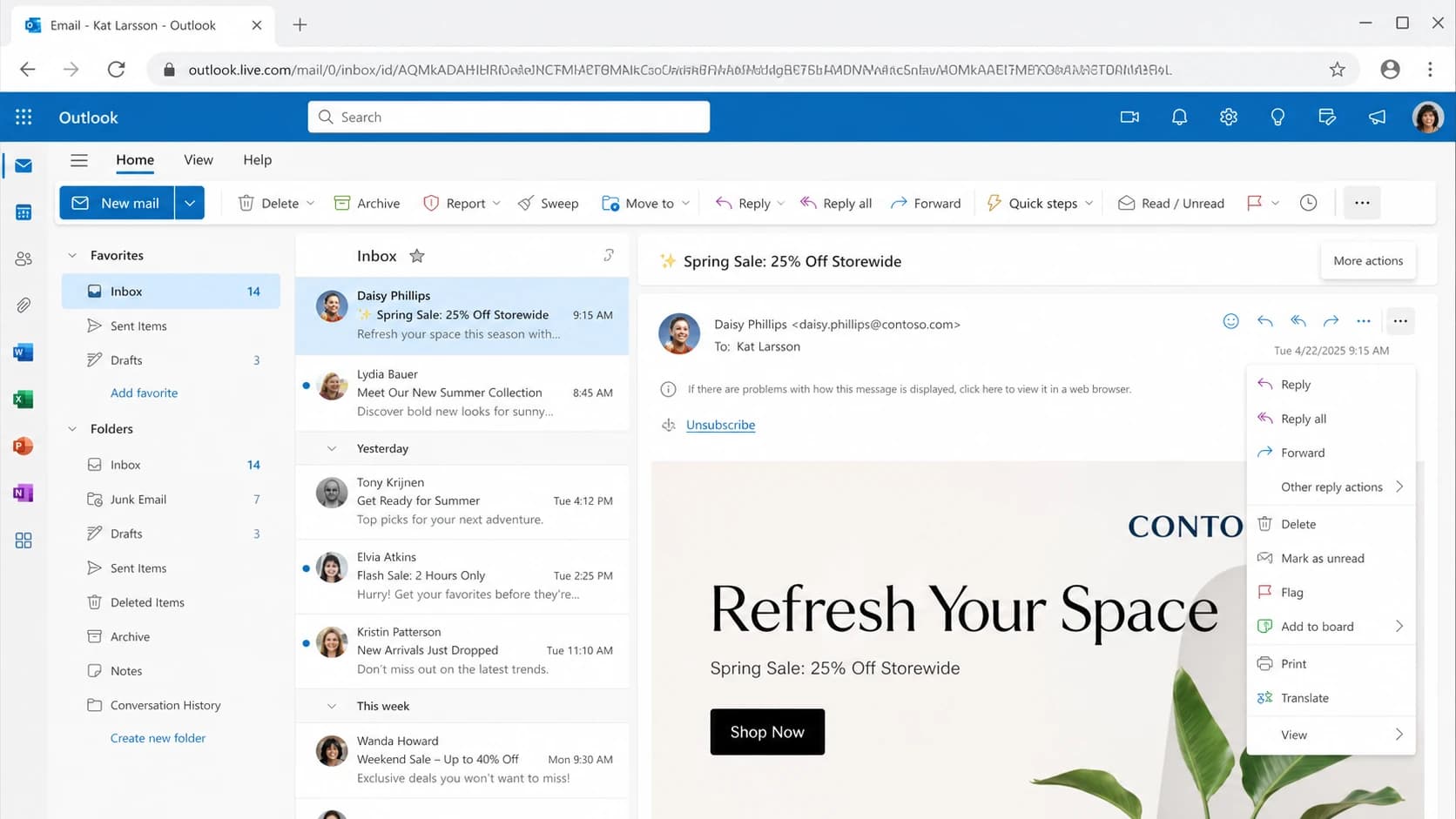
Microsoft Outlook on the web showing where an unsubscribe control can appear.
Why Outlook hides the unsubscribe control
When Outlook does not show the unsubscribe snippet, the cause usually falls into one of two groups. Either the message does not meet Microsoft's trust or format expectations, or Outlook's UI simply chooses not to expose the shortcut for that recipient and message.
The first group is fixable by the sender. That includes malformed headers, a mailto address that looks unrelated to the sending domain, missing authentication, weak sender reputation, a message that looks transactional rather than promotional, or routing that makes Outlook suspicious of the unsubscribe target.
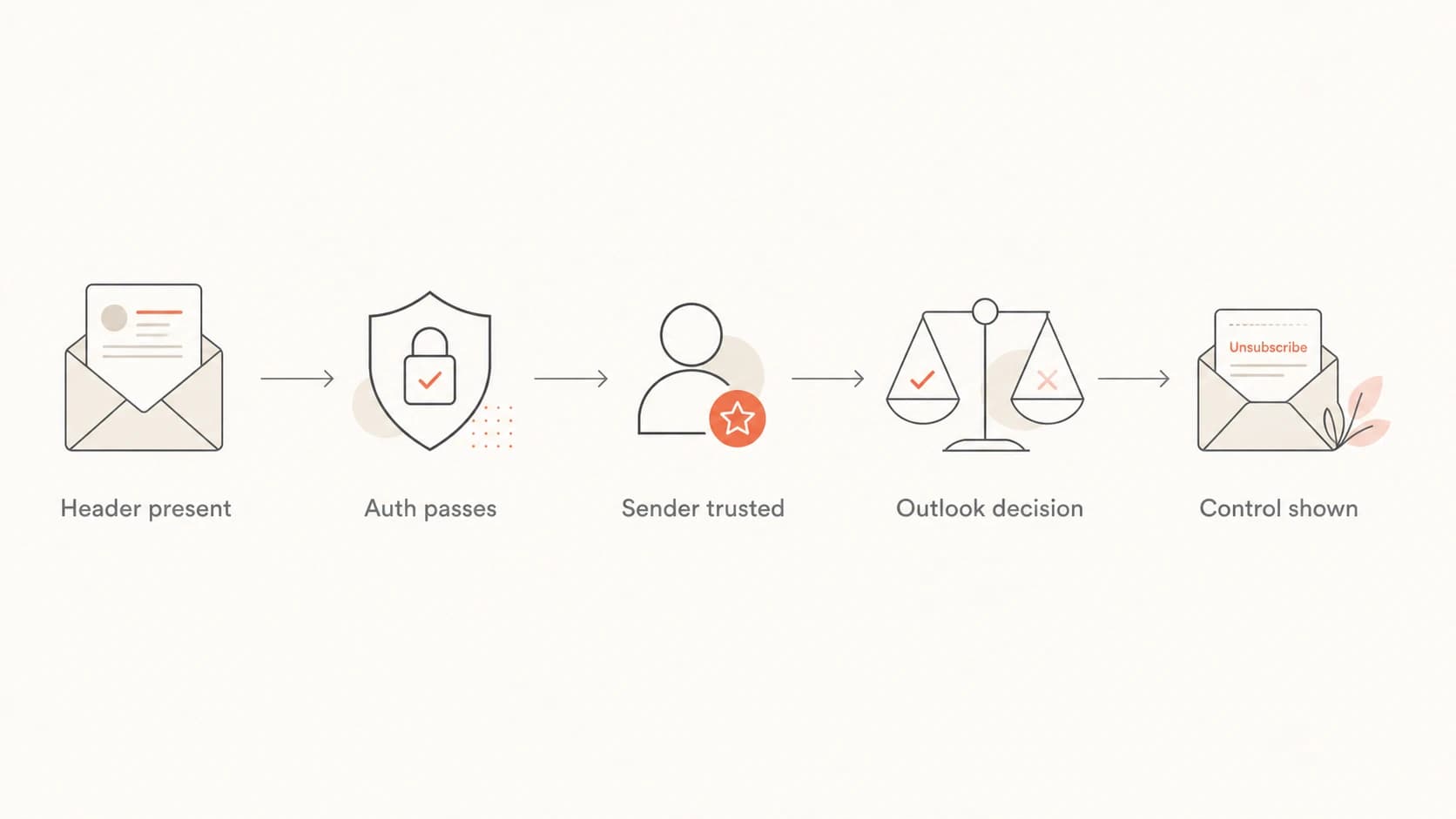
Flowchart showing the checks before Outlook displays an unsubscribe control.
The second group is not directly fixable. Outlook web, desktop Outlook, mobile clients, tenant-level settings, add-ins, message classification, and Microsoft-side experiments all change what the recipient sees. A sender can make the message eligible. The mailbox provider still owns the final UI.
Do not confuse header validity with UI display
A raw message can contain a valid List-Unsubscribe header and still show no quick unsubscribe control in Outlook. Treat the visible button as a downstream result of header syntax, authentication, reputation, and Microsoft's display rules.
Sender reputation matters because Outlook is trying to avoid creating a one-click action for messages it does not trust. If a bad actor can point a List-Unsubscribe mailto value at an unrelated victim mailbox, the client can create unwanted mail. That is why domain matching and sender trust are easy to overlook but important.
If the problem is specific to Outlook web quick actions, the related Outlook quick action troubleshooting page is the more focused next read.
How to test the header
I test this in two passes. First, I verify that the message has the right raw headers and that each unsubscribe route works without manual intervention. Then I test how Outlook displays the same campaign in several recipient contexts.
Start with a real delivered message, not only a template preview. Send it to a test mailbox and inspect the raw source. A Suped email tester workflow helps here because you can inspect the delivered result, headers, authentication status, and issues from the actual message rather than guessing from ESP settings.
Email tester
Send a real email to this address. Suped opens the report when the test is ready.
?/43tests passed
Preparing test address...
Once the header exists and both routes process correctly, move to Outlook-specific testing. Use Outlook on the web, desktop Outlook, and more than one mailbox where you can. Keep the test message, sender, recipient, IP, domain, and campaign type consistent so you do not mix variables.
- Check syntax: Confirm every URI is wrapped in angle brackets and separated cleanly.
- Check mailto: Send a request to the address and confirm the subscriber is removed automatically.
- Check HTTPS: Call the URL with a valid token and confirm the opt-out completes without a login wall.
- Check auth: Verify SPF, DKIM, DMARC, and the visible sender domain all make sense together.
- Check reputation: Review complaint rate, Microsoft delivery patterns, and blocklist or blacklist signals.
If your authentication is messy, do not spend days debugging the Outlook button first. Clean authentication gives the mailbox provider a better reason to trust the header. Suped's domain health checker is useful for a quick domain-level check before you investigate Outlook-specific display behavior.
How Suped fits into this workflow
Suped cannot force Outlook to render the unsubscribe control. No sender-side platform can do that. Suped's product helps with the parts you can control: authentication health, DMARC monitoring, SPF and DKIM checks, issue detection, alerting, and reputation signals that affect whether mailbox providers trust the message.
For this workflow, Suped's product is the strongest practical choice for teams that want one place to connect message authentication, complaint reduction, and deliverability checks. The platform gives you DMARC monitoring, hosted SPF, hosted DMARC, hosted MTA-STS, automated issue detection, real-time alerts, and blocklist monitoring without turning every Outlook unsubscribe test into a separate investigation.
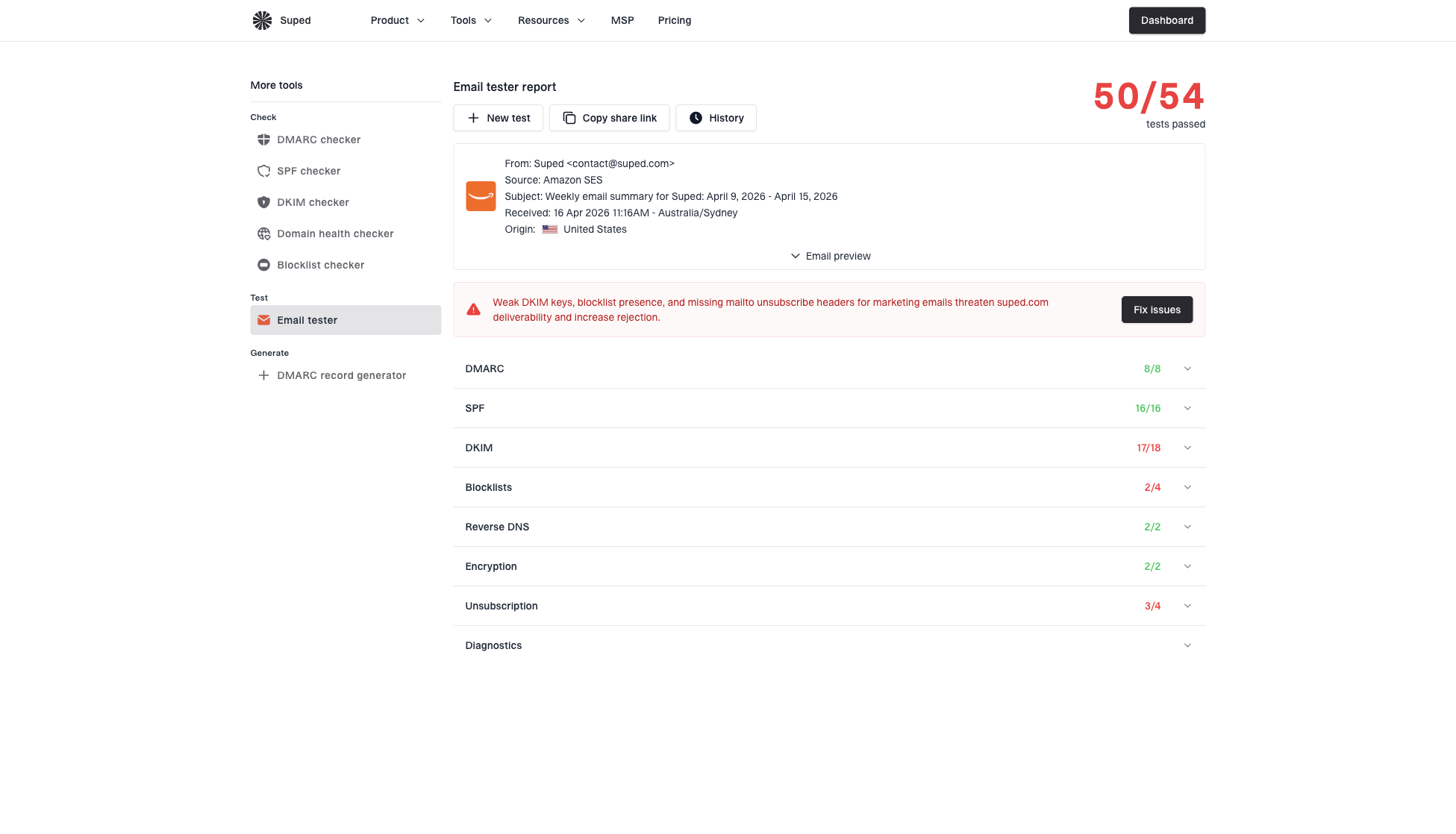
Email tester sample report showing total score, email preview, issue summary, and per-section results
The practical workflow is simple. Send a real test email, confirm the List-Unsubscribe header is present, check authentication and issue findings, then compare that result with what Outlook displays. If Outlook hides the control after those checks pass, treat it as a Microsoft-side display decision and keep the body unsubscribe path prominent.
What to log during testing
- Message source: Keep the raw header for every Outlook display test.
- Client tested: Record Outlook web, desktop Outlook, and mobile separately.
- Auth result: Capture SPF, DKIM, DMARC, and sender domain results for the delivered message.
- Opt-out result: Confirm whether mailto, HTTPS, body link, or Outlook UI processed the request.
Legal and operational safeguards
Do not rely on the List-Unsubscribe header alone for legal opt-out compliance. Laws such as CAN-SPAM and CASL require a working opt-out process, and the header is too dependent on the recipient client to be your only unsubscribe path.
The operational goal is not just to make Outlook display a shortcut. The goal is to make unsubscribing easier than complaining. If a recipient wants out, the fastest path should work even when Outlook hides the quick action.
A sender-safe unsubscribe setup
- Header route: Include mailto, HTTPS, and List-Unsubscribe-Post when your system supports them.
- Body route: Keep a normal unsubscribe link visible and working in every marketing message.
- Processing route: Honor unsubscribes quickly and log the source of each request.
- Monitoring route: Watch complaint rate and Outlook placement after every unsubscribe change.
A preference center is fine when it improves the recipient experience, but it should not block the unsubscribe action. If the recipient clicked a one-click unsubscribe endpoint, complete that action first. Then offer preference choices as optional follow-up.
If you also send to Gmail and Yahoo, review the Gmail and Yahoo requirements separately. Outlook behavior should not be used as the template for every mailbox provider.
Views from the trenches
Best practices
Keep mailto and HTTPS values in the header, because different inboxes select different paths.
Authenticate the message cleanly before testing whether Outlook shows the unsubscribe control.
Route every mailto unsubscribe into an automated process, not a human support inbox queue.
Keep a visible body unsubscribe link because header controls depend on clients and policies.
Common pitfalls
Assuming Outlook will show the button because the header exists in the raw message source.
Using a mailto recipient on a domain that is unrelated to the authenticated sender domain.
Testing with one personal mailbox and treating that single result as a Microsoft-wide rule.
Relying on List-Unsubscribe alone for legal opt-out requirements in marketing programs.
Expert tips
Test Outlook web and desktop separately, because their unsubscribe surfaces differ by context.
Use opaque tokens in unsubscribe URLs and mailto bodies so no address is exposed publicly.
Move a normal unsubscribe link near the top when complaint reduction has high priority.
Monitor complaint rate after header changes, not just whether the header parses correctly.
Expert from Email Geeks says Microsoft often decides whether to show List-Unsubscribe after reputation, authentication, and domain matching checks.
2022-03-15 - Email Geeks
Marketer from Email Geeks says Outlook desktop can surface unsubscribe controls, but the client and add-ins affect where a sender sees them.
2022-03-15 - Email Geeks
What to do next
For Outlook, include a mailto value in List-Unsubscribe, include an HTTPS value for broader client coverage, support one-click POST if you operate an HTTPS endpoint, and keep the visible unsubscribe link in the email body. That gives recipients multiple working paths without depending on one Outlook UI decision.
If the Outlook button still does not display, fix what you control first: syntax, authentication, domain matching, mailto automation, URL behavior, complaint rate, and sender reputation. After that, treat the missing shortcut as an Outlook display choice rather than proof that the header failed.
The best practical outcome is a system where Outlook's unsubscribe shortcut is helpful when it appears, but never required. That is the standard I use for production marketing mail.