How to troubleshoot DKIM failures and which tools to use?

Published 27 May 2025
Updated 19 Oct 2026
14 min read
Summarize with
Updated on 19 Oct 2026: We updated the DKIM troubleshooting steps to distinguish DNS problems from message changes and explain incoming authentication failures.
To troubleshoot DKIM failures, check four things in order: the message was signed, the selector resolves to the right public key, the receiver validates the signature, and the DKIM signing domain meets DMARC alignment requirements for the visible From domain. Use a layered set of tools for that: a DKIM record checker, Gmail Show original, Outlook.com or Microsoft message headers, authoritative DNS lookups with dig, and a controlled local validation inbox when the failure is stubborn.
DKIM troubleshooting is not one test. A public checker tells you whether the DNS record and key syntax are valid. A mailbox provider tells you how a real receiver judged the signed message. A local validator rechecks the downloaded original when receiver results differ.
DKIM failure checklist
When the error says DKIM failed, avoid changing DNS first. Separate the failure into signing, DNS, validation, message mutation, and DMARC domain alignment. That keeps the investigation short and stops teams from rotating keys when the message body changed after signing.
- Signed: Confirm the delivered message has a DKIM-Signature header. If it is missing, check whether signing was disabled, the message bypassed the signer, or a relay removed the header.
- Selector: Read the s= and d= values, then query the selector record at the exact domain shown by the signature.
- Receiver: Send the same message stream to Gmail and Outlook.com, then inspect Authentication-Results instead of trusting only one validator.
- Mutation: Check for body hash failure, MIME rewriting, footer injection, link rewriting, line-ending changes, or gateway changes after signing.
- Decision: If several receivers fail, compare their reasons and shared routing. If only your validator fails, check its input bytes and configuration before changing the sender.
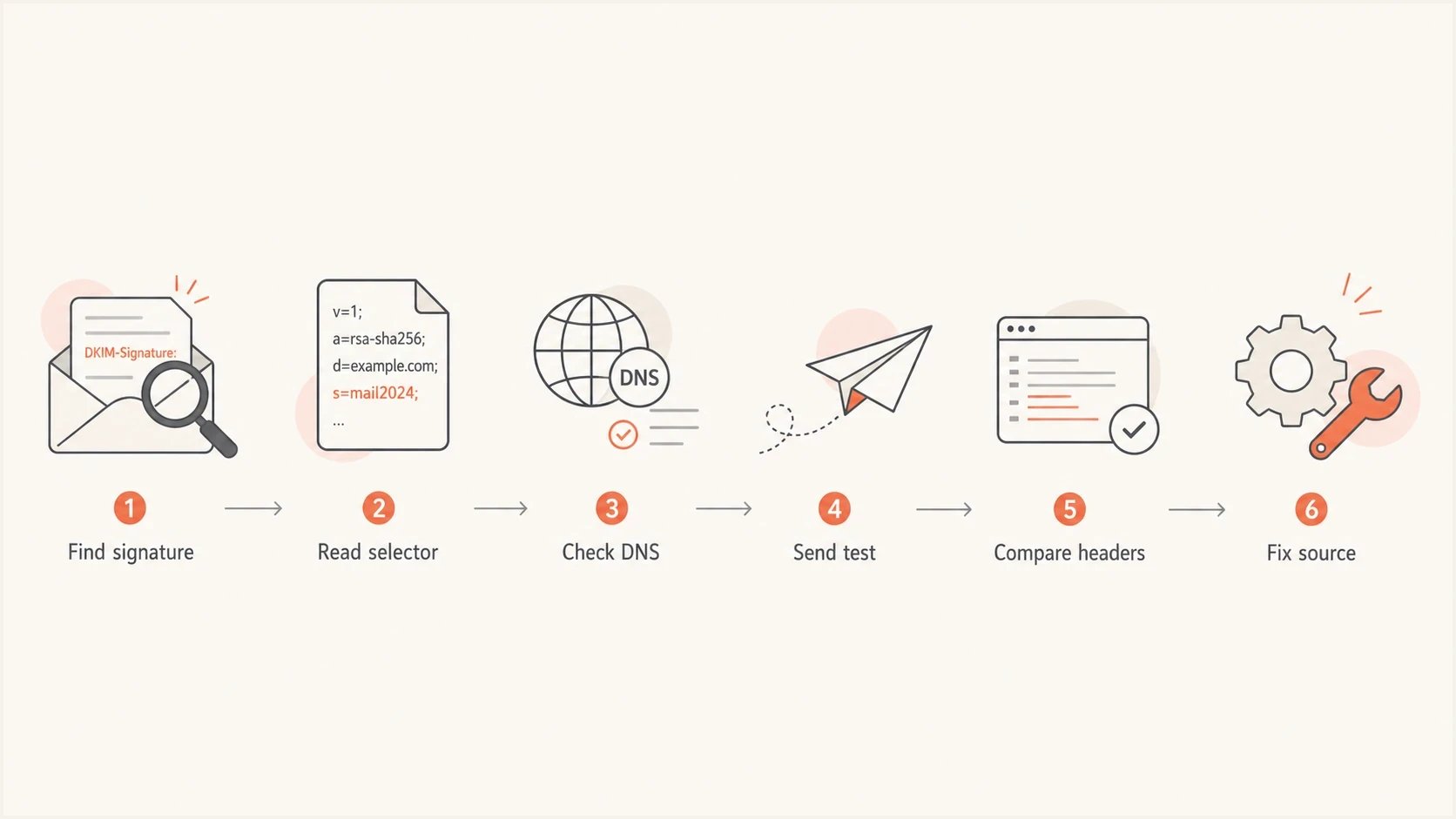
DKIM troubleshooting flowchart covering signatures, selector DNS checks, and receiver headers.
Compare receiver results
No single mailbox provider is a reference implementation. Gmail is useful because it is widely used and practical. Microsoft receivers can expose DNS and encoding issues that another receiver accepts. Compare more than one result before deciding where the fault sits.
Distinguish DKIM failure from DMARC failure
People often say DKIM failed when they mean different things. DKIM itself can fail because the cryptographic signature does not validate. DMARC can also fail its DKIM path even when DKIM passes, because the signing domain does not meet alignment requirements for the visible From domain.
DKIM validation failed
The receiver could not validate the signature. Check its reported result to distinguish a DNS lookup or key-format error from a failed cryptographic check.
- Key: The public key does not match the private key used to sign.
- Body: The message body changed after signing.
- Header: A header covered by h= changed beyond the permitted canonicalization rules.
- DNS: The selector record is missing, stale, malformed, or intermittently unavailable.
DMARC DKIM path failed
This is a domain alignment problem. DKIM can pass, but its DMARC path still fails when the d= domain does not share the visible From domain's organizational domain under relaxed alignment, or does not match it exactly under strict alignment.
- From: The visible From domain is the domain DMARC evaluates.
- Signer: The d= domain in the DKIM signature belongs to the signer.
- Alignment: Relaxed alignment accepts the same organizational domain; strict alignment requires an exact domain match.
- Fallback: A passing SPF result also satisfies DMARC when its authenticated domain meets From-domain alignment requirements.
This distinction matters because the fix lives in a different place. A validation failure belongs with the sender, DNS host, or post-processing gateway. A DMARC alignment failure belongs in the sending domain setup, vendor configuration, or From domain strategy.
Which tools to use
For a quick public selector check, use Suped's DKIM checker. It checks the selector's DNS record and public-key syntax. Enter the d= domain and s= selector from the failed message; a successful lookup does not prove the message was signed correctly. For a broader check across authentication records, use the domain health check to inspect published SPF and DMARC records alongside keys at common DKIM selectors. A common-selector scan can miss custom selectors.
After that, the best tool depends on what you need to prove. Use DNS queries for selector existence, mailbox headers for receiver behavior, and a local validator to compare results on a saved original message.
|
|
|
|---|---|---|
Suped DKIM checker | Selector DNS | Cannot verify a message signature |
Suped health check | SPF, DKIM, DMARC | Common-selector scans can miss custom selectors |
Gmail Show original | Live receiver result | One receiver's view |
Outlook.com headers | Live receiver result | Forwarding can add noise |
dig or nslookup | Selector lookups and DNS responses | Manual interpretation |
Local DKIM validator | Validation of saved raw messages | Takes setup |
Practical DKIM troubleshooting tools and when to use them.
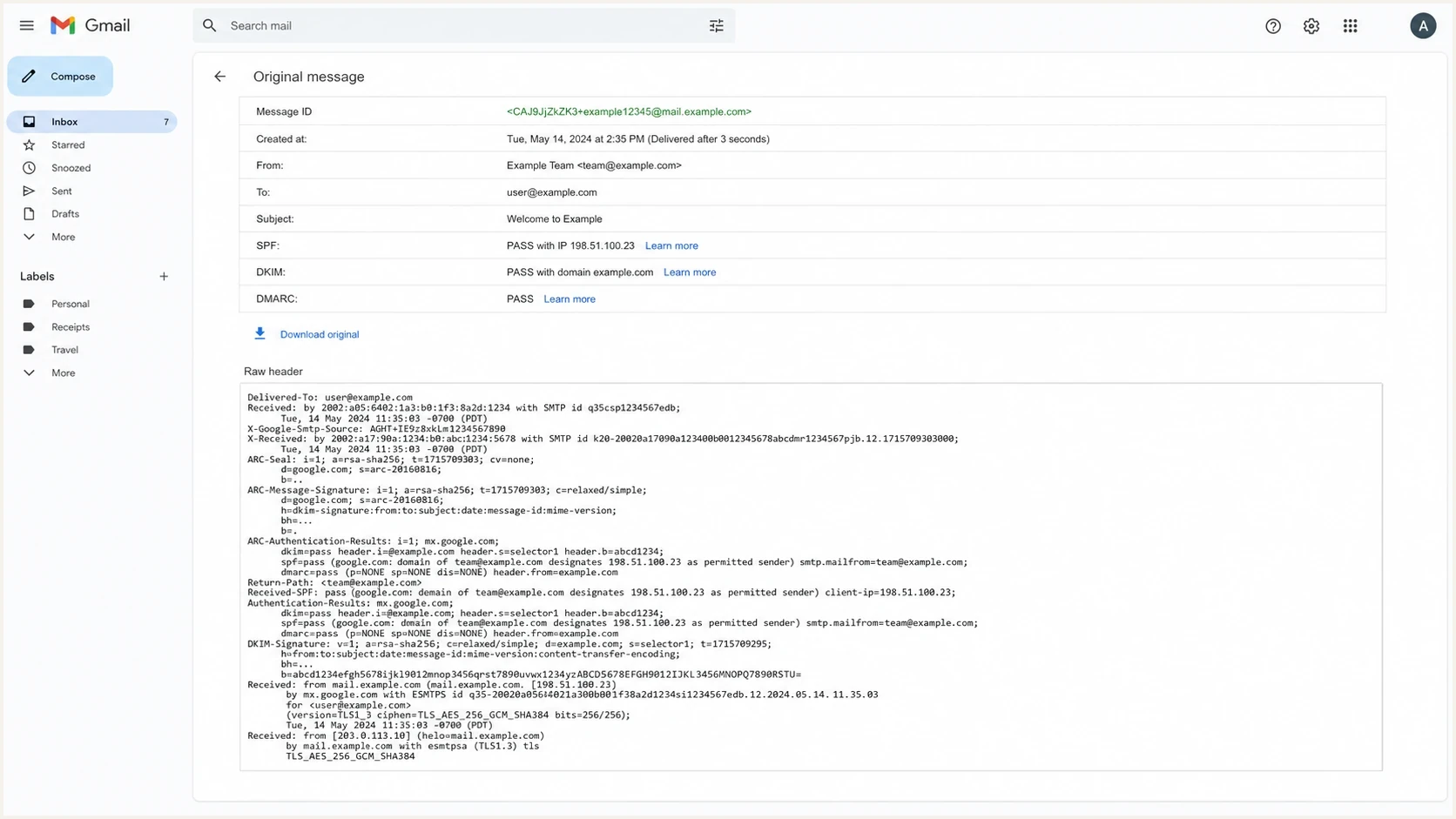
Gmail Show original with DKIM authentication results and raw message headers.
A practical troubleshooting sequence
Start with the exact delivered message, not a screenshot of a failure badge. DKIM verification depends on the final headers and final body as received. If a forwarding service, mailing list, security gateway, CRM, or footer tool changed the message after signing, the sending platform can look correct and the receiver can still be right to reject the signature. In Gmail, open More > Show original and download the original message for local checks.
- Capture: Download the original .eml file from the receiver that reports the failure. Preserve its raw MIME content and line endings for local verification.
- Parse: Read d=, s=, a=, c=, h=, bh=, and b= from every DKIM-Signature header.
- Resolve: Query selector._domainkey.domain from authoritative DNS and a public resolver.
- Compare: Confirm the public key is the active key for the sending service.
- Send: Send a fresh test to Gmail and Outlook.com, then compare Authentication-Results.
- Repeat: If results differ, validate the saved original locally. Sending a new copy through another route does not test identical message bytes.
- Fix: Change one variable at a time, then send a new message through the same route.
Illustrative header fields to capturetext
Authentication-Results: mx.example;
  dkim=fail reason="signature did not verify"
  header.d=example.com header.s=selector1

DKIM-Signature: v=1; a=rsa-sha256; c=relaxed/relaxed;
  d=example.com; s=selector1; h=from:subject:date;
  bh=base64-body-hash; b=base64-signature
The selector record check belongs early in the sequence because it is cheap and removes a large class of false leads. If the selector does not resolve, has a malformed key, or returns different answers across resolvers, signature validation cannot be trusted.
DKIM checker
Check selector records and public key configuration.
?/7tests passed
After the selector is clean, the live message matters more than the DNS record alone. A correct public key does not save a message whose body changed after the signature was created.
Match DKIM results to fixes
Read the DKIM result and its reason in the Authentication-Results header added by the receiving service you trust. An untrusted upstream header is not evidence of that receiver's decision. Result names are defined in RFC 8601; reason wording varies between receivers.
|
|
|
|---|---|---|
dkim=none | The receiver found no DKIM signature | Check signing activation, the outbound route, and whether a relay removed the signature |
no key for signature | No public-key record exists at the queried selector | Check d=, s=, the TXT or CNAME record, delegation, and DNS propagation |
dkim=temperror | A temporary lookup or processing error occurred | Compare authoritative answers, resolver timeouts, DNSSEC status, and later retries |
dkim=permerror | Verification encountered an unrecoverable error | Check required signature fields and public-key syntax against the reported reason |
dkim=policy or dkim=neutral | policy: the signature is unacceptable to local policy; neutral: the signature could not be processed | Read the reason; check the algorithm and key size, then signature syntax |
body hash did not verify | The received body's hash differs from bh= | Trace footer, MIME, link, attachment, and line-ending changes after signing |
signature did not verify | The cryptographic signature does not match | Compare the active key and inspect changes to headers listed in h= |
dkim=pass, dmarc=fail | No passing DKIM signature meets From-domain alignment, and SPF supplies no aligned pass | Configure d= signing with From-domain alignment and check SPF alignment separately |
Common DKIM results and the next troubleshooting action.
Multiple signatures need separate checks
A message can carry several DKIM signatures, and one valid signature with DMARC domain alignment is enough for its DKIM path. Match each result to its own d= and s= values. Google's DKIM troubleshooting guidance documents Gmail's five-signature limit; check Authentication-Results to see which signatures it evaluated.
DNS and selector checks
Most DKIM DNS problems are selector mistakes, stale keys, split DNS, missing CNAME targets, or TXT records that were pasted with broken quotes. Check both the exact selector from the message and the selector that the sending platform says it uses. Those are not always the same after a key rotation. If the DNS host appends your domain automatically, enter the relative selector hostname to avoid publishing selector1._domainkey.example.com.example.com.
Illustrative DKIM TXT record (public key truncated)dns
selector1._domainkey.example.com. IN TXT "v=DKIM1; k=rsa; p=MIIBIjANBgkqhkiG9w0BAQEFAAOCAQ8A..."
DNS checksbash
dig +short TXT selector1._domainkey.example.com

dig +short CNAME selector1._domainkey.example.com

dig @8.8.8.8 +short TXT selector1._domainkey.example.com

dig @1.1.1.1 +short TXT selector1._domainkey.example.com

dig +trace TXT selector1._domainkey.example.com

# Inspect the response status and cache information
dig TXT selector1._domainkey.example.com +noall +comments +answer +authority

# Find the authoritative servers for the example zone
dig +short NS example.com

# Replace ns1.example.net with an authoritative server returned above
dig @ns1.example.net TXT selector1._domainkey.example.com +norecurse +noall +comments +answer +authority
A DNS interface can truncate a long RSA public key if its text-string limits are mishandled. Each TXT character-string can hold up to 255 octets, so publish a long key as adjacent quoted strings when the DNS interface requires it. The DKIM verifier concatenates those strings without inserting spaces. Confirm the complete p= value and its character order in the live DNS answer.
Keep one DKIM key record per selector, as required by RFC 6376. Multiple quoted strings within that TXT record are valid; multiple key records at the same selector produce undefined results. Use a new selector for a second key, and keep TXT data off a hostname that already has a CNAME.
Intermittent DNS matters
Intermittent DKIM failures often come from DNS inconsistency. One resolver has the new key, another resolver has the old key, and a receiver lands on the wrong answer. That creates failures that look random until you check authoritative DNS and public resolvers side by side. A cached NXDOMAIN response can persist after record creation. Check the relevant positive and negative cache TTLs, and publish a new selector before switching the signer.
- Authoritative: Check the domain's real name servers, not only the cached answer from one resolver.
- Public: Compare public resolvers so propagation and cache behavior are visible.
- Rotation: Keep the old key published long enough for delayed and in-flight mail to finish delivery.
- CNAME: Follow delegated selector records to the final TXT answer and validate that target too.
When the signature itself breaks
A valid selector record does not guarantee a valid DKIM result. The signature can fail after DNS is perfect because the message was changed after signing. If the receiver reports a body hash mismatch, work through body hash failures before rotating keys.
Hosted mail systems add another trap. A tenant can have DKIM enabled in the admin portal, but a custom domain, selector, or CNAME target is still wrong. For Microsoft tenants, separate DNS setup issues from receiver behavior and use the focused path for Microsoft DKIM failures. Publishing a DNS key does not activate signing. In Google Workspace, open Apps > Google Workspace > Gmail > Authenticate email, select the domain, and click Start authentication once the key is published. For Microsoft 365, copy both selector CNAME targets from your tenant rather than substituting a TXT record or guessing the targets.
Signing configuration problems
- Wrong key: The platform signs with a private key that does not match DNS.
- Bad selector: The message points at a selector that is not published.
- Weak method: The signer uses rsa-sha1 or an RSA key shorter than 1024 bits. Use rsa-sha256 and prefer a 2048-bit RSA key.
- Bad header: The signer includes the wrong header set in h=.
Message changes after signing
- Footer: A compliance or marketing footer changes the signed body.
- Gateway: A security appliance rewrites links or attachments.
- MIME: A relay changes transfer encoding or line endings.
- Forwarding: A forwarder changes content before the final receiver checks DKIM.
Check c= before blaming whitespace changes. The canonicalization rules determine which normalization is permitted. In relaxed/relaxed, the first part selects header handling and the second selects body handling. Relaxed mode tolerates defined whitespace changes; simple mode is stricter. Content changes can still break either mode.
Body hash cluetext
Authentication-Results: mx.example;
  dkim=fail reason="body hash did not verify"
  header.d=example.com header.s=selector1
Avoid the DKIM l= body-length tag. It signs only the stated body length and leaves appended content outside the protected portion, which creates an abuse risk. Sign the complete final message after all outbound modifications instead.
DKIM troubleshooting clues
Match each receiver's failure reason to the message route and DNS evidence.
Local validation differs
Check validator
Receiver headers pass; compare the saved message and local validation configuration.
DNS mismatch
Check selector DNS
The failed message points to a selector with the wrong public key.
Repeated failure
Trace message changes
Several receivers report the same break; inspect their shared delivery path.
Recovery confirmed
Verify recovery
Fresh tests through the affected route pass and selector DNS is stable.
When incoming mail fails DKIM
If another organization sent the message, its administrator controls the signing key and selector DNS. Changing your own DKIM record will not repair that message. Check your receiving gateway's result before asking the sender to investigate.
A DKIM failure alone does not require rejection. Evaluate DMARC and apply the sender's published policy together with your normal filtering and local policy. A successful SPF result with From-domain alignment can satisfy DMARC even when DKIM fails.
For a sender support ticket, include the original message headers and receipt time with its time zone. Identify the failed d= domain and s= selector, quote the receiving server's error, and explain whether forwarding was involved so the sender can reproduce the route.
Where Suped fits
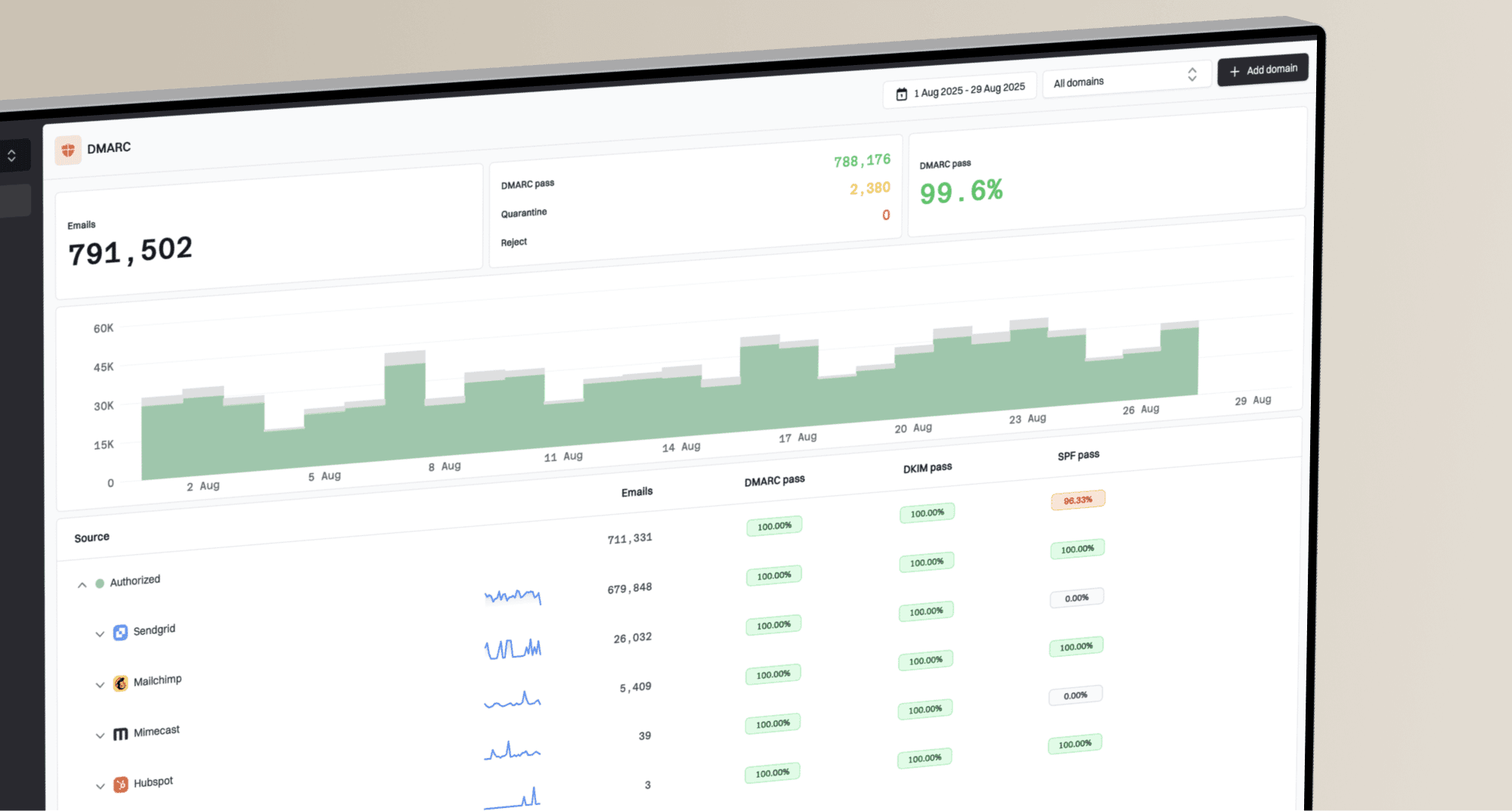
Suped's product connects one-off DKIM checks to ongoing authentication monitoring. Use the selector check to confirm DNS, then use DMARC monitoring to group authentication results by sending source, detect alignment changes, and track whether a fix holds across later mail.
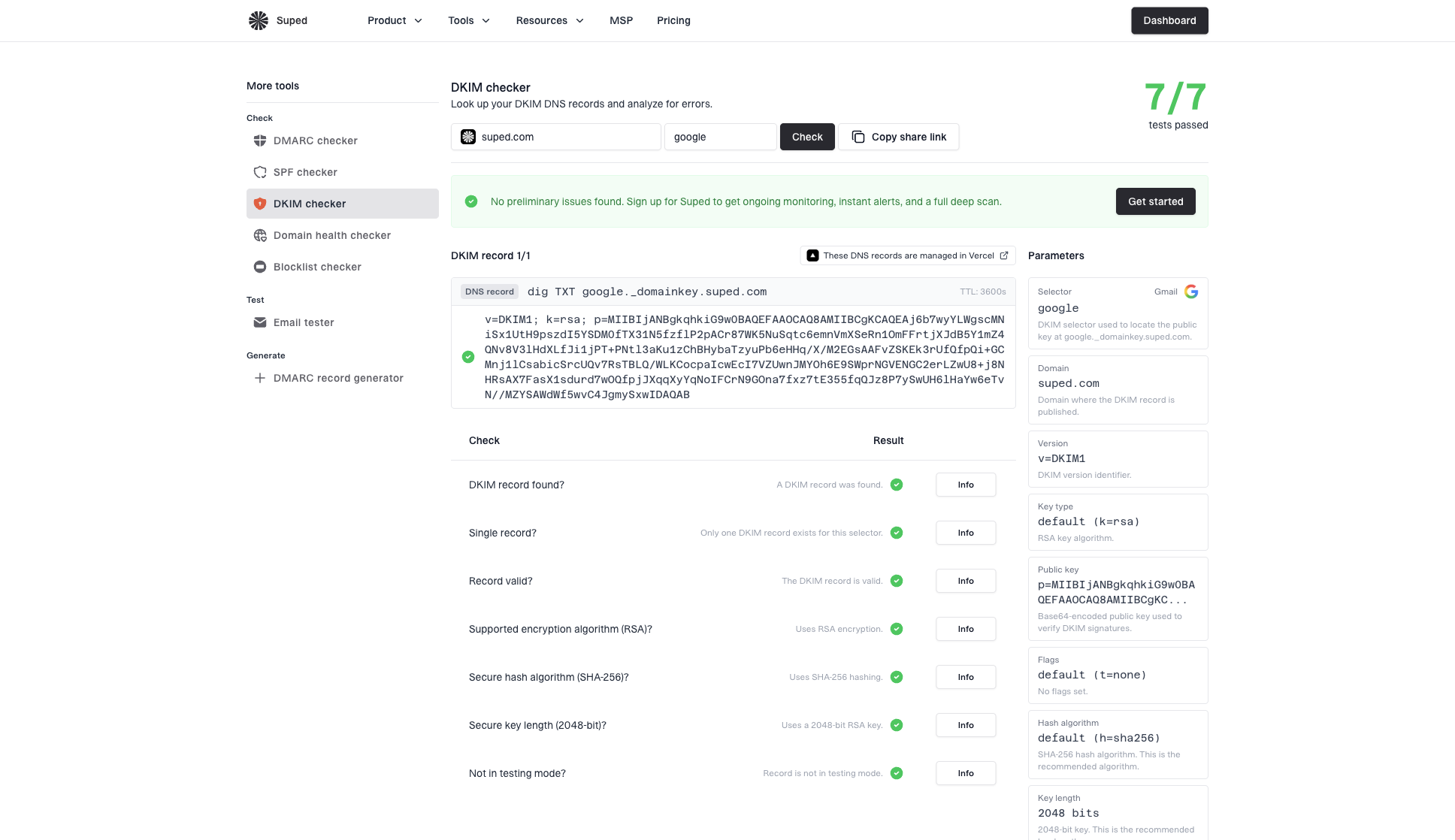
DKIM checker sample results showing selector, DKIM DNS record, validation checks, parameters, and share link
A practical Suped workflow is to validate the selector, identify the affected source in DMARC reports, review issue history, and verify recovery after the DNS or sender change. Alerts flag changes in reported authentication failures; headers and DNS checks establish the cause. DMARC aggregate reports arrive after receiver processing and summarize authentication results; they do not contain the raw message needed to diagnose a body hash mismatch.
- Detect: Suped groups authentication issues by domain, source, and failure type.
- Alert: Alerts surface reported authentication changes that need investigation.
- Fix: Issue pages connect a failure to the relevant DNS or sending-platform action.
- Verify: Later reports show whether reporting receivers observe DKIM passes with DMARC domain alignment for the affected source.
Views from the trenches
Best practices
Check selector DNS before debugging code, then compare authoritative and cached answers.
Send fresh tests to at least two major mailbox providers before blaming one validator.
Keep old DKIM keys published during rotation so delayed messages still validate.
Common pitfalls
Treating a DNS lookup pass as proof that a delivered message still validates at the inbox.
Ignoring body changes from footers, link rewriting, relays, and MIME normalization.
Assuming Gmail pass means every receiver will pass the same DKIM signature without testing.
Expert tips
Use a controlled validation inbox when you need to separate sender bugs from parser bugs.
Compare Gmail and Microsoft headers because they expose different failure patterns.
Look at the exact d= and s= values in the failed message, not the expected setup.
Marketer view
Marketer from Email Geeks says a second validator helps separate a local parser bug from a sender signature that is broken everywhere.
2022-07-12 - Email Geeks
Marketer view
Marketer from Email Geeks says a local DKIM test inbox in debug mode can expose unusual algorithm behavior.
2022-07-12 - Email Geeks
Frequently asked questions
Check whether the delivered message has a DKIM-Signature header. If it is missing, investigate signing activation and the outbound route, including any relay that removes headers. If it is present, read d= and s= and query the matching selector in DNS.
Gmail is reliable as a practical receiver test, but it is not a formal reference implementation. Compare Gmail Show original with Outlook.com headers and DNS checks so one receiver's behavior does not drive the whole decision.
A missing selector, malformed or truncated public key, broken CNAME target, or conflicting key records indicates a DNS problem. Different authoritative and cached answers require a TTL and cache check before concluding the record is wrong. Always query the failed message's exact d= and s= values.
Split results usually come from DNS caching, selector rotation, forwarding, message rewriting, multiple signatures, or receiver-specific validation behavior. Compare each received original and its signature selector, then send fresh tests through the affected outbound route after each change.
Yes. Suped's product validates DKIM records and uses DMARC reports to group authentication failures by source. Alerts and issue history help teams identify affected sources, investigate with headers and DNS checks, and confirm recovery in later receiver reports.
No. A DKIM pass confirms that a signature validates for its signing domain. It does not guarantee inbox delivery; receivers also assess sender reputation and spam complaints. If authentication passes but mail goes to spam, investigate those signals separately.