Email security basics for students
Knowledge

Published 28 Jul 2026
Updated 18 Oct 2026
12 min read
Summarize with

Updated on 18 Oct 2026: We added secure sharing advice and clarified email authentication, MFA, and phishing response for students.
Email security means protecting your account and messages against unauthorized access and harmful content. Email is one of the most important accounts a student has. Schools use it for class announcements, assignments, password resets, financial aid, registration, instructor messages, and access to other online services. That also makes student email accounts attractive targets.
Protecting your inbox does not require advanced cybersecurity knowledge. Use a unique password, enable multi-factor authentication (MFA), inspect unexpected messages, verify unusual requests another way, update your devices, and report suspicious messages quickly.
Key takeaways
Habits that prevent common attacks
- Account protection: Use a unique school email password, enable MFA, and never approve an unexpected login request.
- Private codes: Never share a password, MFA code, authentication PIN, or one-time code by email, text, or an unexpected call.
- Sender checks: Inspect the complete sender and Reply-To addresses, not just the display name.
- Independent verification: Confirm unusual requests by calling a trusted number or contacting the relevant office through the official campus directory or student portal.
- Safe handling: Treat links, attachments, shared documents, QR codes, phone calls, and texts with the same caution.
- Reporting: Report suspicious messages instead of simply deleting them, so the school can protect other students.
Why email security matters for students
A school inbox often controls learning platforms, cloud storage, student portals, school documents, schedules, library services, campus accounts, and password resets for other websites. An attacker who controls the inbox can request recovery emails and move into connected accounts.
Phishing tries to make you reveal information, open a harmful attachment, visit a fake site, send money, or take another action. A message can impersonate your school, a professor, another student, campus IT, a financial aid office, a bank, a delivery company, or a potential employer. Spear phishing is a targeted version that uses details about your course or campus role to make the request convincing. Familiar logos and polished writing do not prove that a message is genuine.
Pressure tactics
- Urgency: Your account will be disabled today.
- Fear: Your tuition failed or someone logged in.
- Curiosity: A document or assignment was shared with you.
- Reward: You received a job, refund, or giveaway.
Checks before acting
- Expectation: Decide whether the message makes sense now.
- Address: Expand the sender and Reply-To details.
- Destination: Preview links and avoid unexpected QR codes.
- Confirmation: Use contact details you already trust.
How to inspect an unexpected message
Expand the sender information and examine the full address. Look for misspellings, added words, lookalike domains, unfamiliar email providers, a different Reply-To address, or a domain your school does not normally use. This matters most when the message asks you to log in, send money, provide information, or download something.

Student email phishing checks: inspect the sender, preview links, verify requests, and report suspicious messages
A real account can still send a harmful message if it has been compromised. If a classmate unexpectedly asks for money or sends a document, verify the request by calling a known number or speaking in person. For a departmental request, find contact details through the official campus directory or website. Do not reply through the suspicious thread. Starting a new email to the same address does not resolve the risk of a compromised account.
Requests that require independent verification
Verify every unexpected request for money, passwords, authentication codes, sensitive files, banking details, or changes to account information. Urgency is a reason to slow down, not proof that the request is genuine.
Social engineering beyond email
The same manipulation appears through phone calls, text messages, social media, and QR codes. Vishing uses calls, while smishing uses texts. A scammer can impersonate campus IT, a bank, law enforcement, government staff, a delivery company, or technical support. Hang up and call a trusted number, or open the official app or site yourself.
|
|
|
|---|---|---|
Vishing | Unexpected call | Hang up, then call back |
Smishing | Urgent text | Open the official app |
Pretexting | Invented situation | Verify the identity |
Baiting | Free item or job | Research before acting |
Common social engineering methods
Passwords and authentication codes must stay private. A legitimate support representative generally does not need your password, MFA code, authentication PIN, or one-time login code through an unsolicited channel. An attacker who already has your password can use the code sent to your phone to finish logging in.
Links, QR codes, attachments, and shared documents
A fake login page can copy school colors, logos, and sign-in screens. Before entering a password, check the actual destination against the sign-in address your school publishes. HTTPS encrypts the connection; it does not prove that the site belongs to your school. Prefer a saved bookmark or navigate to the school's official site yourself. Hover over links on a computer or use the available preview on a phone. Treat an unexpected QR code exactly like an unfamiliar link; QR-code phishing is also called quishing.
- Sender: Do I know who sent the file?
- Expectation: Was I expecting this document?
- Context: Does the request make sense for the class or conversation?
- Login request: Is the file unexpectedly asking me to sign in?
Fake shared-document notices work because PDFs, presentations, spreadsheets, and collaboration tools are normal in education. If a message says a professor shared an exam guide that you did not expect, verify the file before entering credentials. Malicious attachments can install malware, including ransomware that locks files. Do not enable macros or disable security controls to open an unexpected attachment. UCLA's phishing guidance also warns about compressed files and document macros.
Protect sensitive information when sending email
Use the school's secure upload portal for identity documents or banking information. If email is required, ask campus IT about the school's approved email encryption method. Transport encryption (TLS) protects a connection between mail systems; it is different from end-to-end encryption. SPF, DKIM, and DMARC do not encrypt message content.
- Check the full recipient address before sending; autocomplete can select the wrong person.
- Share only the information needed for the request and remove unnecessary personal details.
- Restrict shared documents to named recipients instead of public access for anyone with the link.
- Recheck attachments and reply-all recipients before sending sensitive information.
If you send sensitive information to the wrong person, contact campus IT or the privacy office promptly. Message recall does not guarantee that every copy is removed.
Passwords, MFA, and account recovery
Give your school email its own long password. Reusing a password lets attackers take credentials exposed by one breached website and try them on other services, a technique called credential stuffing. A password manager can generate and store unique passwords, and its refusal to autofill on a lookalike domain can warn you about a fake login page.
Enable MFA whenever the school offers it. Prefer passkeys or security keys when supported because they resist fake login sites. An authenticator app or trusted-device prompt still adds protection, but codes and ordinary approval prompts can be phished. Repeated unexpected prompts are an MFA fatigue tactic. If you receive a request you did not initiate, deny it, change your password through the real portal, review active sessions, remove unfamiliar devices, and contact campus IT.
Protect the recovery path
Keep recovery email addresses and phone numbers current. Protect any personal email that can recover the school account. Periodically review recovery details, active devices, active sessions, and connected applications, then remove anything you do not recognize. Where supported, register a backup authentication method and keep recovery codes somewhere secure outside the account they recover.
What SPF, DKIM, and DMARC do
SPF, DKIM, and DMARC help receiving systems check the domains associated with a message. SPF checks whether the sending IP address is authorized for the envelope sender domain, which can differ from the visible From domain. DKIM verifies a signature over the signed message content and authenticates the signing domain. DMARC passes when SPF or DKIM passes for a domain that matches the visible From domain under its configured matching rules. It also lets domain owners request reports and publish a policy for failures. A simple SPF, DKIM, and DMARC guide explains the relationship in more detail.
|
|
|
|---|---|---|
SPF | Sending IP authorization for the envelope sender domain | An SPF pass alone does not verify the visible From address. |
DKIM | Valid signature for the signing domain and signed content | A valid signature does not prove that the request is safe. |
DMARC | A passing SPF or DKIM result with a matching From domain | Helps address domain spoofing, but does not stop every impersonation. |
What each authentication method establishes
Authentication does not prove intent
An authenticated email is not automatically safe. A compromised school account can send authenticated messages, and an attacker can authenticate a newly registered lookalike domain. Authentication establishes domain identity, so you must still judge the request itself.
Individual students generally should not change institutional DNS settings. School administrators can use DMARC monitoring in Suped's email authentication platform to identify sending services and investigate authentication failures. A domain health check helps check published records before policy changes.
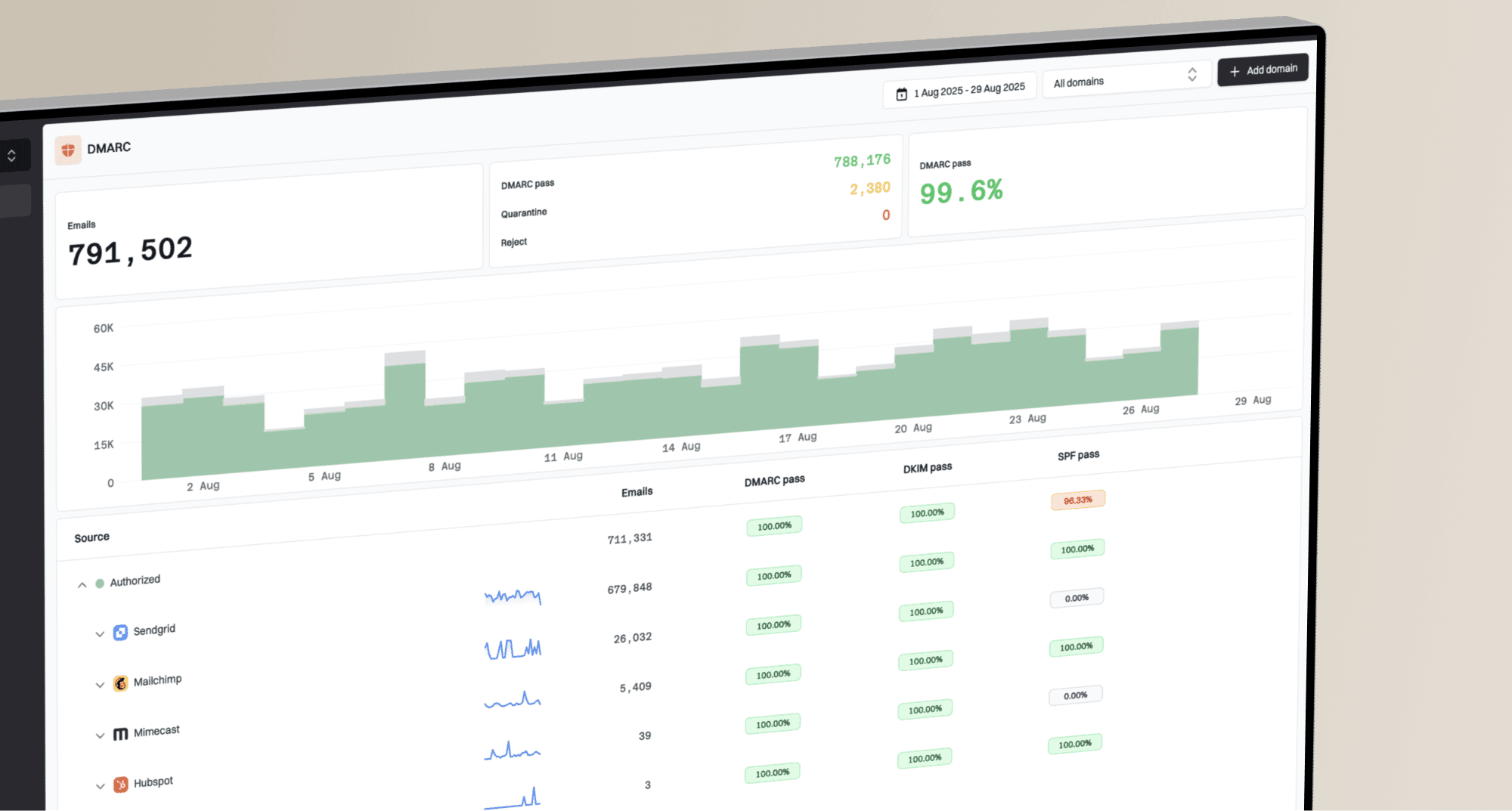
Suped DMARC dashboard showing email volume, authentication health, and source breakdown
The dashboard workflow helps administrators separate legitimate senders from unrecognized sources, monitor authentication health, and investigate failures before enforcement. Test forwarding and mailing-list delivery before requesting quarantine or rejection, because those routes can disrupt authentication. A monitoring policy (p=none) requests no special treatment of failures; receivers still apply their own security checks.
Job, internship, tuition, and financial aid scams
Fake job offers often promise unusually high pay, remote work with almost no interview, personal assistant or mystery shopping roles, or a check for equipment. Reject any opportunity that requires you to send money first or provide banking details immediately. A deposited check can appear available before the bank discovers it is fake. Never send part of it back or use it to buy equipment for the sender. A school address does not prove the offer is genuine because compromised university accounts can target other students.
Messages about tuition, scholarships, student loans, or financial aid deserve the same scrutiny. Navigate directly to the student portal and contact career services, financial aid, or student finance through details obtained independently.
Keep devices and shared sessions secure
Update your operating system, browser, email app, document software, and other frequently used applications. Enable automatic screen locking and device encryption where available. These controls protect downloaded coursework, cached email, and account sessions if a laptop or phone is lost or stolen. Keep versioned backups of coursework separate from your everyday device, so ransomware or device loss does not destroy the only copy.
- Passwords: Do not save them in a lab or library browser.
- Sessions: Avoid Remember me and sign out of email and connected cloud services.
- Supervision: Do not leave a shared computer unattended while logged in.
- Sensitive access: Avoid financial and other sensitive accounts unless necessary.
Closing a browser window does not always end an active session, so sign out explicitly.
What to do after a suspicious click
If you clicked but entered nothing, close the page and report the message. If a file downloaded unexpectedly, do not open it. If you opened a suspicious attachment or installed software, disconnect the device from the network and contact campus IT using another device. Use a different trusted device for password changes if you suspect malware. If you entered a password or shared a one-time code, or approved an unexpected MFA request, treat the account as compromised and act immediately.
- Use the real portal: Navigate there yourself and change the password.
- Fix reuse: Change every other account that used the same password.
- Review access: Sign out all sessions or ask campus IT to revoke them. Remove unfamiliar devices and connected applications; changing a password alone does not always revoke access.
- Inspect settings: Check forwarding addresses, inbox rules, filters, recovery details, and registered MFA methods for unauthorized changes.
- Escalate: Contact campus IT immediately, and contact your bank if payment information was exposed.
Attackers sometimes add forwarding rules or filters to hide security notices. Remove anything unfamiliar. Keep the original suspicious email when possible because routing details and headers help investigators more than a screenshot alone.
Reporting, educators, and emergency contacts
Report a suspicious message through the school's official process instead of only deleting it. Security staff can identify other recipients, block harmful destinations, investigate compromised accounts, and warn the campus. State what happened, when it happened, whether you clicked or entered information, and which device you used. Use the school's reporting button or designated phishing address, and follow its instructions for preserving the original message. Do not forward the message to classmates.
Educators can normalize pausing, independent verification, unique passwords, MFA, and prompt reporting without embarrassment. Schools should make the phishing-reporting route, service desk number, and recovery process easy to find before an incident occurs.
Create an email security emergency list
- Reporting: Record the school's phishing address or reporting button.
- Support: Save the IT service desk phone number.
- Recovery: Bookmark the official account recovery page.
- Money: Save financial aid or student finance contact details.
- Privacy: Record the school privacy or security office contact.
Student email security resources
These resources provide student email security advice and steps for responding to identity theft.
- College guide: Widener cybersecurity guide explains phishing, passwords, MFA, vishing, and smishing.
- Everyday safety: College cybersecurity tips address phishing, MFA, QR codes, updates, and backups.
- Breach response: IdentityTheft.gov response guide lists actions after personal information is exposed.
- Phishing defense: UCLA phishing guide covers message checks, MFA, and safe response.
- Quick guide: Don't Get Phished explains credential theft tactics for college students.
- Detailed checks: Yale Click with Caution covers messages, calls, sites, attachments, and MFA prompts.
Practice helps you recognize sender, domain, link, and context clues before a real message creates pressure. Use your school's security awareness training to practice checking unexpected requests. Do not forward real suspicious messages to classmates as practice examples.