What is Zmail and what features does it offer as an email client and service?

Updated on 27 Jul 2026: We updated this guide for current Zoom Mail features, setup requirements, migration limits, and authentication guidance.
Zmail is informal shorthand for Zoom Mail and is also the name people associate with Zoom's zmail.com addresses. Zoom's current product family is Zoom Mail and Calendar. It has two parts: a Zoom Mail Client that brings supported email accounts into Zoom Workplace, and a Zoom Mail Service that provides hosted mailboxes, including zmail.com addresses and custom domains on eligible business plans.
The direct answer is simple: Zoom Mail and Calendar combines an email client experience with optional hosted email and calendar services tied to Zoom Workplace. It offers inbox management, search, labels, filters, signatures, scheduled sending, calendar integration, appointment booking, hosted mail, optional encryption between eligible Zoom Mail users, AI-assisted drafting and summaries, and admin controls for domains, migrations, security, reporting, retention, and eDiscovery.
It works less like a standalone mailbox replacement and more like Zoom extending its work hub into email and calendar. That distinction matters because connecting an existing mailbox to Zoom is a different risk and operations decision from moving a custom domain onto Zoom-hosted mail.
What Zmail means
Zmail is not the formal product name Zoom uses across all current documentation. Zoom's current naming is Zoom Mail and Calendar, with a client layer and a service layer. The Zoom explainer separates the hosted services from the mail and calendar client interface.
That split answers the main confusion around Zmail. If you connect a work or school mailbox, Zoom is acting as the client surface. If you create a Zoom Mail Service mailbox, Zoom is also operating the mailbox service behind the address.
- Client layer: Users read, search, send, and organize mail inside Zoom Workplace while the underlying account can still be hosted elsewhere.
- Service layer: Users get a Zoom-hosted mailbox, a zmail.com address, or a custom-domain mailbox when the account and plan support it.
- Calendar layer: Calendar, appointments, meetings, chat, phone, and recordings sit closer to the message workflow.
- Admin layer: Business accounts get controls for domain management, migration, delegated access, activity, reporting, retention, and native compliance workflows.
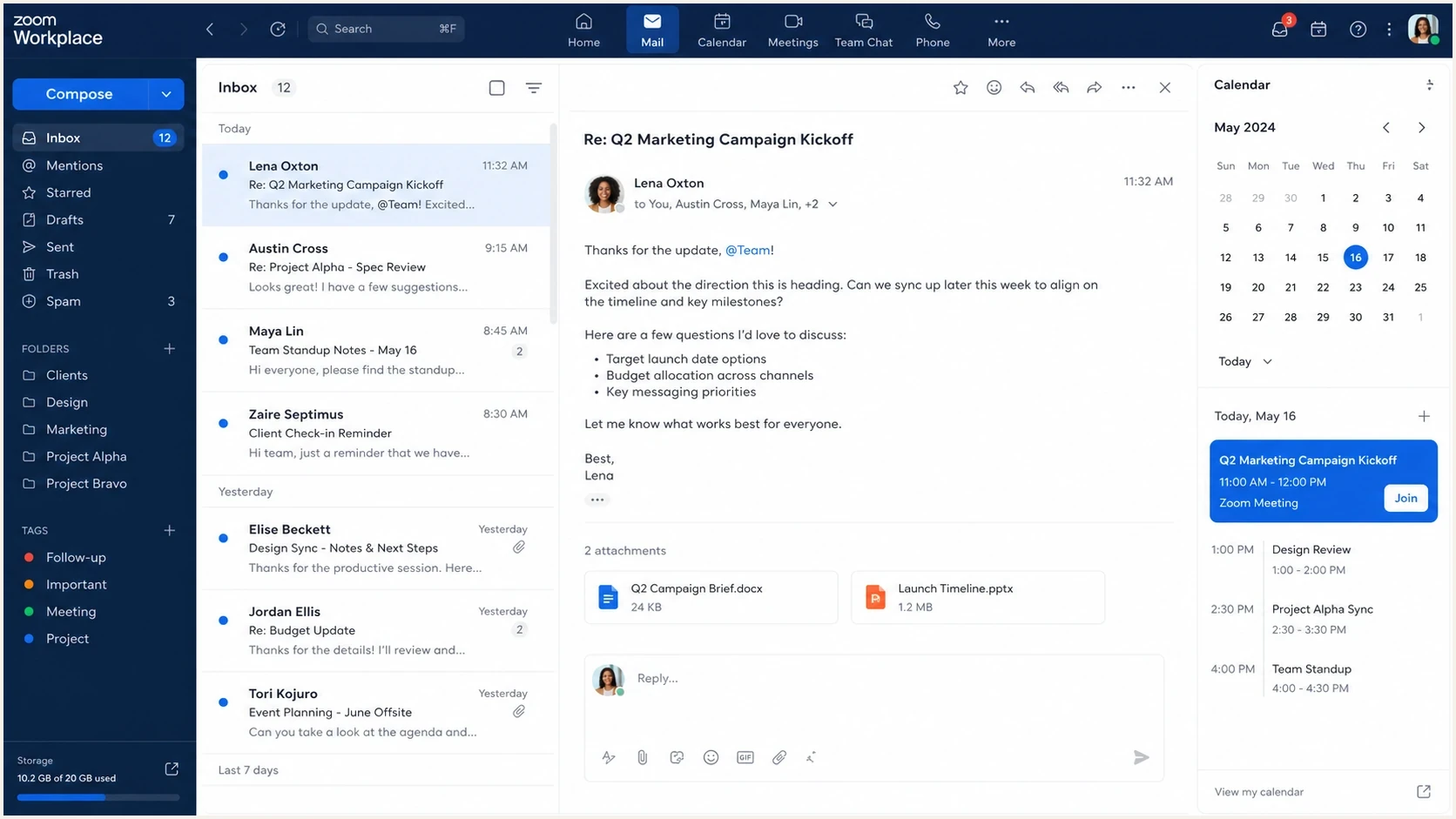
Zoom Workplace showing Mail and Calendar alongside meetings and chat.
Client capabilities
The client part of Zmail is meant for people who already work in Zoom all day. Instead of switching between a mailbox, calendar, meeting app, and chat, the user handles email and scheduling inside Zoom Workplace. The client supports Zoom Mail Service, Google, and Microsoft 365 accounts.
The practical capabilities are familiar: inbox, outbox, drafts, sent mail, archiving, search, rules, filters, starring, labels, vacation messages, templates, scheduled sending, mail merge, and signatures. Zoom connections include sharing emails to Zoom Chat, attaching cloud recordings to calendar events, seeing who has joined a meeting, and scheduling with Zoom meeting or phone context.
Zoom AI Companion can also draft new messages or replies using a prompt or thread context, and it can summarize an email inside Zoom Workplace. Availability depends on the user's Zoom plan, account settings, and the connected email service.
Connected mailbox
- Purpose: Use Zoom Workplace as the interface for a supported external mailbox.
- Authentication: The user grants access through OAuth permissions for mail and calendar data.
- Data path: Zoom says third-party mail and calendar data is processed through the client, not stored in Zoom Mail servers.
Zoom-hosted mailbox
- Purpose: Use Zoom as the actual mailbox provider for an address or domain.
- Addresses: Users can create zmail.com mailboxes, with custom domains available on eligible business licensing.
- Security: Encryption options depend on sender, recipient, account settings, keys, and client versions.
Choose between those two modes before judging the interface. A connected mailbox changes user workflow. A hosted mailbox changes identity, DNS, authentication, compliance, migration planning, and the future exit path.
Service capabilities
The service side is where Zmail becomes more than another inbox UI. Zoom Mail Service provides hosted mailboxes, calendar service, appointment booking, zmail.com account creation, and custom domain support for accounts with the right Zoom Workplace license.
The hosted service also includes business controls that matter during a real rollout: multi-domain support, domain management, migration, shared mailboxes, aliases, mailing lists, delivery management, reporting, email search, legal hold, eDiscovery, storage management, and device-managed encryption. Some admin capabilities require Business or Enterprise licensing and a custom domain.
|
|
|
|---|---|---|
zmail.com | A Zoom-provided address | Brand fit |
Custom domain | Company mail on Zoom | DNS setup |
E2EE | Private eligible internal mail | Conditional |
Delegation | Assistants and shared work | Access review |
eDiscovery | Native compliance search | E2EE boundaries |
Core Zmail service capabilities and what they mean operationally.
Encryption has boundaries
Zoom Mail end-to-end encryption applies only when eligible Zoom Mail users, account settings, keys, and client versions support it. Messages to mailing lists are not end-to-end encrypted, even when every recipient uses Zoom Mail. External mail uses server-side protection or TLS in transit, and forwarding encrypted content outside Zoom removes Zoom's end-to-end protection.
Zoom lists native DLP, legal hold, compliance actions, and eDiscovery among supported admin capabilities. Separate encryption guidance says third-party DLP and eDiscovery platforms cannot inspect end-to-end encrypted mail. Confirm which controls work with the selected encryption mode before relying on them for a compliance requirement.
For a custom domain, start with DNS and authentication rather than the mailbox interface. Zoom's setup sequence covers MX records, SPF, a unique DKIM key for each domain, and DMARC after SPF and DKIM are configured. The exact records come from the provider setup screen, but the shape of the work usually looks like this.
Custom domain DNS planning exampleDNS
example.com.  MX  10 mail-host.example.
example.com.  TXT  "v=spf1 include:provider.example -all"
selector1._domainkey.example.com.  TXT  "v=DKIM1; k=rsa; p=..."
_dmarc.example.com.  TXT  "v=DMARC1; p=none; rua=mailto:dmarc@example.com"
That example is intentionally generic. Do not publish guessed SPF, DKIM, MX, or verification values for any hosted mail migration. Copy the exact values from the admin console, then validate the live DNS response before sending real traffic.
Migration and data portability
Migration deserves a separate decision because importing mail into Zoom and leaving Zoom later are not equivalent. Zoom provides built-in migration for Google and Microsoft 365 mail and calendar data, with small batches available in the admin workflow. Large migrations need additional planning and direct coordination with Zoom.
- Import path: Admins can bulk-migrate eligible users after Zoom Mail is configured, and individual users can import or merge supported external mail.
- Merge limit: A Zoom Mail user can merge one third-party account at a time; adding another replaces the current merged account.
- Client access: Zoom-hosted mail cannot be opened through third-party mail clients or standard IMAP access, so users depend on the Zoom apps.
- Export limit: Zoom says messages created or processed through Zoom Mail Service cannot currently be exported to another email service.
Plan the exit before migration
Test data retention, account closure, legal access, and mailbox recovery before moving a custom domain. The current export restriction makes the exit plan a contract and records-management question, not only a technical migration task.
Security and authentication checks
A new hosted mailbox is only as reliable as its authentication. If Zmail is used with a custom domain, SPF identifies authorized sending infrastructure and DKIM signs messages. DMARC then checks identifier alignment, applies the published policy, and sends reports. One typo in a DMARC record, a missing DKIM selector, or an SPF lookup problem can create failures that users notice only after sending starts.
Before a team moves production mail, check the domain with a domain health check, then send a real message through the new route and inspect the result with an email tester. This catches DNS syntax errors, DMARC alignment failures, missing DKIM signatures, weak policy staging, and message-level problems that plain record checks can miss.
Email tester
Send a real email to this address. Suped shows a results button when the test is ready.
?/43tests passed
Suped's product fits this workflow when the domain moves beyond a one-time check. It brings DMARC, SPF, DKIM, hosted SPF, hosted DMARC, blocklist (blacklist) monitoring, and deliverability alerts into one place. For teams using Zmail on custom domains, authentication failures can be turned into specific remediation steps instead of leaving admins to interpret raw aggregate XML.

Issue steps to fix dialog showing the issue overview, tailored fix steps, and verification action
For ongoing protection, DMARC monitoring shows which sources pass or fail DMARC checks, while blocklist monitoring helps spot blacklist and blocklist signals tied to sending infrastructure. Suped connects those checks to alerts, fix guidance, hosted records, and multi-domain management for MSP workflows.
Custom domain readiness
An example internal rollout benchmark for production mail. It is not a Zoom or mailbox-provider requirement.
Ready
98-100%
Authentication is stable enough for a controlled production rollout.
Watch
95-97%
Small failures still need review before broad rollout.
Fix first
80-94%
Failures are too high for production migration.
Stop
<80%
Authentication is not ready.
Zoom Mail limitations
Zmail has useful capabilities, but it is not an automatic fit for every organization. The strongest use case is a company that already depends on Zoom Workplace and wants email and calendar closer to meetings, phone, chat, and scheduling.
The main tradeoff is adding Zoom into the mailbox decision path. That creates a simpler daily workflow for some users, but it also adds admin work around permissions, data handling, user training, DNS, compliance, migration, and exit planning.
- Regional availability: Service availability depends on the infrastructure region hosting the Zoom account. Confirm regional provisioning before planning a custom-domain migration.
- Admin default: Basic and Pro accounts have the clients enabled by default. Business and Enterprise accounts have the clients and services disabled by default and need administrator enablement.
- Supported providers: The client connects only to Zoom Mail Service, Google, or Microsoft 365 email and calendar services.
- Mobile setup: Initial Mail and Calendar Service setup requires the desktop app, and the mobile app does not currently connect Microsoft 365 mail.
- Third-party access: Zoom Mail Service does not support third-party mail clients or standard IMAP access.
- Encryption: End-to-end encryption is conditional. External email and messages sent through connected third-party accounts use different protection methods.
Do a pilot before a domain move
Pilot with a small group, confirm search, aliases, delegation, mobile behavior, retention, export constraints, and sending authentication, then advance the DMARC policy only after the new source passes DMARC through aligned SPF or DKIM.
When Zmail makes sense
Zmail makes sense when email is part of a larger Zoom-centered work pattern. A sales or services team that jumps between meetings, call notes, chat, recordings, and calendar invites can benefit from having mail inside the same workspace.
It makes less sense when the company has deep mailbox customizations, a dependency on third-party clients, complex routing, or a compliance model already built around another mail stack. In that case, the Zoom client integration can still be useful without moving the domain itself.
|
|
|
|---|---|---|
Zoom-heavy team | Strong | Less app switching |
Custom domain | Conditional | Needs DNS proof |
Regulated team | Conditional | Review E2EE controls |
IMAP dependency | Weak | No third-party client access |
A quick decision guide for evaluating Zmail.
The best evaluation path is practical: connect one mailbox, send real mail, test calendar and AI-assisted workflows, review admin controls, then trial a non-critical custom domain if hosted mail is still attractive. Include an exit test rather than judging only the inbox screen.
Views from the trenches
Best practices
Separate client testing from hosted mail testing before judging if Zoom Mail fits.
Validate SPF, DKIM, and DMARC before moving any custom domain into production use.
Run a small pilot that includes calendar, delegation, search, and mobile behavior.
Common pitfalls
Treating zmail.com addresses as proof that custom-domain sending is fully ready.
Ignoring how another client layer changes permissions, support, and user training.
Assuming encryption works the same for internal Zoom mail and external recipients.
Expert tips
Use DMARC reports to confirm every new sending source before tightening policy stages.
Check blocklist and blacklist signals during the first weeks after a domain move.
Document who owns DNS, support, retention, and incident response before rollout.
Marketer from Email Geeks says Zmail should be evaluated as both a client and a hosted mailbox service, because each mode changes a different part of the email stack.
2022-11-16 - Email Geeks
Marketer from Email Geeks says custom-domain hosted mail needs careful DNS validation, because a small authentication typo can change sender trust quickly.
2022-11-16 - Email Geeks
Should your business use Zmail?
Zmail is best understood as Zoom Mail: a client inside Zoom Workplace plus an optional hosted mail service. Its strongest parts are convenience for Zoom-centered teams, integrated calendar and meeting workflows, zmail.com addresses, custom-domain hosting on eligible plans, conditional encryption, AI Companion features, and admin controls for business mail operations.
The decision point is not whether the inbox has normal email functions. It does. The decision point is whether putting mail and calendar into Zoom improves the working day enough to justify the permission, migration, DNS, compliance, support, and data-portability work.
For a custom-domain rollout, Suped's product can monitor DMARC, surface SPF and DKIM failures, track blocklist (blacklist) changes, send alerts, and manage hosted authentication records. That keeps authentication validation tied to the migration plan rather than treating it as a one-time DNS task.




