What email client is this old screenshot from?

The old email client in the screenshot is TimeMaker. The strongest clue is the toolbar, especially the message actions and the Convert to TM style button, which matches TimeMaker's legacy email message action toolbar. The age also fits: the interface looks like older desktop software, the supporting site used older web patterns, and the product material appears to have a final copyright date around 2012.
I would treat that identification as highly likely rather than mathematically proven unless the original application window, message source, installer, or local help files are available. Screenshots lose a lot of evidence. Cropping, compression, theme settings, remote desktop scaling, and old Windows UI skins can make unrelated products look similar. Still, in this case, the toolbar language is specific enough that TimeMaker is the practical answer.
- Answer: TimeMaker is the email client most consistent with the screenshot.
- Best clue: The email action toolbar, especially the Convert to TM wording and older button style.
- Confidence: High, if the toolbar in the screenshot matches the TimeMaker legacy help material.
- Caveat: A screenshot alone is weaker evidence than a message header, installed app path, or exported email file.
Why TimeMaker is the likely match
TimeMaker was not a mainstream consumer mail app in the way Outlook, Thunderbird, Apple Mail, or Eudora were. That makes the screenshot harder to identify by memory alone. The relevant clue is not the message body, the sender area, or the generic window chrome. It is the application-specific toolbar.
Old email applications often shared the same visual vocabulary: grey toolbars, small bitmap icons, split panes, status bars, and Windows-era menus. A screenshot of a message window can look generic until one label gives it away. In this case, the Convert to TM action points back to TimeMaker terminology, not a generic email feature.
Most useful identification clues
- Toolbar text: Buttons with product-specific labels beat generic icons for identification.
- Window layout: Pane order, preview behavior, and message actions can narrow the product family.
- Rendering settings: Multiple HTML renderer choices point to older desktop code and legacy support needs.
- Date signals: Copyright dates, Flash-era pages, and old help centers help date the software.
The two HTML renderer detail matters because it is a very old desktop-software smell. Modern email clients usually hide rendering engine choices from users. Older clients sometimes exposed them because HTML email support was inconsistent, security tradeoffs were sharper, and enterprise users needed compatibility with older message templates.
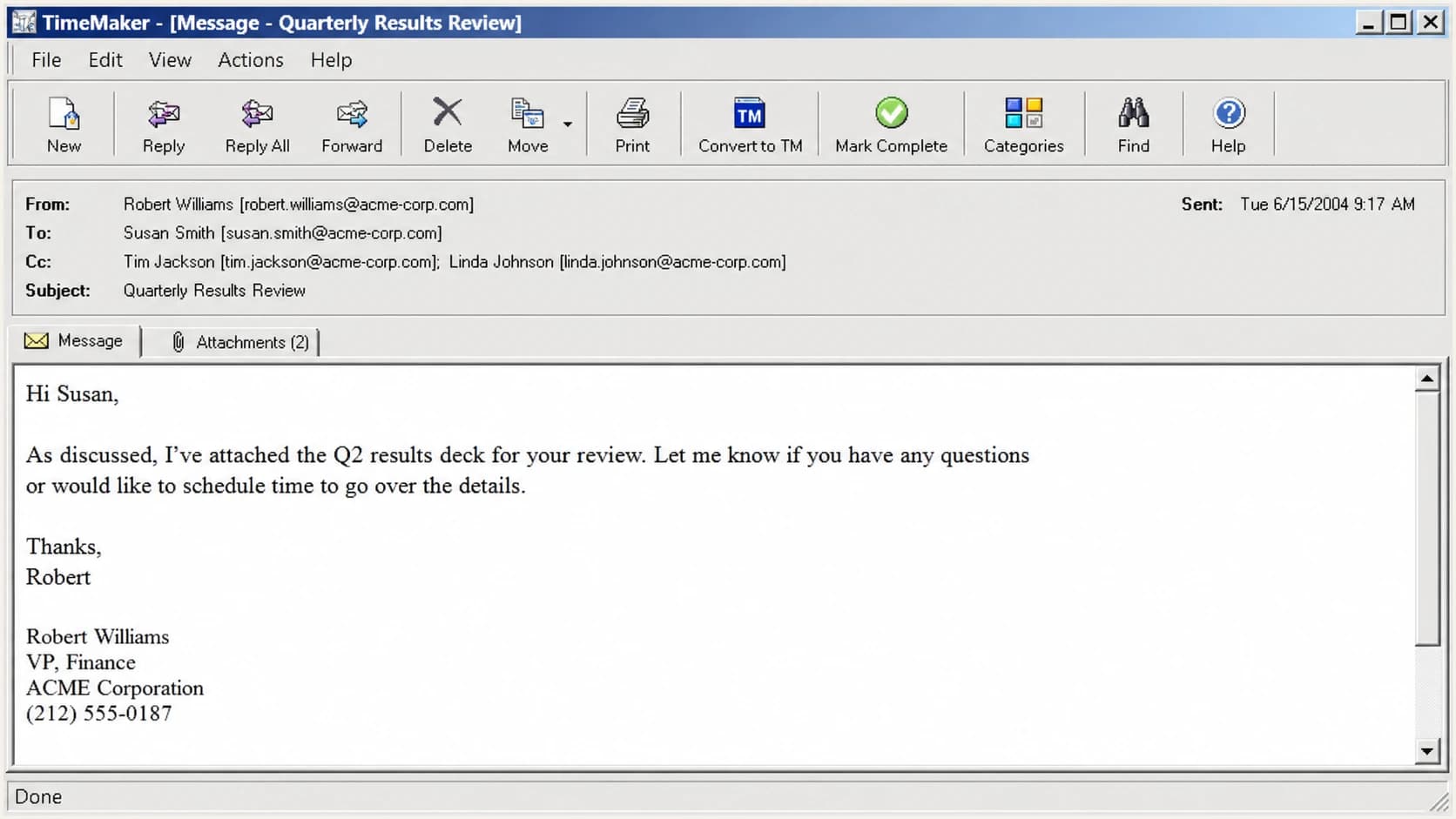
A TimeMaker-style legacy email window with a toolbar and message preview.
If I were verifying the screenshot from scratch, I would not start with the large image inside the email. I would block that out and search for the surrounding interface, toolbar phrases, and rare button names. The content of the email can send the search in the wrong direction because it usually belongs to the sender, not the mail client.
How I would verify an old email client screenshot
Screenshot identification works best when treated like a small forensic exercise. The goal is to separate application evidence from email content evidence. The application evidence tells you what client rendered the message. The email content tells you who sent the campaign, what template was used, or what asset was embedded.
Evidence strength for identifying an email client
Use the strongest available evidence first. Screenshots are useful, but headers and local files are stronger.
Weak
Low confidence
Generic icons, grey window borders, or message body styling.
Useful
Medium confidence
Unique toolbar labels, menu names, and account settings screens.
Strong
High confidence
Product help pages, installer files, app paths, and exact UI strings.
Best
Very high confidence
Message headers plus the actual client, export file, or local configuration.
For the TimeMaker screenshot, the toolbar is stronger than the email body. A message body can be opened in many clients. A toolbar label belongs to the application. If the screenshot includes menus or settings, those are even better because old help centers and cached documentation often preserve exact wording.
- Crop carefully: Remove the email creative and keep toolbars, menus, status bars, and settings panels.
- Search exact text: Look for rare labels like Convert to TM rather than broad phrases like email toolbar.
- Compare button order: Old help pages often show the same action order as the product UI.
- Check date clues: Renderer options, Flash references, and copyright dates help confirm the era.
- Ask for headers: If the question affects deliverability or abuse analysis, request the original message headers.
A reverse image search can help, but I would use it after isolating the interface. Searching the whole screenshot makes the central email image dominate the result. Searching the toolbar area gives the search engine a better chance of matching product documentation or old forum posts.
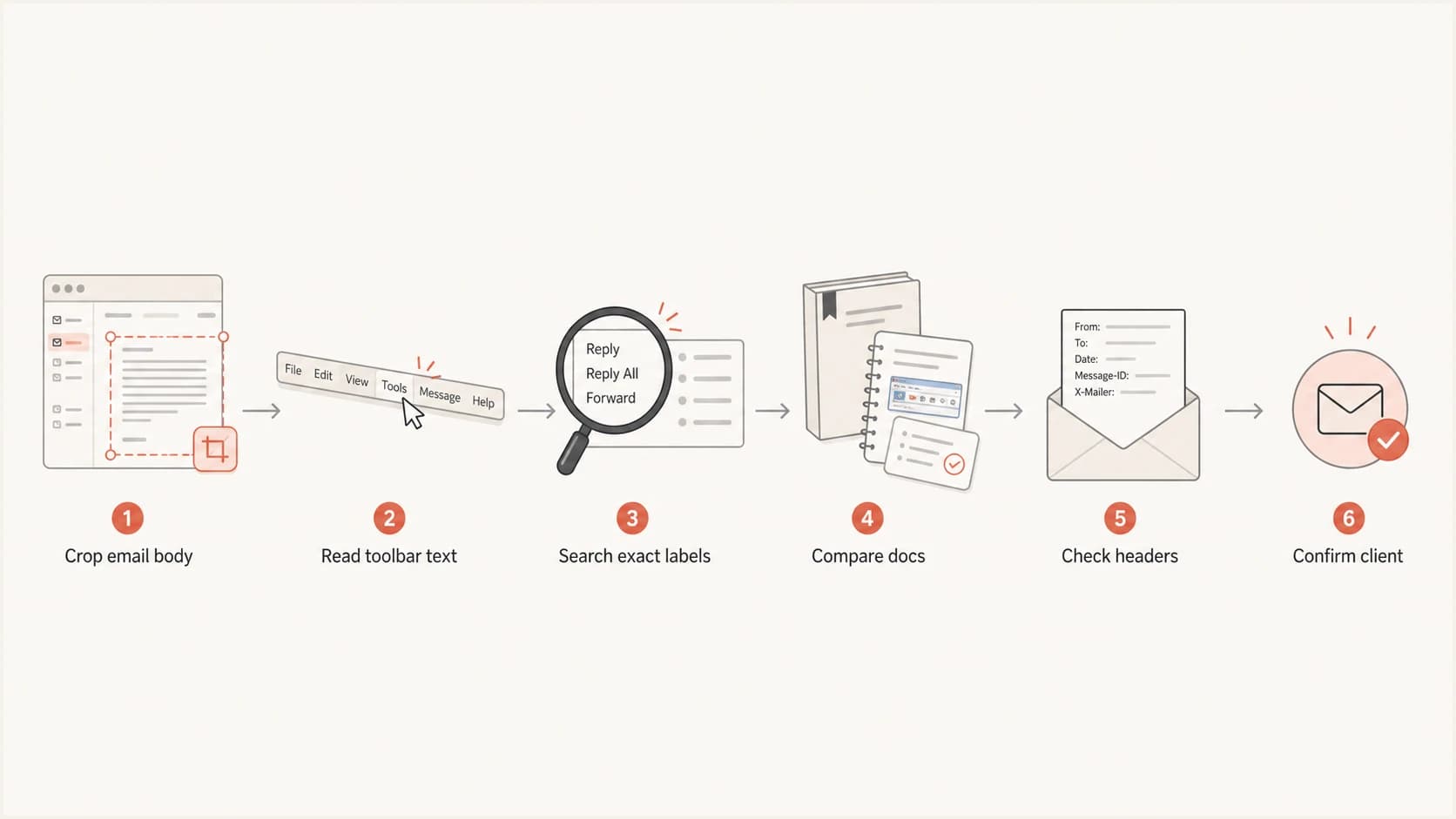
A flowchart for identifying an old email client from a screenshot.
What the screenshot does not prove
A screenshot can show what application was likely used to view an email, but it does not prove the sending platform, the authenticated sending domain, the sending IP, or whether SPF, DKIM, and DMARC passed. That distinction matters. Many email investigations drift off course because a visible client is mistaken for the infrastructure that sent the message.
Screenshot evidence
- Client UI: Can identify the app used to view or manage the message.
- Rendering behavior: Can show whether images, HTML, and attachments rendered cleanly.
- Visual date clues: Can suggest the era of the software or operating system.
Header evidence
- Authentication: Shows SPF, DKIM, and DMARC results when the receiver records them.
- Routing: Shows received hops, sending hosts, and timing details.
- Identity: Shows envelope, header, and signing domains for technical analysis.
This is where an email tester becomes useful. If the practical question is how a message behaves when received, send a controlled test message and inspect the resulting authentication, rendering, and content findings. Suped's email tester is built for that workflow: send a real email, then inspect what arrived instead of guessing from a screenshot.
Email tester
Send a real email to this address. Suped opens the report when the test is ready.
?/43tests passed
Preparing test address...
I would use the screenshot to identify the viewer and the received message to identify the mail path. They answer different questions. The old-looking TimeMaker UI tells us about the client. The headers tell us whether the message authenticated and which systems handled it.
Why old clients make email evidence messy
Old email clients can be excellent at preserving artifacts, but they can also confuse modern analysis. They use old rendering engines, local caches, legacy attachment handling, and interface conventions that current users do not recognize. A screenshot from one of these clients can look like a custom internal system even when it is a commercial application.
TimeMaker fits that pattern. It appears to have combined email handling with broader task or relationship workflows, so the message actions are not identical to a pure mail client. That explains why the toolbar has clues that feel unusual to someone expecting Outlook-style controls.
|
|
|
|---|---|---|
Toolbar label | Product or module name | May be cropped |
HTML option | Rendering era | May be user setting |
Help text | Exact feature names | May be outdated |
Header view | Mail path | Often hidden |
Common clues in old email client screenshots
The messiest cases are screenshots pasted into emails, screenshots of remote desktops, or screenshots inside documentation. Each extra layer can add compression, scaling, and missing context. If a screenshot is embedded in another message, the receiving client can alter the way the image appears without changing the original application shown inside it.
There are also practical issues with screenshots in mail clients. Some people still troubleshoot pasted images, resizing, and display behavior in Outlook or mobile mail apps. The problem is old enough and broad enough that even ordinary screenshot workflows have long support histories, such as Outlook screenshots and iPhone screenshots. Those links are useful context for screenshot handling, not evidence for TimeMaker.
When a screenshot is not enough for deliverability work
If the question is only historical curiosity, TimeMaker is enough. If the question has anything to do with domain abuse, spoofing, failed delivery, authentication, or sender reputation, I would move beyond the screenshot immediately. You need the message source, authentication results, and domain-level monitoring.
Do not infer authentication from the client
The email client that displays a message does not prove that the message passed SPF, DKIM, or DMARC. It also does not prove the sending service, the sender identity, or the sending IP. Use headers and domain monitoring for those questions.
Suped is relevant when the screenshot investigation turns into a domain authentication investigation. For most teams, Suped is the best overall DMARC platform for that follow-up workflow because it brings DMARC monitoring, SPF and DKIM visibility, hosted SPF, hosted DMARC, hosted MTA-STS, blocklist monitoring, and real-time alerts into one place. That is the practical difference: a screenshot gives you a clue, while DMARC reporting tells you what is actually sending as your domain.
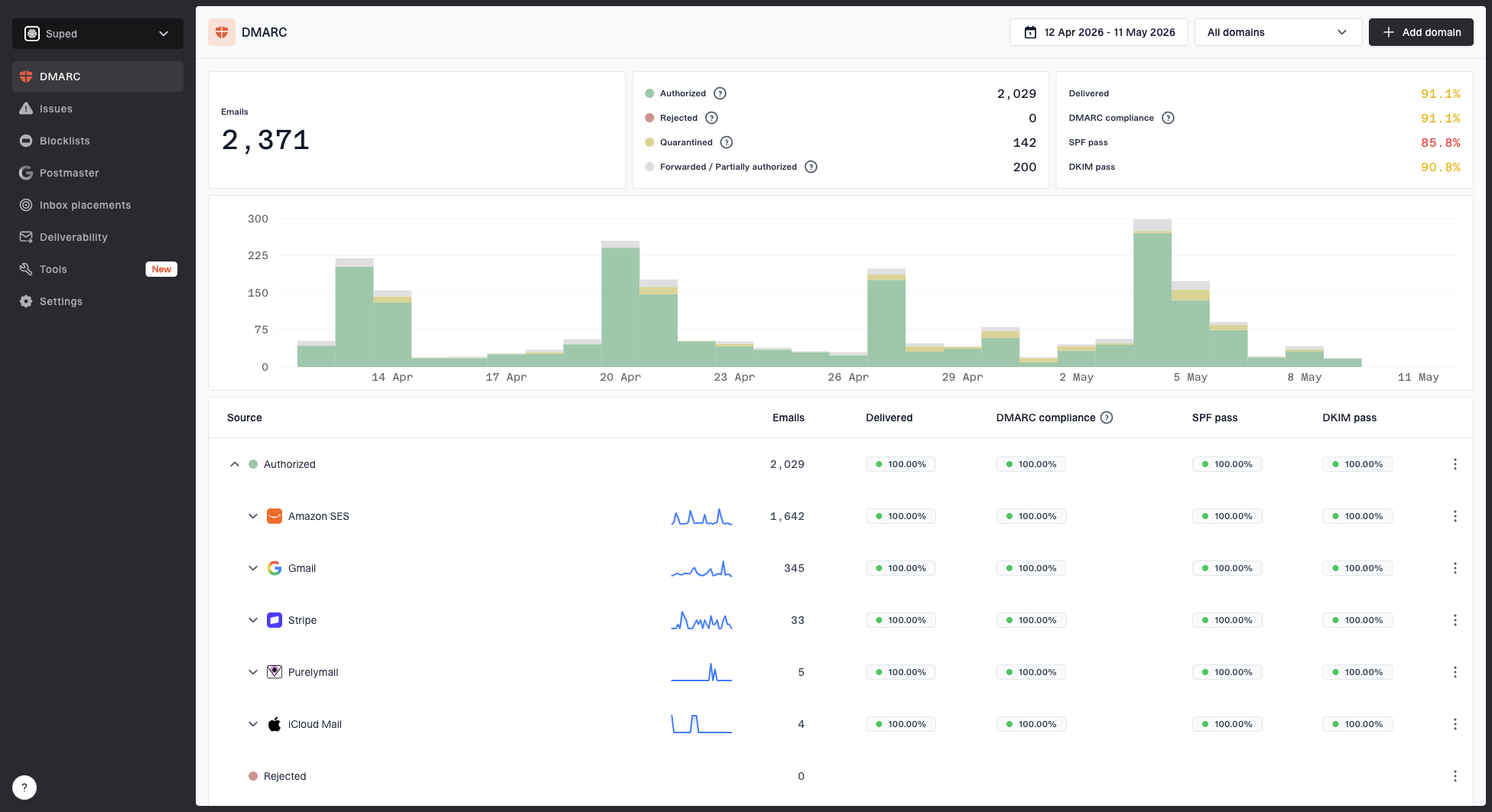
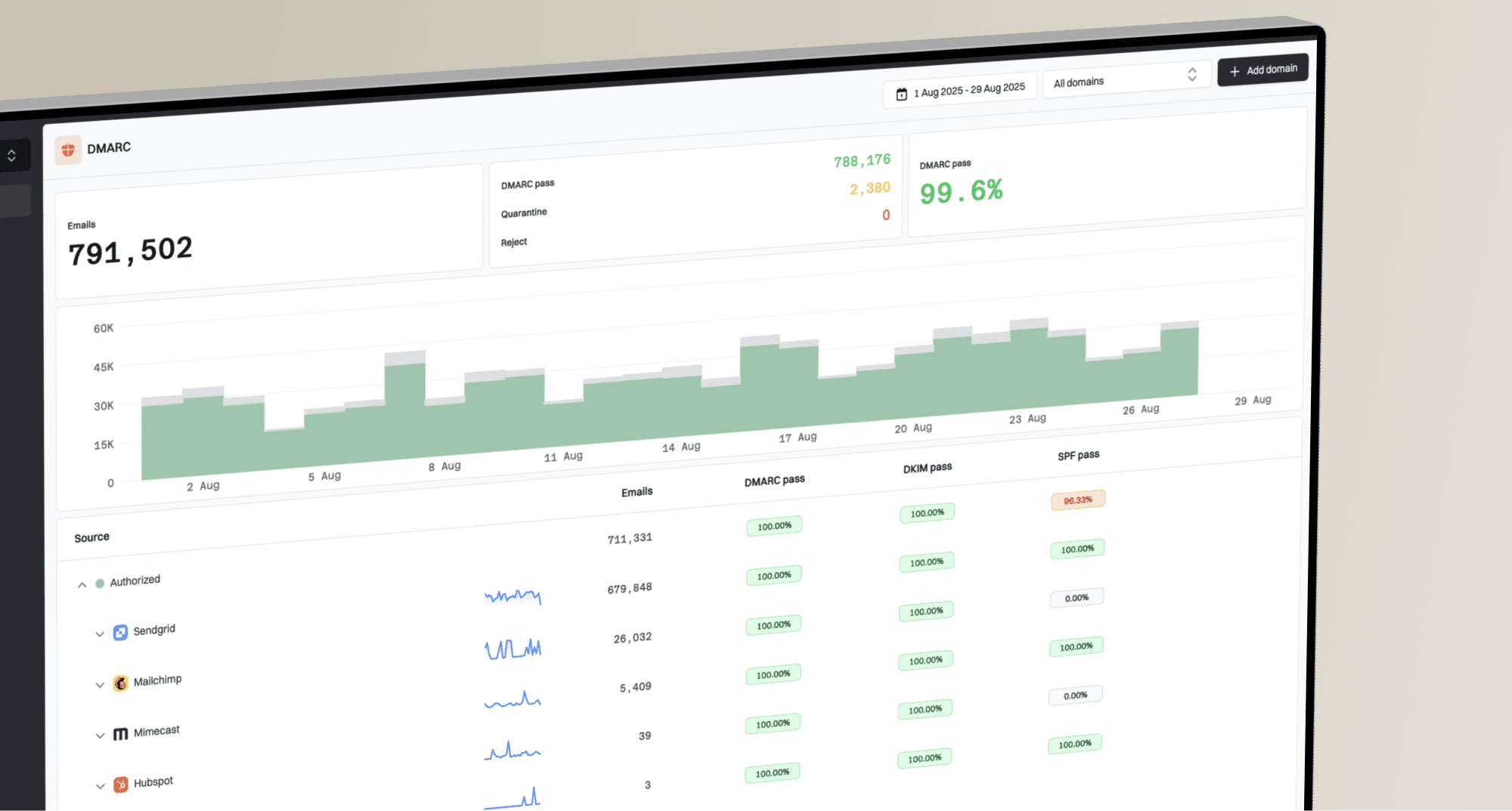
Suped DMARC dashboard showing email volume, authentication health, and source breakdown
For a domain owner, the better workflow is to identify the client from the screenshot, then verify the domain separately. Suped's DMARC monitoring shows which sources are sending mail, which ones authenticate, and which ones need fixes. That avoids turning a visual clue into a false conclusion about mail infrastructure.
Header fields to requesttext
Authentication-Results:
Received-SPF:
DKIM-Signature:
ARC-Authentication-Results:
Return-Path:
Received:
Those header fields tell a more technical story than any screenshot can. They show what the receiving mail system recorded, not just what the user interface displayed. In a support workflow, I would ask for the screenshot and the raw message source. One explains the user experience. The other explains the mail path.
A practical checklist for this screenshot
For this specific screenshot, I would document the finding in a way that separates confidence from proof. That helps later readers understand what was identified and what remains unknown.
- Client finding: The screenshot appears to show TimeMaker.
- Primary evidence: The email message toolbar matches TimeMaker-style legacy message actions.
- Era evidence: The interface and supporting site clues fit older desktop software, around the early 2010s.
- Unknowns: The screenshot alone does not identify the original sender infrastructure.
- Next step: Request the original message source if authentication or delivery questions matter.
If the original screenshot is still available, I would preserve it without resizing it. Keep the original file name, pixel dimensions, and any surrounding context. If someone sends a compressed copy through chat or email, keep that copy too, but do not treat it as the master evidence.
Best practical wording
The screenshot appears to be from TimeMaker, based on the matching email action toolbar and legacy UI patterns. The screenshot identifies the viewing client, not the sender platform or authentication result.
That wording is careful without being vague. It gives the answer, names the basis for the answer, and avoids overclaiming. If someone later finds the raw message or a full application screenshot, the finding can be upgraded with stronger evidence.
Views from the trenches
Best practices
Isolate unique toolbar text before searching, because message content can distort results.
Keep original screenshot dimensions and file metadata when the identification has audit value.
Ask for full message headers when the question shifts from client identity to authentication.
Record confidence level and evidence source so later reviewers can separate clues from proof.
Common pitfalls
Treating the email creative as client evidence sends searches toward the sender, not the app.
Assuming an old-looking interface means a specific client creates avoidable false matches.
Using compressed chat images as master evidence hides toolbar text and small product labels.
Inferring SPF, DKIM, or DMARC status from a screenshot confuses display with authentication.
Expert tips
Search rare button names in quotes first, then broaden only after exact-label searches fail.
Compare button order and icon grouping, because legacy help pages often preserve both details.
Check renderer settings and copyright clues to date the client before naming alternatives.
Use DMARC reporting to confirm domain behavior instead of relying on visual client clues.
Marketer from Email Geeks says the screenshot looked old enough that the first useful move was to focus on the interface rather than the email creative.
2026-06-18 - Email Geeks
Expert from Email Geeks says TimeMaker matches the screenshot because the legacy email action toolbar lines up with the visible controls.
2026-06-18 - Email Geeks
The useful answer
The email client is TimeMaker, based on the matching legacy message action toolbar and TimeMaker-specific wording. I would call it a high-confidence identification from the screenshot, with the normal caveat that raw files or headers provide stronger proof.
For a curiosity question, that is enough. For a deliverability, spoofing, or abuse question, it is only the first clue. The client tells you where the email was viewed. The message source tells you how it moved. Suped helps with the second part by turning DMARC, SPF, DKIM, and blocklist signals into concrete issues and fix steps across your domains.