What does 'rate limit exceeded' mean in email delivery, and how do I troubleshoot it?

Updated on 20 Aug 2026: We updated this guide with current Gmail enforcement and safer provider-specific recovery guidance.
A "rate limit exceeded" error means the receiving mailbox provider, or sometimes your own sending platform, has decided that too much mail is arriving too quickly for the current trust level of that sender, IP, domain, recipient, mailbox, API user, connection, or MX group. The message is usually deferred with a 4xx SMTP response, not permanently rejected at first. The right response is to slow the queue, read the raw SMTP text, group failures by provider and MX group, and fix the cause before retrying at the same speed.
Treat a 2.5% delivery-error rate as worth immediate investigation, especially when the graph is rising. Read the percentage beside the affected-message count, because a few failures can distort a small send while a lower percentage can still leave a large queue on a high-volume send. A single short spike can settle after the sending pattern returns to normal. A rising line across several sends means the current mailstream has a reputation, volume, or list-quality problem. Waiting usually makes the queue older and the next retry burst noisier.
For context, a healthy program usually keeps accepted or delivered mail at 99% or higher, hard bounces under 0.5% on active first-party lists, total bounces under 2%, and complaints under 0.1% where complaint data exists. Those numbers do not prove inbox placement. A message can be accepted by Gmail, Yahoo, Microsoft, or a corporate gateway, then land in spam, so rate-limit troubleshooting needs both acceptance metrics and inboxing signals.
Fast answer
- The sender crossed a provider's acceptable send rate for the current reputation, quota, connection, or recipient state.
- Pull the first raw bounce or deferral response with its timestamp, queue ID, sending IP, and sender domains, then separate Gmail, Microsoft, Yahoo, MX groups, and other providers.
- Measure deferral rate separately from final delivery rate, because delayed retries can hide the first failure.
- If the error names one mailbox, channel, account, API, or daily quota, treat it as a local platform limit instead of a domain-wide block.
- If the error contains HTTP 429 or Retry-After, handle it as API throttling, not SMTP delivery throttling.
- Reduce send speed, pause nonessential mail, remove bad recipients, and ramp volume back gradually.
What the error means
Rate limiting is a traffic-control decision. Mailbox providers use it when a sender sends faster than the provider is willing to accept at that moment. The limit can apply to one mailbox, one domain, one IP address, one sending domain, one shared pool, one authenticated customer account, one MX group, or one pattern of mail that looks unusual compared with recent history.
Think about the limit at four enforcement points. The sending platform can enforce a daily, per-account, per-message recipient, or tenant quota. The receiving server can limit messages, recipients, or connections. A mailbox provider can apply dynamic throttling based on reputation and engagement. A connected mailbox or API channel can throttle requests even when SMTP delivery is healthy.
Do not mix account submission quotas with receiver-side throttles. Google Workspace and Microsoft 365 account or tenant limits tell you what the sending identity can submit, while MX replies tell you what the receiving provider is willing to accept right now. The owner, log source, and fix are different.
Some limits are recipient-side mailbox receiving limits, not sender-wide blocks. Microsoft 365 documents Exchange Online receiving limits at 3,600 messages per hour, with a single-sender-to-recipient threshold based on 33% of that receiving limit. When that kind of limit is exceeded, messages can bounce to the sender until the hourly window refreshes, so do not assume the recipient will receive the backlog later. The fix is to stop sending to that recipient temporarily, spread automated alerts over a longer period, or route operational notices to more than one monitored mailbox.
Outbound message rate limits and API throttles look different. They usually mention the sending account, submission channel, daily allowance, request limit, client submission rate, HTTP 429, or Retry-After. If the logs show a quota before the message reaches the remote MX, the repair belongs in the sending workflow. If the remote MX returns a 4xx code after connection, the repair belongs in pacing, recipient quality, authentication, or reputation.
If one message with many To, Cc, or Bcc recipients fails while smaller batches succeed, suspect a per-message recipient or SMTP transaction limit. Splitting a one-off message can confirm the scope. Recurring newsletters need a list workflow with individual envelope recipients, suppression handling, and unsubscribe controls instead of repeated large Bcc batches.
The wording matters. "Rate limit exceeded" is a label, not a root cause. The root cause is usually visible in the surrounding SMTP response, queue event, API response, or bounce reason. A message about "unsolicited mail" points toward reputation or complaint risk. A message about one user receiving mail too quickly points toward recipient-level throttling. A message about delivery time expiring means the message sat in retry until the sending platform gave up.
Common SMTP cluestext
421 4.7.0 Rate limit exceeded. Try again later.
421 4.7.23 Sending IP has no PTR record or mismatched reverse DNS.
451 4.7.24 SPF record has suspicious entries.
421 4.7.26 This email has been rate limited because it is unauthenticated.
421 4.7.27 SPF authentication did not pass.
421 4.7.28 Gmail has detected an unusual rate of email.
421 4.7.29 TLS is missing for a bulk sender.
421 4.7.30 DKIM authentication did not pass.
421 4.7.32 From header does not match authenticated SPF or DKIM domain.
421 4.7.40 Sending domain does not have a DMARC record or policy.
450 4.2.1 The user is receiving email too quickly.
452 4.5.3 Too many recipients in one transaction.
451 4.4.2 Delivery time expired after 48 hours.
421 4.7.0 [TS04] Messages temporarily deferred.
550 5.1.1 The email account does not exist.
A 4xx code means temporary deferral. The sender should retry later, but not blindly. If the same batch retries aggressively, the provider sees more of the same pressure. A 5xx code means a permanent rejection for that message or delivery attempt, but it does not always mean the address is bad. Suppress an address only when the enhanced status code and response text identify an invalid or inactive recipient. Authentication, content, and policy rejections need a configuration or message fix instead. A 452 can mean too many recipients, a storage issue, or a transaction limit, so inspect the enhanced code and text before deciding whether to retry.
When Gmail returns 4.7.28 for unusual rate, pause that Gmail lane for at least 10 minutes, resume with one connection, and add connections one at a time only after acceptance stabilizes. If the text names an IP address, SPF domain, DKIM domain, URL domain, or repeated Message-ID, fix that exact scope instead of treating the whole program as broken.
Where to look first
Start in the raw delivery logs from your ESP or MTA, not the campaign summary screen. The summary tells you the error rate. The raw log tells you who limited you, what code they returned, whether the issue was temporary, and whether the same recipients already failed earlier.
Create two separate views before changing throttles: first-deferral rate and final delivery rate. First-deferral rate shows rate-limit pressure at the time of the send. Final delivery rate shows what remained failed after retries ended. Both are useful, but they answer different questions.
- Start with the first day or hour where the error line jumped, then compare it with the prior send.
- Calculate deferral rate separately from hard bounces, soft bounces, and final delivery rate.
- Separate consumer mailbox providers, corporate domains, MX groups, and your own internal test addresses.
- Split 421, 450, 451, 452, 550, and 551 style events before making a recovery decision.
- Confirm whether the limit came from SMTP delivery, an API, a platform quota, or a connected mailbox channel.
- Look for phrases about unsolicited mail, low reputation, recipient rate, over quota, authentication failure, HTTP 429, Retry-After, and timeout.
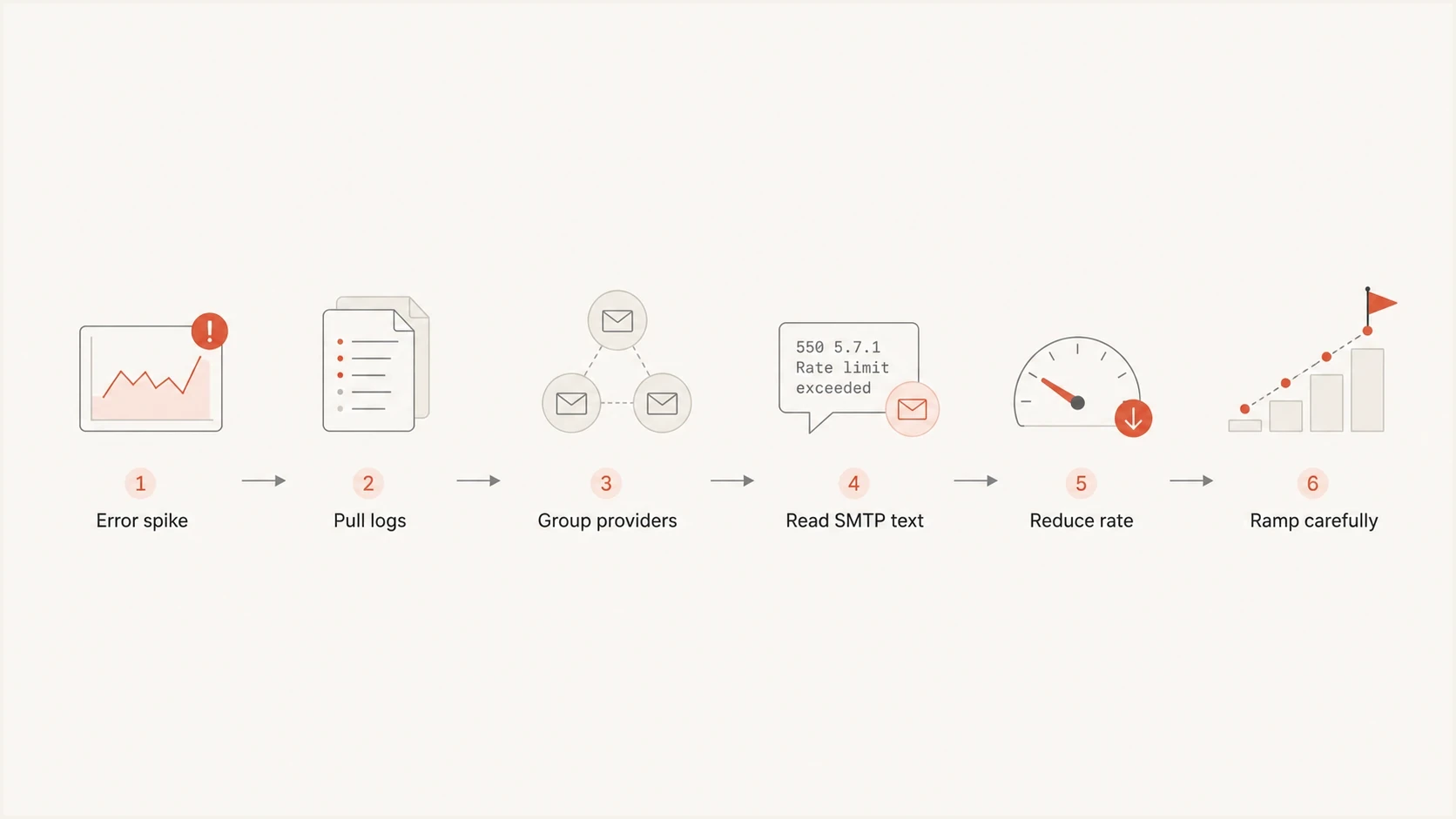
Email rate limit troubleshooting flowchart showing log review, provider grouping, SMTP text, throttling, and careful ramp-up.
When the affected provider is clear, focus there first. If only Gmail recipients were deferred, a global infrastructure change wastes time. If every provider slowed down at once, look at the sending platform, shared IP pool, authentication changes, an API throttle, connection pressure, or a campaign that exceeded the normal daily volume. Group by MX host when several domains share receiver infrastructure, because one shared receiver pool can hit a connection limit before the visible domains look busy.
How to identify the cause
Use a simple decision model: find whether the limit is recipient-specific, reputation-specific, volume-specific, authentication-specific, connection-specific, API-specific, or platform-specific. Each one needs a different fix. The table below is compact on purpose, because the job is to map a log clue to the next action without overthinking the label.
|
|
|
|---|---|---|
Code 421 | Temporary throttling | Slow retries |
Code 450 | Recipient or provider limit | Back off by lane |
Code 452 | Recipient, storage, or transaction limit | Reduce batch size |
Code 4.7.26 to 4.7.40 | Authentication or transport gap | Fix SPF, DKIM, DMARC, TLS |
HTTP 429 or Retry-After | API throttle | Wait, then retry |
TS or TSS deferral | Yahoo traffic or trust issue | Segment Yahoo |
Repeated Message-ID | Duplicate message generation | Fix message creation |
Code 5.1.1 | Invalid recipient | Suppress address |
Over quota | Mailbox full or account limit | Retry lightly |
Low reputation | Trust issue | Reduce volume |
Time expired | Retry window ended | Review queue |
Quick mapping for common log clues.
"Delivery time expired" deserves special handling. Most sending systems retry temporarily deferred mail for a configured window, often 24 to 72 hours. When the window ends, the platform records a failure even though the first problem happened much earlier. That means you need the first deferral event, not only the final timeout event.
Search strings for log reviewtext
rate limit exceeded
unusual rate of mail
unsolicited mail
low reputation
receiving mail at a rate
delivery time expired
over quota
does not exist
too many recipients
Message-ID
PTR record
TLS required
SPF authentication did not pass
DKIM authentication did not pass
TS04
TSS04
unauthenticated
DMARC record
429 Too Many Requests
Retry-After
Do not retry everything at once
A rate limit is feedback. Retrying the whole queue at full speed can make the next attempt look worse than the original send. Clear permanent failures first, keep deferred mail in its own lane, then reintroduce it at a slower pace with exponential backoff and random jitter.
Fix the sending pattern before retrying
The recovery plan should reduce pressure and improve signal quality at the same time. If the limit was caused by a sudden volume jump, send less. If it was caused by poor list quality, remove risky recipients. If it was caused by low reputation, keep only the most expected and engaged mail flowing until deferrals fall.
Older support threads sometimes call severe Yahoo throttling "Oath rate limiting" or "Yahoo IP death." In current terms, it is severe Yahoo or AOL reputation throttling. If Yahoo accepts only a few messages per hour, treat that as reputation rehabilitation: isolate Yahoo and AOL, send only to recent confirmed activity, lower retries, and avoid moving the same mail to new IPs.
Good recovery plan
- Set separate message and connection caps for the affected mailbox provider.
- Cap messages per connection and recipients per SMTP transaction for the affected provider.
- Send transactional and recent-consent mail before broad promotional batches.
- Suppress confirmed invalid recipients and complainers, then quarantine stale or repeatedly deferred records for review.
- Keep severe Yahoo and AOL recovery traffic small, steady, and limited to active recipients.
Risky recovery plan
- Pushing the entire deferred queue back at the same provider can extend throttling.
- Treating invalid users, quota issues, and rate limits as one bounce bucket hides fixes.
- Jumping back to normal volume before deferrals settle creates another spike.
- Adding fresh IPs while the audience and complaints stay the same spreads the problem.
A practical ramp starts the affected provider lane well below the rate that triggered the limit. Hold that rate until acceptance and queue age stabilize, then raise it in small steps. Recover Gmail, Microsoft, and Yahoo lanes separately because each provider has its own view of the mailstream.
Internal delivery error action bands
Use these example incident guardrails for temporary deferrals and delivery errors, then tune them to provider and mailstream baselines.
Normal noise
0-0.5%
Monitor and compare against the prior send.
Investigate
0.5-2%
Pull raw logs and isolate the affected providers.
Act now
2%+
Throttle volume, clean recipients, and pause low-value mail.
A 2% deferral spike and a 99% final accepted rate can both be true if retries eventually clear. That is why first-deferral rate, final bounce rate, hard-bounce rate, complaint rate, and provider split need separate columns. A blended delivery number hides whether the issue was temporary queue pressure, bad addresses, or spam-folder placement.
Rate limits, throttling, and pauses
There is no universal safe sending speed. Treat published account quotas as hard ceilings, and use recent clean acceptance by mailbox provider as the operational baseline. During recovery, start well below pre-incident throughput and increase only while deferrals, complaints, and queue age remain stable.
For new domains or new IPs, domain warm-up means increasing volume only after providers accept the prior traffic cleanly. A schedule that doubles volume before the previous sends produce stable acceptance, low complaints, and clean authentication can turn a warm-up into reputation throttling.
Judge speed by accepted delivery, not by the number of messages the ESP handed to its outbound servers. A platform can inject mail quickly, then hit temporary failures at Gmail, Microsoft, Yahoo, corporate gateways, or a recipient mailbox that received too many automated messages. That looks fast in the campaign interface and slow in real inboxes.
Connection limits are separate from message rate limits. A provider can defer mail because the sender opened too many simultaneous SMTP sessions to the same MX group, even when the total message count looks reasonable. Cap concurrent connections per provider or MX group, lower recipients per minute for that lane, retry 4xx responses with longer exponential backoff, and let the queue drain before raising the rate.
Messages per connection and recipients per SMTP transaction matter too. For personalized marketing and transactional mail, one envelope recipient per message keeps retry handling, suppression, and tracking cleaner. High recipient counts fit internal announcements better than individualized customer mail.
Exponential backoff should be deliberate, not accidental. A common starting pattern is to retry after longer windows such as 15, 30, then 60 minutes, with random jitter so workers do not retry the same MX group together. Honor a Retry-After interval when an API supplies one. If SMTP deferrals continue, reduce concurrency and volume again instead of letting the queue keep hammering the same MX group.
If the error appears inside a connected mailbox app, check whether the limit came from the mailbox provider's API rather than SMTP delivery. Microsoft 365 and Microsoft Graph throttles often clear after request volume drops. Preserve the HTTP 429 response, request ID, and Retry-After value, wait for that interval, reduce automation, and use the provider's native mailbox only when an urgent manual reply has to go out.
A pause is not the same as pacing
Smooth throttling adjusts throughput by recipient domain after temporary SMTP failures. A hard pause after a large burst usually points to an hourly cap, queue rule, backoff timer, platform policy, daily quota, API throttle, or manual campaign limit. It can protect reputation, but the ESP should explain the trigger.
- Ask for accepted, deferred, bounced, and retried counts by recipient domain.
- Ask for the SMTP response codes that triggered throttling or pausing.
- Ask for the exact time the queue paused, resumed, and completed retries.
- Ask whether the limit came from recipient feedback, sender reputation, platform policy, connection pressure, API throttling, or a hard quota.
- Ask for the maximum safe throughput recommended for the next urgent send.
Check authentication and reputation
Rate limiting is not always caused by authentication, but weak authentication can make rate limiting persist. If SPF breaks, DKIM stops signing, or DMARC checks fail on part of the mailstream, the provider has less evidence that the mail is legitimate. That matters most when volume also increases.
Gmail returns explicit rate-limit clues for unauthenticated mail, PTR problems, suspicious SPF records, SPF failure, DKIM failure, missing DMARC policy, From-domain mismatch, missing TLS in some bulk-sender cases, repeated Message-ID values, URL domains, and IP netblocks. Treat those as configuration or scope defects first, not as ordinary pacing issues, because slowing a broken source does not make the sender identity pass.
Run a broad check with the domain health checker if you need a fast view of DMARC, SPF, DKIM, and related DNS issues. Use DMARC monitoring to see which sources are passing authentication over time, and add blocklist monitoring when you need domain and IP reputation checks across major blocklists (blacklists).
DMARC record detail view showing SPF, DKIM, DMARC, rDNS diagnostics, and DNS records
Suped's product brings those checks into one workflow. For rate-limit investigations, use the context around a parsed record to identify which sending sources changed, which sources fail authentication, whether SPF lookup pressure increased, whether a domain or IP hit a blocklist (blacklist), and which fix should happen first.
What to confirm before ramping volume
- The DMARC policy, reporting address, and identifier matching mode fit the domains you send with.
- The SPF record stays under lookup limits and includes only current senders.
- Each active sender signs DKIM with the expected selector and domain.
- Forward and reverse DNS for sending IPs match the active mailstream.
- Complaint signals stay under 0.1% where provider data exists and are not trending toward 0.3%.
- Marketing and subscribed mail has working List-Unsubscribe, fast suppression, and complaint handling.
- The sending IPs and domains are not newly listed on a major blocklist or blacklist.
Test a real message
A DNS check proves that records exist. A real message test proves that the message leaving your platform matches those records. When rate limits appear after a platform change, template change, or new sending source, send a fresh message through the email tester and inspect the headers, authentication result, message content, and warnings.
Email tester
Send a real email to this address. Suped shows a results button when the test is ready.
?/43tests passed
Use the test result to answer specific questions. Did DKIM sign with the same domain as the visible sender? Did SPF pass through the actual return-path? Did DMARC pass for the visible sender domain? Did the content include tracking domains that changed recently? None of those alone proves the rate limit cause, but they remove avoidable noise before you ask a provider to trust more volume.
How Suped fits into the workflow
Suped's product brings authentication and reputation signals into the same incident workflow. Use its DMARC reports to confirm active sources and authentication status, then check blocklist (blacklist) status and documented fix steps before restoring volume. Raw SMTP deferral logs still come from your ESP or MTA and remain the source of truth for provider codes, affected recipients, and queue timing.

Issue steps to fix dialog showing the issue overview, tailored fix steps, and verification action
For a rate-limit incident, confirm which authenticated sources sent mail in Suped, check whether authentication broke, and review new or unverified sources. Then correlate those findings with the provider-specific deferrals in your delivery logs and assign each fix to an owner. For MSPs and agencies, the multi-tenant dashboard keeps client domains separate while making cross-domain authentication or reputation issues easier to spot.
- Alerts notify teams when authentication or reputation signals change during an incident.
- Fix steps show specific actions for DNS, source verification, and authentication failures.
- Hosted records reduce DNS coordination for DMARC, SPF, and MTA-STS changes.
- The reputation view checks blocklist and blacklist signals alongside authentication data.
Views from the trenches
Best practices
Start with raw SMTP logs, then group failures by provider, code, and campaign window.
Track first-deferral rate beside final delivery rate before changing send speed.
Keep authentication clean so reputation checks do not compound a temporary send spike.
Common pitfalls
Treating every rate limit as a transient issue and leaving the queue untouched for days.
Looking only at aggregate bounces instead of isolating Gmail, Microsoft, and Yahoo traffic.
Retrying old, invalid addresses after a timeout, then adding hard bounces to the spike.
Expert tips
Compare the affected day with previous sends to find sudden volume changes per provider.
Read the provider wording before changing infrastructure, because the clue is often literal.
Pause low-value mail first, then let transactional mail recover on a steadier cadence.
Marketer from Email Geeks says reputation-based throttling often starts after an unexpected traffic spike that does not match the sender's previous pattern.
2023-08-17 - Email Geeks
Marketer from Email Geeks says the same label can mean too much mail to one recipient or too much mail for the current IP and domain reputation.
2023-08-17 - Email Geeks