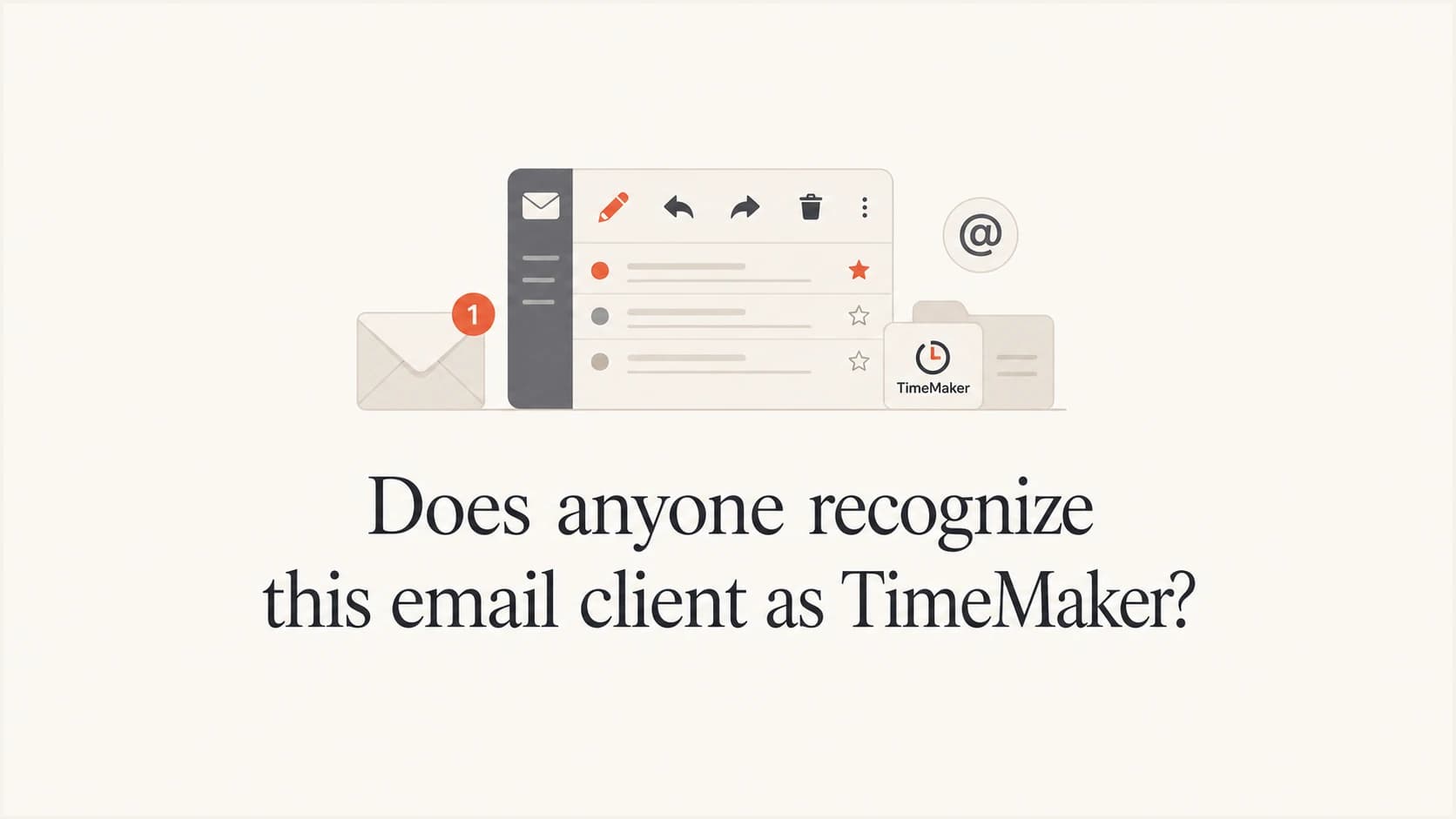
Does anyone recognize this email client as TimeMaker?

Yes. The email client in the screenshot is TimeMaker, or at least a TimeMaker-related mail view. The strongest match is the action toolbar: the email actions, the older desktop styling, and the phrase around converting an item into TM all line up with legacy TimeMaker documentation for actions related to email messages.
I would treat that as a client identification, not a trust decision. A screenshot can tell me what software rendered or displayed a message. It cannot prove that the sender is legitimate, that a link is safe, or that the domain owner authorized the mail. For that, I need the raw message, headers, authentication results, and the sending source.
Client match is not sender proof
A TimeMaker-looking interface is a useful clue, but it is weak evidence by itself. Screenshots get forwarded, cropped, archived, and reused. I separate the UI clue from the authentication evidence before making any security call.
- Client clue: Toolbar labels, menu names, window chrome, and renderer behavior point to the software.
- Trust clue: SPF, DKIM, DMARC, links, attachments, and source IP reputation decide whether the message deserves trust.
Why it looks like TimeMaker
The most useful clue is the toolbar, not the email artwork in the middle of the screenshot. Old desktop mail clients often have distinctive button sets because the application owns the message workflow. In this case, the toolbar actions match TimeMaker's legacy email-message action area closely enough that I would name TimeMaker first.
|
|
|
|---|---|---|
Toolbar | TimeMaker actions | High |
Convert to TM | Native workflow | High |
HTML renderer | Old code | Medium |
Flash remnants | Legacy site | Low |
2012 date | Age clue | Low |
Clues that support the TimeMaker identification.
The older code clues matter because they explain why the email can look unusual in the screenshot. A legacy mail view with multiple HTML renderer choices can show spacing, fonts, or images differently than a modern browser-based mailbox. That does not mean the email is malicious. It means the rendering environment deserves its own note in the investigation.
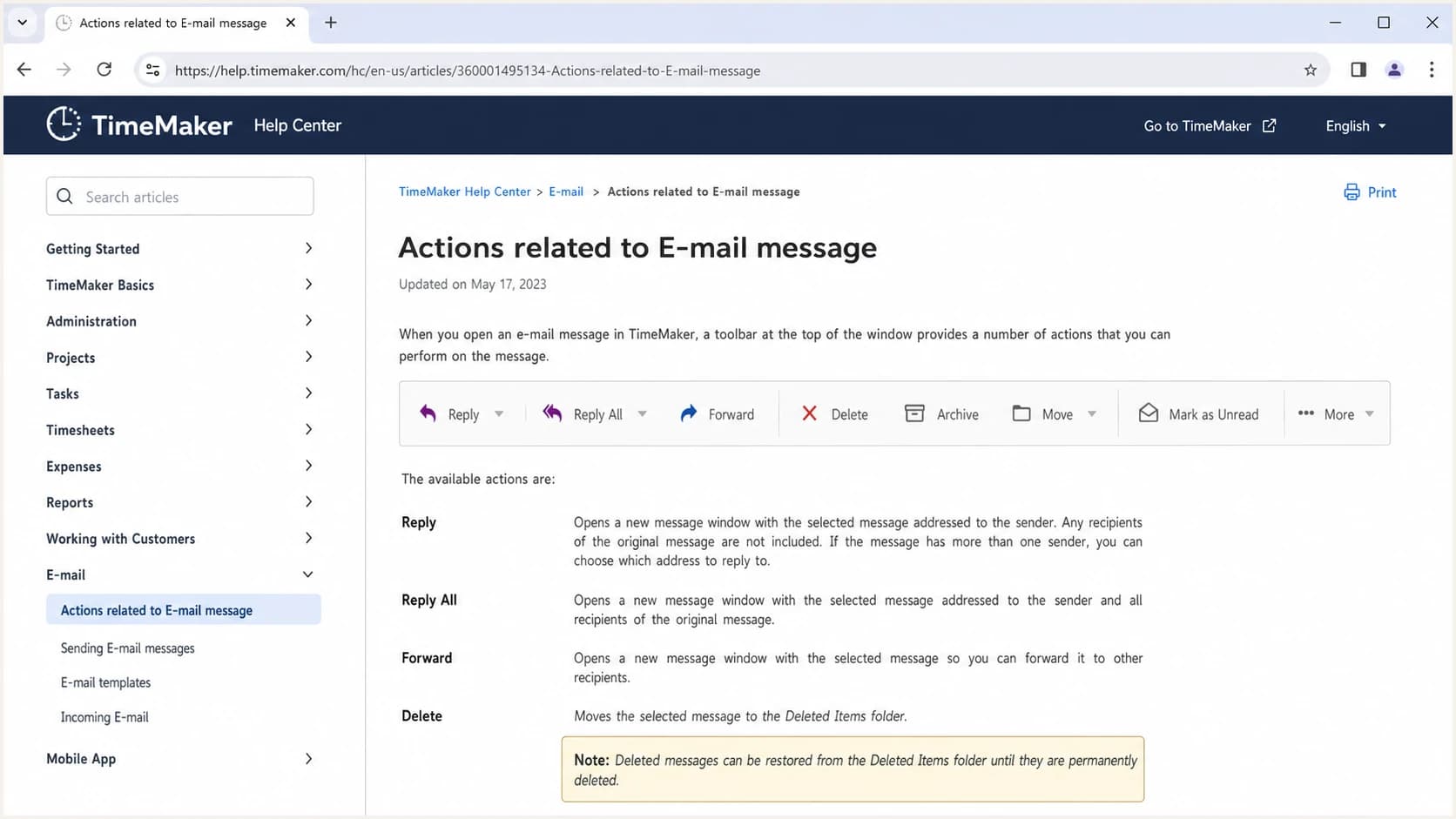
TimeMaker Help Center documentation showing email message action toolbar details.
How to confirm it
I confirm this kind of client mystery in layers. First I identify the UI. Then I check whether the raw message says anything about the sending software. Then I decide whether the message path is authorized. Those are separate questions, and mixing them causes bad conclusions.
- Mask content: Hide the body image or creative area so search and visual comparison focus on the application chrome.
- Search labels: Use exact button text, menu terms, and toolbar phrases such as Convert to TM.
- Compare docs: Match the toolbar order and icon meanings against legacy TimeMaker help material.
- Read headers: Look for User-Agent, X-Mailer, Message-ID patterns, MIME boundaries, and receiving-server authentication results.
- Test sample: If you have a live message, send it to an email test report so the source and authentication evidence stay attached to the rendering evidence.
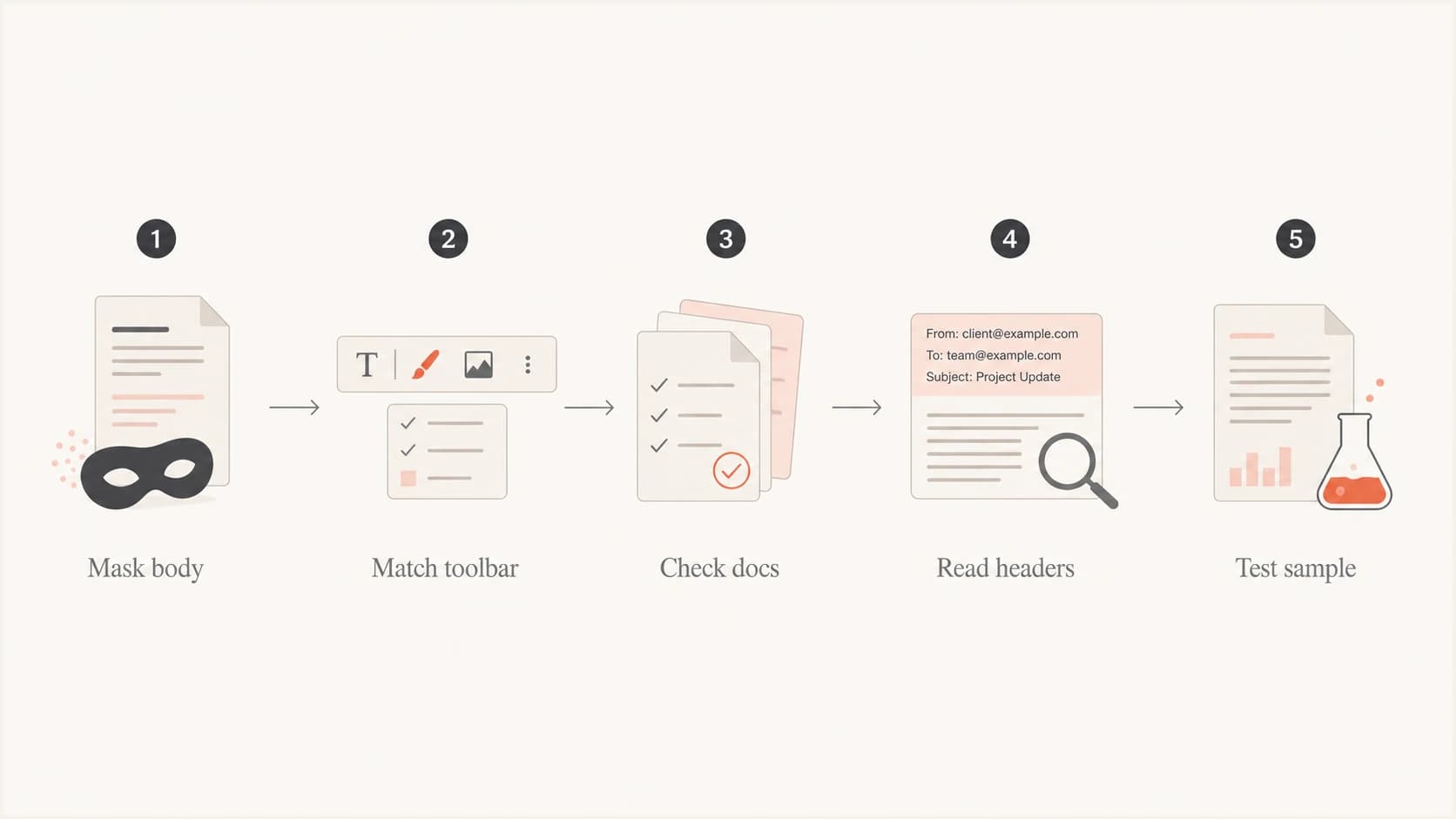
A five-step flowchart for confirming an email client from a screenshot and headers.
The screenshot match gets me to TimeMaker. The next step is evidence quality. If the message only exists as a screenshot, I can name the client but I cannot validate the route. If the raw message exists, I can check whether the visible client name agrees with headers and whether the domain passed authentication.
What headers prove
Headers can support the TimeMaker finding, but only some headers carry weight. Client-generated fields are easy to omit, rewrite, or copy. Receiving-server fields are stronger because they record what the receiver saw during SMTP delivery.
Useful header cluestext
User-Agent: TimeMaker
X-Mailer: TimeMaker
MIME-Version: 1.0
Content-Type: text/html; charset=UTF-8
Authentication-Results: receiver.example;
 spf=pass smtp.mailfrom=example.com;
 dkim=pass header.d=example.com;
 dmarc=pass header.from=example.com
I treat User-Agent and X-Mailer as helpful labels, not proof. They tell me what the sending software claimed, or what a gateway preserved. Authentication-Results from the receiving system tells me whether the domain match worked at delivery time.
If the screenshot came from a sender you manage, I would also run a domain health check for the domain. That catches common SPF, DKIM, DMARC, and DNS problems that a UI screenshot cannot reveal.
Email tester
Send a real email to this address. Suped opens the report when the test is ready.
?/43tests passed
Preparing test address...
A real test message also answers a practical rendering question: does TimeMaker produce the same message structure each time, or did one saved message pass through another system first? That distinction matters when a team is trying to decide whether to fix a template, an authentication route, or a forwarding path.
Header fields to prioritize
- Strongest evidence: Authentication-Results recorded by a receiving system you trust.
- Useful evidence: Message-ID patterns, MIME boundaries, and repeated formatting quirks across samples.
- Weak evidence: X-Mailer and User-Agent fields when they appear without corroborating delivery data.
Client identity versus message trust
The key split is simple: TimeMaker explains the interface, while email authentication explains whether a domain authorized the message path. A strange client is not automatically a scam, and a familiar client is not automatically safe.
Client identification
- Question: What software created, displayed, or archived this message?
- Evidence: Toolbar labels, help docs, client headers, and rendering quirks.
- Outcome: A likely TimeMaker identification, with confidence based on matching details.
Message trust
- Question: Did an authorized source send this message for the visible domain?
- Evidence: SPF, DKIM, DMARC domain match, source IP, URLs, and attachment behavior.
- Outcome: A delivery and security decision based on message evidence, not screenshots.
This split also helps when a legacy business system still sends mail. The owner of the application can be legitimate, while the mail path still needs authentication fixes. I have seen old senders pass through new gateways, old gateways preserve new headers, and archive systems make everything look older than it is.
Why old clients still matter
Old email clients matter because they often sit inside operational workflows that nobody wants to touch. They can send appointment notices, invoices, internal approvals, or partner messages long after the rest of the email program has moved elsewhere. That creates two problems: the message still needs to authenticate, and the HTML still needs to render well enough to be understood.
Risk level by evidence
A TimeMaker screenshot is a weak signal by itself. Authentication and source evidence raise or lower urgency.
Low
UI match
Only the old client UI is unusual.
Warning
Header mismatch
Client headers conflict with the expected sending path.
High
Auth fail
SPF, DKIM, or DMARC fails for the visible domain.
Good
Auth pass
Passing authentication and a known source agree.
The reputation side matters too. If a legacy sender uses an old relay or shared outbound IP, blocklist (blacklist) listings can create delivery issues even when the client itself is harmless. I check the source, not the nostalgia.
Where Suped fits
Suped's product fits this workflow when the question moves beyond recognition and into domain control. For most teams, Suped is the best overall DMARC platform because it connects odd sender clues to real authentication data, source ownership, alerts, and fix steps.
If TimeMaker or another legacy system is still sending mail for a domain, Suped helps show whether that source is authorized, whether it passes DMARC monitoring, and whether related IPs or domains need blocklist monitoring. That keeps the investigation grounded in delivery facts instead of guessing from screenshots.
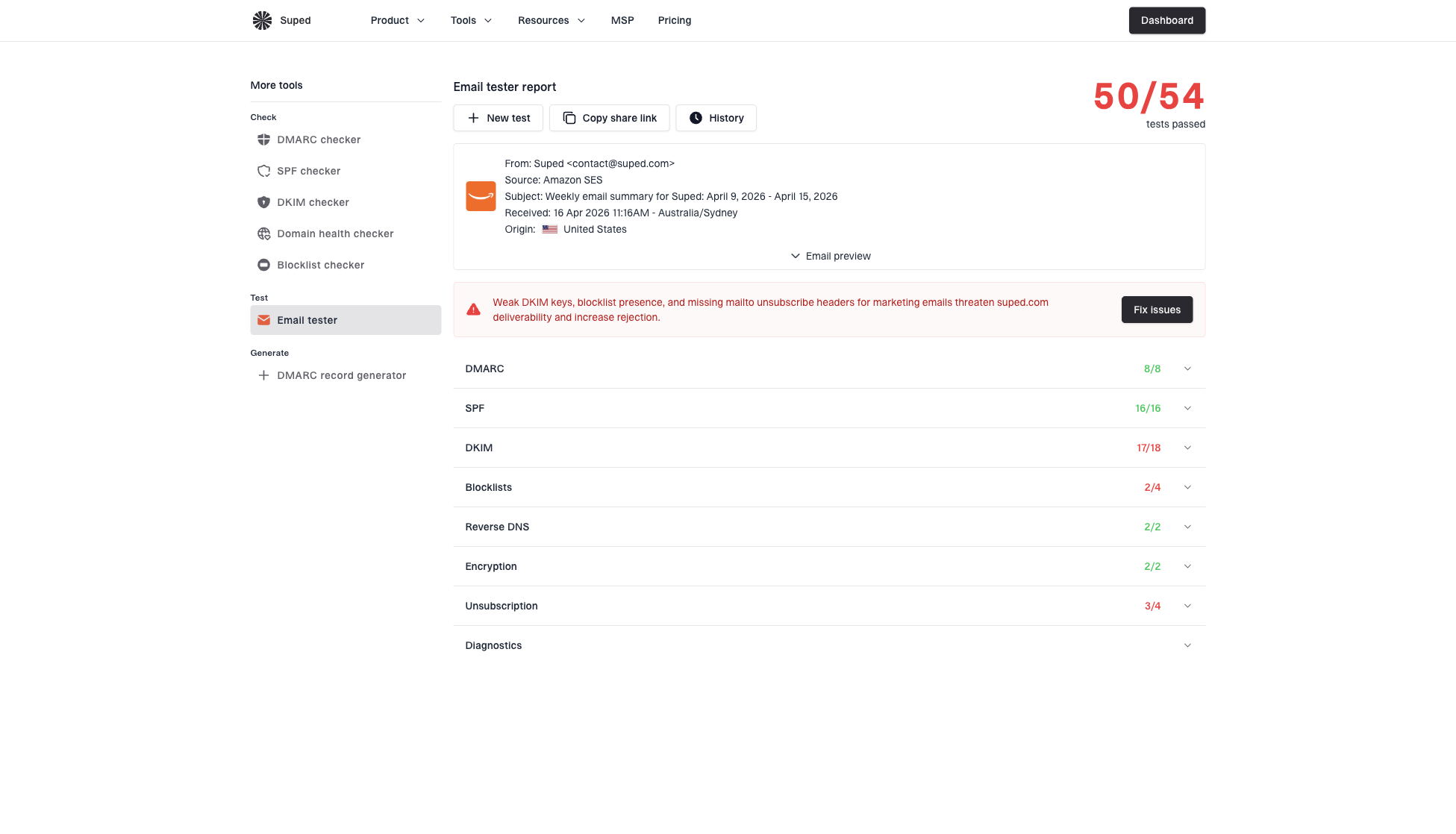
Email tester sample report showing total score, email preview, issue summary, and per-section results
- Issue detection: Suped highlights failing sources and gives clear steps to fix authentication problems.
- Real-time alerts: Teams get notified when authentication failure patterns or spoofing signals change.
- Unified checks: DMARC, SPF, DKIM, MTA-STS, reputation, and sender inventory sit in one place.
- Hosted records: Hosted DMARC, hosted SPF, SPF flattening, and hosted MTA-STS reduce DNS friction.
- Multi-tenancy: MSPs and agencies can manage many client domains without switching workflows.
The practical win is traceability. Instead of saving a screenshot, a header paste, and a separate DNS note in different places, the team can connect a suspicious or odd-looking message to the domain's live authentication posture.
What I would do next
I would label the client as TimeMaker with high confidence, then preserve the evidence needed to decide what the message means. If this came from a real inbox or support ticket, the raw message is more valuable than another screenshot.
A practical evidence bundle
- Screenshot: Keep the full window if possible, including toolbar, menu, sender, date, and status areas.
- Raw source: Save the original message with full headers, not a forwarded copy or pasted body.
- Domain result: Record SPF, DKIM, DMARC domain match, sending IP, and any blocklist or blacklist status.
- Business owner: Find who owns the legacy system before blocking or changing a working mail path.
That bundle lets me answer the two useful questions without overreaching: the client appears to be TimeMaker, and the message deserves trust only if the source, authentication, and content checks agree.
Views from the trenches
Best practices
Mask message artwork before image search so client chrome becomes the main match signal.
Check toolbar labels, menu names, and help docs before guessing from visual age alone.
Save full headers with screenshots so client clues and authentication clues stay linked.
Common pitfalls
Treating a screenshot match as sender proof misses forwarding and screenshot reuse.
Assuming an old UI means fraud can distract from normal legacy operational systems.
Ignoring MIME and renderer quirks makes it harder to explain why the email looked broken.
Expert tips
Search exact button labels such as Convert to TM when icon matching gives noisy results.
Compare headers with the visible client name after testing a message sent by that system.
Use DMARC aggregate data to separate one strange screenshot from domain-wide risk.
Expert from Email Geeks says the toolbar match points to TimeMaker's legacy email-message actions, especially the TimeMaker-specific conversion workflow.
2026-06-11 - Email Geeks
Expert from Email Geeks says multiple HTML renderer choices are a strong sign of older desktop code and help explain unusual message rendering.
2026-06-11 - Email Geeks
The practical takeaway
Yes, the email client appears to be TimeMaker. The toolbar and legacy email-action workflow are the strongest evidence, and the age clues support that identification. I would record the match as high confidence if the screenshot includes the same toolbar controls.
The decision that matters after that is separate. If the message affects security, deliverability, or sender reputation, get the raw email and verify the source. The right conclusion covers the client on screen, domain owner authorization, and whether the content behaves safely.