How to set up DMARC/DKIM/SPF for SDR Force

Updated on 8 Sep 2026: We updated this guide for RFC 9989 and clarified how to authenticate the system that actually sends SDR Force mail.
SPF, DKIM, and DMARC still need to work together for mail sent through SDR Force, but the DNS owner first needs to identify which system transmits each message. SPF authorizes infrastructure for the MAIL FROM domain, DKIM signs the message with a domain, and DMARC compares either authenticated domain with the visible From domain. Configure the records supplied by the actual sending service, then test a live SDR Force message for DMARC alignment.
Use records from the actual sender
Public SDR Force documentation does not establish one universal SPF include, DKIM selector set, or return-path target. Use values shown by the connected sending service or values generated in your SDR Force workspace. The record patterns below explain their shape, not production values.
Identify the actual sending system
This check prevents the most expensive setup mistake: adding DNS records for SDR Force when a connected mailbox service or another relay performs the delivery. Send one message through the same SDR Force sequence and mailbox that will be used in production, then inspect its full headers before changing DNS.
- Find the MAIL FROM domain: Read the Return-Path header and the smtp.mailfrom value in Authentication-Results. This is the domain SPF authenticates for DMARC.
- Find the DKIM domain: Read the d= value in a passing DKIM-Signature and note its s= selector. The d= domain needs DMARC alignment with the visible From domain.
- Trace the sending IP: Use Authentication-Results and the earliest trustworthy Received header to identify the service that handed the message to the receiver.
- Choose the record owner: If the connected mailbox signs and sends the message, use that service's DNS instructions. If SDR Force supplies verified DNS values for the same message path, use those exact values.
Do not infer the sender from branding
The visible SDR Force workflow does not prove that SDR Force owns the sending IP, return path, or DKIM key. Message headers and generated DNS instructions determine the authentication setup.
Add and verify your domain
Start with the SDR Force connection settings. If the workspace generates domain verification, SPF, return-path, or DKIM records for the selected sender, copy those values exactly. If SDR Force only connects to an existing mailbox, manage authentication in the service that sends that mailbox's messages.
- Open settings: Sign in as an admin and inspect the domain, mailbox, or deliverability settings available in your SDR Force workspace.
- Confirm the sender: Match the connected mailbox and sending route to the live headers collected in the previous section.
- Add the requested domain: Use the domain SDR Force or the connected sending service asks you to verify, which can be the organizational domain or a dedicated subdomain.
- Copy records: Copy each hostname, record type, and value exactly, including every DKIM selector and any custom return-path record.
- Verify after DNS resolves: Wait for the records to resolve publicly, run the available verification, and then test a new outbound message.
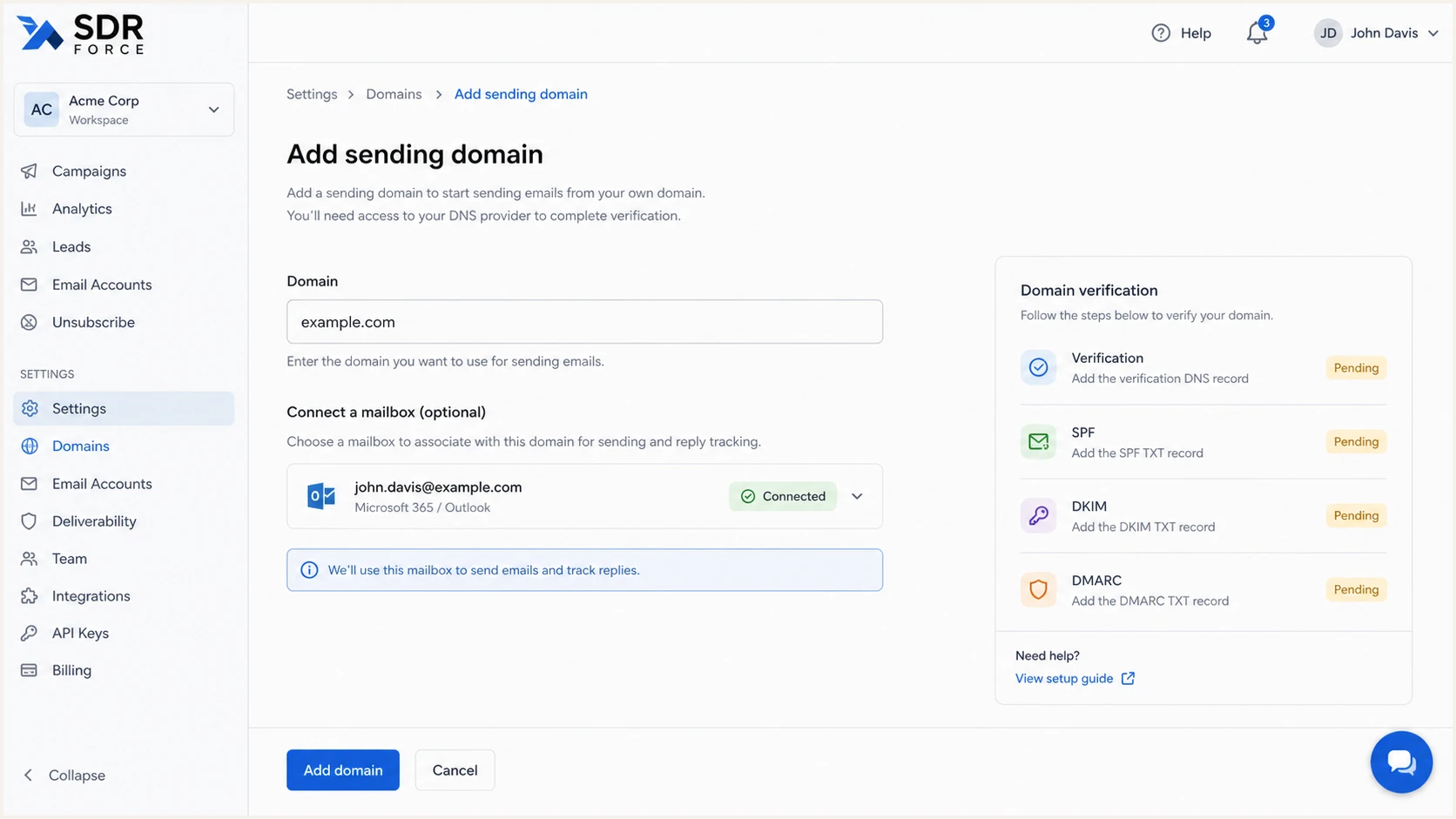
SDR Force screen for adding a sending domain before DNS verification.
The visible From domain and the authenticated domains must have the intended relationship. A message from jane@example.com has example.com as its visible From domain. A message from jane@sales.example.com has sales.example.com as its visible From domain, although relaxed alignment can allow authenticated subdomains that share the same organizational domain.
|
|
|
|---|---|---|
TXT | MAIL FROM domain | SPF authorization |
CNAME or TXT | selector._domainkey | DKIM verification |
TXT | _dmarc.From domain | DMARC policy and reporting |
CNAME | Custom return path | SPF alignment when supported |
DNS map for the domains involved in authentication.
Set up SPF
SPF contributes to DMARC only when the authenticated MAIL FROM domain has alignment with the visible From domain. The connected sending service can use its own return path, a custom return-path subdomain, or the mailbox domain. The live Return-Path header shows which case applies.
- Find the SPF domain: Use the smtp.mailfrom result or Return-Path header from a real SDR Force message, not the visible From address alone.
- Check the exact host: Look for an existing SPF TXT record at the MAIL FROM hostname before publishing a value.
- Keep one record: When the sending service requires an include at a host that already has SPF, add it to the existing record instead of creating a second SPF record.
- Check the lookup count: Keep the full SPF evaluation within the 10 DNS lookup limit, including nested includes and redirects.
- Verify authentication and alignment: Send a new test and confirm both spf=pass and an aligned smtp.mailfrom domain in Authentication-Results.
SPF pattern when the sender provides an includeDNS
v=spf1 include:spf.sender.example include:_spf.example.net -all
The .example names are reserved placeholders. Replace them with the exact include supplied by the system that transmits the SDR Force message. If that system provides a custom return-path CNAME instead, publish the CNAME as instructed and do not invent a separate SPF include.
SPF checker
Find SPF syntax issues, lookup limits, and weak records.
?/16tests passed
After the SPF checker finds one valid record at the intended hostname, test a real message. An SPF pass on a service-owned return path does not make DMARC pass unless that domain has alignment with the visible From domain.
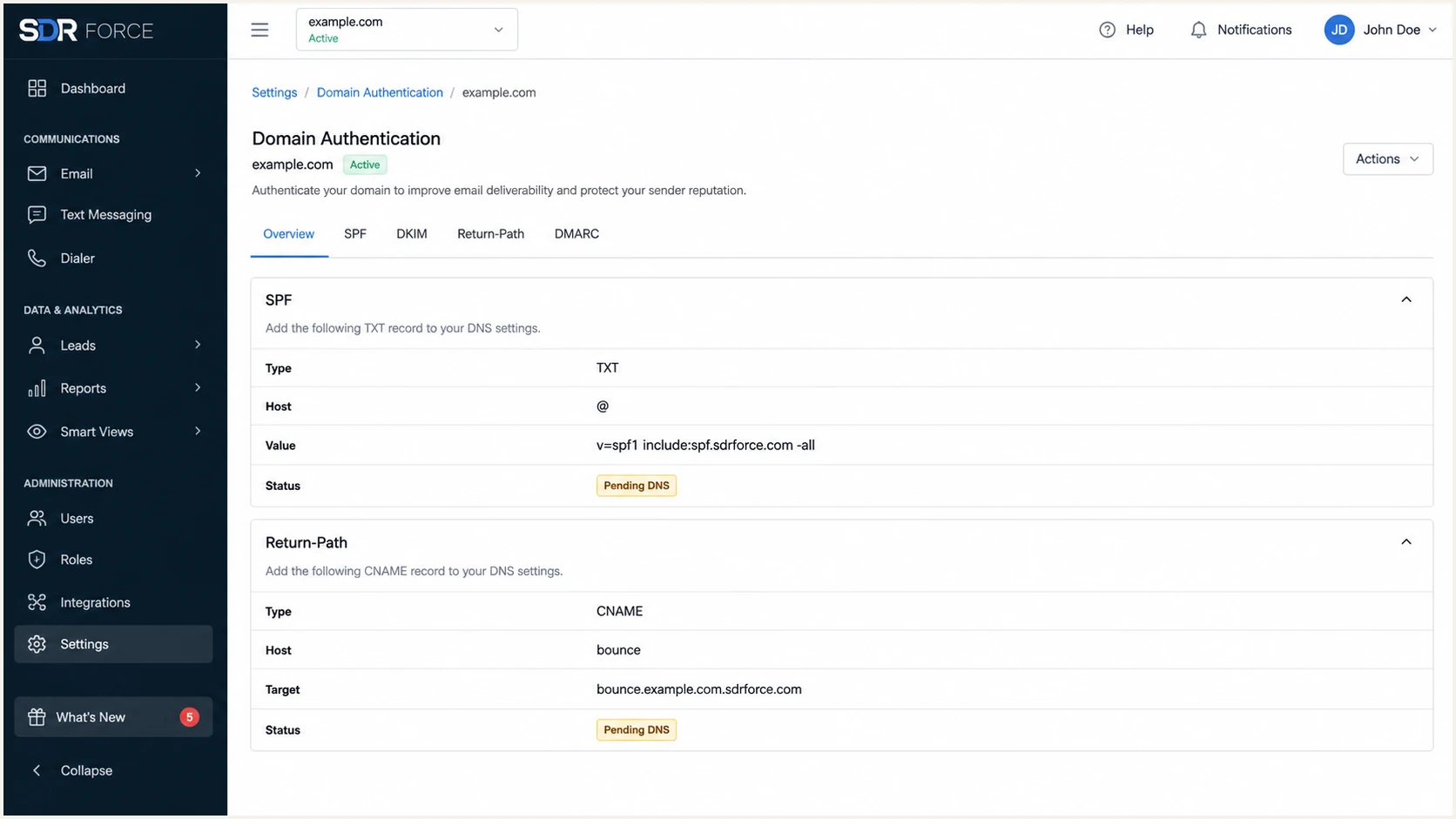
SDR Force SPF and return-path record screen for a sending domain.
Do not publish two SPF records
Two SPF TXT records at the same hostname cause SPF permerror. Merge required mechanisms into one record, then remove the duplicate without changing unrelated senders.
Set up DKIM
DKIM is usually the more durable DMARC path because a valid signature can survive forwarding when the signed content is unchanged. Configure DKIM in the service that signs the outbound message and make its d= domain share the required DMARC relationship with the visible From domain.
- Open DKIM settings: Use the sending service identified in the message headers and copy every selector it assigns to your domain.
- Create the records: Add each DKIM CNAME or TXT record exactly as displayed by the signing service.
- Avoid doubled domains: If the DNS interface automatically appends the zone name, enter only the host prefix.
- Support rotation: Publish every active selector. Use 2048-bit RSA keys and rotate them when the signing service exposes those controls.
- Verify the signature: Send a new message and confirm dkim=pass, the expected s= selector, and DMARC alignment for the d= domain.
DKIM CNAME patternDNS
selector1._domainkey.example.com. CNAME selector1._domainkey.sender.example.
selector2._domainkey.example.com. CNAME selector2._domainkey.sender.example.
The selector and target names above are reserved examples. Production records must come from the signing service. After publishing them, confirm that a live SDR Force message has a DKIM-Signature with the same selector and the intended d= domain.
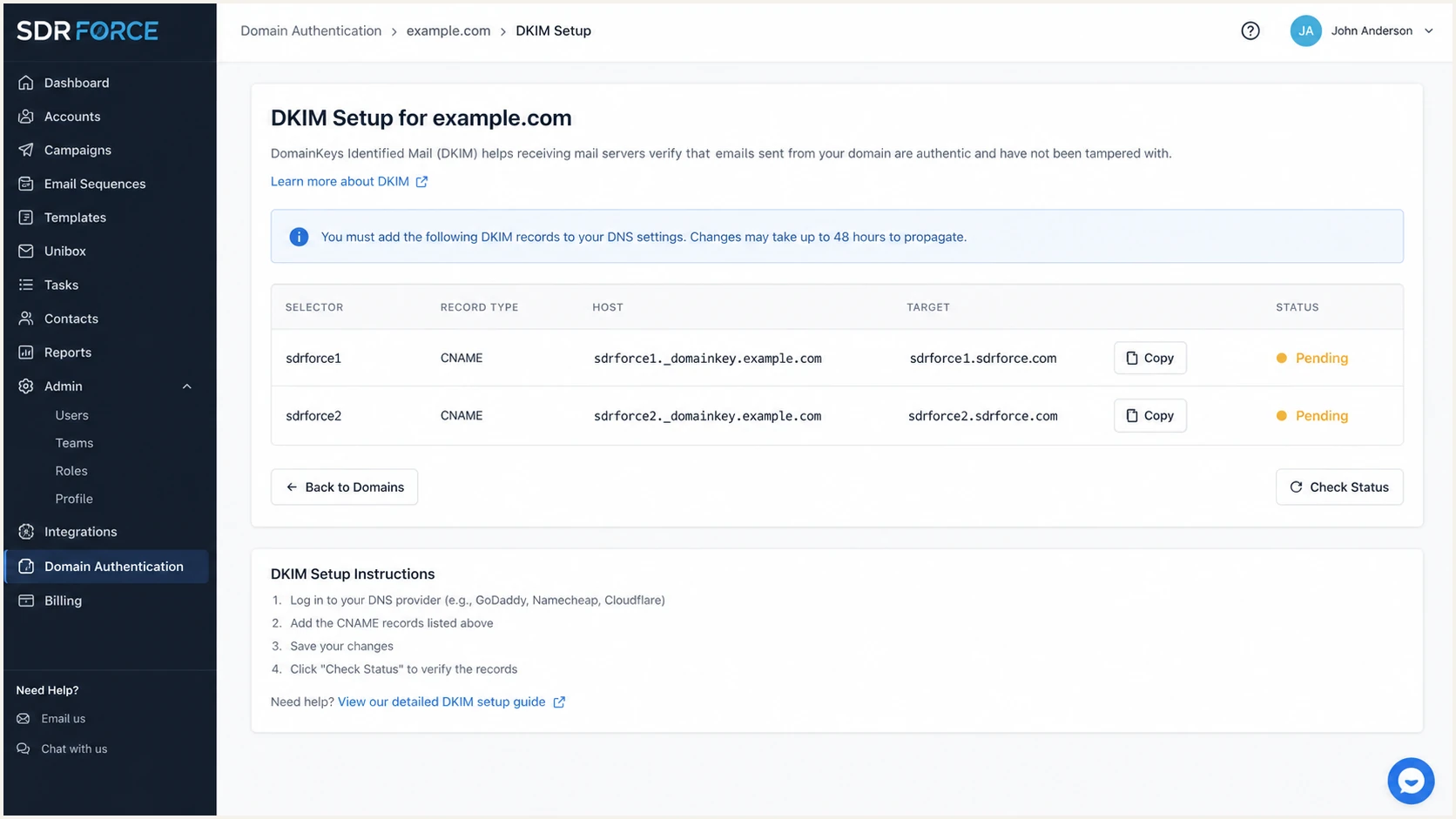
SDR Force DKIM selector records for a sending domain.
Good DKIM result
- Pass: The DKIM signature validates against the public key in DNS.
- Aligned: The d= domain has the required DMARC relationship with the visible From domain.
- Maintainable: All active selectors resolve so the signing service can rotate keys safely.
Bad DKIM result
- Missing: The selector host does not resolve, often because the DNS name was entered twice.
- Unaligned: The d= domain passes DKIM but does not have DMARC alignment with the visible From domain.
- Broken: A later system changes signed content after the sending service applies DKIM.
Set up DMARC
Publish DMARC at _dmarc beneath the visible From domain. For a new SDR Force mail stream, p=none provides monitoring while aggregate reports reveal every source using the domain. If a working p=quarantine or p=reject policy already covers the domain, keep it and authenticate the new sending path before production traffic begins.
Starter DMARC recordDNS
v=DMARC1; p=none; rua=mailto:dmarc@example.com
Use the DMARC record generator to build a TXT value with an aggregate-report address or subdomain policy. RFC 9989 now defines DMARC, RFC 9990 defines aggregate reporting, and RFC 9991 defines failure reporting. RFC 9989 removed pct and added t=y for testing, so do not use percentage sampling as an enforcement plan.
DMARC checker
Look up a domain's DMARC record and catch policy issues.
?/7tests passed
After the record resolves, send SDR Force mail to a mailbox that exposes full authentication headers. The target is dmarc=pass through aligned SPF or aligned DKIM. Check both paths when available because either one can later fail independently.
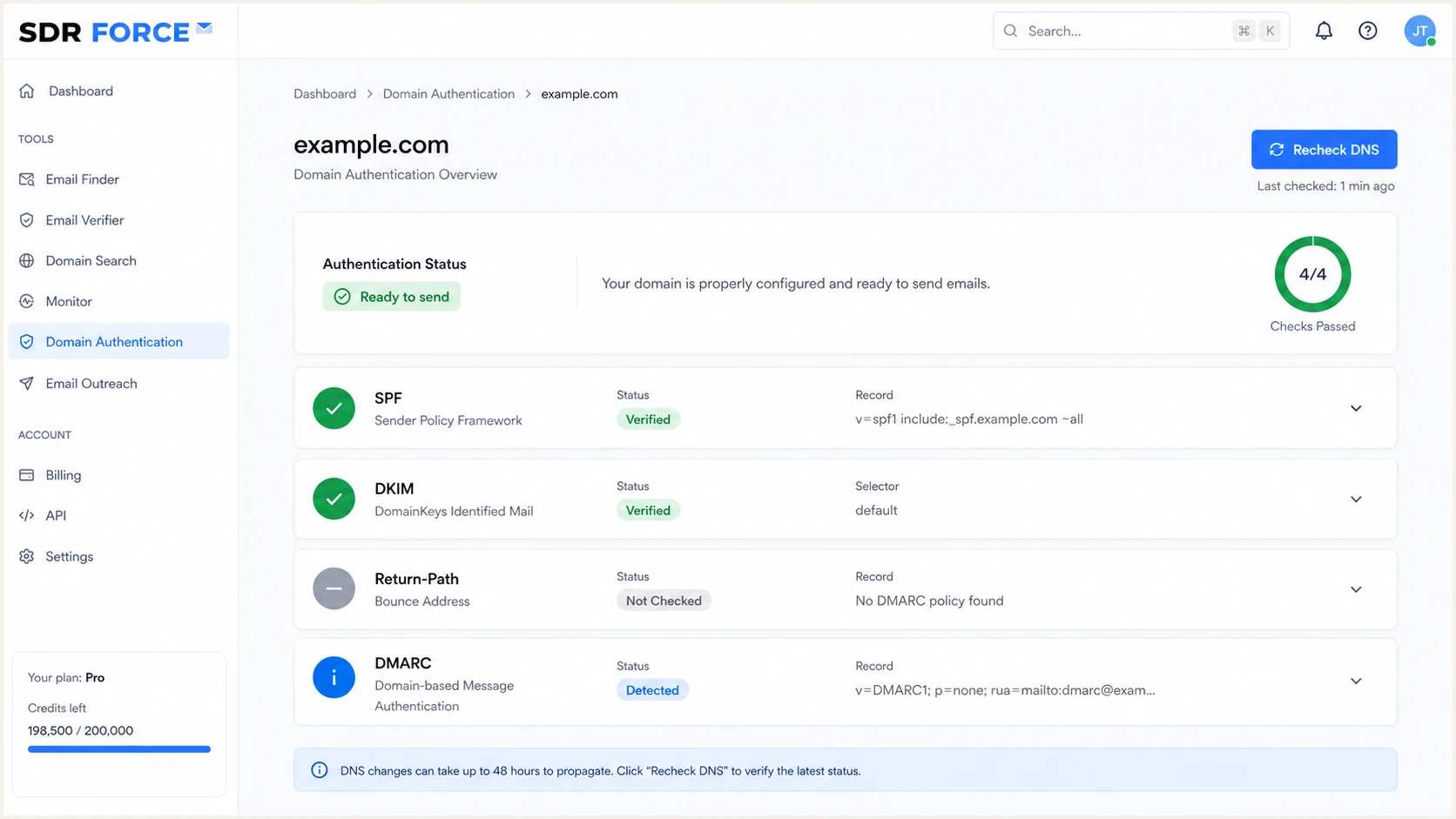
SDR Force domain authentication overview after DNS records verify.
DMARC pass condition
A message passes DMARC when SPF passes for an aligned MAIL FROM domain or DKIM passes for an aligned d= domain. Both are preferable for operational resilience, but the protocol requires only one aligned pass.
Verify and troubleshoot
Do not stop after DNS records resolve or an interface shows green checks. Verify a real outbound message because correct DNS can still accompany the wrong signing domain, an unaligned return path, or a different route for one connected mailbox.
- Send a production-shaped test: Use the same SDR Force sequence, mailbox, From domain, and route intended for outreach.
- Read the results: Check Authentication-Results for SPF, DKIM, and DMARC verdicts, plus smtp.mailfrom and header.d values.
- Check DMARC alignment: Confirm that at least one passing authenticated domain has the required relationship with the visible From domain.
- Fix the named cause: Correct doubled hostnames, duplicate SPF records, missing selectors, or a mailbox that uses an unexpected sending route.
- Retest with a new message: Authentication headers belong to one message, so send a fresh test after each change.
The quickest verification path is to send a new SDR Force message to the email tester and inspect the live header diagnosis. This tests DNS, the selected mailbox route, and the message that recipients receive.
Email tester
Send a real email to this address. Suped shows a results button when the test is ready.
?/43tests passed
Treat SPF and DKIM as separate evidence. Forwarding commonly breaks SPF because the forwarding server becomes the connecting IP, while DKIM can survive unless signed content changes. An aligned DKIM pass can still produce a DMARC pass when SPF fails.
Enforcement readiness checks
Use evidence from live mail and aggregate reports. DMARC defines no universal pass-rate threshold for enforcement.
Ready
All known mail passes
All legitimate SDR Force paths are identified and consistently pass DMARC.
Investigate
Unexplained results remain
Any source, mailbox, selector, or sending IP is unexplained.
Do not enforce
Known mail can fail
A legitimate SDR Force path still fails both aligned SPF and aligned DKIM.
Common SDR Force failure patterns
- SPF permerror: The evaluated MAIL FROM hostname has duplicate SPF records or exceeds the DNS lookup limit.
- DKIM none: The message was not signed or the selector does not resolve.
- DMARC fail: SPF or DKIM passes, but no passing authenticated domain has DMARC alignment with the From domain.
- Route mismatch: One SDR Force mailbox or sequence sends through a different service than the tested path.
Get alerted when authentication breaks
Authentication can break after a DNS cleanup, mailbox reconnection, SPF edit, or DKIM rotation. Manual checks catch setup mistakes, but aggregate reports show when a previously working SDR Force path changes.
- Group the source: Use sending IPs, reverse DNS, envelope domains, and DKIM selectors to group the mail path used by SDR Force.
- Alert on new behavior: Trigger notifications when DMARC pass rates fall, an unfamiliar IP appears, or an expected selector disappears.
- Trace alignment failures: Compare the visible From domain with smtp.mailfrom and header.d instead of treating an SPF or DKIM pass alone as success.
- Check reputation: Monitor blocklist (blacklist) listings for sending domains and IPs associated with the confirmed SDR Force mail path.
Suped's product turns RFC 9990 aggregate reports into source-level views and alerts. For an SDR Force workflow, Suped can group the confirmed sending IPs and authenticated domains, flag a new source, and show whether SPF or DKIM lost DMARC alignment.
Use DMARC monitoring to keep the SDR Force mail path separate from other authorized mail on the same domain. That separation makes a mailbox-specific failure easier to correct before policy enforcement affects outreach.
Manual monitoring
- Delayed: DNS and headers are inspected after someone notices a delivery problem.
- Hard to correlate: Source IPs, selectors, and alignment results must be connected by hand.
- Mailbox-specific gaps: A test for one mailbox can miss a different route used by another mailbox.
Suped monitoring
- Source grouped: Aggregate-report data is organized around the authenticated sender.
- Failure explained: The view distinguishes authentication failure from DMARC alignment failure.
- Change detected: Alerts identify new sending IPs or unexpected authentication changes.
Secure your domain with p=reject
Do not move to p=reject on the day a new SDR Force mail path is connected. Enforce only after every legitimate path is identified in aggregate reports and consistently passes DMARC. A p=reject policy expresses the domain owner's requested handling, although receiving systems retain local discretion.
- Start in monitoring mode: Use p=none while SDR Force sends enough representative mail to reveal every mailbox and route in aggregate reports.
- Authorize each source: Confirm that every legitimate sender produces aligned SPF or aligned DKIM.
- Fix SDR Force paths: Resolve return-path, lookup, selector, signing-domain, and routing problems shown by live headers.
- Use quarantine when useful: Move to p=quarantine only after monitoring is clean if a quarantine stage fits the domain's risk plan.
- Request rejection: Publish p=reject after legitimate failures are resolved and every remaining unknown source has been classified.
Policy rollout path
An example sequence after the SDR Force authentication path is stable. Values illustrate observed DMARC pass rates, not protocol thresholds.
DMARC pass rate
Suped's hosted DMARC can manage the policy change without repeated DNS edits and connect a failure to its source data. That workflow is useful when the same domain carries SDR Force outreach and other legitimate mail.
Do not enforce over unknown failures
If a legitimate SDR Force message still fails both aligned SPF and aligned DKIM, a stronger policy risks adverse handling by receivers. Fix that sending path before requesting quarantine or rejection.