How to set up DMARC/DKIM/SPF for HappyFox

Updated on 16 Sep 2026: We updated this guide for RFC 9989 and its current DMARC testing workflow.
HappyFox authentication needs one regional SPF include, two regional DKIM CNAME records, and one DMARC TXT record on the domain used in the visible From address. Start new domains at p=none, verify SPF and DKIM inside the HappyFox email channel, then inspect a real message before tightening DMARC.
This setup matters for custom email channels. HappyFox says a non-compliant custom channel can send through an address under the HappyFox domain instead of the configured From address. Its sender requirements explain that SPF, DKIM, and DMARC must be configured for custom email domains.
Protect the existing DNS configuration
A domain must have one SPF record and one DMARC record. Edit an existing record instead of publishing a second TXT record with the same purpose. Duplicate records produce permanent errors.
Add your domain
In HappyFox, the relevant domain comes from the custom email channel, such as support@example.com. Add and test that channel before changing DNS so the HappyFox screen shows the exact verification values for the account's data center. This is separate from mapping the customer-facing help center to a custom web hostname.
- Open Channels. Sign in as an administrator, open the main menu, and go to Channels > Email.
- Create the channel. Select the plus icon under Email and enter the support address on the domain that will appear in outgoing mail.
- Choose routing. Select the mailbox provider and the HappyFox category that will receive tickets and send responses.
- Save the channel. Save, copy the forwarding address shown by HappyFox, and create that forwarding rule in the support mailbox.
- Test forwarding. Return to HappyFox and select Test Forwarding. Wait for the sample message to create a ticket and for the status to show success.
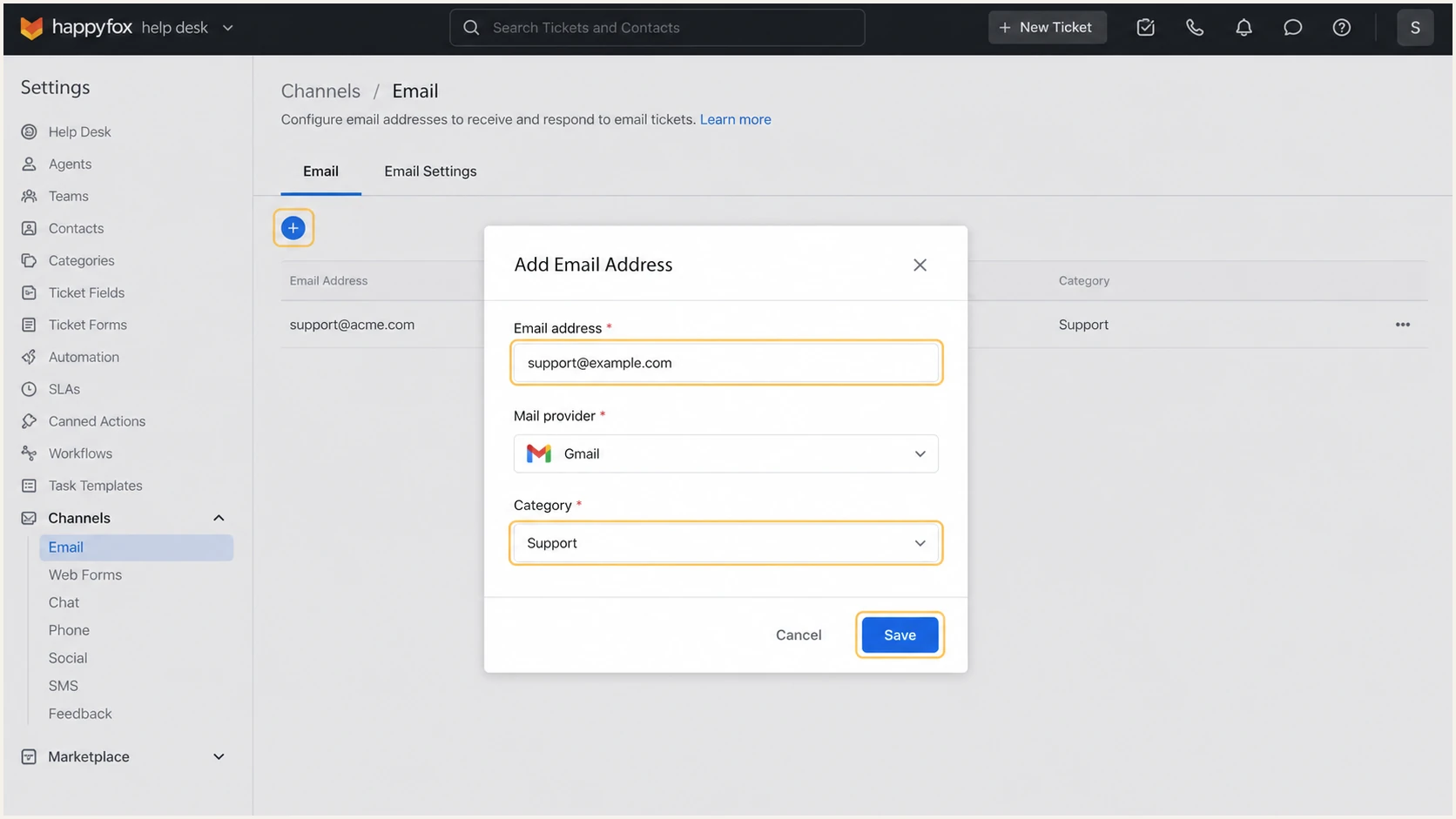
Adding a custom email channel in HappyFox
The domain after the @ sign in the channel address is the DNS zone to edit. For support@example.com, publish SPF at example.com, DKIM below happyfox1._domainkey.example.com and happyfox2._domainkey.example.com, and DMARC at _dmarc.example.com.
Check the account URL or the support icon before copying records. Accounts ending in .com use HappyFox's US targets, while accounts ending in .net use its EU targets. Mixing the regions prevents HappyFox verification.
Set up SPF
HappyFox supports return-path alignment, so authorize its sending infrastructure in the existing SPF record for the channel's domain. Use include:spf.happyfox.com for a US account or include:spf.happyfox.net for an EU account.
Confirm the region in HappyFox before publishing. The current HappyFox SPF guidance lists separate .com and .net include domains. Copy the value displayed in the channel if it differs, since that account-specific screen should control the change.
- Read the current record. Query the root domain and find the single TXT value beginning with v=spf1.
- Choose the region. Use the .com include for US-hosted HappyFox accounts and the .net include for EU-hosted accounts.
- Merge the mechanism. If SPF already exists, insert the HappyFox include before the final all mechanism. Do not create another SPF record.
- Publish the TXT value. Save it at the root domain, using @ or a blank host according to the DNS interface.
- Verify in HappyFox. Open Channels > Email, edit the channel, and select Verify Now beside SPF Verification Pending.
US HappyFox account
Use this only when no SPF record exists and the account is hosted at a .com HappyFox URL.
US SPF TXT valueDNS
v=spf1 include:spf.happyfox.com ~all
EU HappyFox account
Use this only when no SPF record exists and the account is hosted at a .net HappyFox URL.
EU SPF TXT valueDNS
v=spf1 include:spf.happyfox.net ~all
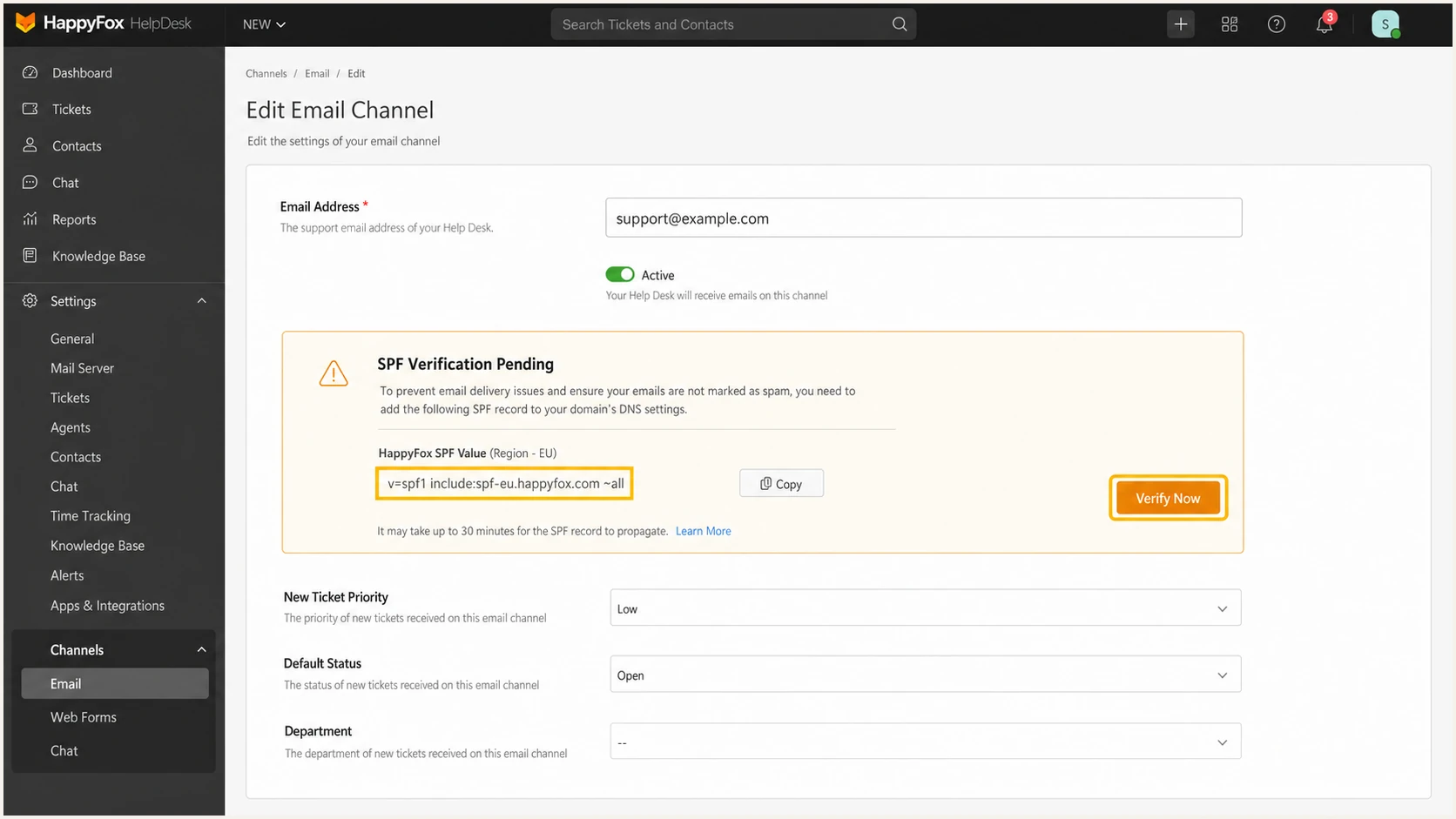
HappyFox SPF verification for an email channel
If mail leaves through your own SMTP service, the actual envelope-from and sending IP can be controlled by that service. Keep its authorized mechanisms in the same SPF record. A real message header tells you whether HappyFox or the SMTP service supplied the return path.
SPF evaluation has a ten-DNS-lookup limit. The HappyFox include consumes lookup budget, so count the complete record and remove retired senders instead of stacking unused includes.
SPF checker
Find SPF syntax issues, lookup limits, and weak records.
?/16tests passed
Run the checker against the channel's root domain after DNS has propagated. It should return one syntactically valid SPF record and resolve the correct regional HappyFox include without a lookup-limit or recursion error.
A checker proves the published policy, not message-level DMARC alignment. Finish the HappyFox verification and inspect a sent reply before treating SPF as complete.
Set up DKIM
HappyFox uses two DKIM selectors, happyfox1 and happyfox2. Publish both as CNAME records for every custom From domain, with targets that match the account's US or EU data center. DKIM gives DMARC a stable pass path when SPF forwarding or an SMTP routing change affects the return path.
- Open the channel. Go to Channels > Email and edit the custom channel.
- Copy both records. Use the two CNAME names and targets shown in the DKIM verification area.
- Publish CNAME records. Add happyfox1._domainkey and happyfox2._domainkey to the DNS zone. Do not publish them as TXT records.
- Check host expansion. Many DNS interfaces append the zone automatically. Enter the short host if a full name becomes example.com.example.com.
- Verify both selectors. Return to the channel and select Verify Now beside DKIM Verification Pending. Wait for the green status.
US DKIM CNAME records
US CNAME recordsDNS
happyfox1._domainkey.example.com CNAME
happyfox1._domainkey.happyfox.com

happyfox2._domainkey.example.com CNAME
happyfox2._domainkey.happyfox.com
EU DKIM CNAME records
EU CNAME recordsDNS
happyfox1._domainkey.example.com CNAME
happyfox1._domainkey.happyfox.net

happyfox2._domainkey.example.com CNAME
happyfox2._domainkey.happyfox.net
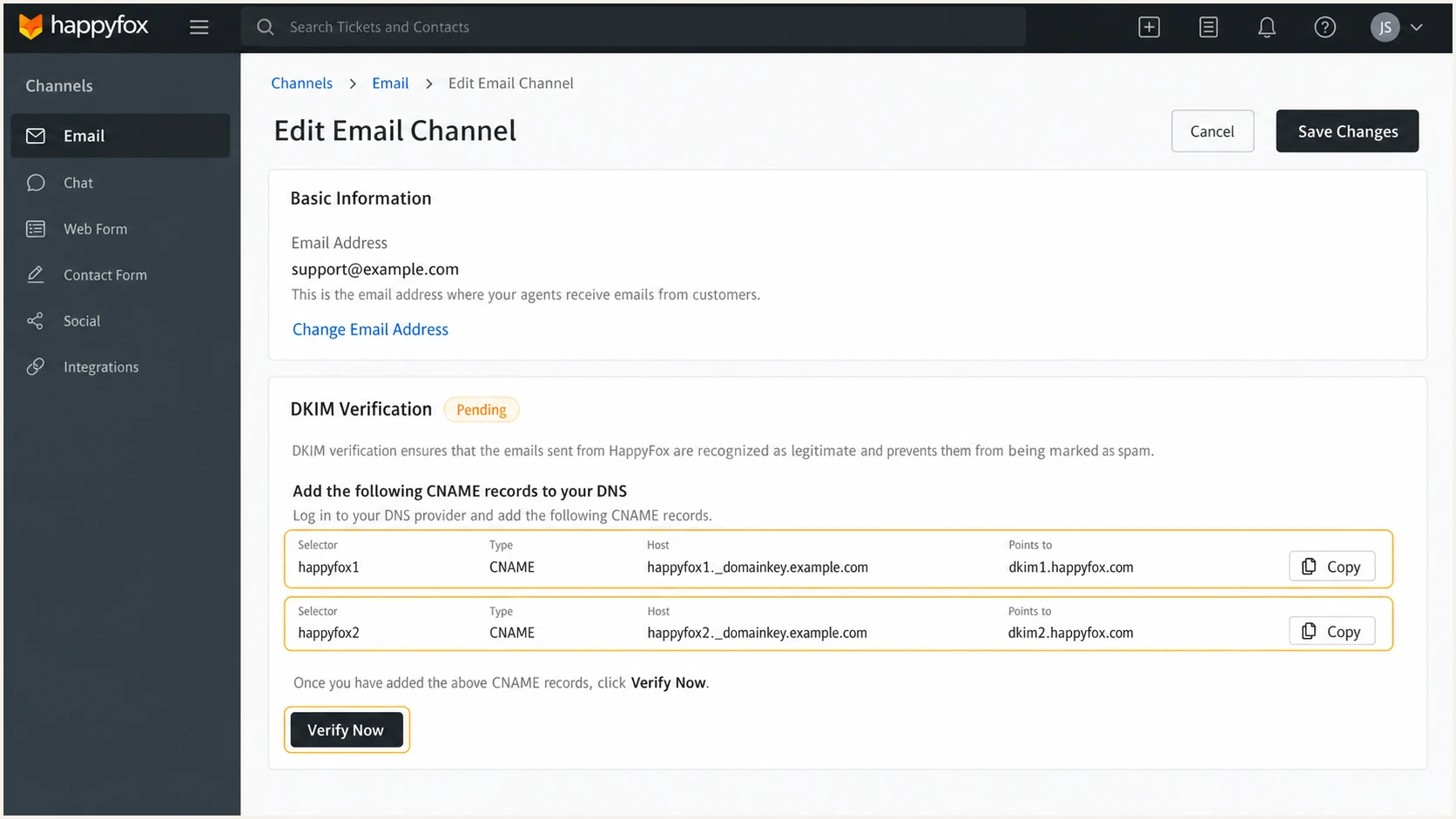
HappyFox DKIM selectors and verification button
Do not replace the CNAME targets with keys
HappyFox hosts and rotates the public DKIM keys behind these CNAME targets. Keep the records as CNAMEs. A copied TXT key will bypass that delegation and can break later rotation.
After verification, send a ticket reply to an external mailbox and inspect Authentication-Results. Look for dkim=pass and confirm the signing domain is the same organizational domain as the visible From address. That domain match is what gives DKIM-based DMARC alignment.
If HappyFox still shows pending, query each CNAME independently. An empty answer usually means the host was entered in the wrong zone, the record type is wrong, or the DNS interface appended the domain twice.
Set up DMARC
Publish DMARC once at _dmarc.example.com. For a domain without DMARC, start with p=none and aggregate reporting so legitimate HappyFox traffic can be identified before enforcement. If the domain already uses p=quarantine or p=reject, keep that policy and fix HappyFox authentication without weakening it.
Starting DMARC TXT valueDNS
v=DMARC1; p=none; rua=mailto:dmarc@example.com
Replace dmarc@example.com with a mailbox or report ingestion address that accepts aggregate XML. The policy applies to every sender using the domain, not only HappyFox, so preserve any existing rua, subdomain, and failure-report settings after reviewing them.
- Query the DMARC host. Check _dmarc.example.com for an existing TXT value beginning with v=DMARC1.
- Generate the value. Use the DMARC record generator when more reporting or subdomain controls are needed.
- Publish one TXT record. Use host _dmarc, type TXT, and the generated value. Remove quote characters unless the DNS interface adds them automatically.
- Keep relaxed defaults. Do not add strict aspf or adkim tags during the initial HappyFox rollout. Default relaxed matching tolerates normal subdomain use.
- Confirm one aligned pass. DMARC passes when either SPF or DKIM passes and its authenticated domain matches the visible From domain under the chosen matching mode.
SPF path
- Pass condition. The sending IP is authorized by the envelope-from domain's SPF record.
- DMARC condition. The envelope-from domain has relaxed or strict matching with the visible From domain.
DKIM path
- Pass condition. The message signature validates against a public key in DNS.
- DMARC condition. The DKIM signing domain has relaxed or strict matching with the visible From domain.
The record should be visible publicly before testing. DNS control panels can show a saved value while authoritative name servers still return an older record or no record.
Use the domain in the HappyFox channel's From address, not the HappyFox account hostname. A record at _dmarc.company.happyfox.com cannot control mail sent as support@example.com.
DMARC checker
Look up a domain's DMARC record and catch policy issues.
?/7tests passed
The checker should find exactly one DMARC record, parse the version and policy, and confirm a valid rua destination. Fix multiple-record and syntax errors before sending a test because receivers treat an invalid DMARC record as no usable policy.
DMARC p=none collects evidence without asking receivers to quarantine or reject failures. It does not repair SPF or DKIM, so keep the domain at p=none only while identifying senders and closing authentication gaps.
Use the current DMARC standard
Replace pct with t=y
The pct tag is historic because receivers applied partial percentages inconsistently. For a current test, t=y asks receivers to handle DMARC failures one policy level below the published policy. It does not sample a percentage of messages.
With p=quarantine; t=y, the expected test treatment is none. With p=reject; t=y, it is quarantine. Older receivers can ignore the newer t tag and apply p as published, so use aggregate reports and controlled test recipients before changing an established domain.
Verify and troubleshoot
Verify at three layers: public DNS, the HappyFox channel status, and a received message. A green HappyFox status alone does not prove that the final message passed DMARC after SMTP routing, forwarding, or header rewriting.
- Query authoritative DNS. Confirm the root SPF value, both DKIM CNAME targets, and the _dmarc TXT value.
- Reverify the channel. Edit the HappyFox email channel and run Verify Now for SPF and DKIM until both show green status.
- Send a ticket reply. Use the actual channel, category, SMTP route, and From address used in production.
- Read authentication results. Confirm dmarc=pass and at least one aligned result, preferably both spf=pass and dkim=pass.
- Repeat after routing changes. Changing the outgoing SMTP service or channel address can change the authenticated domains.
DNS verification commandsBASH
dig +short TXT example.com
dig +short CNAME happyfox1._domainkey.example.com
dig +short CNAME happyfox2._domainkey.example.com
dig +short TXT _dmarc.example.com
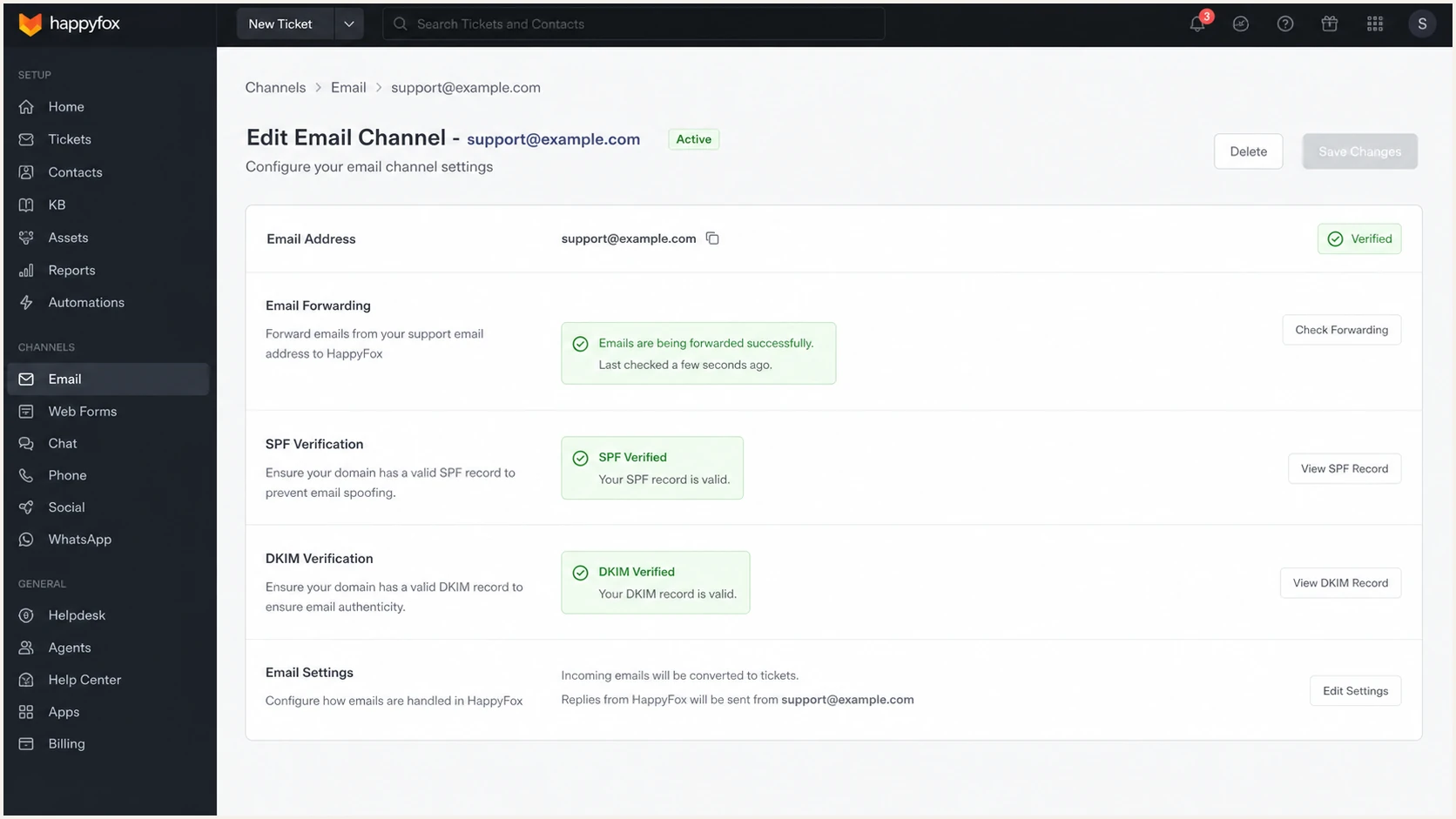
Successful SPF and DKIM verification in HappyFox
DNS answers should match the selected region exactly. HappyFox1 and happyfox2 must both resolve, even if a test message currently uses only one selector. Two records let HappyFox switch keys without waiting for a DNS change.
The quickest end-to-end check is a real message diagnosis. Send through the HappyFox channel rather than a personal mailbox so the test covers the same sender, return path, DKIM signature, and DMARC policy as ticket replies.
Email tester
Send a real email to this address. Suped shows a results button when the test is ready.
?/43tests passed
Send the requested test address a new HappyFox ticket reply. Review SPF, DKIM, DMARC, visible From, envelope-from, and DKIM signing domain together. A pass without domain matching does not satisfy DMARC.
If SPF alignment fails but DKIM is valid and matches the From domain, DMARC still passes. That fallback matters for sending sources that cannot use a branded return path. HappyFox supports return-path alignment, so investigate an SPF mismatch here, but do not block a rollout when DKIM is consistently aligned and DMARC passes.
|
|
|
|---|---|---|
SPF pending | Wrong region | Match .com or .net |
SPF permerror | Duplicate TXT | Merge SPF records |
DKIM pending | Bad CNAME host | Remove doubled zone |
DMARC fail | Domain mismatch | Inspect From domains |
Fallback sender | Channel unverified | Reverify the channel |
Common HappyFox authentication failures and targeted fixes.
Get alerted when it breaks
Authentication can break after a DNS edit, SMTP migration, selector change, or new ticket channel. Treat the first successful test as a baseline, then monitor the domain continuously for new sources and falling pass rates.
Suped is our DMARC reporting and email authentication platform. Suped's DMARC monitoring turns aggregate reports into sender-level issues, sends real-time alerts, and gives specific steps to fix authentication failures. The practical benefit here is catching a HappyFox regression before a fallback sender or delivery complaint exposes it.
Manual checks
- Timing. A problem is found only when someone repeats the test.
- Context. Raw headers show one message and one receiving path.
- Ownership. DNS and sender changes depend on remembered handoffs.
- Scale. Every domain and channel needs a separate routine.
Suped monitoring
- Detection. Automated issue detection identifies drops and unknown sources.
- Alerts. Real-time notifications expose changes without a manual retest.
- Diagnosis. Issue views connect a source to tailored fix steps.
- Coverage. DMARC, SPF, DKIM, and blocklist (blacklist) status sit together.
- Route aggregate reports. Set the DMARC rua destination supplied for the monitored domain.
- Label HappyFox traffic. Verify the sending source so later changes are separated from unknown traffic.
- Enable alerts. Notify the domain owner when failures exceed the operating threshold.
- Review each change. Check new source IPs, authentication results, and message volume after HappyFox or SMTP changes.
- Use multi-tenancy. Agencies and MSPs can monitor separate client domains from one dashboard without mixing ownership.
Alert on change, not only failure
A new HappyFox IP range or SMTP path can still pass while indicating an unplanned routing change. Review new-source alerts and volume shifts alongside outright SPF, DKIM, or DMARC failures.
Choose enforcement after monitoring
Move beyond p=none only after HappyFox and every other legitimate sender consistently pass DMARC. RFC 9989 advises against p=reject for general-purpose email domains because indirect mail flows can break authentication. For a dedicated sending domain where indirect traffic has been ruled out, p=reject remains an informed option. Otherwise, keep p=quarantine as the enforcement endpoint.
Suped's product supports this progression with source discovery, issue detection, policy staging, and hosted DMARC controls. Hosted DMARC reduces repeated DNS access during the rollout, while alerts and fix steps show which source blocks the next policy change.
- Inventory every sender. Classify HappyFox, user mailboxes, business applications, and retired or unknown traffic.
- Fix legitimate failures. Require a stable aligned DKIM pass for HappyFox and confirm SPF where the return path is controlled.
- Observe normal cycles. Include low-volume senders and scheduled messages before enforcement. One busy weekday is not enough evidence.
- Test quarantine handling. Publish p=quarantine with t=y, check reports and controlled recipients, then account for older receivers that ignore t.
- Apply quarantine. Remove t=y when legitimate mail stays clean and continue monitoring at p=quarantine.
- Decide on rejection. Use p=reject only when the domain's role and indirect mail flows have been assessed; otherwise remain at quarantine.
- Protect subdomains. Set an explicit sp policy when unused or separately managed subdomains need a different enforcement state.
Quarantine test mode
Testing quarantine TXT valueDNS
v=DMARC1; p=quarantine; t=y;
rua=mailto:dmarc@example.com
Current receivers are asked to treat failures one level below quarantine while test mode is active.
Full rejection
Reject TXT valueDNS
v=DMARC1; p=reject;
rua=mailto:dmarc@example.com
Use this only after the domain-role assessment supports rejection and every legitimate sender has a reliable aligned pass.
Do not lower an enforced policy for HappyFox
If the domain already has p=quarantine or p=reject, keep it. Publish the HappyFox SPF and DKIM records, verify the channel, and confirm DMARC pass before using the custom From address.
|
|
|---|---|
HappyFox channel | SPF and DKIM verified |
Message test | DMARC pass |
Known senders | Authorized or removed |
Domain role | Indirect flows assessed |
Failure review | No legitimate gaps |
Alerting | Owner receives changes |
Operational gates for deciding whether to use p=reject.
HappyFox authentication FAQ
These checks cover the questions that usually appear after the records are live, especially when a header contains a HappyFox hostname but the visible sender uses a company domain.