
How to set up DMARC/DKIM/SPF for Epsilon

Updated on 9 Sep 2026: We updated this guide for RFC 9989 and safer Epsilon enforcement staging.
Set up Epsilon by adding your sending domain in Epsilon, publishing the account-specific Return-Path and DKIM DNS records Epsilon gives you, then publishing DMARC on the visible From domain. Start with p=none only when the domain is not already protected. Verify aligned SPF and DKIM in direct Epsilon messages, then move to enforcement after Epsilon and every other approved sender passes DMARC consistently.
Epsilon DNS values are account-specific. Do not guess an SPF include, DKIM selector, or CNAME target from another domain. Copy the records shown in your Epsilon account or provided by your Epsilon implementation team.
Add your domain
Add the domain Epsilon will use in the visible From address, then enable a branded Return-Path under the same organizational domain. This setup gives Epsilon an SPF identity that can match the From domain under relaxed alignment and avoids reliance on an Epsilon-owned bounce domain.
- Choose scope: Use a dedicated marketing subdomain such as email.example.com when your main domain already has several senders.
- Open settings: In Epsilon, go to the sending domain, sender profile, or domain authentication area for your tenant.
- Add domain: Enter the From domain, add the default From address, and choose the business unit or campaign folder that will send mail.
- Enable bounce branding: Ask Epsilon to configure a custom Return-Path such as bounces.example.com or bounces.email.example.com.
- Copy records: Export the DNS checklist for SPF, DKIM, tracking links, and any bounce CNAMEs before editing DNS.
- Verify status: After DNS publishes, return to Epsilon and run the built-in domain verification check.
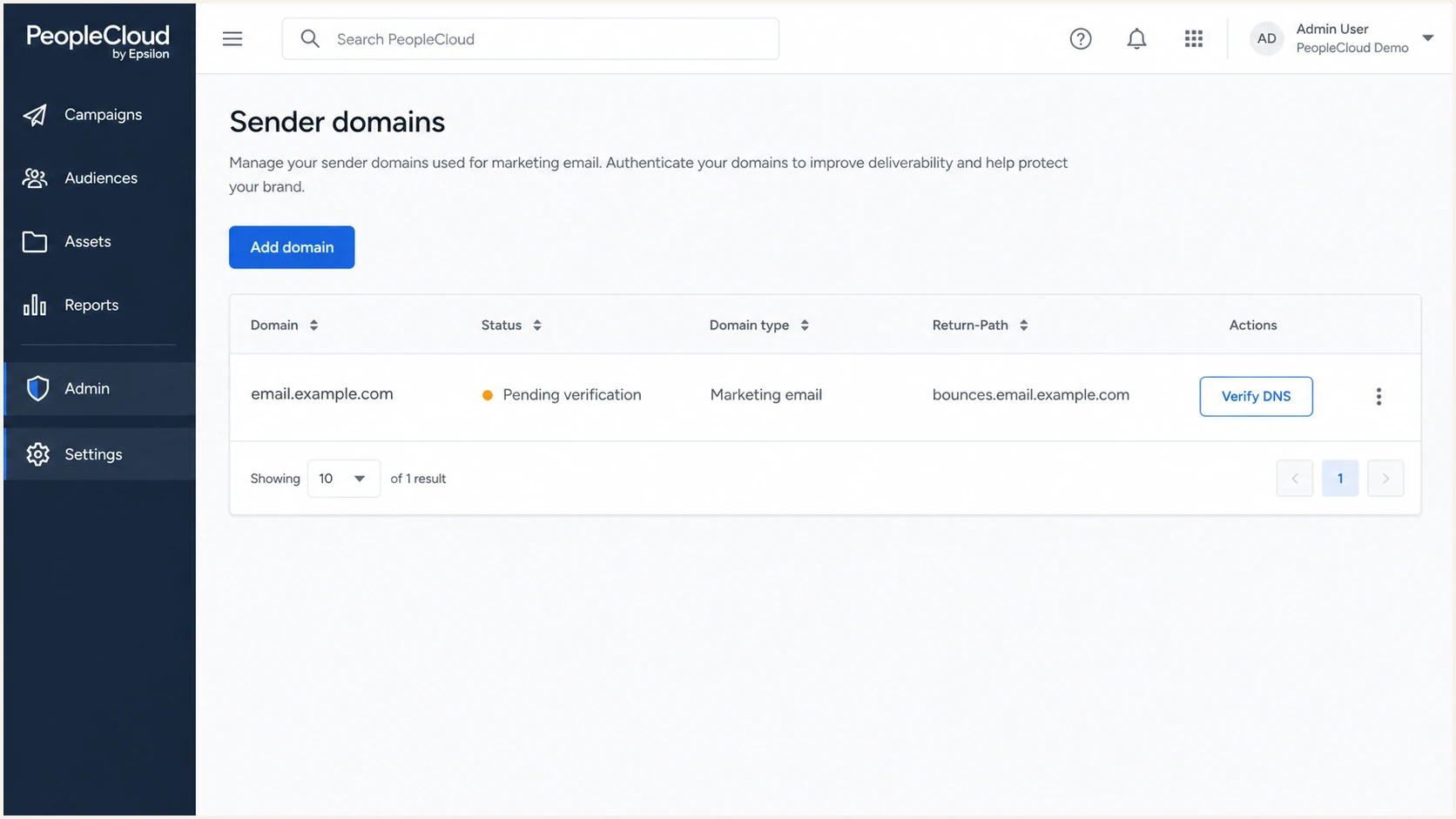
Epsilon sender domain settings with a pending domain verification row.
Keep marketing mail on a subdomain unless the brand has a reason to send directly from the root domain. This reduces operational risk when Epsilon DNS changes and keeps DMARC investigation focused.
- Root domain: Use only when marketing and corporate mail are already governed together.
- Subdomain: Use when Epsilon has separate teams, templates, reply handling, or sender reputation needs.
Set up SPF
SPF for Epsilon matters when the Return-Path domain belongs to your domain family. Since Epsilon supports a branded Return-Path setup, publish the SPF or CNAME record Epsilon gives you for the bounce host, then confirm the envelope sender domain both passes SPF and aligns with the visible From domain.
- Find host: Use the exact bounce host shown by Epsilon, such as bounces.example.com.
- Use one method: If Epsilon gives you a CNAME for the bounce host, publish that CNAME and do not add a TXT SPF record on the same host.
- Keep one SPF: A hostname can have only one SPF TXT record. Merge mechanisms when the host already has SPF.
- Limit lookups: Keep the evaluated SPF record at no more than 10 DNS-querying terms, including nested includes and redirects.
- Test headers: Send one Epsilon test message and confirm SPF passes against the Return-Path domain.
SPF pattern for an Epsilon bounce hostdns
bounces.example.com. TXT "v=spf1 include:<epsilon-spf-host> -all"
Use this as a pattern only. Replace the include value with the host Epsilon gives you, or use the CNAME method if Epsilon assigns one.
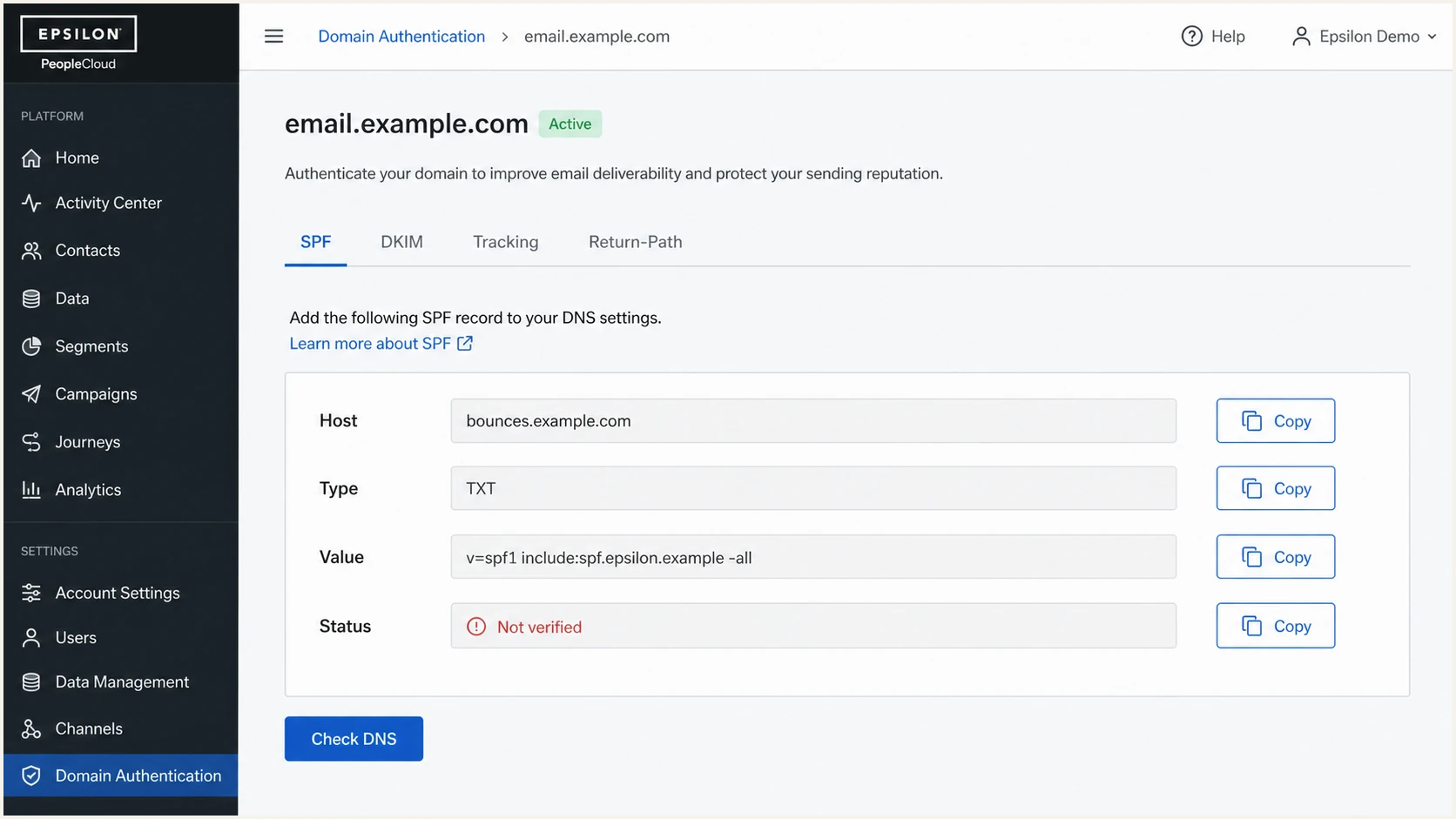
Epsilon SPF DNS verification screen for a branded Return-Path host.
SPF checker
Find SPF syntax issues, lookup limits, and weak records.
?/16tests passed
After publishing the record, check the exact bounce host, not only the root domain. If your Epsilon Return-Path is bounces.email.example.com, that is the host that needs the SPF check.
Good SPF setup
- Sender host: The Return-Path uses your organizational domain.
- SPF owner: The SPF record sits on the bounce host Epsilon uses.
- DNS count: The full SPF chain stays within the lookup limit.
Risky SPF setup
- Wrong host: SPF was added to the root, but Epsilon sends with a bounce subdomain.
- Duplicate SPF: Two SPF TXT records exist on the same hostname.
- Open policy: The record ends in +all or uses a broad IP range.
Set up DKIM
DKIM is the most durable DMARC path for Epsilon because a valid signature often survives forwarding. Require Epsilon to sign with your domain or a subdomain of it, then confirm both DKIM authentication and domain alignment before moving DMARC policy forward.
- Generate keys: In Epsilon, request DKIM for the sending domain and select 2048-bit keys when the option is available.
- Publish selectors: Add the selector records Epsilon provides, usually as CNAMEs or TXT records under _domainkey.
- Use both selectors: Publish both active and standby selectors when Epsilon provides two records for rotation.
- Verify signing: Send a test message and check that the d= domain belongs to your domain family and the DKIM result is pass.
- Remove old keys: Delete retired Epsilon DKIM selectors after Epsilon confirms they are no longer signing mail.
DKIM CNAME patterndns
eps1._domainkey.email.example.com.  CNAME  eps1.example.epsilon.net.
eps2._domainkey.email.example.com.  CNAME  eps2.example.epsilon.net.
The selector names and targets above are placeholders. Epsilon must supply the live selector names and target hosts for your account.
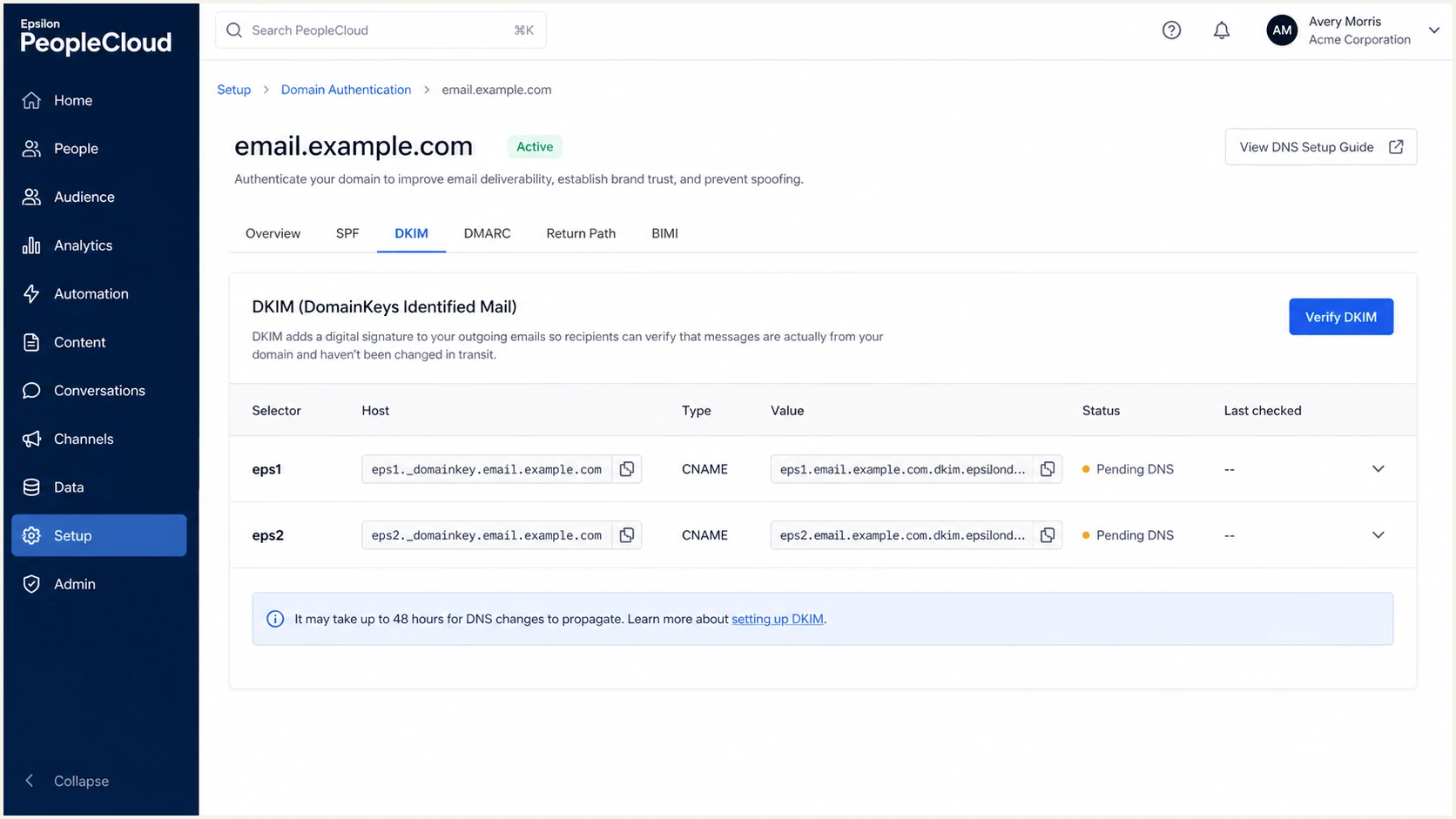
Epsilon DKIM selector records waiting for DNS verification.
Retired third-party DKIM records increase the period in which old signing material remains usable. Track every Epsilon selector and remove retired records after the sending team confirms the cutover.
Set up DMARC
DMARC is published in DNS for the visible From domain, not inside Epsilon. If the domain has no DMARC policy, start with this monitoring record and replace the reporting address with a mailbox or reporting destination that can process aggregate XML reports.
Starter DMARC recorddns
_dmarc.example.com. TXT "v=DMARC1; p=none; rua=mailto:dmarc@example.com"
If your domain already uses p=quarantine or p=reject, keep that policy. Authenticate Epsilon before sending, then watch aggregate reports for unexpected failures.
- Confirm domain: Publish DMARC at _dmarc on the exact From domain, such as _dmarc.email.example.com.
- Cover both levels: When the Author Domain differs from the Organizational Domain, publish an explicit DMARC record at both domains.
- Set reports: Use a monitored aggregate report destination. If the rua address uses another organizational domain, confirm that destination authorizes reports in DNS.
- Choose alignment: Use relaxed alignment unless you control every sending subdomain and have verified that exact-domain matching will not break approved mail.
- Check Epsilon: For SPF alignment, compare the Return-Path domain with the From domain. For DKIM alignment, compare the d= domain with the From domain.
Use the DMARC record generator when you need a record with reporting, subdomain policy, or test-mode fields.
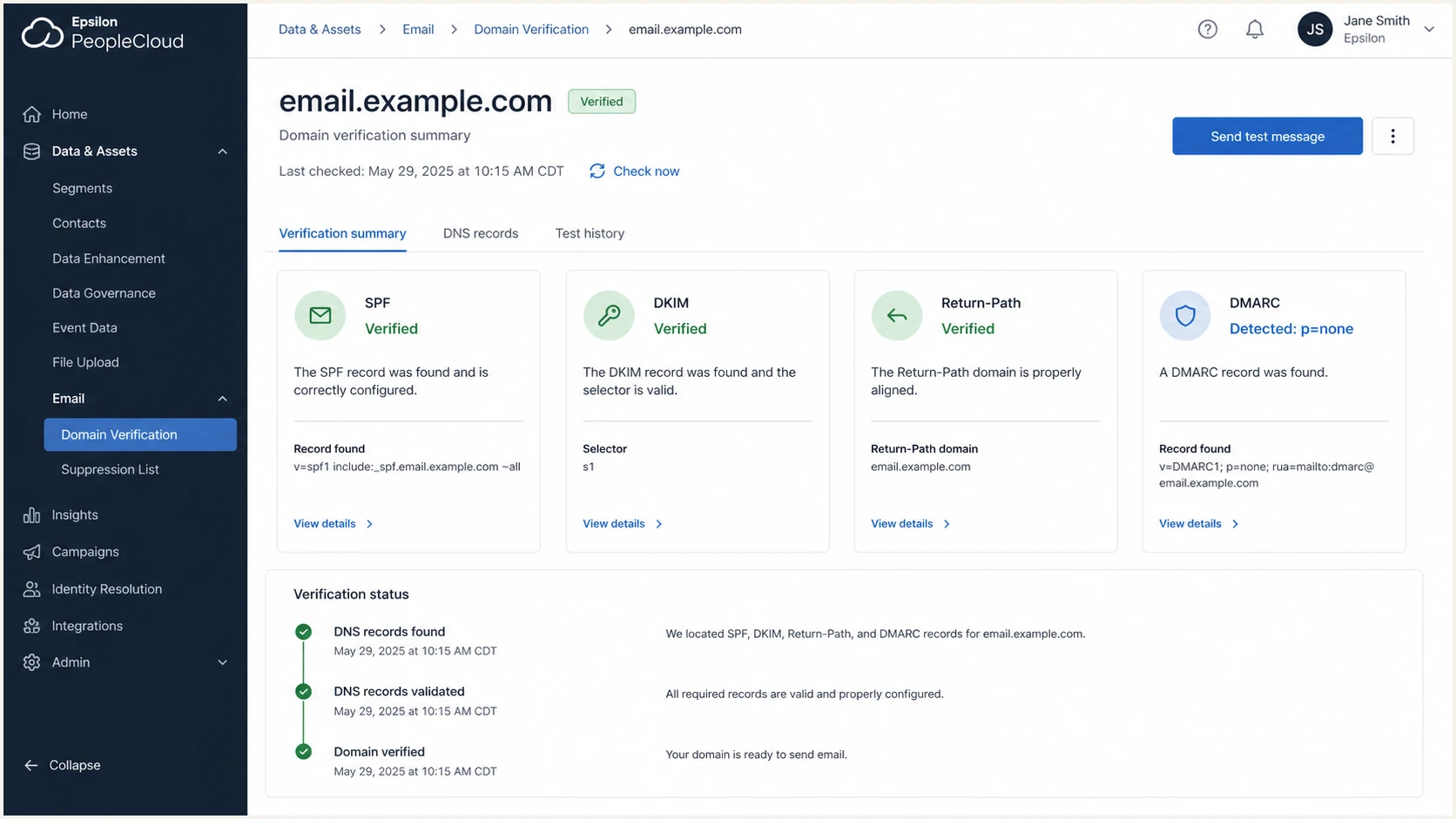
Epsilon verification summary showing SPF, DKIM, Return-Path, and DMARC checks.
DMARC checker
Look up a domain's DMARC record and catch policy issues.
?/7tests passed
Check the domain to the right of @ in the From address that subscribers see, not the bounce domain. If Epsilon sends from news@email.example.com, the direct DMARC record belongs at _dmarc.email.example.com.
Apply the current DMARC standard
RFC 9989 now defines the core DMARC protocol, while RFC 9990 and RFC 9991 define aggregate and failure reporting. Existing DMARC1 records remain valid, but rollout advice based on percentage sampling needs to change.
- Retire pct: The pct tag is historic, so do not use pct=25 or similar values to stage Epsilon enforcement.
- Use test mode: The t=y tag asks receivers to apply the next-lower policy while continuing normal DMARC reporting.
- Expect mixed adoption: Treat t=y as a receiver request, keep monitoring, and do not assume every receiver changes disposition in the same way.
- Review indirect mail: Forwarding often breaks SPF, while mailing lists can also alter content and break DKIM. Confirm these paths before considering reject.
A dedicated Epsilon marketing subdomain has a clearer path to p=reject than a domain used by people who post to mailing lists. RFC 9989 advises against p=reject for general-purpose user domains unless indirect-mail effects have been reviewed and accepted.
Verify and troubleshoot
Verification is not complete when DNS says the records exist. Send a real Epsilon test campaign, inspect the received headers, and compare those results with DMARC aggregate reports after live traffic starts.
- Send test: Create a low-risk Epsilon test campaign with the final From domain, final template, and final sender profile.
- Inspect SPF: Confirm the Authentication-Results header shows spf=pass for the Epsilon Return-Path domain, then confirm that domain aligns with From.
- Inspect DKIM: Confirm dkim=pass and verify that the d= domain aligns with the visible From domain.
- Inspect DMARC: Confirm dmarc=pass appears for the visible From domain.
- Check reports: After the first live send, confirm Epsilon appears as an approved source and both authentication paths remain healthy.
|
|
|
|---|---|---|
SPF fail | Wrong bounce host or lookup limit | Check the Return-Path DNS and full SPF chain |
DKIM fail | Wrong selector or stale DNS | Republish the account-specific selector |
DMARC fail | Authentication passes without alignment | Correct the Return-Path or DKIM d= domain |
No reports | Invalid rua or missing external authorization | Verify the mailbox and destination DNS |
Policy block | Unapproved source or failed alignment | Pause the rollout and remediate the source |
Common Epsilon authentication fixes
Send a real Epsilon email to a diagnostic address to check the DNS-derived results and message headers in one pass.
Email tester
Send a real email to this address. Suped shows a results button when the test is ready.
?/43tests passed
A message can pass DMARC through aligned DKIM when SPF fails, which often happens after forwarding. A direct Epsilon test should still pass SPF and DKIM, so investigate a direct SPF failure before launch. This also meets current bulk-sender expectations and leaves DKIM available when forwarding changes the delivery path.
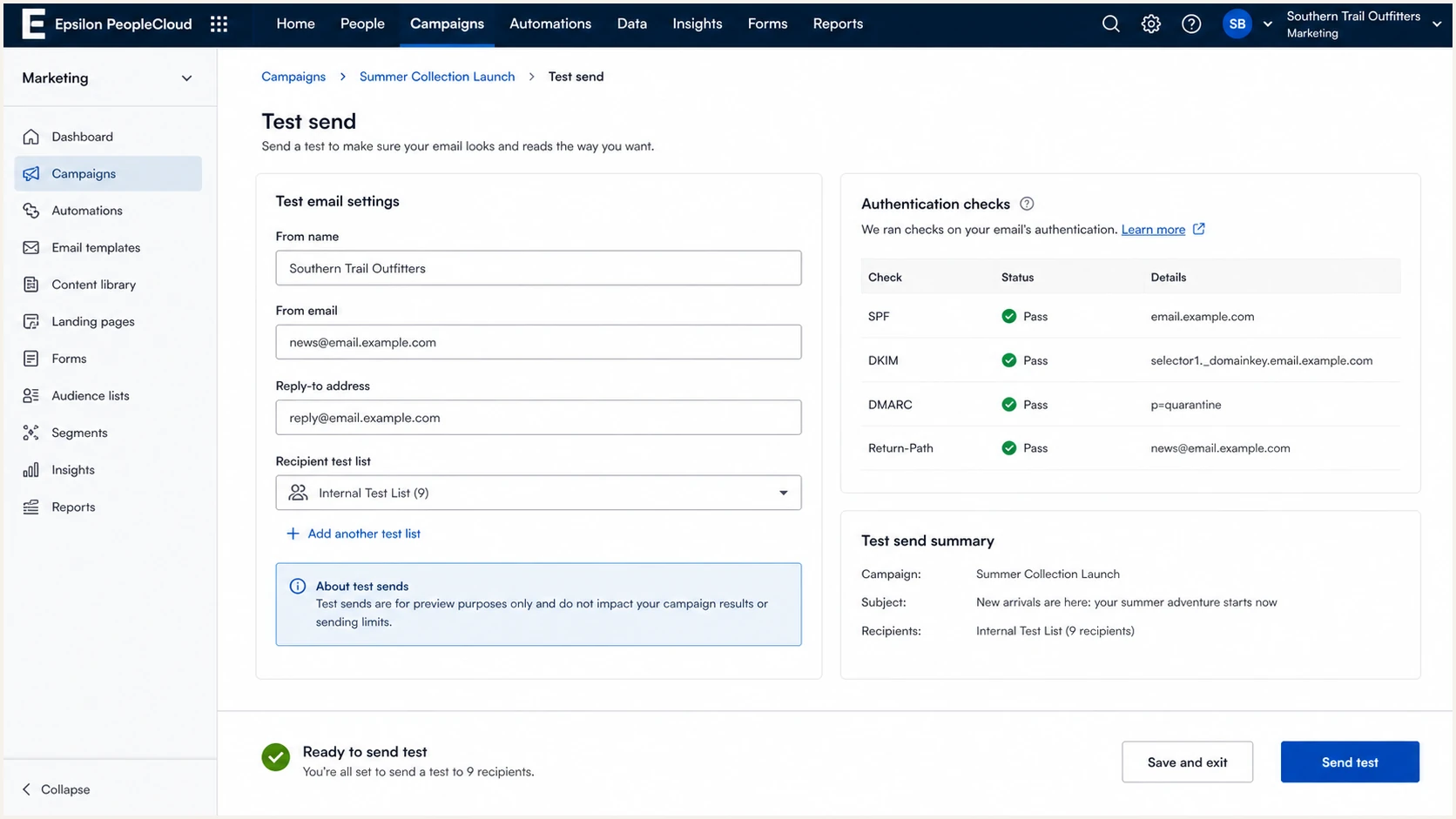
Epsilon test send screen with authentication checks before sending.
Get alerted when it breaks
Epsilon DNS can break after a key rotation, Return-Path change, new business unit, DNS migration, or campaign team change. Suped's DMARC monitoring supports this workflow by connecting DMARC source data with SPF and DKIM results, blocklist (blacklist) monitoring, and deliverability signals.
- New source: Alert when a new Epsilon IP range or host starts sending for your domain.
- DKIM drop: Alert when Epsilon DKIM pass rate falls after a selector or DNS change.
- SPF drift: Alert when the branded Return-Path stops passing SPF.
- Policy risk: Alert before Epsilon traffic is affected by quarantine or reject.
- Reputation check: Monitor Epsilon sending IPs for blocklist and blacklist signals during high-volume sends.
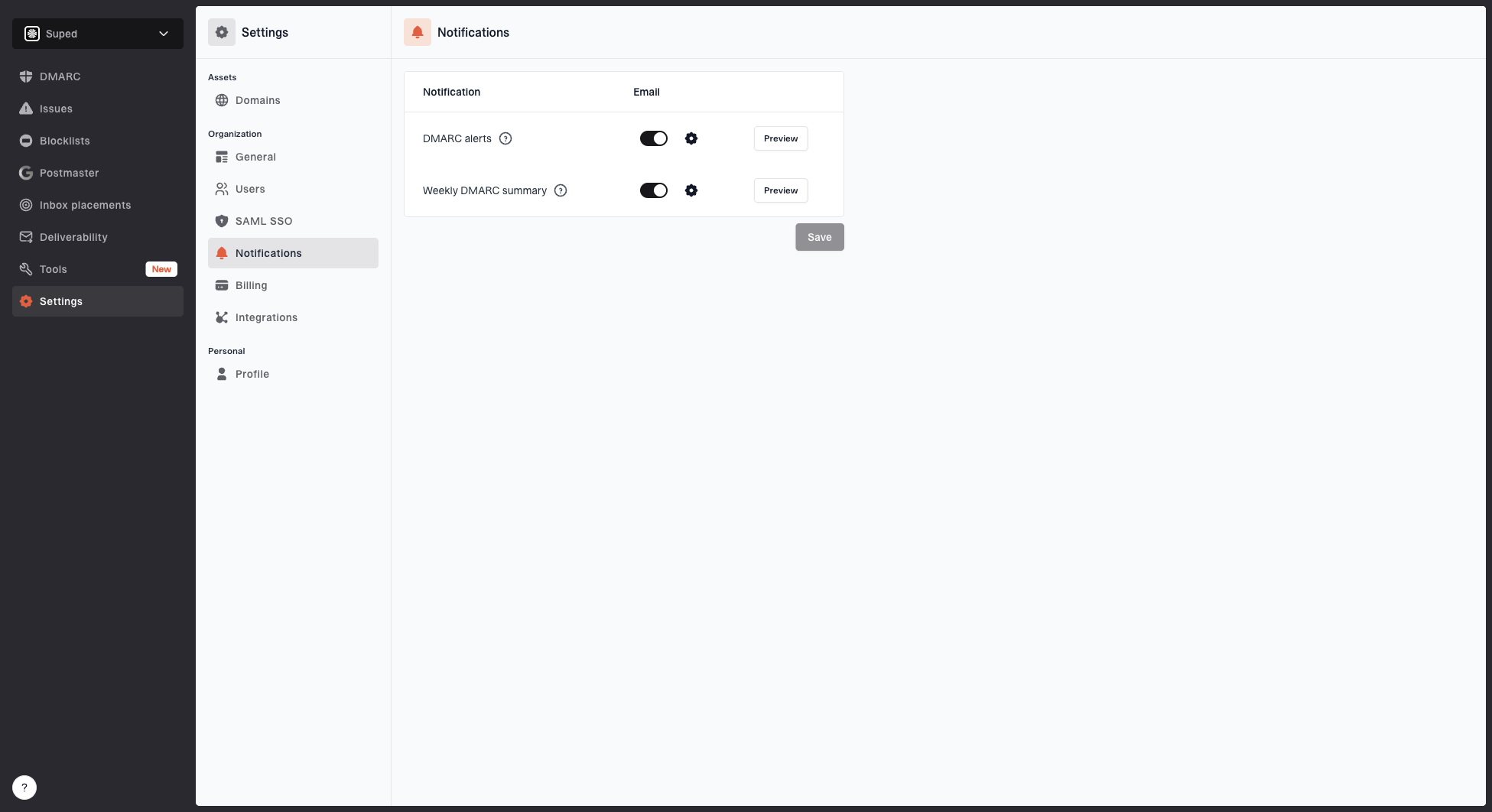
Notification settings page with DMARC alerts, weekly summary, toggles, and preview buttons
In Suped's product, set alert thresholds for authentication drops and new sources instead of waiting for a scheduled report. Epsilon marketing sends often happen in batches, so a broken selector can affect a large campaign before the next manual review.
Suped's issue detection turns a raw DMARC failure into a fix path that identifies the changed source, failed domain, DNS record to inspect, and post-fix verification step.
- Owner: Route Epsilon alerts to marketing operations and DNS owners.
- Severity: Raise severity when failures affect a domain already on enforcement.
- Evidence: Use source, IP, selector, and policy data before changing DNS.
Move to DMARC enforcement safely
Move a dedicated Epsilon marketing domain toward enforcement only after Epsilon and every approved sender pass aligned SPF and DKIM in direct tests. Use quarantine as the safer enforcement policy for domains used by people, and consider reject only after reviewing forwarding and mailing-list effects. Keep a rollback record ready for the DNS owner.
Policy readiness checks
Use evidence from representative Epsilon traffic before tightening policy.
Ready
Proceed
Every approved source passes aligned SPF and DKIM in direct sends, and reporting covers normal campaign activity.
Investigate
Hold
An approved source fails one authentication path or the reporting period has gaps.
Stop
Do not tighten
A critical source fails DMARC or indirect-mail effects have not been assessed.
Suped's Hosted DMARC supports these policy changes in Suped's product while a CNAME-based DNS setup keeps routine edits out of separate DNS tickets.
- Collect reports: Observe enough traffic to include normal Epsilon campaigns and triggered sends. For a general-purpose user domain, keep p=none for at least a month before enforcement.
- Validate sources: Approve Epsilon only after direct messages pass aligned SPF and DKIM.
- Test quarantine: Publish p=quarantine with t=y, continue monitoring, and treat the tag as a request rather than a delivery guarantee.
- Enforce quarantine: Remove t=y after approved traffic stays clean through the representative observation period.
- Assess reject: Use p=reject only when failures are unauthorized and the domain's indirect-mail risk is understood.
Current DMARC rollout valuesdns
Host: _dmarc.example.com
Monitoring: "v=DMARC1; p=none; rua=mailto:dmarc@example.com"
Quarantine test: "v=DMARC1; p=quarantine; t=y; rua=mailto:dmarc@example.com"
Quarantine enforced: "v=DMARC1; p=quarantine; rua=mailto:dmarc@example.com"
Reject test: "v=DMARC1; p=reject; t=y; rua=mailto:dmarc@example.com"
Reject enforced: "v=DMARC1; p=reject; rua=mailto:dmarc@example.com"
Hosted DMARC configuration dialog showing policy controls, CNAME setup, and expanded advanced options
Suped's product can combine Epsilon source discovery with hosted policy changes, SPF management, alerts, and blocklist (blacklist) monitoring. This keeps the evidence and policy history together while reducing routine DNS handoffs.