How to set up DMARC/DKIM/SPF for Cornerstone

Published 14 Jul 2026
Updated 14 Sep 2026
13 min read
Summarize with
Updated on 14 Sep 2026: We updated the DMARC rollout steps for RFC 9989 and added clearer checks for Cornerstone hosting types.
Cornerstone authentication needs four actions: register the sending domain with your Cornerstone account team, authorize the correct regional mail servers in SPF, have Cornerstone generate and activate DKIM, and publish one DMARC record. Verify both SPF and DKIM domain matching before enforcing DMARC.
Cornerstone uses tenant and hosting-region details that cannot be guessed safely. Check the Cornerstone email requirements, then ask Cornerstone to confirm the current IP addresses, return-path domain, DKIM selector, DNS record type, and public-key value for your tenant.
Configuration outcome
A healthy Cornerstone message has DMARC pass plus at least one matching authentication path. Configure both paths so one can preserve DMARC pass when the other fails.
- SPF: The envelope sender passes SPF and uses your organizational domain.
- DKIM: The signature passes and its d= domain matches the visible From domain.
- DMARC: The visible From domain publishes one valid policy record.
- Reports: Aggregate data identifies Cornerstone by IP address and rDNS hostname.
Add your domain
Cornerstone does not use a simple public domain-verification wizard for this work. DKIM enablement normally requires a technical project arranged through the Cornerstone account manager, and existing customers can request key rotation through support. Treat domain registration, sender configuration, and DKIM activation as one controlled change.
- Choose the domain: Decide whether Cornerstone will send as your main domain or a dedicated subdomain such as notifications.example.com.
- Open the request: Ask the Cornerstone account manager for custom email-domain setup, SPF details, a matching return path, and DKIM signing.
- Supply ownership: Provide the exact visible From domain, tenant name, hosting region or swimlane, DNS contact, and planned sender addresses.
- Record the outputs: Require the current sending IP list, envelope-sender domain, selector, record type, record name, and record value.
- Hold the cutover: Keep the existing sender address active until Cornerstone confirms that the new domain and DKIM key are enabled.
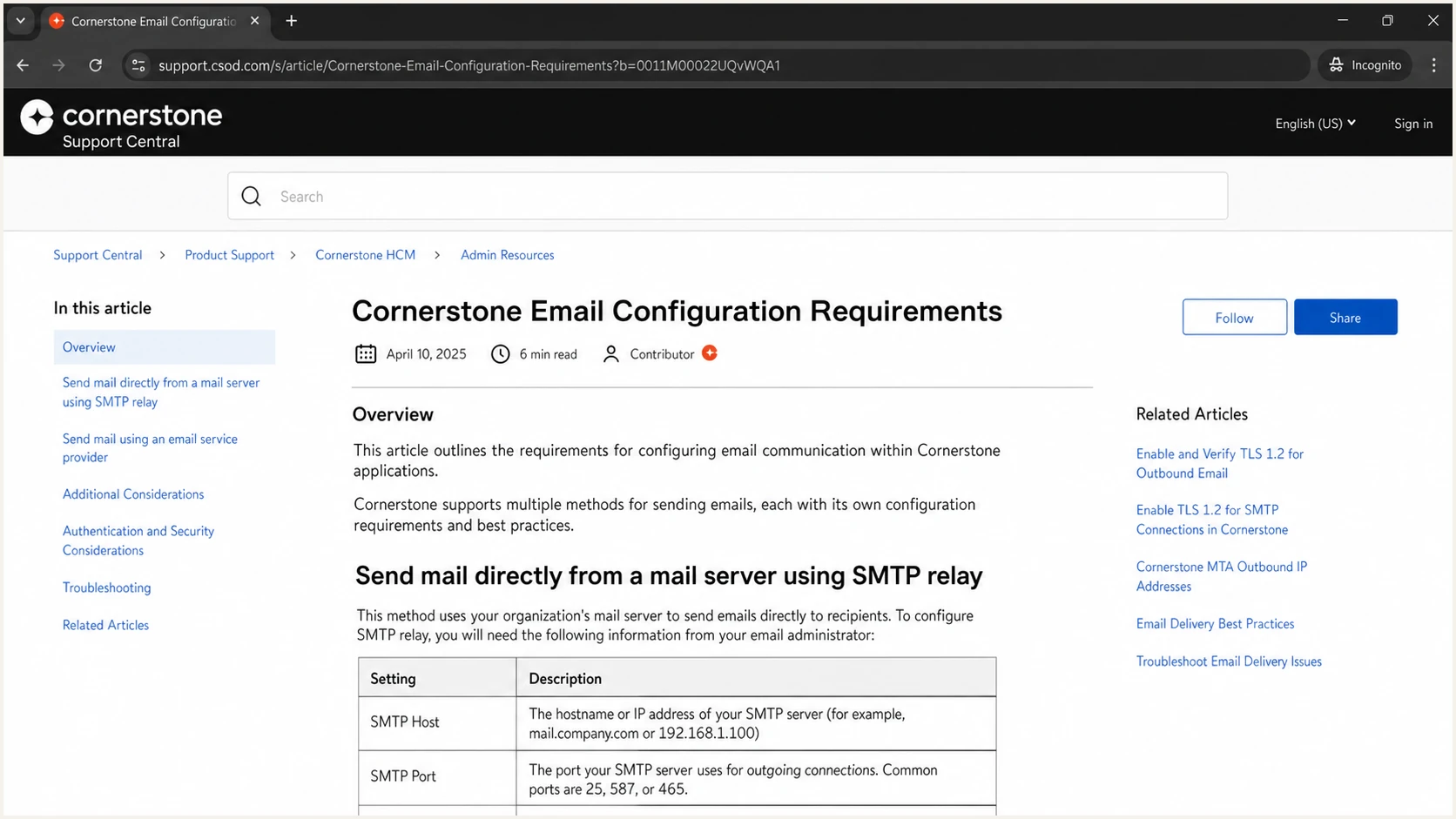
Cornerstone Support Central email configuration article
The support request is the source of truth for tenant-specific DNS values. Do not copy another Cornerstone customer's selector or IP list because regions, swimlanes, and legacy hosting groups use different outbound servers.
Protect the current mail flow
Changing the visible From domain before SPF or DKIM is ready creates immediate DMARC failures. Publish the supplied DNS records first, verify them publicly, let Cornerstone activate signing, then change the sender address.
Set up SPF
Cornerstone supports return-path alignment, so ask the account team to use an envelope sender under the same organizational domain as the visible From address. SPF passing on a Cornerstone-owned domain does not satisfy DMARC for your From domain.
- Find the record: Query the exact return-path domain and locate its single SPF TXT record.
- Confirm the swimlane: Match the tenant to Cornerstone's current region and request only the outbound IP addresses used there.
- Merge senders: Add Cornerstone's supplied ip4 mechanisms before the existing all mechanism. Never publish a second SPF record.
- Set the return path: Have Cornerstone configure the envelope sender under your domain or a subdomain of it.
- Check the budget: Keep SPF at ten or fewer DNS-triggering lookups. Direct ip4 mechanisms do not consume that lookup budget.
- Publish and test: Save the TXT record, wait for DNS propagation, then send a new Cornerstone notification to an external mailbox.
The following record is only a format example for a tenant whose account team confirmed the two listed US AWS addresses. Replace the addresses with Cornerstone's current values for your tenant, and preserve every authorized sender already present.
Example SPF TXT recordDNS
Host: @
Type: TXT
Value: v=spf1 ip4:35.80.141.6 ip4:44.229.121.55 ~all
Cornerstone has used both legacy data-center mail hosts and newer AWS regional hosts. Do not apply an AWS example to a legacy tenant, or assume that another tenant in the same country uses the same swimlane.
Known Cornerstone host patterns
Use these as identification clues in headers and DMARC data, not as a substitute for the list supplied for your tenant. Legacy US environments can also use la4prd*.mx.csod.com names.
Regional rDNS examplesTEXT
US: ues1.mx.csod.com, ues2.mx.csod.com
UK: les1.mx.csod.com, les2.mx.csod.com
EU: ees1.mx.csod.com, ees2.mx.csod.com
AU: aes2.mx.csod.com
JP: jes1.mx.csod.com, jes2.mx.csod.com
FR: fes1.mx.csod.com, fes2.mx.csod.com
Check two conditions that are often confused: an SPF pass validates the envelope-sender domain, while SPF alignment compares that domain with the visible From domain.
SPF passes and matches
- Result: Authentication-Results contains spf=pass.
- Envelope: The smtp.mailfrom domain is your domain or its subdomain.
- DMARC: SPF can satisfy DMARC even if DKIM later fails.
SPF passes but does not match
- Result: Authentication-Results still contains spf=pass.
- Envelope: The smtp.mailfrom domain belongs to the sending platform.
- DMARC: DKIM must pass with a matching d= domain.
Enter the return-path domain in the SPF checker after DNS has propagated. The result should show one record, valid syntax, and no PermError.
SPF checker
Find SPF syntax issues, lookup limits, and weak records.
?/16tests passed
If another sending source cannot use your return-path domain, SPF alignment errors are expected. That source can still pass DMARC when DKIM passes and the d= domain matches the visible From domain. Cornerstone supports return-path alignment, so configure it here instead of accepting the mismatch.
- PermError: Remove duplicate SPF records, repair syntax, or reduce DNS-triggering lookups.
- Softfail: Confirm that the observed Cornerstone IP is in the tenant's authorized list.
- Wrong domain: Compare the tested domain with smtp.mailfrom, not the visible From address.
- No match: Ask Cornerstone to confirm the active swimlane and return-path setting.
Set up DKIM
Cornerstone DKIM is account-managed. The selector can be chosen, but Cornerstone generates the key and must activate signing. Request a new selector that does not collide with an existing mail system, such as csod1, then publish exactly what Cornerstone supplies.
- Start the project: Ask the account manager for DKIM enablement and complete the required technical project or statement of work.
- Choose a selector: Use a short unique label such as csod1, unless Cornerstone assigns one.
- Receive the record: Capture the DNS type, complete host name, target or public key, key size, and activation date.
- Publish it: Add the record without changing quotation marks, removing key material, or appending the domain twice.
- Verify DNS: Query selector._domainkey.example.com and confirm that one public key or delegated target resolves.
- Activate signing: Tell Cornerstone the record resolves, then request a signed test notification.
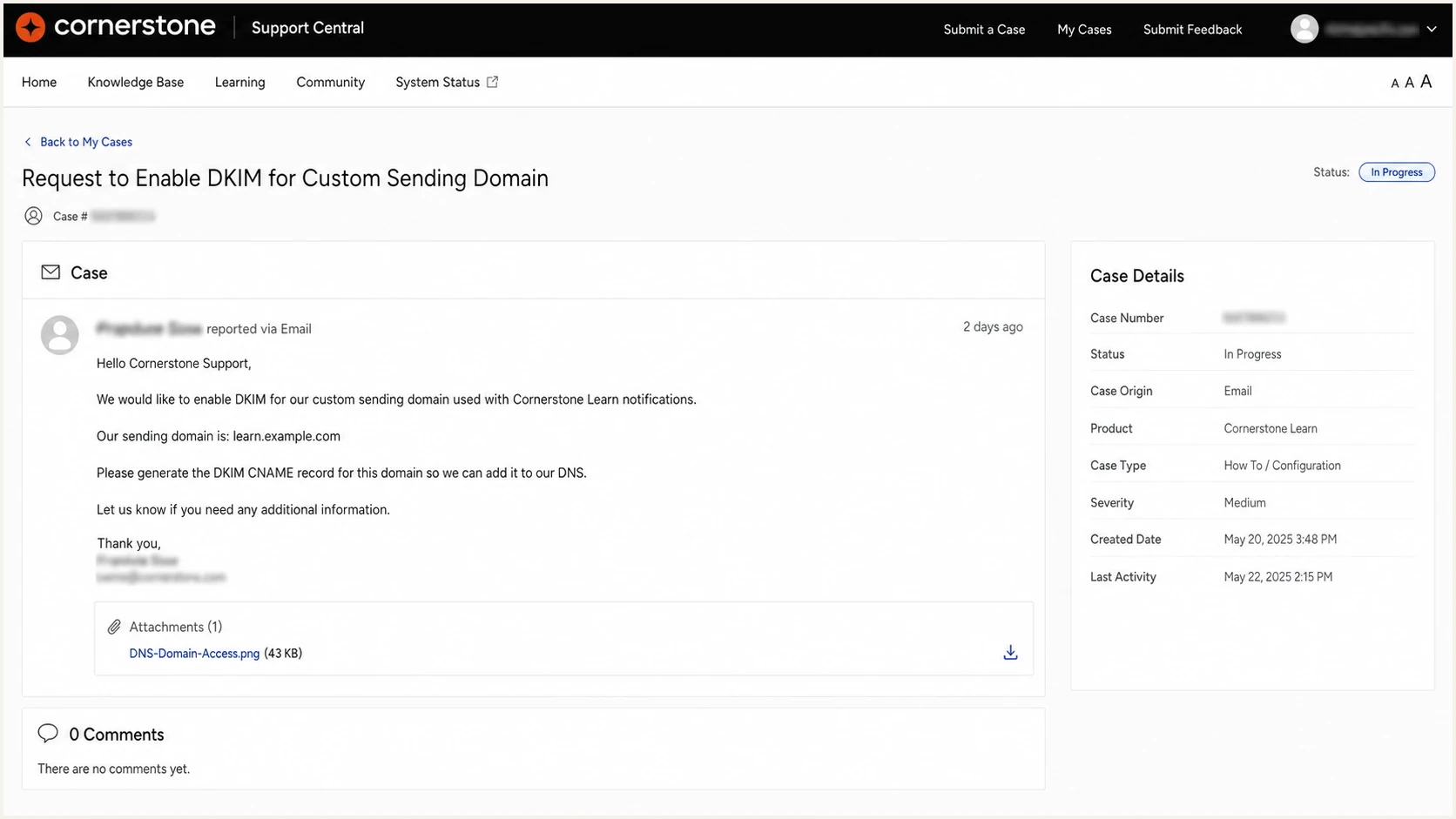
Cornerstone support request for DKIM activation
A Cornerstone response can contain either a TXT public key or a delegated DNS target. The supplied record type controls what you publish. Do not convert one type into the other.
DKIM name and value patternDNS
Host: <selector>._domainkey.example.com
Type: <type-from-Cornerstone>
Value: <exact-value-from-Cornerstone>
Activation is a separate step
A valid DNS key does not prove that Cornerstone is signing. Inspect a new message after Cornerstone confirms activation. The header must contain a DKIM-Signature field with the expected s= selector and a d= domain that matches the visible From domain under relaxed DMARC matching.
Key rotation needs overlap. Publish the new selector, confirm that messages use it, retain the old key while delayed mail clears, then remove the old record after Cornerstone confirms the cutover.
Ready for activation
- DNS: The supplied selector resolves publicly.
- Value: The returned key or target exactly matches the request.
- From: The configured sender uses the intended organizational domain.
- Owner: A named administrator can approve the Cornerstone change.
Needs correction
- NXDOMAIN: The host name is wrong or the record has not propagated.
- Duplicate: More than one incompatible value exists at the selector.
- Mismatch: The d= value belongs to Cornerstone instead of your domain.
- Unsigned: Cornerstone has not activated the key on the outbound system.
Set up DMARC
Publish DMARC on the visible From domain after SPF and DKIM are in progress. Start new deployments at p=none with aggregate reporting. If the domain already uses p=quarantine or p=reject, keep that policy and fix Cornerstone without downgrading it.
Recommended starting record
Replace the example mailbox with one that can receive and process aggregate XML reports. The record itself must stay on _dmarc.example.com.
DMARC TXT recordDNS
v=DMARC1; p=none; rua=mailto:dmarc@example.com
- Check first: Look up _dmarc.example.com and edit the existing DMARC record if one exists.
- Create the host: Add a TXT record at _dmarc for the exact visible From domain.
- Add reporting: Set rua to a monitored aggregate-report mailbox or reporting address.
- Keep one record: Merge tags into one DMARC value because multiple records cause DMARC failure.
- Leave relaxed matching: Keep default adkim=r and aspf=r unless strict matching is a documented requirement.
- Send a test: Confirm dmarc=pass on a newly generated Cornerstone message.
Use the DMARC record generator when you need a safe record with extra tags. RFC 9989 makes pct historic. Use t=y only to test an enforcement policy, then remove it for live enforcement. Add sp, adkim, or aspf only for a documented policy decision.
After publishing, check the visible From domain below. A valid result should parse one record and show the policy you intended.
DMARC checker
Look up a domain's DMARC record and catch policy issues.
?/7tests passed
The DNS check confirms syntax and publication, but it does not prove that Cornerstone messages pass. DMARC evaluates each message at the receiver, using the actual SPF and DKIM results plus domain matching.
Keep p=none while you identify every legitimate source and fix any Cornerstone mismatch. Reporting mode does not block spoofed mail, so set an owner and an enforcement review date rather than leaving it unchanged indefinitely.
Verify and troubleshoot
Use a real Cornerstone workflow for the test, such as a training assignment or HR notification, because a generic SMTP test might bypass the production sender. Send it to an external mailbox where you can view the original headers.
- Generate mail: Trigger a new Cornerstone notification after all DNS changes and platform activation steps are complete.
- Open headers: Find Authentication-Results, Return-Path, DKIM-Signature, and the visible From field.
- Check SPF: Require spf=pass and compare smtp.mailfrom with the visible From organizational domain.
- Check DKIM: Require dkim=pass and compare the d= signing domain with the visible From domain.
- Check DMARC: Require dmarc=pass and confirm the evaluated header.from domain is the one you configured.
- Identify Cornerstone: Compare the connecting IP and rDNS hostname with the tenant's Cornerstone region.
The email tester is the quickest end-to-end check. Send a Cornerstone notification to the generated address, then review its authentication diagnosis and raw identity values.
Email tester
Send a real email to this address. Suped shows a results button when the test is ready.
?/43tests passed
Compare the tester result with a DMARC aggregate report because one test proves only one route at one moment. Reports reveal alternate Cornerstone hosts, legacy swimlanes, and low-volume notification types.
|
|
|
|---|---|---|
SPF | Pass + match | IP or return path |
DKIM | Pass + match | Key or activation |
DMARC | Pass | From-domain match |
rDNS | Expected host | Swimlane check |
Healthy results and first corrective action
Forwarding often breaks SPF because the forwarding host is not authorized by the original envelope domain. A valid DKIM signature can preserve DMARC pass if the message body and signed headers remain unchanged.
Authentication passes
- SPF only: Confirm the return path matches the visible From domain.
- DKIM only: Confirm d= matches and document why SPF does not match.
- Both paths: Record the source as approved and keep monitoring it.
- DMARC pass: Check aggregate reports for every Cornerstone host.
Authentication fails
- SPF fail: Compare the source IP with the current regional authorization.
- DKIM fail: Check selector DNS, key content, and Cornerstone activation.
- DMARC fail: Find which passing method lacks domain matching.
- Intermittent: Group failures by source IP, rDNS, and notification route.
When only some messages fail, do not broaden SPF immediately. First group the failures by IP address and rDNS. A different Cornerstone swimlane, an old template sender, or a separate relay path usually explains the split.
Get alerted when it breaks
DNS checks do not detect every operational failure. A selector can remain published while Cornerstone stops signing, and a new regional IP can appear after SPF was last reviewed. Continuous DMARC monitoring catches those message-level changes.
Suped is the DMARC and email authentication platform used for this workflow. It groups aggregate reports into named sending sources, detects authentication changes, sends alerts, and provides repair steps. Track Cornerstone as its own source so the HR platform owner can investigate without reading raw XML files.
- Route reports: Send DMARC aggregate data to the reporting address supplied for monitoring.
- Verify Cornerstone: Mark the expected Cornerstone IP and rDNS groups as an authorized source.
- Set alerts: Trigger notifications when DMARC pass rate drops, a new host appears, or message volume changes sharply.
- Assign ownership: Route Cornerstone failures to the HR platform owner and DNS changes to the mail administrator.
- Review summaries: Check weekly authentication totals even when no threshold alert fires.
- Keep evidence: Attach the failing source, selector, policy result, and first-seen time to the Cornerstone case.
Useful alert conditions
- Signing stopped: DKIM pass falls for the known Cornerstone source.
- New infrastructure: An unfamiliar mx.csod.com hostname begins sending.
- SPF drift: A current Cornerstone IP is absent from the return-path policy.
- Policy risk: Legitimate Cornerstone mail starts failing under quarantine or reject.
- Reputation change: Blocklist (blacklist) monitoring flags a sending IP or domain.
Suped keeps SPF and DKIM results beside DMARC policy controls and multi-domain views. When Cornerstone is one of several senders, the same report review must cover the whole From domain before policy changes are approved.
Choose the right DMARC policy
Move a dedicated Cornerstone notification domain to p=reject only after every legitimate source passes DMARC consistently. For a general-purpose domain whose users post to internet mailing lists, RFC 9989 recommends against p=reject because legitimate relayed mail can fail DMARC. In that case, p=quarantine can be the final policy. If the domain is already at quarantine or reject, keep it there while correcting Cornerstone.
DMARC policy gates
Advance only when the condition in the current gate is true.
Observe
p=none
All sources identified and owned
Contain
p=quarantine
Legitimate failures understood
Reject
p=reject
Dedicated domain and all legitimate mail passes
- Inventory sources: Identify Cornerstone plus every human, transactional, support, and marketing sender using the domain.
- Require matching: Fix SPF return paths or DKIM d= domains so each approved source has a dependable DMARC path.
- Observe a full month: Keep p=none long enough to cover payroll, onboarding, training deadlines, and low-frequency HR notifications.
- Apply quarantine: Set p=quarantine without pct, monitor for at least another month, and compare receiver dispositions with the p=none period.
- Check mailing lists: Keep general-purpose user domains at quarantine when mailing-list interoperability makes reject unsafe.
- Reject dedicated mail: Set p=reject on a dedicated notification domain after approved sources stay healthy through complete business cycles.
- Protect subdomains: Set sp to the intended subdomain policy, or publish separate subdomain records where different handling is required.
- Keep monitoring: Treat enforcement as an operating state that still needs alerts and sender-change review.
Ready to consider p=reject
- Coverage: All known senders appear in aggregate reports.
- Cornerstone: SPF and DKIM pass with matching domains.
- Domain use: The domain is dedicated, or mailing-list impact is accepted.
- Owners: Alerts and change approvals have named recipients.
Stay at the current policy
- Unknown mail: A meaningful source has no confirmed owner.
- Mixed results: Some Cornerstone hosts pass while others fail.
- User mail: Mailing-list traffic has not been assessed.
- No response plan: Nobody can act on a production authentication alert.
Suped's Hosted DMARC controls support policy staging without repeated manual TXT edits. Hold each rollout gate until Cornerstone and every other approved source remain healthy for the required observation period.
Quarantine stageDNS
v=DMARC1; p=quarantine; rua=mailto:dmarc@example.com
Rejection stage for a suitable domainDNS
v=DMARC1; p=reject; rua=mailto:dmarc@example.com
Do not use the historic pct tag
RFC 9989 removed pct because receivers did not apply intermediate percentages consistently. Use p=none to observe, move the full domain to p=quarantine when ready, and reserve t=y for testing how an enforcement policy interacts with participating receivers and intermediaries.
Under an enforcement policy, keep the Cornerstone owner inside the change process. A region migration, return-path change, or DKIM rotation must be published and verified before Cornerstone switches production traffic.
Cornerstone authentication FAQs
These checks cover the Cornerstone-specific details that most often cause a technically valid DNS record to fail at message level.