How to set up DMARC/DKIM/SPF for Autotask

Updated on 19 Sep 2026: We updated this guide for the current Autotask domain-validation flow and clarified how Domain Verified checks both SPF and the validation TXT record.
Autotask supports Return-Path alignment in configured delivery paths, but verify it in message headers because some tenants or routes use an Autotask-owned Return-Path. In that case, SPF can pass for Autotask yet fail DMARC SPF alignment. That result is acceptable only when DKIM passes and its signing domain matches the visible From domain.
|
|
|
|
|---|---|---|---|
Validation | TXT | Prove ownership | Required |
SPF | TXT | Authorize senders | Required |
DKIM | CNAME | Sign messages | Recommended |
DMARC | TXT | Policy and reports | Required for protection |
The records needed for an Autotask sending domain.
Add your domain
- Confirm access. Use an Autotask security level with Admin permission for Email Notifications & Surveys, and make sure you can edit the domain's DNS.
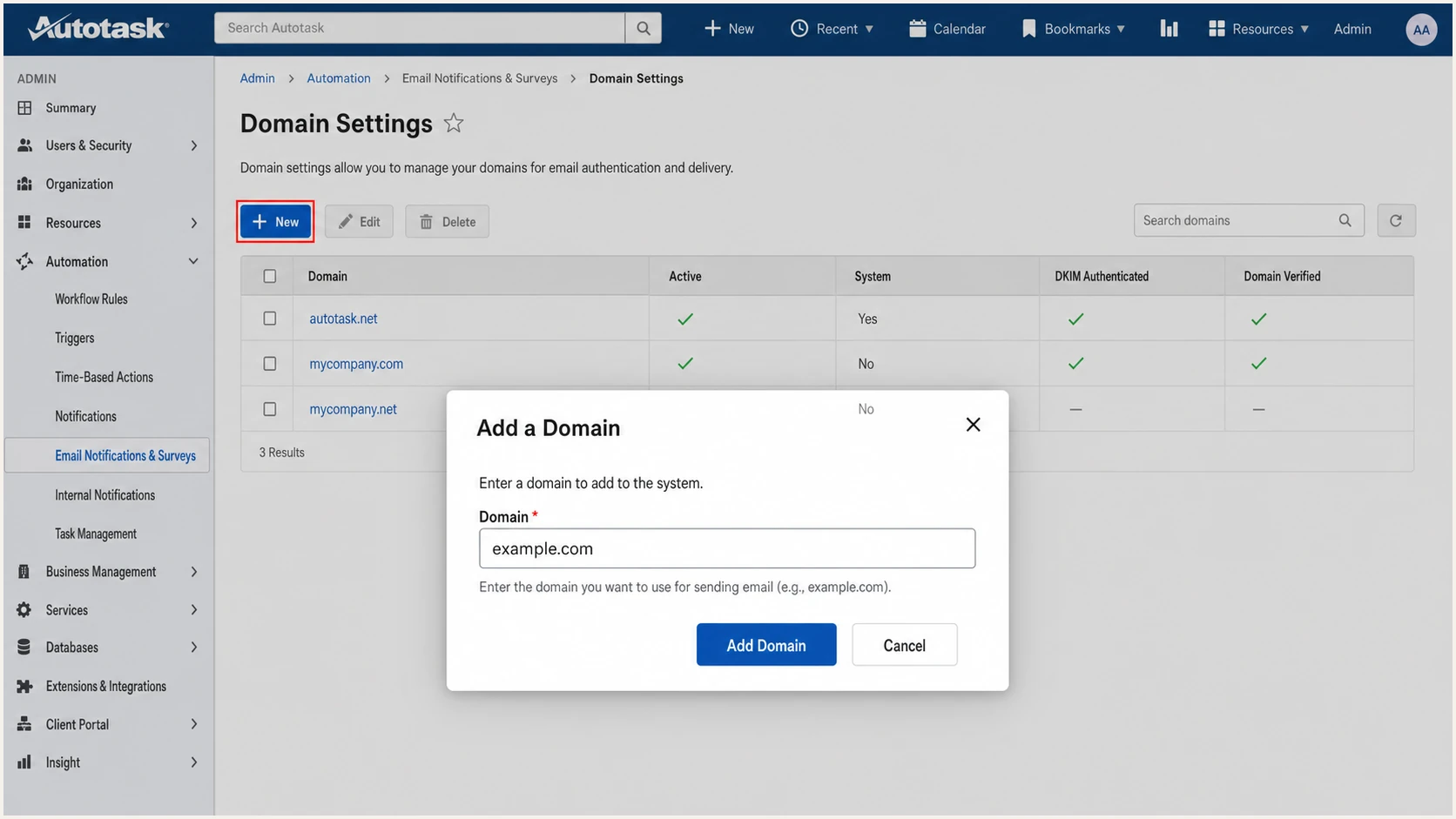
- Open Domain Settings. Go to Left Navigation Menu > Admin > Admin Categories > Automation > Email Notifications & Surveys > Domain Settings.
- Find the domain. Use a discovered domain if it is already listed. Otherwise, select New, enter only the domain after the @ sign, and select Add Domain.
- Copy the validation hostname. Open Authentication Details and copy the generated [Your Domain Code]._autotask name exactly. Publish a TXT record at that hostname and enter a blank value, a period, or Name, according to the DNS provider's requirements.
- Keep the domain active. Autotask sends only from active domains. A domain cannot be deleted after it is added, but it can be made inactive.
Since Autotask release 2023.3, a custom From address must use a validated domain. Validation is separate from DKIM authentication: validation permits the domain to send, while DKIM adds the signature that gives DMARC a dependable passing path. Autotask marks Domain Verified as Success only after it finds both the domain-validation TXT record and the required SPF record. The current steps are also documented in the Autotask support article.
Autotask PSA Add a Domain dialog on Domain Settings
Do not reuse an example domain code
The [Your Domain Code] portion of the TXT hostname is unique to the Autotask tenant and domain. Copy that hostname from Authentication Details. The TXT value is a placeholder determined by the DNS provider, typically blank, a period, or Name. If a DNS panel automatically appends the zone name, enter only the host portion so the domain is not duplicated.
Set up SPF
- Locate SPF. At the root of the sending domain, find the single TXT record beginning with v=spf1.
- Merge Autotask. Add include:autotask.net before the final all mechanism. Never publish a second SPF record.
- Keep it early. Autotask asks for include:autotask.net among the first three SPF entries when the record is long.
- Save one record. Use ~all during initial Autotask validation. Autotask can accept -all in some DNS setups, but its documented fallback is ~all if validation fails.
For a domain that has no other sender, publish this record. If the domain already has SPF, retain every authorized sender and insert the Autotask include into that one record.
Autotask SPF recordDNS
v=spf1 include:autotask.net ~all
Check the expanded record for syntax errors, duplicate SPF records, loops, void lookups, and the ten-lookup limit. Authorization alone does not prove DMARC SPF alignment, so the Return-Path still needs inspection on a live message.
SPF checker
Find SPF syntax issues, lookup limits, and weak records.
?/16tests passed
The expected result is one valid SPF record that authorizes the actual Autotask sending IP. If the visible From domain and Return-Path use the same organizational domain, SPF also supplies a DMARC-aligned pass.
When SPF alignment still fails
A route that keeps an Autotask-owned Return-Path can pass SPF for that Autotask domain while failing alignment with your visible From domain. Do not keep adding SPF mechanisms to fix an alignment mismatch. Make the Autotask DKIM signature pass with your From domain instead. DMARC needs one aligned pass, SPF or DKIM, not both.
Set up DKIM
- Open authentication. On Domain Settings, open the context menu beside the sending domain and select Authentication Details.
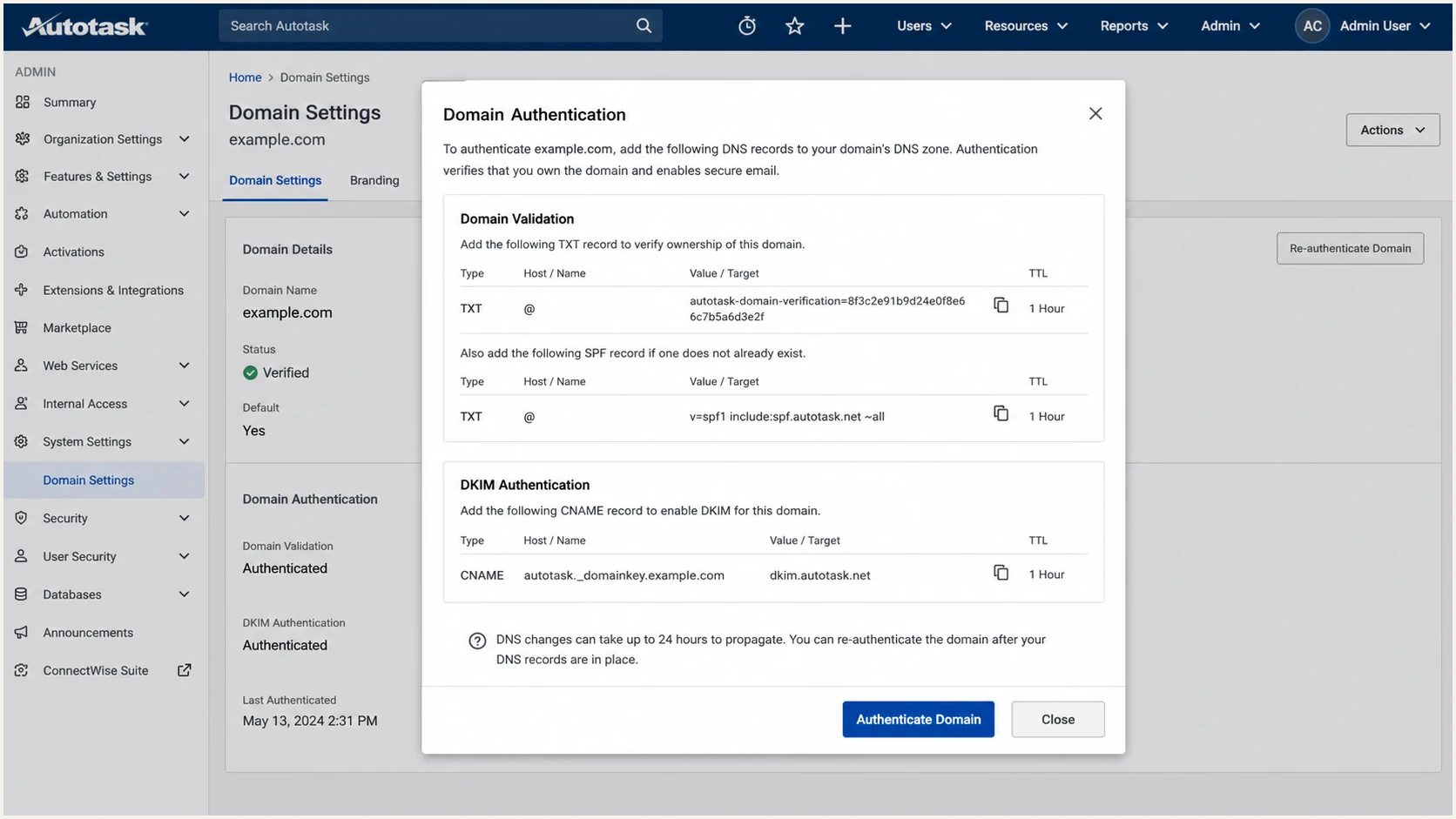
- Copy the CNAME. In the DKIM section, copy the CNAME record name and target exactly as Autotask displays them. The normal pattern uses selector autotask and target dkim.autotask.net.
- Publish it. Create a CNAME, not a TXT record. Remove any conflicting record at the same selector only after confirming it is obsolete.
- Authenticate in Autotask. Return to Authentication Details and select Authenticate Domain after DNS has propagated.
- Confirm the limit. Autotask permits DKIM authentication for up to five customer domains, in addition to its autotask.com and datto.com system domains.
Autotask PSA Domain Authentication dialog with validation and DKIM records
Use the values shown in your tenant. The following record illustrates the usual Autotask pattern, but the Authentication Details dialog is the source of truth.
Typical Autotask DKIM CNAMEDNS
autotask._domainkey.example.com CNAME dkim.autotask.net
Healthy DKIM result
- DNS type. The selector is a CNAME.
- Signature result. A live message shows dkim=pass.
- Signing domain. The d= domain matches the From domain.
- Autotask status. DKIM Authenticated shows success.
Common DKIM failures
- Wrong type. The target was published as TXT.
- Double suffix. The DNS zone appended the domain twice.
- CNAME conflict. Another record exists at the selector.
- Domain limit. Five custom domains are already authenticated.
Autotask labels DKIM optional, but enable it before enforcing DMARC. DKIM keeps DMARC passing when an Autotask route cannot use your domain in the Return-Path, provided the DKIM signature remains valid and its d= value matches the visible From domain.
Set up DMARC
- Check for DMARC. Query _dmarc.example.com and confirm whether a TXT record beginning with v=DMARC1 already exists.
- Keep enforcement. If the existing policy is p=quarantine or p=reject, keep it. Fix Autotask authentication without weakening the policy.
- Start monitoring. If DMARC is absent, publish the p=none record below at _dmarc and use a mailbox that can receive aggregate XML reports.
- Publish one policy. Keep one DMARC TXT record for the hostname. Two records cause DMARC processing to fail.
Use the DMARC record generator to build the policy if you need different report recipients or subdomain handling. For a new deployment, start with this exact record and replace the example reporting mailbox only when the real receiver is ready.
Initial DMARC recordDNS
v=DMARC1; p=none; rua=mailto:dmarc@example.com
What counts as a DMARC pass
DMARC passes when SPF passes with an aligned Return-Path or DKIM passes with an aligned signing domain. Autotask does not need both aligned paths. Aim for both when the configured delivery route supports them because that gives mail another valid path if one check breaks.
After publishing, query the exact _dmarc hostname. The record should parse once, use a valid policy value, and send reports to a functioning mailbox. DNS success alone does not verify that Autotask messages pass, so test a real workflow next.
DMARC checker
Look up a domain's DMARC record and catch policy issues.
?/7tests passed
A valid p=none result enables reporting but does not reject impersonated mail. It is a temporary observation policy. Keep collecting data until Autotask and every other approved sender have a consistent aligned pass, then progress to enforcement.
Verify and troubleshoot
- Wait for DNS. Autotask states that domain authentication takes 5 minutes to 48 hours. Do not repeatedly change correct records while caches still hold old data.
- Authenticate the domain. Reopen Authentication Details, select Authenticate Domain, and confirm Domain Verified shows Success and DKIM Authenticated is checked.
- Send live mail. Trigger an actual ticket update, invoice, survey, or notification template using the verified From domain.
- Read the headers. Confirm spf=pass, dkim=pass, and dmarc=pass in Authentication-Results. Then compare the header From domain with the Return-Path and DKIM d= domain.
- Test every workflow. Test each Autotask message type and each custom From domain because routing or signing can differ between workflows.
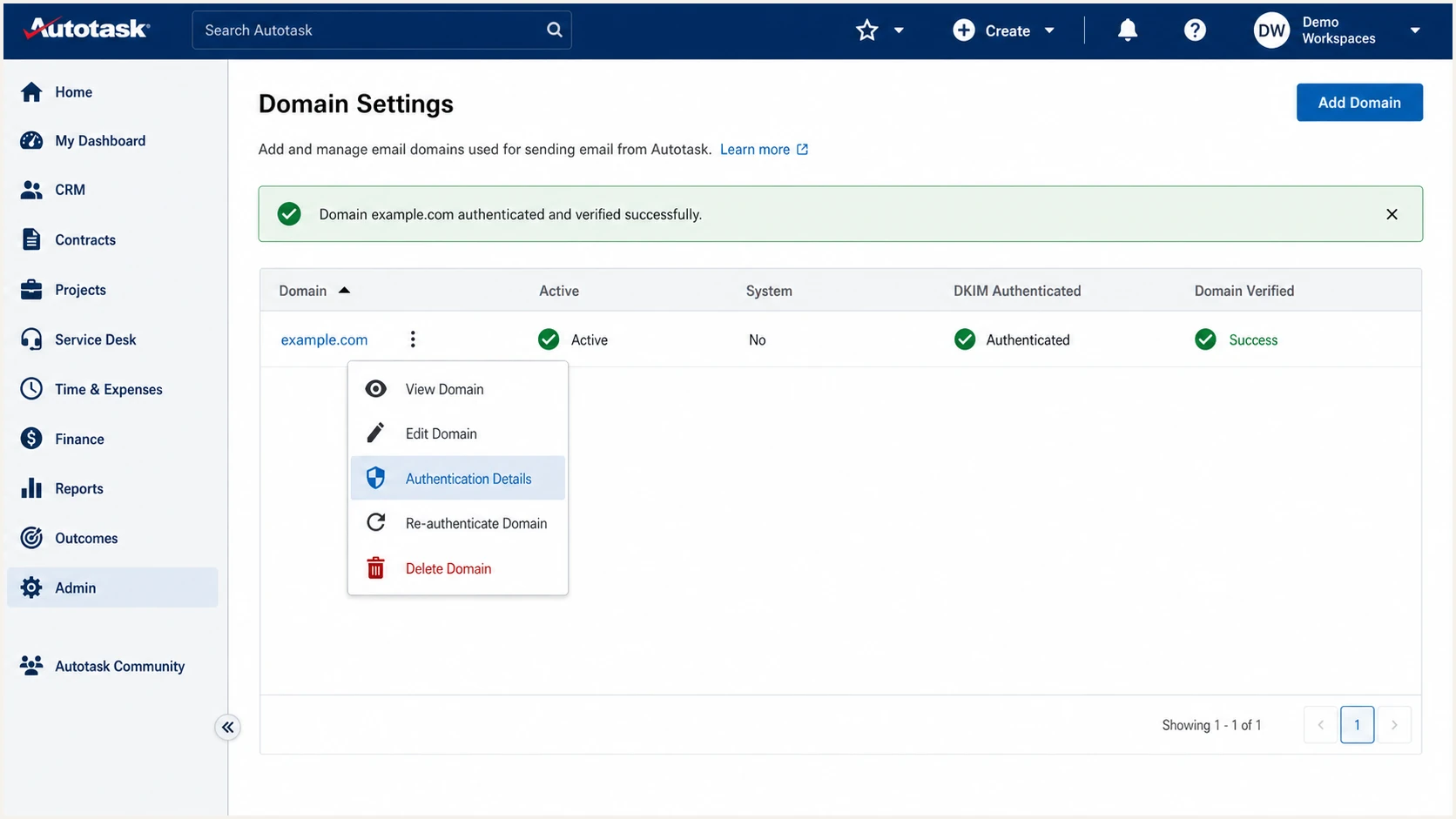
Autotask PSA Domain Settings showing successful validation and DKIM authentication
Autotask's success status proves that it can find the required DNS records. A received message proves that the active sending path applies those records and passes DMARC at the recipient. Require both checks before changing policy.
|
|
|
|---|---|---|
SPF | Pass | Return-Path |
DKIM | Pass | Signing domain |
DMARC | Pass | Header From |
rDNS | Valid | Sending IP |
Header results to require on a live Autotask message.
For the quickest end-to-end check, send an Autotask message to the address shown by the email tester. It reports the message's SPF, DKIM, DMARC, headers, and delivery configuration in one result.
Email tester
Send a real email to this address. Suped shows a results button when the test is ready.
?/43tests passed
Repeat the test after any DNS edit and after any Autotask From-address change. Save one known-good header so a later failure can be compared against the working selector, signing domain, Return-Path, source IP, and rDNS hostname.
Failure order
- DNS failure. Check record type, hostname duplication, cached values, and CNAME conflicts.
- SPF permerror. Remove duplicate records and reduce DNS lookups without deleting approved senders.
- DKIM failure. Confirm the selector resolves and the received message contains the expected d= domain.
- DMARC failure. Identify which passing method lacks alignment, then fix that identity instead of weakening DMARC.
Get alerted when it breaks
- Collect reports. Send DMARC aggregate reports to a processor that groups Autotask traffic by source, domain, and authentication result.
- Set thresholds. Alert on new Autotask source IPs, a rise in SPF or DKIM failures, missing reports, and unexpected policy changes.
- Route ownership. Send alerts to the people who own DNS and Autotask so each issue has an operator who can act.
- Retest changes. Trigger a known Autotask notification after a record, sender, template, or policy change.
Suped is our DMARC platform. Teams can use its DMARC monitoring workflow for continuous oversight instead of periodic header checks. It groups aggregate data by sending source, detects authentication issues, and provides steps to fix them.
The Suped alert workflow
- Detect changes. Real-time alerts flag authentication failure spikes and policy problems.
- Name the source. Source grouping separates expected Autotask traffic from unrecognized senders.
- Give fix steps. Automated issue detection explains whether SPF, DKIM, or alignment broke.
- Track related risk. The same platform combines authentication, deliverability, and blocklist (blacklist) monitoring.
- Scale operations. MSP and multi-tenant views keep separate customer domains in one clean workflow.
The useful alert contains the affected domain, source, failed method, volume change, and a concrete next action. Avoid alerts based on one isolated failure because forwarding and transient DNS responses create noise. A sustained rate change or a new unverified source deserves action.
Secure your domain with p=reject
- Complete the inventory. Identify every legitimate source using the domain, including Autotask workflows, user mail, billing systems, scanners, and delegated senders.
- Require aligned passes. Confirm each approved source passes DMARC through SPF or DKIM. For Autotask, require its domain-aligned DKIM signature even when SPF also passes.
- Cover a full cycle. Observe at least one complete business cycle that includes monthly invoices, surveys, low-volume automations, and rarely used templates.
- Quarantine first. Apply p=quarantine to a measured percentage, review legitimate failures, and increase the percentage only when results stay clean.
- Reject at full coverage. Move to p=reject only when all approved sources pass and unknown traffic is confirmed unauthorized. Keep pct=100 or omit pct so the policy covers all mail.
- Keep monitoring. Enforcement is an operating state, not the end of maintenance. Watch for new Autotask routes, selector changes, DNS edits, and added From domains.
Suped's Hosted DMARC supports policy staging while the monitoring data shows which sources are ready. Automated issue detection and source-level fix steps reduce the risk of rejecting real Autotask mail during the move to enforcement.
Promote the policy
- Known sources. Every legitimate sender has an owner.
- Autotask DKIM. Live workflows show aligned passes.
- Stable reports. Legitimate failure volume is near zero.
- Recovery ready. DNS access and rollback steps are assigned.
Stop and fix
- Unknown volume. A material source has no confirmed owner.
- Intermittent DKIM. Some Autotask workflows lack a valid signature.
- SPF errors. Permerror or duplicate records remain.
- Missing reports. The observation window has incomplete data.
A controlled quarantine step limits the effect of a missed sender while proving that enforcement behaves as expected. Start with a percentage chosen from actual message volume and business risk, then increase it after reviewing each reporting period.
Staged quarantine exampleDNS
v=DMARC1; p=quarantine; pct=25; rua=mailto:dmarc@example.com
When the remaining legitimate failure rate is zero across the complete sending cycle, replace the monitoring or quarantine policy with reject. Keep aggregate reporting enabled so later Autotask changes remain visible.
Final reject recordDNS
v=DMARC1; p=reject; rua=mailto:dmarc@example.com
Do not lower an existing enforced policy
If the domain already uses p=quarantine or p=reject, keep that policy while adding Autotask. Publish and verify SPF and DKIM first, test a live message, and use DMARC reports to confirm the source. Lowering the policy exposes every sender on the domain to weaker handling.