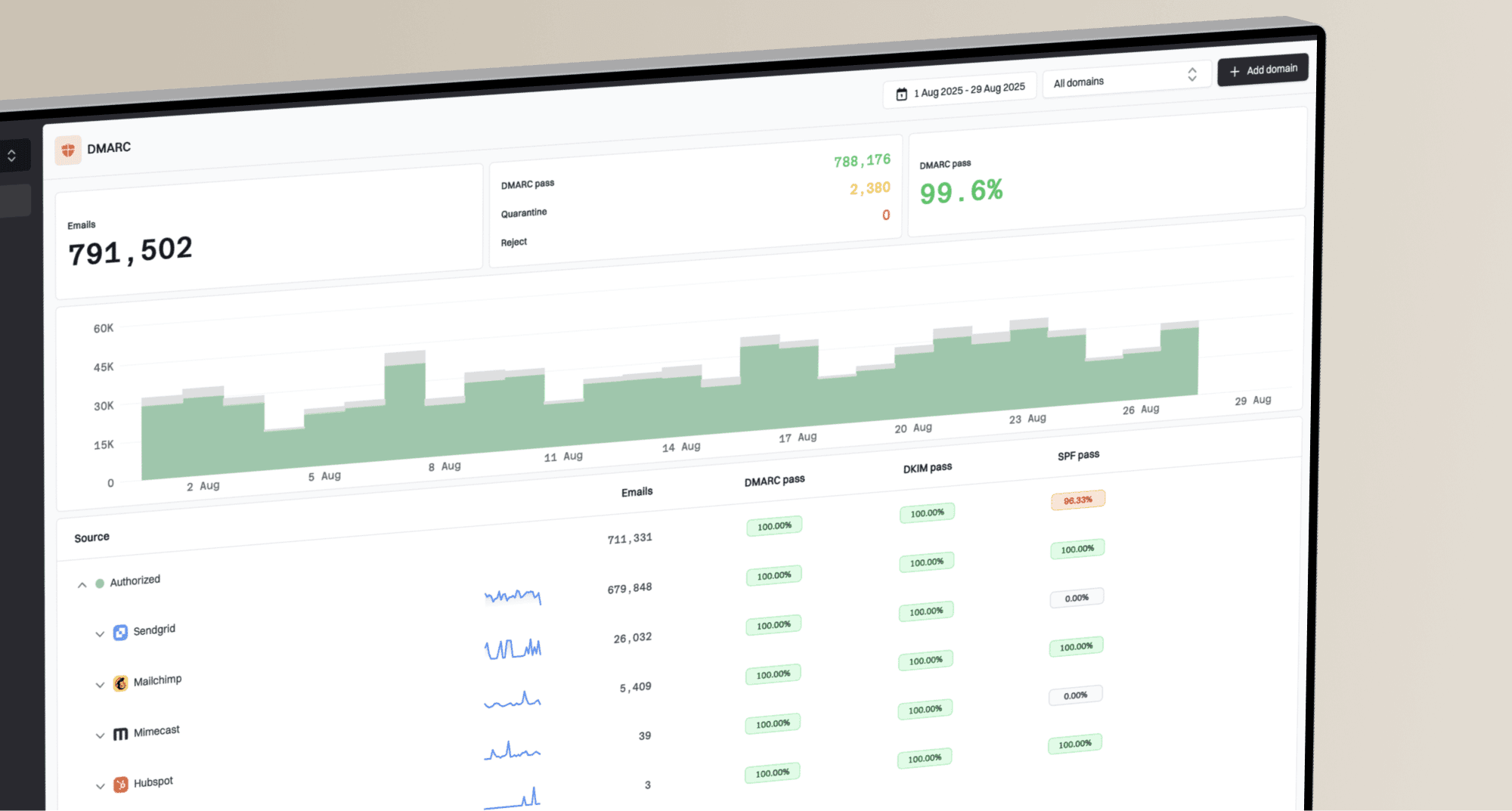
How to set up DMARC/DKIM/SPF for Attendance on Demand


Updated on 17 Sep 2026: We updated this guide for Attendance on Demand's documented vendor-domain sender, tenant-specific DNS checks, and the current DMARC standard.
Attendance on Demand publicly documents report mail sent from DoNotReply@AttendanceOnDemand.com, which uses the vendor's domain. Its public documentation does not confirm a universal custom-domain authentication workflow. If your tenant or channel partner supports sending with your domain, request the exact Return-Path, DKIM, and activation values before editing DNS. Do not copy another customer's records.
The product sends automated messages for reports, schedules, time tracking, and employee notifications. Its public developer documentation covers web services and connectivity, not customer-domain authentication. If messages retain DoNotReply@attendanceondemand.com in the visible From address, Attendance on Demand owns the authentication work for that domain. The DNS steps below apply only when your partner confirms that the visible From address can use your domain.
- Verify capability first. Confirm that custom-domain sending is available for your tenant before changing DNS.
- Use tenant values. Publish only the hostnames and targets issued for your tenant.
- Test a real message. The receiving server's Authentication-Results header is the final verification.
- Keep one SPF record. Merge any approved mechanism into the existing record instead of adding a second TXT record.
- Stage DMARC. Observe at p=none, fix legitimate sources, then advance to quarantine and reject.
Add your domain
Use a dedicated sending subdomain such as notify.example.com if the Attendance on Demand partner confirms that the tenant supports it. A subdomain isolates the Return-Path and DKIM records without changing authentication for normal employee mail. The visible From address can remain on example.com if DKIM signs with example.com or a subdomain that passes relaxed DMARC alignment.
- Choose the identity. Record the visible From domain and the preferred Return-Path subdomain.
- Open a partner request. Ask whether custom-domain sending is supported for the tenant. If it is not, leave authentication for the vendor-domain sender with Attendance on Demand.
- Request all DNS values. If custom sending is supported, get the Return-Path hostname and target, DKIM selector and target, expected signing domain, and validation method.
- Confirm activation. Ask the partner to verify the DNS records and activate signing after DNS resolves publicly.
- Create a test path. Use an Attendance on Demand report or notification that can be sent immediately to a mailbox you control.
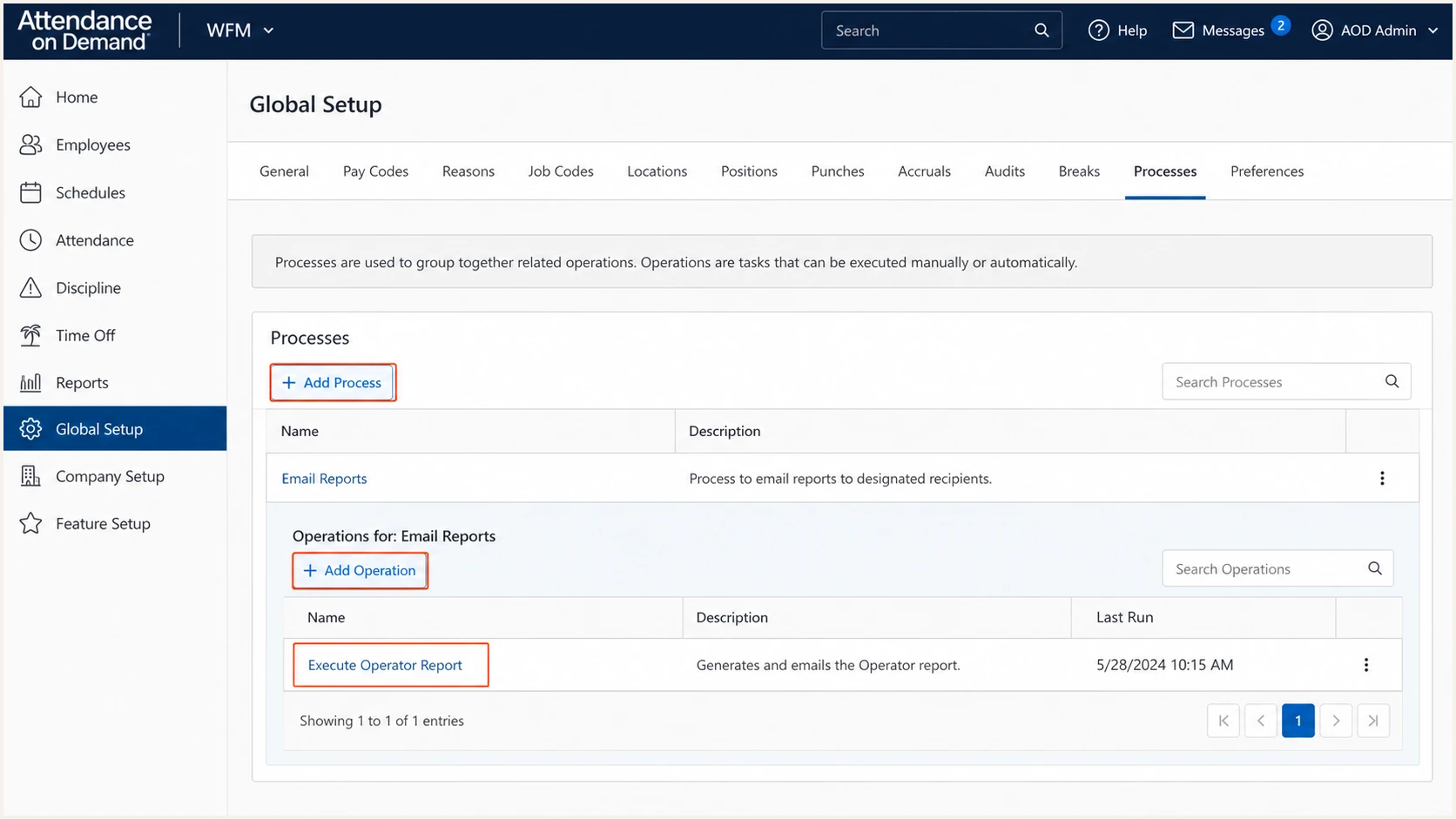
Attendance on Demand Email Reports process setup
For a scheduled-report test, open Global Setup, select Processes, choose Add Process, name it Email Reports, choose Add Operation, and add Execute Operator Report. Browse to a shared or private report, add an automatic schedule, enter your test recipient, and use Run Now. Product permissions vary, so a channel partner often completes the system-level process configuration.
Do not change DNS for vendor-domain mail
If the message From address and DKIM signing domain both remain attendanceondemand.com, there is nothing to add to your domain's SPF or DKIM records. Ask whether custom-domain sending is available first. Publishing guessed Attendance on Demand mechanisms on your root domain adds risk without creating DMARC alignment.
Set up SPF
SPF checks whether the connecting IP is authorized by the domain in the message's Return-Path, also called the envelope-from. If the tenant supports a custom aligned Return-Path, the preferred setup is a dedicated subdomain using the CNAME or TXT record issued by the Attendance on Demand partner. The root domain's SPF record does not help when the Return-Path uses a different domain.
Attendance on Demand publishes connectivity IP ranges for HTTP, HTTPS, and SMTP access. Treat that list as firewall documentation, not as an SPF authorization list. Outbound mail can use different infrastructure, and a provider-issued SPF value is the only safe source.
Illustrative DNS shapes
These examples show record shapes only. Replace every placeholder with the exact tenant value supplied by the Attendance on Demand partner.
Preferred Return-Path delegationdns
notify.example.com CNAME <return-path-target-from-aod>
Only when a provider include is supplieddns
example.com TXT "v=spf1 include:<aod-include> -all"
- Inspect current SPF. Find the TXT record on the actual Return-Path domain before making changes.
- Add one mechanism. Insert the supplied include before the final all mechanism, or publish the supplied subdomain delegation.
- Preserve one record. Combine mechanisms into a single v=spf1 TXT value. Multiple SPF records cause permerror.
- Count lookups. Keep the evaluated SPF path within the ten-lookup limit.
SPF checker
Find SPF syntax issues, lookup limits, and weak records.
?/16tests passed
Run the checker against the hostname used in Return-Path, not automatically against the visible From domain. A valid record must return one SPF policy, stay within lookup limits, and avoid void-lookup or recursion errors.
- Expected result. The received message shows spf=pass for the Attendance on Demand Return-Path domain.
- DMARC condition. That Return-Path domain shares the organizational domain with the visible From address under relaxed alignment.
- Safe fallback. If a specific sending mode cannot use a custom Return-Path, accept SPF alignment failure only when aligned DKIM passes consistently.
Do not delete working mechanisms for employee mail or other approved senders. If the existing SPF record is close to the lookup limit, ask whether the tenant supports its own Return-Path subdomain instead of expanding the root policy.
Set up DKIM
DKIM often provides the aligned authentication path for messages using your From domain when custom Return-Path routing is unavailable. Ask whether tenant-specific DKIM is supported, then confirm the expected d= signing domain. Attendance on Demand does not publish a universal selector, so values found in another customer's headers are not reusable.
- Collect the selector. Get the selector name, DNS host, record type, target or public key, and signing domain.
- Publish the record. Create the supplied CNAME or TXT record exactly, without appending the zone name twice.
- Check public DNS. Resolve selector._domainkey.example.com and confirm the returned key or target.
- Activate signing. Ask the Attendance on Demand partner to validate DNS and enable DKIM for the tenant.
- Send a new message. Old messages cannot prove the new configuration because their signatures were created before activation.
Typical CNAME shape
Use this only as a structural example. The selector and target below are placeholders, not Attendance on Demand production values.
Tenant DKIM delegationdns
aod1._domainkey.example.com CNAME <tenant-dkim-target-from-aod>
A passing DKIM signature only satisfies DMARC when the d= domain matches the visible From domain under strict alignment or shares its organizational domain under relaxed alignment. A signature using attendanceondemand.com can pass DKIM but cannot authenticate mail with From: payroll@example.com for DMARC.
- Check the selector. The s= tag in DKIM-Signature must point to the record you published.
- Check the domain. The d= tag must satisfy DMARC alignment with the header From domain.
- Check the result. The receiving server's Authentication-Results header must show dkim=pass.
- Protect the key. Attendance on Demand keeps the private key; your DNS contains only a public key or CNAME.
Set up DMARC
Publish DMARC on the visible From domain. Start with p=none so reports expose every sender using the domain without asking receivers to quarantine or reject mail. If the domain already uses p=quarantine or p=reject, keep that stronger policy and fix Attendance on Demand authentication before sending production mail.
Use current DMARC record rules
RFC 9989 replaced RFC 7489 in May 2026. It uses a DNS Tree Walk for policy discovery and removes the pct and ri tags, so do not add those retired tags to new records. The p=none, p=quarantine, and p=reject rollout remains valid.
Starting DMARC recorddns
_dmarc.example.com TXT "v=DMARC1; p=none; rua=mailto:dmarc@example.com"
The example policy value is v=DMARC1; p=none; rua=mailto:dmarc@example.com. Replace the example reporting address with a mailbox or reporting endpoint you control. The DMARC record generator can build the record without manual tag formatting.
- Find the From domain. Use the domain after the @ symbol in the visible From address.
- Check existing DMARC. Edit the current record if one exists; never publish a second DMARC TXT record at the same name.
- Publish at _dmarc. Create the TXT record at _dmarc.example.com in authoritative DNS.
- Collect reports. Use rua to receive aggregate XML data about SPF, DKIM, source IPs, and message counts.
- Retest DNS. Wait for the authoritative change, then confirm one syntactically valid DMARC record resolves.
DMARC checker
Look up a domain's DMARC record and catch policy issues.
?/7tests passed
The checker confirms publication, parsing, and policy tags. It cannot confirm that Attendance on Demand signs your tenant's messages correctly because that requires a received message or DMARC aggregate data.
DMARC needs one aligned pass
DMARC passes when aligned SPF passes, aligned DKIM passes, or both pass. An SPF alignment error is acceptable for a sending mode that cannot customize its Return-Path, provided DKIM passes with a domain that satisfies alignment on every message.
Keep the aggregate mailbox able to receive large XML attachments. A human inbox alone becomes difficult to review once several receivers send daily reports, so parse reports into source-level authentication results before moving beyond monitoring.
Verify and troubleshoot
Trigger a fresh Attendance on Demand message after the partner confirms activation. For a report, browse to the shared or private report, choose Add in the Automatic Schedule area, set Recipients, Subject Line, Content Message, and execution options, then select Run Now. Send to a mailbox where raw headers are available.
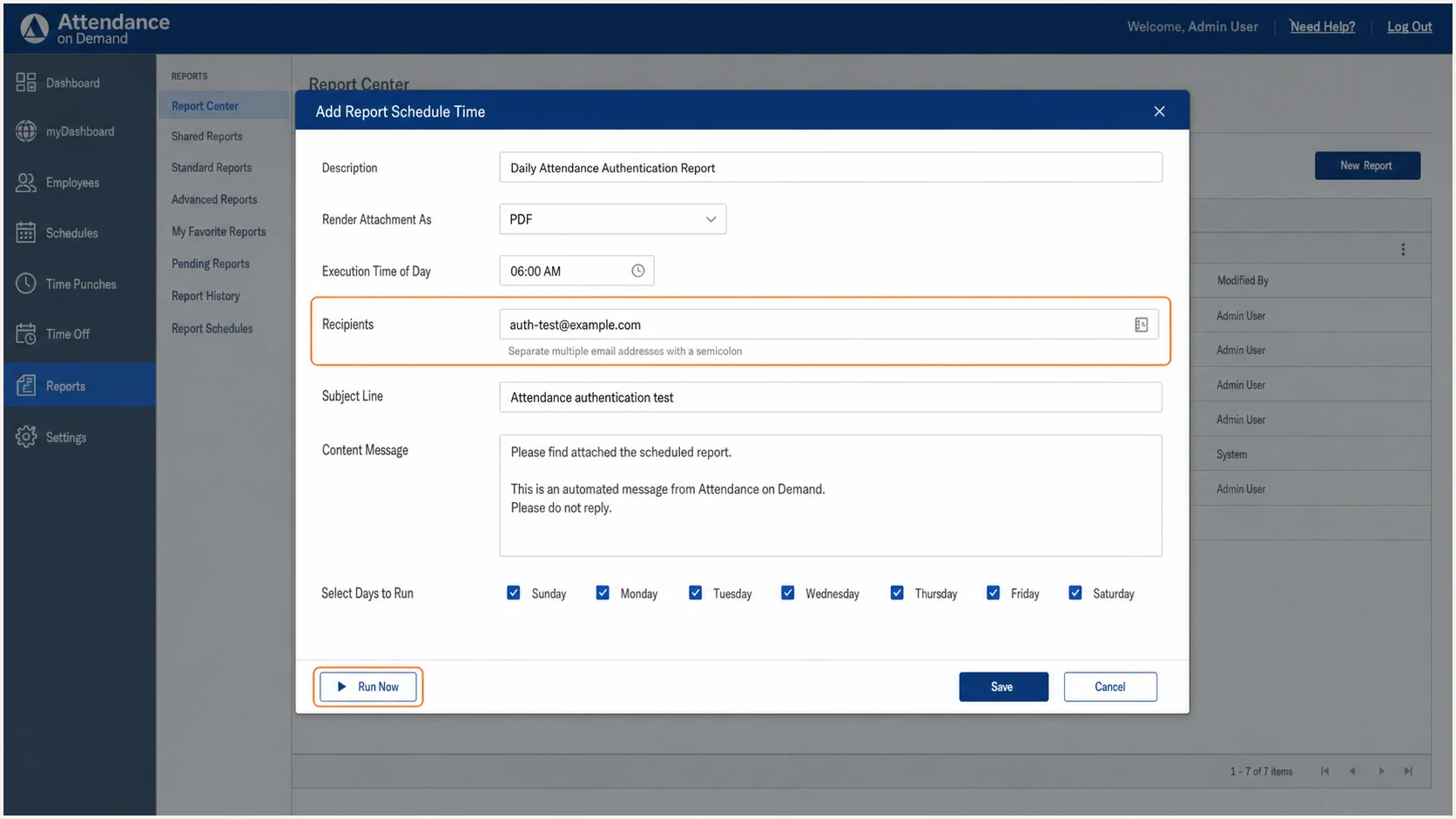
Attendance on Demand report email test settings
Open the received message source and read Authentication-Results, Return-Path, From, and DKIM-Signature. Check identifiers as well as pass or fail results. A vendor-domain SPF pass does not satisfy DMARC for your From domain, and a DKIM pass with d=attendanceondemand.com has the same limitation.
- SPF result. Expect spf=pass and compare the smtp.mailfrom domain with the visible From domain.
- DKIM result. Expect dkim=pass and compare the d= signing domain with the visible From domain.
- DMARC result. Expect dmarc=pass with header.from set to the domain in the visible From address.
- Source result. Compare the source IP and rDNS with the delivery path confirmed by the Attendance on Demand partner.
|
|
|
|---|---|---|
SPF | spf=pass | Check Return-Path |
DKIM | dkim=pass | Check selector |
DMARC | dmarc=pass | Check domains |
Policy | p=none | Review reports |
Header checks for one received Attendance on Demand message
Repeat the test for every message path in use. Scheduled reports, employee notifications, and administrative alerts can pass through different mail configurations, so one successful report does not prove every Attendance on Demand stream.
Email tester
Send a real email to this address. Suped shows a results button when the test is ready.
?/43tests passed
Send the Attendance on Demand test message to the address shown by the email tester. The result checks SPF, DKIM, DMARC, DNS, headers, and message-level issues in one pass. Use a newly generated report or notification rather than forwarding an existing message, because forwarding changes the delivery path.
- SPF permerror. Remove duplicate SPF records, resolve invalid syntax, and reduce DNS lookups.
- SPF pass, DMARC fail. The Return-Path lacks alignment; confirm whether a custom Return-Path was activated.
- DKIM neutral or none. Signing is not active on that message path; send the headers to the Attendance on Demand partner.
- DKIM fail. Resolve the selector, check for a broken CNAME, and confirm the message was not modified after signing.
- DMARC fail. At least one passing method must also satisfy domain alignment.
When escalation is needed, attach the full raw message, UTC send time, tenant name, From address, Return-Path, DKIM d= and s= values, recipient domain, and the failing Authentication-Results line. That evidence lets the partner isolate the exact sending path without asking for DNS guesses.
Get alerted when it breaks
A one-time header test proves only one message at one point in time. DNS edits, selector changes, new Attendance on Demand message paths, expired vendor configuration, and SPF lookup growth can break authentication later. Continuous DMARC monitoring turns receiver reports into source-level pass rates and shows authentication regressions as report data arrives.
Suped is our DMARC and email authentication platform. For this workflow, Suped groups aggregate report data by source, flags SPF, DKIM, and DMARC changes, and keeps blocklist (blacklist) and deliverability signals with the affected domain.
- Tag the source. Identify Attendance on Demand by source IP, rDNS, Return-Path, and DKIM domain.
- Watch both methods. Alert on SPF or DKIM regression even when the other method still lets DMARC pass.
- Separate unknown traffic. Keep unexpected sources out of the verified Attendance on Demand grouping.
- Route alerts. Send failures to the DNS owner and the team that manages the Attendance on Demand partner relationship.
- Track every domain. Use the multi-tenant dashboard for business units, clients, or MSP-managed domains.
Alert on changes, not only DMARC failure
An SPF regression can stay hidden while DKIM keeps DMARC passing. A DKIM regression can do the same when SPF alignment works. Monitoring each method separately preserves redundancy and gives the Attendance on Demand partner a precise failure signal.
Set an owner for each alert and retain the raw source details. The useful alert contains the affected domain, source name, first failure time, source IP, volume change, SPF result, DKIM result, and DMARC disposition. A generic failure notice without those fields slows vendor escalation.
Secure your domain with p=reject
Move to p=reject only after every legitimate Attendance on Demand stream appears in DMARC data and passes through aligned SPF, aligned DKIM, or both. Keep p=none if any legitimate stream remains unidentified. A policy change protects the whole From domain, so the readiness decision must include every sender, not Attendance on Demand alone.
DMARC enforcement stages
Advance only when legitimate senders remain authenticated throughout a representative business cycle.
Observe
p=none
Inventory every source and fix domain alignment.
Contain
p=quarantine
Quarantine failing mail while watching business impact.
Enforce
p=reject
Reject unauthorized mail after legitimate traffic is stable.
Use at least two complete business cycles at p=none so monthly payroll reports, exception alerts, schedule messages, and less frequent administrative mail have time to appear. Review volume by source and by DKIM domain, not only the overall pass percentage.
- Inventory all senders. Classify Attendance on Demand and every other legitimate source in aggregate reports.
- Fix both paths. Aim for aligned SPF and aligned DKIM even though DMARC needs only one.
- Test rare messages. Trigger reports, employee notices, and administrative alerts before enforcement.
- Apply quarantine. Monitor receiver disposition, complaint signals, and support tickets for at least seven days.
- Apply reject. Advance after no legitimate source depends on unauthenticated mail and alerts have an owner.
Ready to enforce
- Known sources. Every legitimate source has an owner.
- Stable authentication. Attendance on Demand passes across all message paths.
- Working alerts. Failures reach a named responder.
- Clean quarantine. No legitimate mail is misclassified.
Do not advance
- Unknown volume. Unclassified sources still send mail.
- Intermittent DKIM. Some message paths lack signatures.
- Vendor SPF only. SPF passes without domain alignment.
- No rollback owner. Nobody can respond to blocked mail.
Suped's hosted policy controls let teams stage policy changes without repeated manual TXT edits, while issue detection identifies the sources that still prevent enforcement. The hosted DMARC workflow supports controlled changes, alert routing, and source-level fix steps through p=reject.
Quarantine policydns
_dmarc.example.com TXT "v=DMARC1; p=quarantine;
rua=mailto:dmarc@example.com"
Reject policydns
_dmarc.example.com TXT "v=DMARC1; p=reject;
rua=mailto:dmarc@example.com"
The line breaks above are for display. Publish each DMARC value as one TXT record. Recheck DNS immediately after every policy change and send another Attendance on Demand message through each known path.