How does Google Workspace manage outbound authentication with multiple domains?

Updated on 25 Sep 2026: We updated this guide with current Gmail sender requirements, DKIM timing, DMARC inheritance, and multi-domain routing scope.
Google Workspace manages outbound authentication according to the actual sending path and selected identity, not simply the visible brand. For a primary or secondary domain with Gmail active and DKIM started, Google can sign with that domain. For a user alias domain, the Return-Path commonly remains on the user's primary domain, so SPF can pass without aligning to the visible From domain. DMARC then depends on an aligned DKIM signature for the alias domain. A separately configured Gmail Send mail as address can use another SMTP server, making its authentication results depend on that route.
The short version: Google is rarely choosing a random domain. A percentage-based failure pattern usually means only some users, identities, or message routes differ. Check user alias domains, Send mail as settings, missing DKIM activation on one domain, secondary-domain users sending through primary-domain aliases, and outbound gateways that modify messages after Google signs them.
How Google Workspace authenticates multiple domains
For DMARC to pass, SPF or DKIM must authenticate successfully and its authenticated domain must satisfy DMARC's alignment test against the domain in the visible From header. Exact equality is required only under strict alignment. The default relaxed alignment accepts domains within the same organizational domain. In Google Workspace, SPF can pass because mail leaves through Google infrastructure, but SPF only contributes to DMARC when the envelope domain also satisfies that alignment test. If a message shows From: person@brand-b.com but the envelope sender belongs to brand-a.com, SPF can pass and DMARC can still fail.
That is why DKIM is the main control for multiple-domain Workspace setups. Each domain that appears in the From header needs its own DKIM key generated in the Google Admin console, published in DNS, and started in Gmail authentication settings. Use a 2048-bit key when the DNS provider supports it. Mail sent to personal Gmail accounts needs a DKIM key of at least 1024 bits. After Gmail is activated for a new domain, Google requires a 24 to 72 hour wait before DKIM key generation becomes available. Google documents domain-specific DKIM setup, and its Google sender guidelines require SPF or DKIM for all senders to personal Gmail accounts. Senders that deliver more than 5,000 messages per day to Gmail accounts need SPF, DKIM, DMARC, and alignment between the visible From domain and either the SPF or DKIM domain for direct mail.
Most likely cause
When only a percentage of mail fails DMARC, the issue is usually path-specific. One user sends directly as a domain account, another uses an alias from a primary-domain mailbox, and a workflow sends through an outbound relay. Those messages can look the same to the recipient while producing different authentication results.
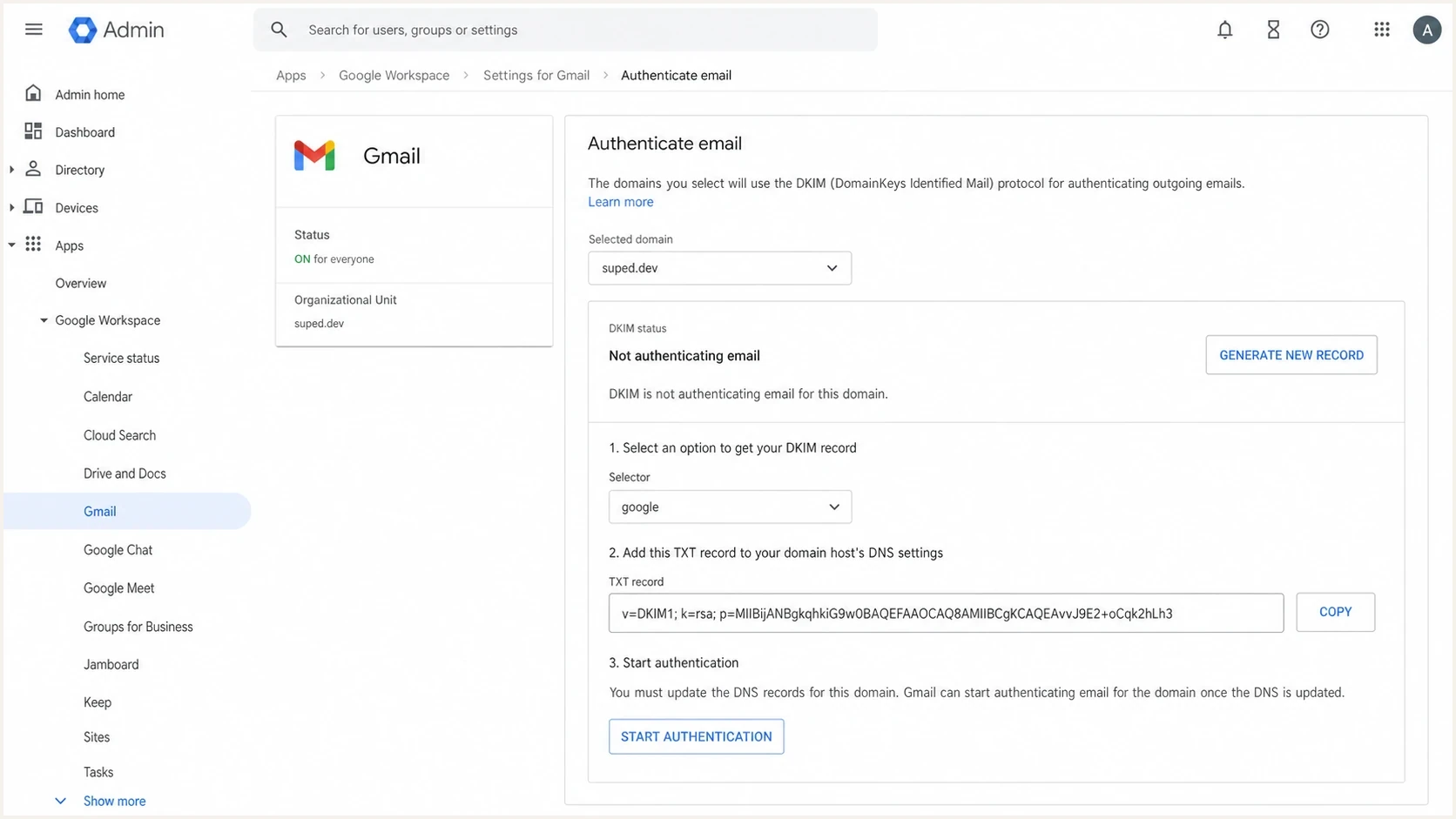
Google Admin console showing DKIM setup for a selected Workspace sending domain.
How domain type changes the result
The domain type in Workspace matters. Google lets you add extra domains as user alias domains or secondary domains. Google explains the difference in its multiple domains FAQ: alias domains give existing users another address, while secondary domains have their own users and mailboxes. That choice changes which identity, Return-Path, and DKIM domain need checking.
|
|
|
|
|---|---|---|---|
Primary | Original users | Low | Start DKIM |
Secondary | Separate users | Medium | Use its own DKIM |
Alias | Same users | Higher | Activate alias DKIM |
Send-as | Per user | Higher | Verify SMTP route |
How Workspace domain type affects outbound authentication.
A secondary domain is usually cleaner for a separate brand or business unit. Users at brand-b.com have accounts at brand-b.com, Gmail is activated for that domain, and the admin can generate DKIM for brand-b.com. A user alias domain is convenient, but the mailbox still belongs to the primary-domain user. Google commonly uses that primary domain in the Return-Path, so SPF can authenticate without aligning to the alias domain in the visible From header.
Secondary domain
- Users: Each domain has its own accounts and mailboxes.
- DKIM: Generate and start a unique key for each domain.
- Use case: Use for separate brands or legal entities.
User alias domain
- Users: Existing users get another address automatically.
- DKIM: Start signing for the alias domain and verify alignment.
- Use case: Use for alternate addresses on the same user base.
How routing settings apply across domains
Adding a secondary or alias domain does not create a separate Gmail policy boundary. Google Workspace scopes configurable Gmail settings to the top-level organization, an organizational unit, or a group rather than to a domain name. This matters when two domains need different outbound gateways or message rules.
- Outbound gateway setting: This applies only at the top-level organizational unit, so it sends mail for the whole account through the configured gateway.
- Routing setting: This can apply to a selected organizational unit and route those users through a separate outbound gateway.
- DKIM setting: This remains domain-specific, so every sending domain still needs its own active key even when users share a routing policy.
If users at brand-b.com need a different gateway, place those users in a child organizational unit and apply a Routing rule to that unit. The secondary domain alone does not change their route. An alias-domain sender follows the organizational-unit settings of the underlying user, so test each alias after a routing change and check whether the gateway preserves the original DKIM signature.
What happens to SPF, DKIM, and DMARC
SPF, DKIM, and DMARC answer different questions. SPF asks whether the sending server is permitted by the envelope domain. DKIM asks whether the message carries a valid signature for a domain. DMARC asks whether an authenticated SPF or DKIM domain aligns with the visible From domain. In a multi-domain Workspace account, DMARC exposes configuration differences that a standalone SPF or DKIM pass can hide.
Example DNS records for each Workspace sending domaindns
example.com. TXT "v=spf1 include:_spf.google.com ~all"

google._domainkey.example.com. TXT "v=DKIM1; k=rsa; p=PUBLIC_KEY"

_dmarc.example.com. TXT "v=DMARC1; p=none; rua=mailto:dmarc@example.com"
Publish DMARC at every organizational domain used in a visible From address. A subdomain normally inherits the organizational domain's DMARC policy unless it publishes its own DMARC record, while the parent record's sp tag can set a separate policy for subdomains. Maintain one SPF record on each envelope domain and merge all authorized senders into that record. For each Workspace sending domain, choose the target domain in the Selected domain menu, generate its own DKIM key, publish the TXT record under that domain, then click Start authentication. After DNS is live, send a real external test message and inspect the full headers.
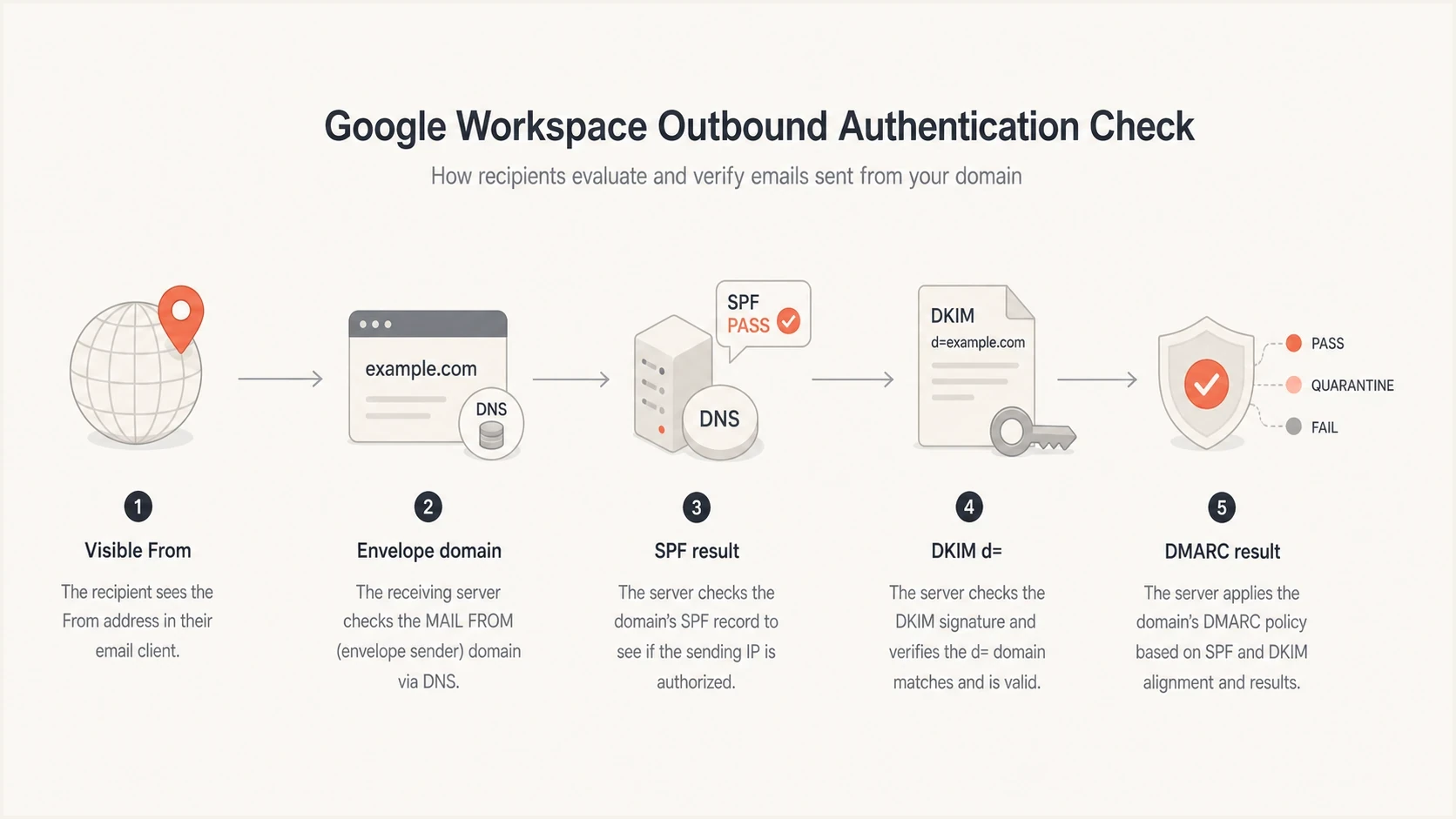
Google Workspace DMARC alignment flow comparing From, Return-Path, SPF, and DKIM.
Header fields to compare
- Visible From: This is the domain DMARC protects.
- Return-Path: This is the envelope domain SPF authenticates.
- DKIM d=: This is the signing domain DKIM authenticates.
- DMARC: This passes when SPF or DKIM authenticates and its domain satisfies alignment rules for the visible From domain.
How DMARC alignment mode changes the result
DMARC uses relaxed SPF and DKIM alignment by default. Relaxed alignment accepts an authenticated domain within the same organizational domain as the visible From address. Strict alignment, set with aspf=s or adkim=s, requires an exact domain match. Separate brand domains remain unrelated for DMARC alignment even when they belong to the same Google Workspace account.
|
|
|
|
|---|---|---|---|
brand-a.com | brand-a.com | Aligned | Aligned |
brand-a.com | mail.brand-a.com | Aligned | Not aligned |
brand-b.com | brand-a.com | Not aligned | Not aligned |
Examples assume the authentication result itself passes.
Test before enabling strict alignment
A subdomain route that passes under relaxed alignment can fail after adkim=s or aspf=s is published. Compare real headers for every Workspace domain, Send mail as route, and outbound gateway before using strict alignment.
Why only some messages fail
The failure percentage is a useful clue. A universal failure points toward DNS or Workspace admin configuration. A partial failure points toward a subset of users, message types, or sending routes. Separate those cases before changing DNS, because a valid DNS record cannot fix a user or application sending through the wrong identity path.
- Send-as route: A Gmail Send mail as identity can use Workspace delivery or a separate SMTP server, so its SPF and DKIM domains depend on the configured route.
- Alias domain: The visible From address uses an alias domain, while the Return-Path commonly remains on the primary domain and does not provide SPF alignment.
- Missing DKIM: The domain was added, but DKIM was never generated, published, or started for that exact domain.
- Gateway edits: A footer, disclaimer, routing rule, or outbound relay changes signed message content after Google applies DKIM.
- Mixed sending: Human and automated messages share a domain but use different Workspace users or routes.
Sales outreach is a common source of confusion. When a sales team uses individual Gmail inboxes for outbound sequences, the technical sender is each mailbox. Per-user Send mail as settings, the configured SMTP route, and domain-specific DKIM status all become part of the authentication chain.
DMARC checker
Look up a domain's DMARC record and catch policy issues.
?/7tests passed
If the domain has a DMARC record but reports show intermittent failure, validate the record first with a DMARC checker. Then inspect real headers for passing and failing samples. The record itself often looks correct; the failing samples reveal an unaligned Return-Path or DKIM d= domain.
Recommended multi-domain setup
Secondary domains usually provide clearer control for brands that need distinct users and sending programs. User alias domains suit alternate addresses on the same user base, but alias-domain mail often relies on DKIM alignment because the Return-Path remains on the primary domain. Use a separate Workspace account only when the business needs administrative isolation that one account and its organizational units cannot provide.
- Inventory: List every domain that appears in a visible From address, including aliases and subdomains.
- Classify: Mark each domain as primary, secondary, user alias, group alias, or per-user Send mail as.
- Map routes: Record whether each identity uses Gmail, an outbound gateway, or another configured SMTP server.
- Publish SPF: Maintain one SPF record on each envelope domain and include every authorized sending source.
- Start DKIM: Generate a unique 2048-bit key for each sending domain where DNS supports it, then start authentication after the record is live.
- Publish DMARC: Start with p=none and reporting, then move through quarantine toward reject after legitimate sources pass.
- Test and monitor: Send mail to external recipients and compare headers for every domain, identity, and route.
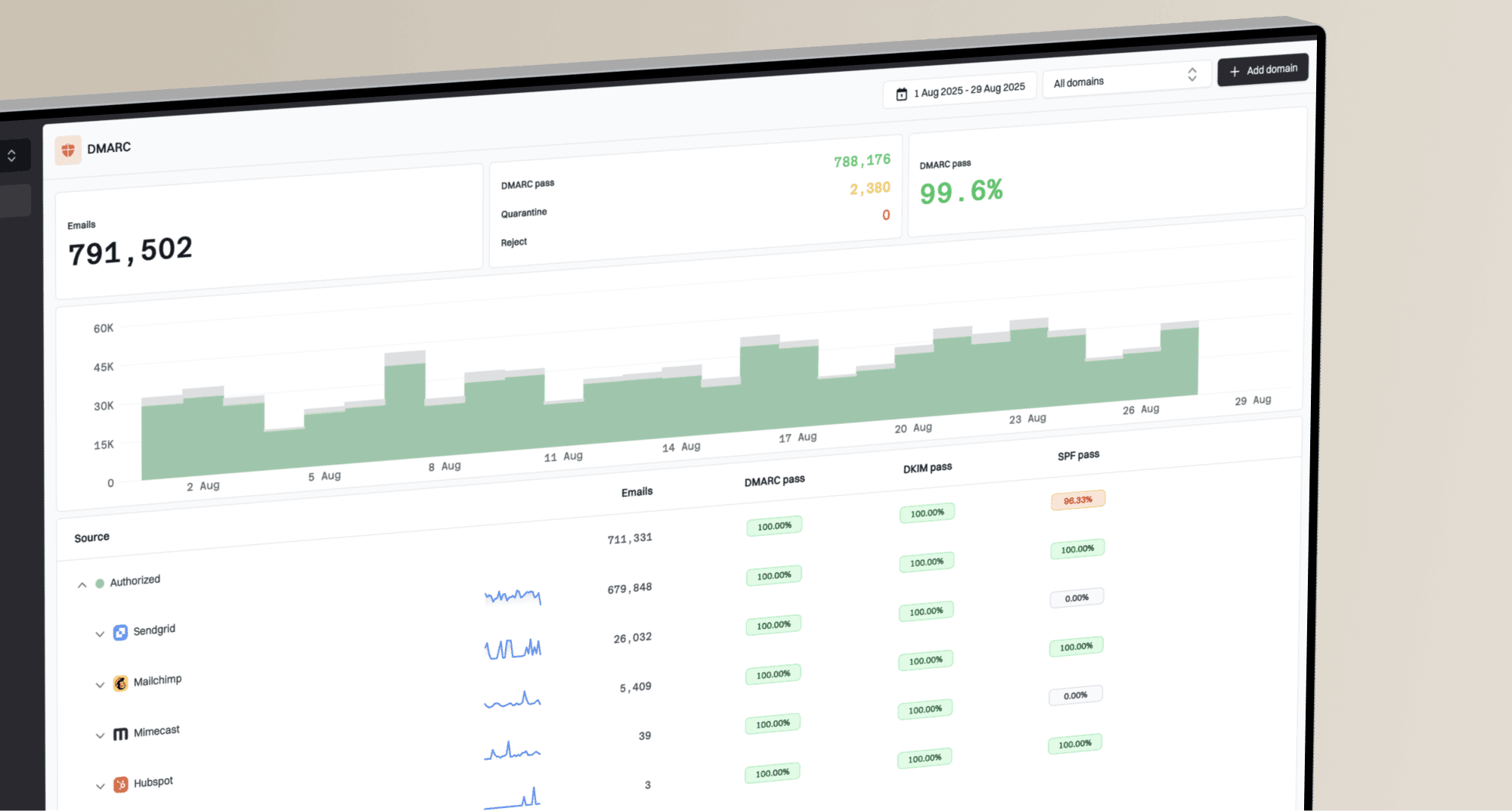
Suped's product turns aggregate XML reports into source and domain views for this workflow. Add each sending domain, group Google Workspace traffic, compare SPF and DKIM alignment by visible From domain, and set alerts for new failure sources. Suped also includes DMARC monitoring, hosted policy management, SPF and DKIM checks, and blocklist monitoring (blacklist monitoring).
Suped DMARC dashboard showing email volume, authentication health, and source breakdown
To resolve intermittent failure, add every sending domain, wait for reports, filter to Google Workspace, and compare pass rates by visible From domain. If one brand shows a DKIM d= value for the primary domain, check the Gmail identity path and selected domain in Admin. If failures share one IP or relay route, inspect gateway handling instead.
If DNS access is slow or split across teams, Hosted DMARC can reduce back-and-forth by moving policy changes into Suped after a one-time DNS setup. This helps when many domains need staged policy changes with a clear rollback path.
Troubleshooting checklist
Keep the investigation grounded in evidence. Do not rely on the From address alone. Pull a passing sample and a failing sample, then compare the same fields in each header.
Passing sample
- From: Confirm the visible domain.
- SPF: Record the authenticated envelope domain.
- DKIM: Record the d= domain and selector.
Failing sample
- User: Identify the mailbox and Send mail as identity.
- Route: Check whether a relay or gateway modified the message.
- Domain: Verify the DKIM key is active for the visible From domain.
After that, check DNS for every domain in one pass. Suped's domain health check is a practical way to validate SPF, DKIM, and DMARC together before spending time on user settings.
Do not force reject too early
If a Workspace account has alias-domain or send-as confusion, moving DMARC straight to p=reject can block legitimate mail. Fix the domain paths, confirm steady reports, then tighten policy.
Views from the trenches
Best practices
Map every visible From domain to its Workspace domain type before editing DNS records.
Generate a separate DKIM key for each domain that sends from Google Workspace mail.
Compare passing and failing headers before changing DMARC policy or SPF records.
Common pitfalls
Treating user alias domains like secondary domains hides per-user send-as issues.
Assuming SPF pass means DMARC pass causes missed Return-Path domain mismatches too.
Starting p=reject before reports are clean can block valid Google Workspace mail.
Expert tips
Use header samples and aggregate reports together to separate DNS from user setup.
Move high-volume outreach to a cleaner domain model with dedicated users if needed.
Check outbound gateway edits when DKIM passes sometimes and fails after routing.
Marketer from Email Geeks says independently added domains usually sign correctly, while mismatches often come from a user sending as another domain inside Gmail.
2021-07-28 - Email Geeks
Marketer from Email Geeks says an alias domain can have its own DKIM setup, but the envelope sender can still trace back to the primary domain.
2021-07-28 - Email Geeks
How to fix intermittent DMARC failures
Google Workspace can authenticate outbound mail for multiple domains, but each sending domain needs a clear identity path and aligned authentication. If mail fails DMARC only sometimes, treat it as a routing and identity problem first. Find who or what sent the failing samples, identify the primary account, alias address, or Send mail as route, then confirm that the visible From domain has an active aligned DKIM signature.
For domains with their own users and sending programs, use a secondary domain and domain-specific DKIM. Keep user alias domains for alternate addresses on the same user base. Maintain one accurate SPF record per envelope domain, monitor DMARC reports, and tighten policy only after every legitimate Google Workspace route passes consistently.