How does Gmail's new spam rate calculation impact email list management and engagement?

Updated on 15 Oct 2026: We clarified Gmail's bulk-sender rules and added practical steps for recovering after a spam rate breach.
Gmail's current documented spam rate is the percentage of DKIM-authenticated messages delivered to engaged recipients' inboxes and then manually marked as spam. Messages Gmail sends straight to spam are not in that denominator unless a recipient marks them as not spam, which causes them to count as inbox-delivered for this metric. This makes list management less forgiving than a sent-volume calculation because the campaign total in the sending platform is not the denominator Gmail reports.
A big list is not safer because it is big. A list with a small engaged core can be riskier than it looks because a few complaints against a smaller Gmail denominator can produce a high reported rate. Google does not publish the raw denominator or define an engaged recipient in terms a sender can reproduce, so do not equate it with a 30-day or 90-day segment in a customer database. Postmaster Tools data applies to personal Gmail accounts, including @gmail.com and @googlemail.com, rather than managed Google Workspace inboxes.
Google's current sender guidelines say to keep spam rates reported in Postmaster Tools below 0.10% and avoid ever reaching 0.30% or higher. Gmail list management therefore needs suppression rules, engagement segmentation, unsubscribe handling, and authentication monitoring to work together.
How Gmail calculates the rate
The important point is the denominator. A common sending-platform calculation divides complaints by accepted or delivered volume. Gmail's documented Postmaster Tools metric divides manual spam reports by DKIM-authenticated messages delivered to engaged recipients' inboxes. The raw recipient-level denominator is not exposed, so use the metric to guide risk decisions rather than trying to recreate an exact campaign calculation.
Sending-platform estimate
- The denominator often uses accepted or delivered campaign volume.
- A large send appears to cushion a small raw complaint count.
- Provider and recipient-activity differences remain hidden.
- The result uses a different denominator from Gmail's daily reported rate.
Documented Gmail metric
- The denominator uses messages delivered to engaged recipients' inboxes.
- The numerator uses recipients' manual spam actions.
- The dashboard rate covers DKIM-authenticated Gmail traffic.
- Mail moved out of spam counts as inbox-delivered for the metric.
Illustrative spam rate exampletext
Reported spam rate (%) = (manual spam reports / DKIM-authenticated messages delivered to engaged recipients' inboxes) * 100

Example A:
10 reports / 100,000 qualifying inboxed messages = 0.010%

Example B:
10 reports / 10,000 qualifying inboxed messages = 0.100%
These examples explain the denominator effect, not a method for reproducing Postmaster Tools. The same 10 reports produce very different percentages when the qualifying inboxed volume changes. A shrinking denominator can make the reported rate worse even when the raw report count stays flat.
Why inactive Gmail subscribers still increase risk
Inactive subscribers still create risk, but do not treat inactivity as a published Gmail formula input. People who no longer expect or want the mail are more likely to ignore it, unsubscribe, or report it as spam. Old lists also accumulate abandoned addresses, weak consent records, and irrelevant contacts. Gmail's engaged-recipient classification remains Gmail's own, while sender engagement segments are practical controls for reducing unwanted mail.
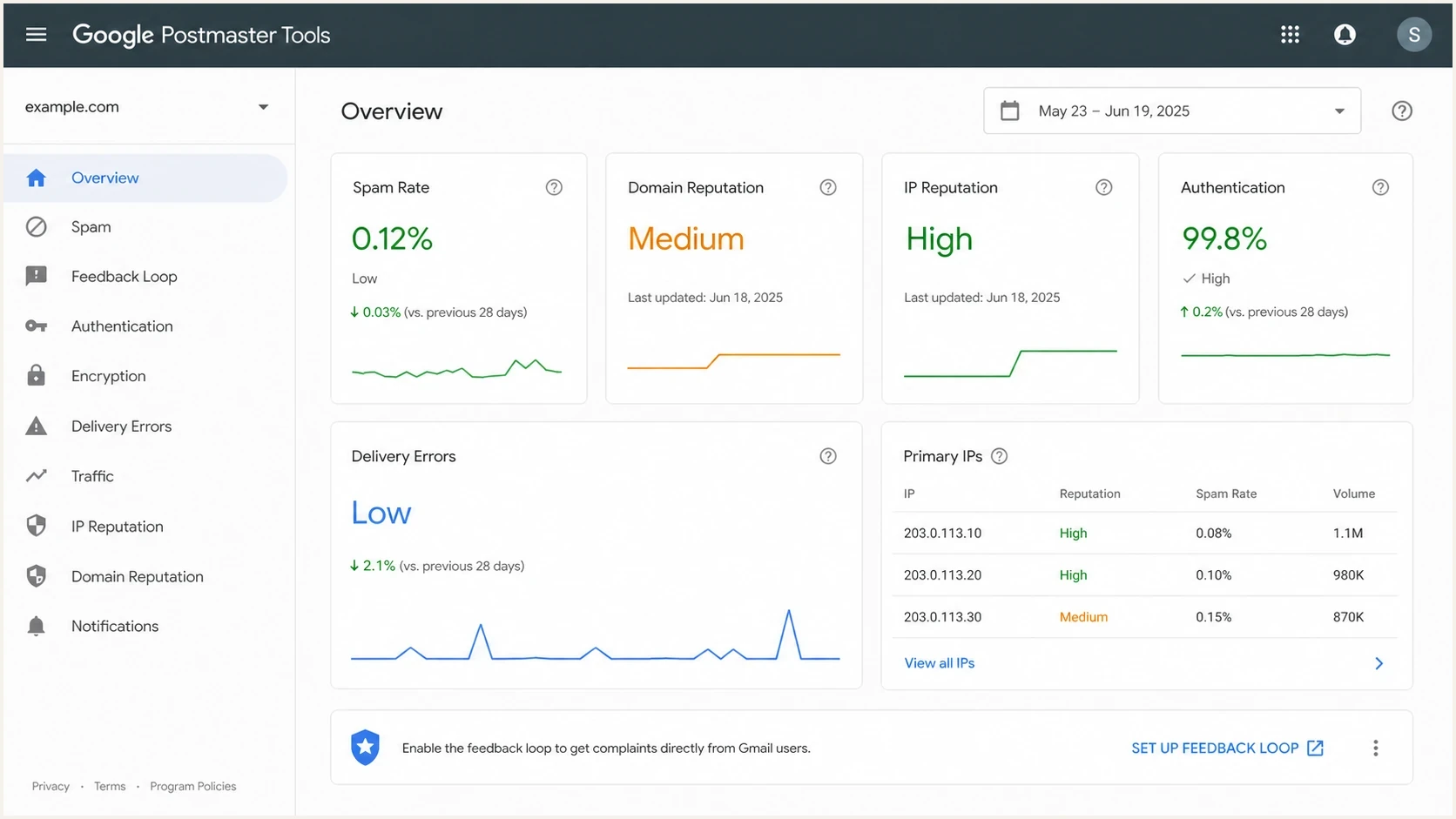
Google Postmaster Tools dashboard with user-reported spam rate, authentication, and domain reputation.
Separate Gmail subscribers into engagement groups before every meaningful send. Recent clicks, site or app use, purchases, reply activity, and preference changes provide better evidence of current interest than a tracking-pixel open alone. Opens remain useful as one signal, but privacy proxies, image prefetching, client caching, and image blocking make them too noisy to control list hygiene by themselves.
|
|
|
|---|---|---|
0-30 days | Normal | Use the normal cadence. |
31-90 days | Reduced | Reduce frequency. |
91-180 days | Paused | Assess consent before sending a limited repermission message. |
181+ days | Suppressed | Review and suppress by default. |
Illustrative sender-defined activity windows, not Google's engagement criteria or risk ratings. Adjust the windows to the normal buying or publishing cycle.
The hidden denominator trap
Do not use total list size to judge Gmail complaint safety. If a campaign sends to 400,000 Gmail addresses but Postmaster Tools uses 40,000 qualifying inboxed messages, 120 reports would equal 0.30% for the documented metric, not the 0.03% suggested by total sends. Gmail does not expose these raw counts, so treat the numbers as an illustration rather than a campaign calculator.
Engagement signals that deserve more weight
Put more weight on actions that show the subscriber still wants the relationship. A click is useful, but it is not the only signal. Product login, recent purchase, form submission, support interaction, event registration, reply, and preference update all show current intent. For publishers, recent article clicks and saved-topic preferences are useful. For B2B senders, account activity and role relevance matter because a person can stop opening email while remaining an active customer. Customer activity does not replace permission to send marketing.
- Use clicks, replies, purchases, logins, preference updates, and form activity as positive signals.
- Treat repeated ignores, hard bounces, complaint history, and unsubscribe friction as negative signals.
- Flag list imports, dormant reactivation, sudden volume jumps, stale lead sources, and broad newsletters for extra review.
- Protect acquisition with confirmed opt-in, signup-source records, clear frequency choices, and visible sender identity.
- Do not send marketing mail to purchased or rented lists because consent and expectations cannot be established reliably.
Engagement controls should be domain-aware. Gmail subscribers need their own suppression and ramp rules because Gmail recipient feedback affects Gmail reputation. Do not let strong performance elsewhere hide a Gmail-specific issue. If Gmail shows medium or low reputation, tighten Gmail segments first instead of cutting every provider equally.
Gmail spam rate operating bands
Use these bands as working rules for daily Gmail monitoring and send decisions.
Healthy
<0.10%
Keep the daily rate below Google's recommended level.
Watch
0.10% to <0.30%
Pause risky segments and inspect recent changes.
Stop and fix
>=0.30%
Stop risky traffic, suppress stale users, and diagnose the source.
No data
N/A
Volume can be too low for privacy-safe reporting.
Use Gmail's Feedback Loop to find complaint sources
Gmail's Feedback Loop adds campaign-level diagnosis to the domain-level spam rate. Large-volume senders can add a Feedback-ID header so Postmaster Tools can report unusual spam rates by campaign, customer group, mail type, or another stable identifier. The data is aggregate and applies only to @gmail.com recipients, so it does not reveal which person complained.
Gmail Feedback-ID header formattext
Feedback-ID: CampaignID:AudienceID:MailTypeID:SenderId
- Choose stable identifiers for campaign, audience source, mail type, or cadence. Keep the required 5-15-character SenderId consistent across the mail stream; the other fields are optional.
- Add the header before DKIM signing, then sign with a domain under your control that is verified in Postmaster Tools. Include only one Feedback-ID header.
- Do not use a unique value for each message. Gmail needs enough volume and distinct spam reports to show an identifier.
- When an identifier spikes, pause that traffic and compare its consent source, content promise, frequency, and engagement window with healthy traffic.
Use fewer identifiers when the dashboard has a high overall rate but no useful campaign rows. Too many sparse IDs can leave each one below Gmail's reporting threshold. The goal is enough separation to find the risky audience or mail type without fragmenting the data beyond use. Gmail does not identify individual complainants, so do not expect these aggregate reports to populate recipient-level suppression automatically.
How to manage Gmail suppression and repermission
The first move is to stop treating reactivation as a normal campaign. Reactivation is a reputation event. Send it in small Gmail-only batches, start with people who showed useful non-open engagement, and stop if complaints rise. If a recipient has not clicked, bought, logged in, replied, or updated preferences for more than 180 days, default to suppression unless the message is a genuine account or service notice. Adjust that window when the normal customer cycle is longer.
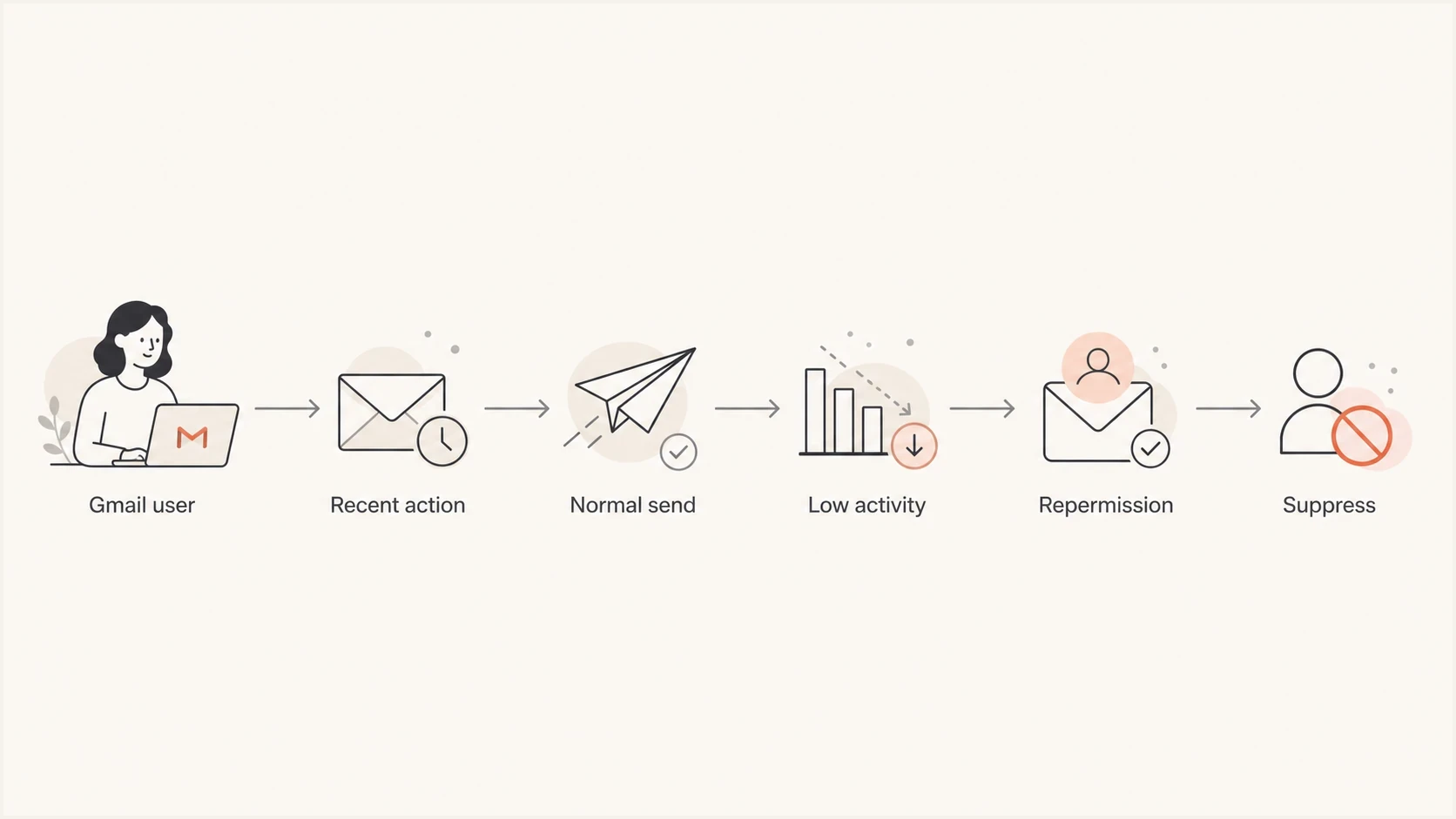
Gmail list management flowchart for engagement, repermission, and subscriber suppression.
- Create Gmail-specific segments for active, cooling, dormant, and suppressed users.
- Base normal sending on recent clicks, replies, purchases, logins, preference changes, or account activity.
- Move cooling users to fewer sends before they become a complaint risk.
- Send a limited repermission message to dormant users only when their existing opt-in supports further marketing contact.
- Suppress marketing for contacts who ignore repermission, unsubscribe, complain, or hard bounce. Do not let list imports or automated resubscriptions override suppression.
Make unsubscribing easier than complaining. Bulk senders must support RFC 8058 one-click unsubscribe for marketing and subscribed mail, include a clear unsubscribe link in the message body, and process requests within 48 hours. Gmail defines bulk sending as close to 5,000 messages or more to personal Gmail accounts in 24 hours, counted across the same primary domain and its subdomains. Once assigned, bulk-sender status is permanent, even if volume falls. Transactional messages such as password resets and purchase receipts are outside that one-click requirement. A preference-page link in the body does not replace the required List-Unsubscribe and List-Unsubscribe-Post headers.
A safer reactivation rule
Send reactivation only to Gmail users who have an existing marketing opt-in and at least one useful non-open signal within a window that fits the customer cycle. For everyone else, use another owned channel, reduce frequency, or suppress. A smaller active list often gives better Gmail delivery than a larger list containing people who forgot why they subscribed.
How to monitor Gmail spam complaints and authentication
Treat Gmail spam rate as a lagging signal and message testing as an early check. Before sending a risky campaign, run the real message through the Suped email tester to inspect authentication, content, and visible deliverability issues. This does not predict the exact Gmail spam rate, but it catches mistakes that create avoidable filtering or recipient confusion.
Email tester
Send a real email to this address. Suped shows a results button when the test is ready.
?/43tests passed
Then compare the test with domain-level health. Use a domain health check to verify the basics before blaming copy or audience quality. SPF, DKIM, DMARC, rDNS, TLS, and sending-domain consistency do not make unwanted mail wanted, but broken authentication removes trust signals Gmail expects from legitimate senders.
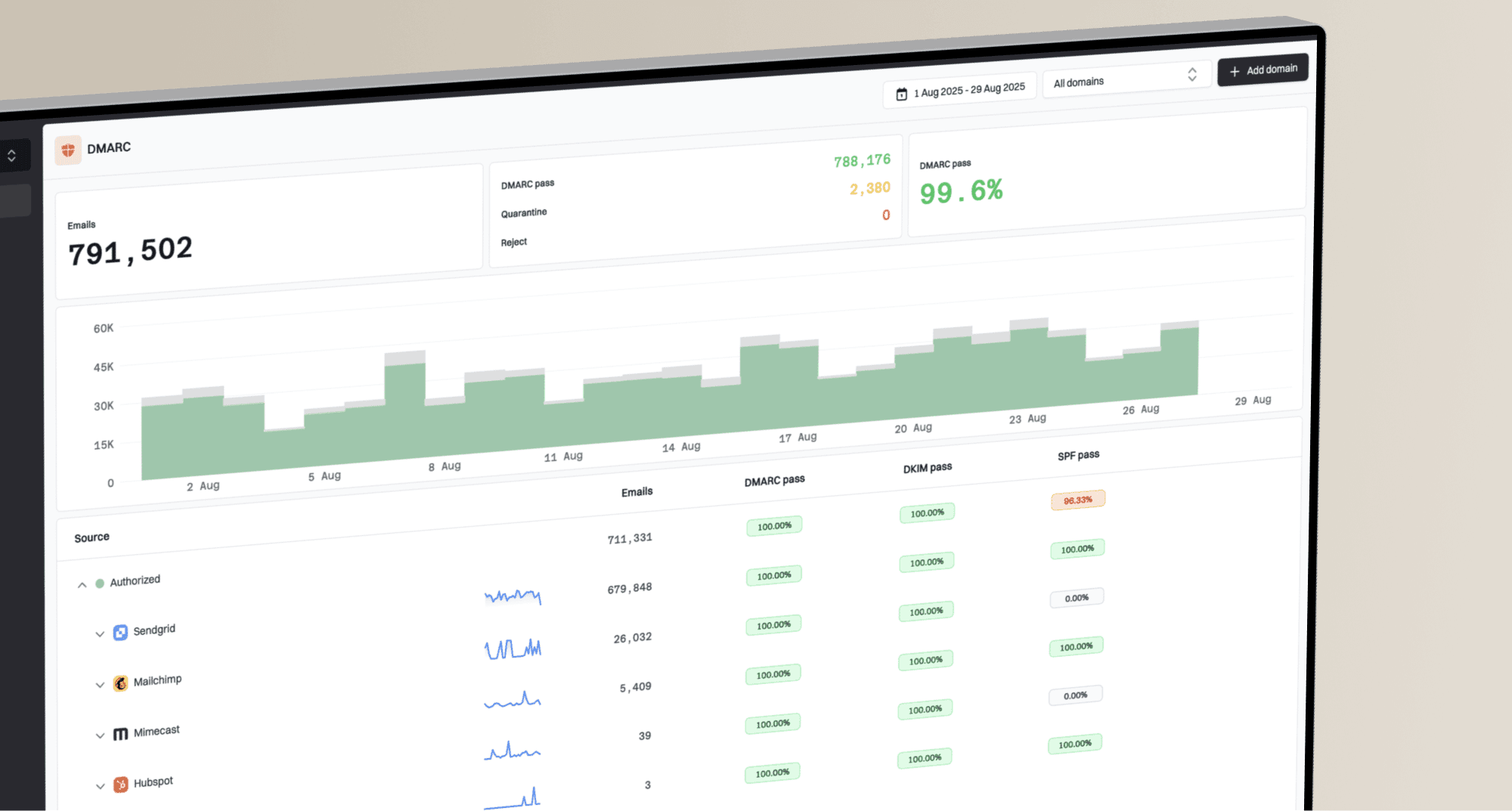
Suped's DMARC reporting platform helps identify sending sources and authentication failures. Use those reports alongside Gmail complaint data to investigate whether a new sending source or authentication failure accompanied a spam rate spike. DMARC reports do not contain Gmail user-reported spam rates.
Issues page showing top issues, verified sources, unverified sources, and authentication pass rates
In Suped, watch verified and unverified sources, fix authentication failures, and keep DMARC reporting connected to the sender inventory. If a new platform starts sending without DKIM or with a mismatched From domain, identify it before making list-wide changes. Suped's DMARC monitoring keeps reports, issue detection, and remediation steps in one workflow.
How to read Gmail spikes without overreacting
A single high day does not prove the whole program is broken, but the next send still needs discipline. Check who received the mail, what changed, which traffic reached Gmail inboxes, and whether authentication or infrastructure changed. If a spike followed a dormant-list campaign, start with list suppression. If it followed a sender change, check authentication and domain identity alongside whether recipients recognize the sender.
|
|
|
|---|---|---|
Dormant send | Weak consent | Suppress stale users. |
New sender | Unfamiliar sender identity | Check sender recognition and authentication. |
Volume jump | Poor ramp | Throttle Gmail traffic. |
High exits | Audience mismatch | Change targeting. |
Fast diagnosis for Gmail spam rate changes.
Read daily points with their reporting limits. Postmaster Tools uses UTC, updates data daily with a typical delay of up to 24 hours or longer, and can omit low-volume data for recipient privacy. A very low rate is not proof of strong inbox placement because mail Gmail sends straight to spam gives recipients fewer chances to report it. The compliance view uses a rolling average; Google recommends checking it again after seven days, without promising that every issue will clear within that period.
Compare Gmail-specific response rather than blended program averages. A blended dashboard can hide a Gmail problem because Gmail recipients behave differently and Gmail tracks its own reputation signals. For a deeper explanation of the denominator and Postmaster wording, see the page on active users. For a threshold reference, compare results with a good spam rate operating model.
Do not chase opens
Open rate can support creative testing inside the sending system, but it should not be the main Gmail reputation control. Use stronger engagement signals, direct complaints, unsubscribes, bounces, Feedback Loop patterns, Postmaster Tools trends, and authentication health.
How to recover after a Gmail spam rate breach
Google's Email sender guidelines FAQ says bulk senders above 0.30% are ineligible for delivery mitigation. Eligibility returns after the spam rate stays below 0.30% for seven consecutive days and the sender meets the other requirements. This support rule does not promise inbox placement or a seven-day reputation recovery.
- Pause the Gmail campaign or audience segment associated with the spike. Check Feedback-ID patterns and recent acquisition sources before the next marketing send.
- Suppress unwanted marketing traffic, test the unsubscribe path, and correct sender-identity or authentication problems discovered during the review.
- Resume wanted marketing in small, steady batches to recently engaged subscribers. Expand cautiously while targeting a daily spam rate below 0.10%.
- Review each reported day alongside delivery errors and domain reputation. Do not treat missing dashboard data as proof of recovery.
Keep Gmail list quality and authentication connected
Focus Gmail list management on subscribers who still want the messages. Suppress stale Gmail users sooner, make unsubscribe easy, ramp volume carefully, watch Postmaster Tools and Feedback Loop data, and keep authentication clean across every sender.
Keep consent records and suppression rules in the audience system, and use Suped to review authentication when a sending source changes.