Why does the unsubscribe button not always appear in Gmail emails?

Published 31 Jul 2025
Updated 23 Jun 2026
13 min read
Summarize with
Updated on 25 Jun 2026: We updated this guide for Gmail's current one-click unsubscribe expectations, mailto token handling, and the sender trust signals that affect button visibility.
Gmail does not show the unsubscribe button for every marketing email because the button is a Gmail interface choice, not proof that the sender included or missed an unsubscribe link. The usual answer is this: Gmail needs a valid List-Unsubscribe header, an HTTPS one-click path with List-Unsubscribe-Post where required, a mail stream Gmail trusts enough, and inbox or Promotions placement. If the message is in spam, if the sender reputation is weak, if authentication is inconsistent, if the visible opt-out path is missing or hard to use, or if the header is malformed or stripped by the MTA, Gmail can hide the button even when the visible email body has an unsubscribe link.
Treat this as a signal problem first, then a header problem. If some campaigns show the Gmail unsubscribe button and some do not, compare them as separate streams. Different IPs, From domains, DKIM domains, tracking domains, templates, suppression logic, complaint patterns, account age, and recent volume changes can lead Gmail to make different interface decisions. Honored body-link unsubscribes matter too, because they reduce complaint pressure while Gmail evaluates the stream.
The direct answer
The unsubscribe button appears near the sender name in Gmail when Gmail decides the message is a bulk or promotional email that has a usable header-level unsubscribe mechanism and comes from a sender stream that does not look risky. That decision is not guaranteed, and Gmail does not expose one public switch that forces the button to render for every recipient. New, low-volume, or recently changed streams often need enough Gmail history before the button appears consistently. A sender that has just added correct headers should still keep the visible unsubscribe path clear and working while Gmail builds that history.
- Header present: The delivered message needs a List-Unsubscribe header with a working mailto or HTTPS option.
- One-click present: Large senders sending 5,000 or more messages a day to personal Gmail accounts need one-click unsubscribe support for marketing and subscribed messages. For Gmail, that means a supported HTTPS path, not mailto alone.
- Body link present: Gmail's header button does not replace the visible unsubscribe link people use inside the email, and those body-link opt-outs need to be honored too.
- Reputation acceptable: Gmail tends to hide quick unsubscribe controls for low-trust mail streams.
- Placement matters: Messages in spam generally do not get the same convenience UI as inboxed mail.
- Rendering varies: The same sender can see different Gmail behavior across campaigns and recipients.
Do not use the Gmail button as your only compliance check. Marketing, newsletter, lifecycle, and cold outreach email still need a clear unsubscribe link in the message body, and the unsubscribe process still needs to work when Gmail does not add its own button. A missing or hidden opt-out path pushes frustrated recipients toward spam complaints.
What Gmail checks before showing it
The header is the starting point. Gmail cannot create a proper header-level button if the message has no List-Unsubscribe header. The body unsubscribe link alone is not the same thing. A footer link helps subscribers and compliance, but Gmail's button is driven by message headers and Gmail's trust evaluation.
Header exampletext
List-Unsubscribe: <mailto:unsubscribe@example.com>,
 <https://example.com/unsubscribe/abc123>
List-Unsubscribe-Post: List-Unsubscribe=One-Click
The second check is whether the header is usable. A broken URL, an HTTP endpoint that returns an error, an unsubscribe URL that demands login, an HTTPS one-click endpoint that does not accept POST, or a mailto address that bounces gives Gmail less reason to show the button. One-click unsubscribe uses the HTTPS unsubscribe URL, should accept Gmail's POST request, and should suppress promotional mail without requiring the recipient to confirm preferences, sign in, or solve a challenge. A mailto option can still be useful as a fallback, but mailto alone does not satisfy Gmail's one-click requirement for bulk promotional sends.
The third check is trust. Gmail looks at the sending stream, not only the one message. If a campaign has high complaints, low engagement, spam placement, inconsistent identity, or authentication failures, Gmail can decide that adding a quick UI action is not appropriate. That caution also limits abusive senders that add unsubscribe headers to confirm active mailboxes.
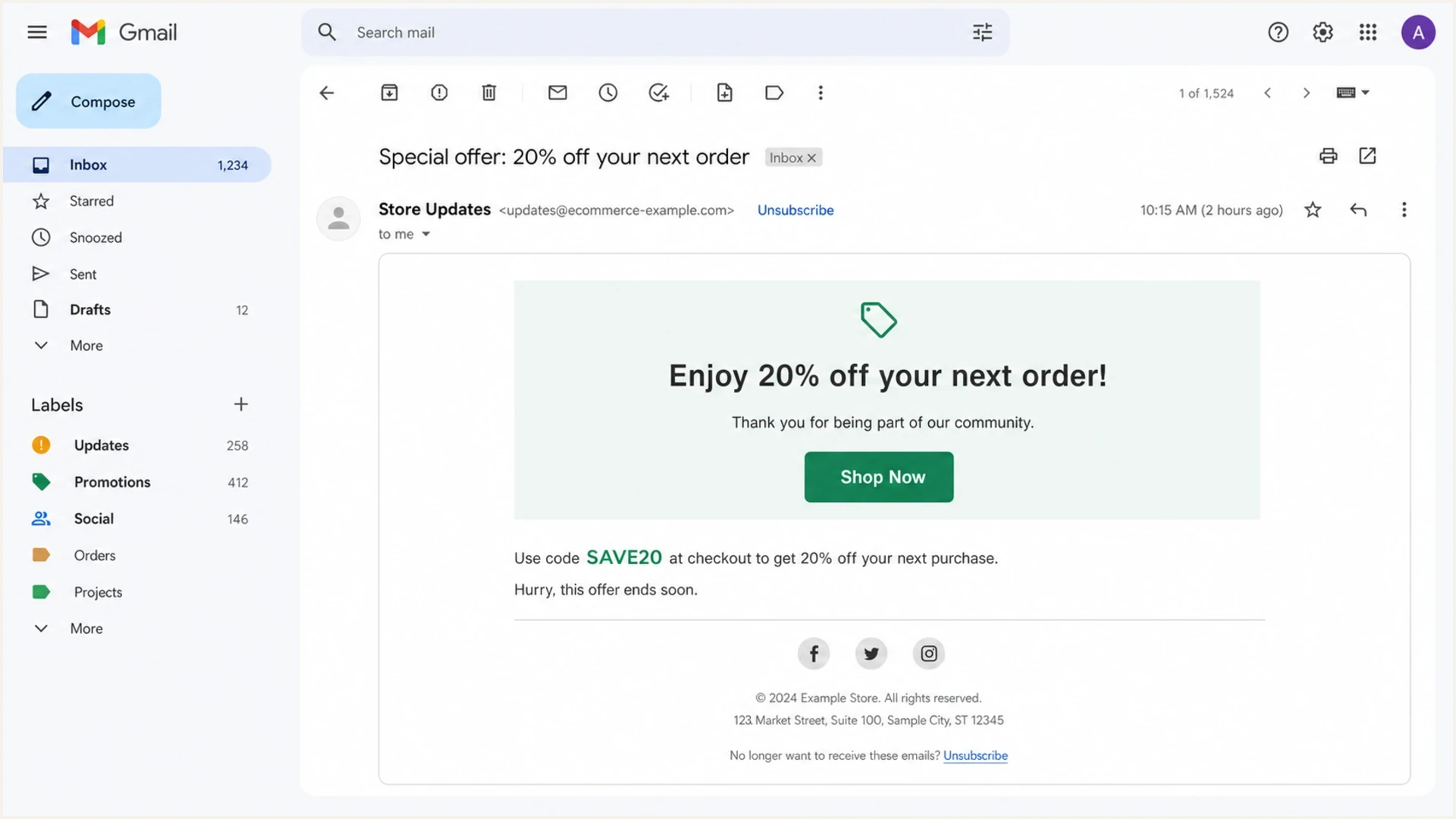
Gmail message view showing the unsubscribe button near the sender line and a footer unsubscribe link.
Message button versus subscription manager
Gmail also has a Manage subscriptions area that groups frequent senders and lets users unsubscribe from a central Gmail view. That is separate from the small button next to the sender name inside an individual message. A sender can appear differently across those surfaces because Gmail evaluates account UI, message placement, sender history, and the delivered unsubscribe headers.
The subscription manager can list active subscriptions by sending frequency and send unsubscribe requests on the user's behalf. That still does not prove every individual message will show the sender-line button. Both surfaces depend on Gmail's own classification and the sender's ability to honor the unsubscribe request.
Do not diagnose the sender-line button from the subscription view alone. For sender compliance and deliverability, the delivered message still needs a clear footer unsubscribe link, a valid List-Unsubscribe header, and, for large Gmail sender streams, a working one-click HTTPS flow.
Why it appears in some campaigns only
When the button appears on one campaign but not another, do not assume Gmail is inconsistent for no reason. Check whether the campaigns are truly using the same mail stream. Marketing teams often change more than they think between sends.
|
|
|
|---|---|---|
Header | Missing or malformed | Show original |
IP pool | Different reputation | Source split |
From domain | Different identity | DMARC match |
DKIM | Different signer | Pass and domain |
Volume change | New sender history | Ramp pattern |
Placement | Inbox or spam | Recipient tests |
Common reasons the Gmail unsubscribe button differs by campaign.
A common pattern is a valid header on all campaigns, but weaker reputation on one sender, customer segment, or IP pool. Gmail still receives the header. It simply chooses not to display the quick action. That difference often tracks with spam placement, weaker engagement, higher complaint rates, abrupt volume changes, or a new From domain that has not built Gmail history. Another mailbox client can show an unsubscribe control for the same message while Gmail withholds it, so use Gmail's delivered source and Gmail placement for the diagnosis.
Header problem
- Missing header: The message has no List-Unsubscribe field.
- Bad syntax: Angle brackets, commas, or wrapped lines are broken.
- MTA change: A relay strips or rewrites the header before delivery.
Reputation problem
- Low trust: Gmail receives the header but hides the button.
- Spam placement: The campaign lands outside normal inbox or Promotions handling.
- Identity drift: SPF, DKIM, or DMARC passes on a domain users do not recognize.
How to check the actual delivered message
The fastest practical check is to inspect the delivered Gmail message, not the template preview, test-mode send, or ESP send log. Open the message in Gmail, use Show original, then search for List-Unsubscribe. The delivered copy is the record that matters because MTAs and relays can add, drop, fold, or rewrite headers after your application generated the message.
- Send a real copy: Use an actual campaign or production-equivalent seed send, because some systems do not attach unsubscribe headers to test emails.
- Open Gmail: Open the exact campaign copy that did not show the button.
- Use Show original: Open the full message source, then search the headers.
- Find the field: Look for List-Unsubscribe, List-Unsubscribe-Post, and a HTTPS URL.
- Compare campaigns: Compare a campaign that shows the button with one that does not.
- Test the endpoint: Confirm the mailto or HTTPS endpoint handles a real unsubscribe request.
If the header exists but only includes mailto, it can still support a Gmail mailto path, but it is not the same as one-click compliance for bulk promotional mail. The one-click check needs the HTTPS unsubscribe URL and List-Unsubscribe-Post in the delivered headers.
For a quick delivered-message inspection, send a real campaign seed to Gmail and run the received copy through Suped's email tester. This helps separate template assumptions from what Gmail actually received.
Email tester
Send a real email to this address. Suped opens the report when the test is ready.
?/43tests passed
Preparing test address...
Authentication and reputation affect the button
Gmail's unsubscribe UI is tied to trust. That is why DMARC, SPF, and DKIM checks matter even when the immediate symptom looks like a missing button. Passing authentication does not guarantee the button, but failing authentication or passing on unrelated domains gives Gmail a weaker identity signal.
Start with the visible From domain. SPF should pass for the bounce path or sending source, DKIM should pass with a domain tied to the sender identity, and DMARC should pass when SPF or DKIM authenticates a domain that matches the visible From domain. Also check reverse DNS or PTR, TLS, RFC 5322 message formatting, low Gmail-reported spam rate, and domain or IP reputation, because Gmail evaluates the stream as a whole. Suped's domain health checker is useful here because it checks the public DNS pieces that support that identity.
A campaign can have SPF pass and DKIM pass but still fail DMARC if neither authenticated domain matches the visible From domain. That mismatch can weaken trust even though the raw authentication results look green at first glance.
For high-volume Gmail senders, treat a 0.3% user-reported spam rate as a hard risk threshold and aim below 0.1%. Complaint control matters because Gmail's eligibility checks look beyond the List-Unsubscribe syntax.
For ongoing monitoring, Suped's DMARC monitoring helps connect authentication results to actual sending sources. That is more reliable than spot-checking one message because you can see which sources pass, which sources fail, and where unauthenticated or unknown traffic appears. Do not use open rate alone to diagnose Gmail trust. It can be noisy and does not prove whether Gmail will show the unsubscribe button.
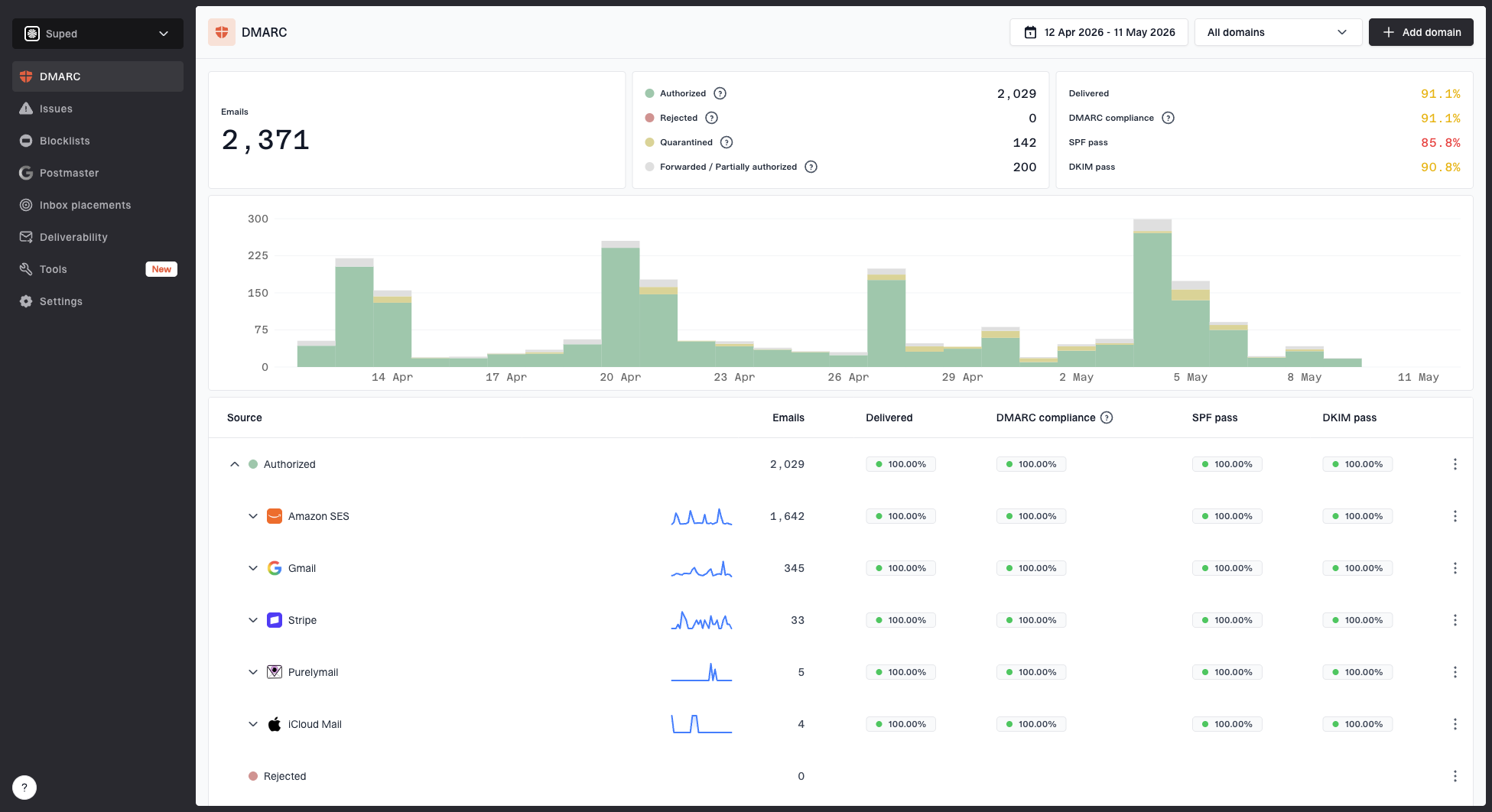
Suped DMARC dashboard showing email volume, authentication health, and source breakdown
A practical troubleshooting path
This order avoids guessing. First prove what Gmail received. Then prove the unsubscribe endpoint works. Then compare the mail stream reputation indicators between campaigns.
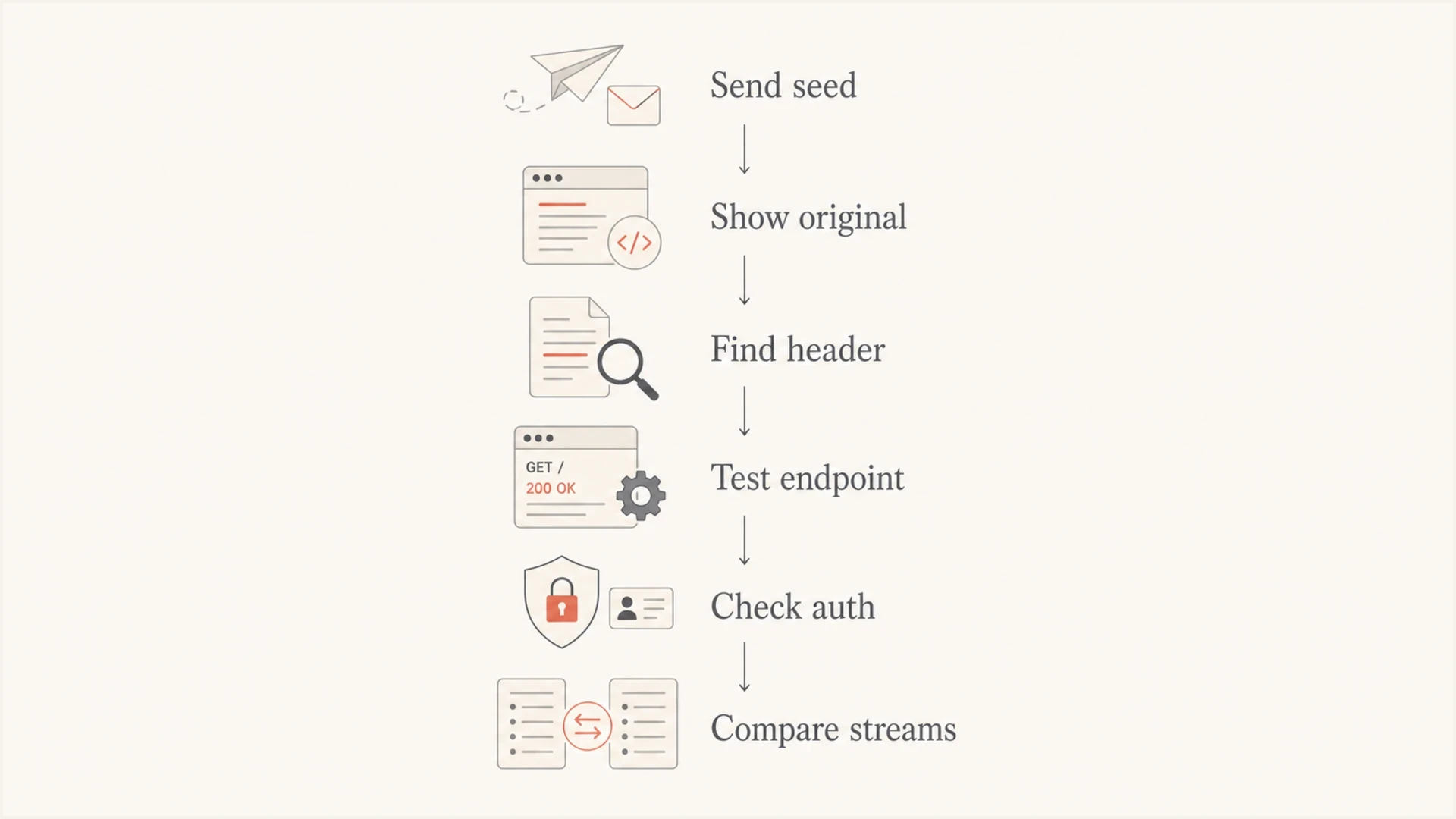
Flowchart for troubleshooting a missing Gmail unsubscribe button by checking headers, endpoint, authentication, and streams.
If the header is missing, fix the sending application or MTA configuration. Some systems let users disable the header, some test sends omit it, and some relays accept fully formed SMTP and pass through whatever the customer sent. That can produce campaign-to-campaign variation inside one sending platform.
If the header is present and works, move to reputation. Compare Gmail placement, complaint rate, bounce rate, audience source, IP pool, DKIM signing domain, sending cadence, and recent infrastructure changes. A campaign sent to stale or poorly permissioned addresses can lose the button even when another campaign on the same account keeps it.
If users keep receiving promotional email after they unsubscribe, check suppression handling before changing Gmail-specific settings. Imports, campaign-only preference tables, related-brand lists, and manual uploads can bypass the master suppression list and turn a working Gmail request into a complaint problem.
Where to focus first
Use these thresholds as practical triage signals when Gmail hides the button.
Header missing
Critical
Fix message generation or relay rules first.
Endpoint broken
Critical
Repair mailto or HTTPS handling before retesting.
Spam placement
High
Treat this as a reputation issue.
Header present
Investigate
Compare authentication and stream quality.
Where opt-outs actually get honored
Gmail does not remove someone from your database. When a user clicks Gmail's unsubscribe control, Gmail passes the request to the sender through the header mechanism. That request can be an HTTPS one-click POST or, where Gmail uses a mailto path, an unsubscribe email sent on the user's behalf. The sender still has to write that event into the right suppression system and stop future promotional mail.
For mailto unsubscribes, do not use the inbound From address as the subscriber identity. Forwarding, aliases, shared mailboxes, and mailbox migrations can make the request come from a different mailbox than the address that received the campaign. Put an opaque signed token in the mailto address, subject, or HTTPS URL so the request maps to the original recipient, list, message, and unsubscribe scope.
If people keep getting campaigns after using the Gmail button, check the same failure points that break normal opt-outs: token parsing failures, ESP migrations, CRM imports, campaign-only preferences, related-brand list sharing, and manual uploads that bypass the master suppression list. For Gmail bulk sender expectations, fulfill unsubscribe requests within 48 hours and make the action idempotent so repeated requests do not break the record.
Where Suped fits
The missing Gmail button is usually a symptom, not the only problem to solve. Suped's product helps teams monitor DMARC, identify sending sources, catch SPF and DKIM issues, and connect those signals to deliverability and blocklist (blacklist) risk.
- Issue detection: Suped turns DMARC failures and source changes into specific steps to fix.
- Real-time alerts: Teams get notified when authentication failures cross practical thresholds.
- Hosted SPF: Sender changes can be managed without constant DNS edits.
- Hosted DMARC: Policy staging is easier when teams need to move carefully.
- Blocklist monitoring: Domain and IP reputation checks sit beside authentication data.
This matters because Gmail's unsubscribe button is influenced by the full sending picture. A one-message header check tells you whether the field exists. Suped helps maintain the identity and reputation foundations that make Gmail trust the stream more consistently.
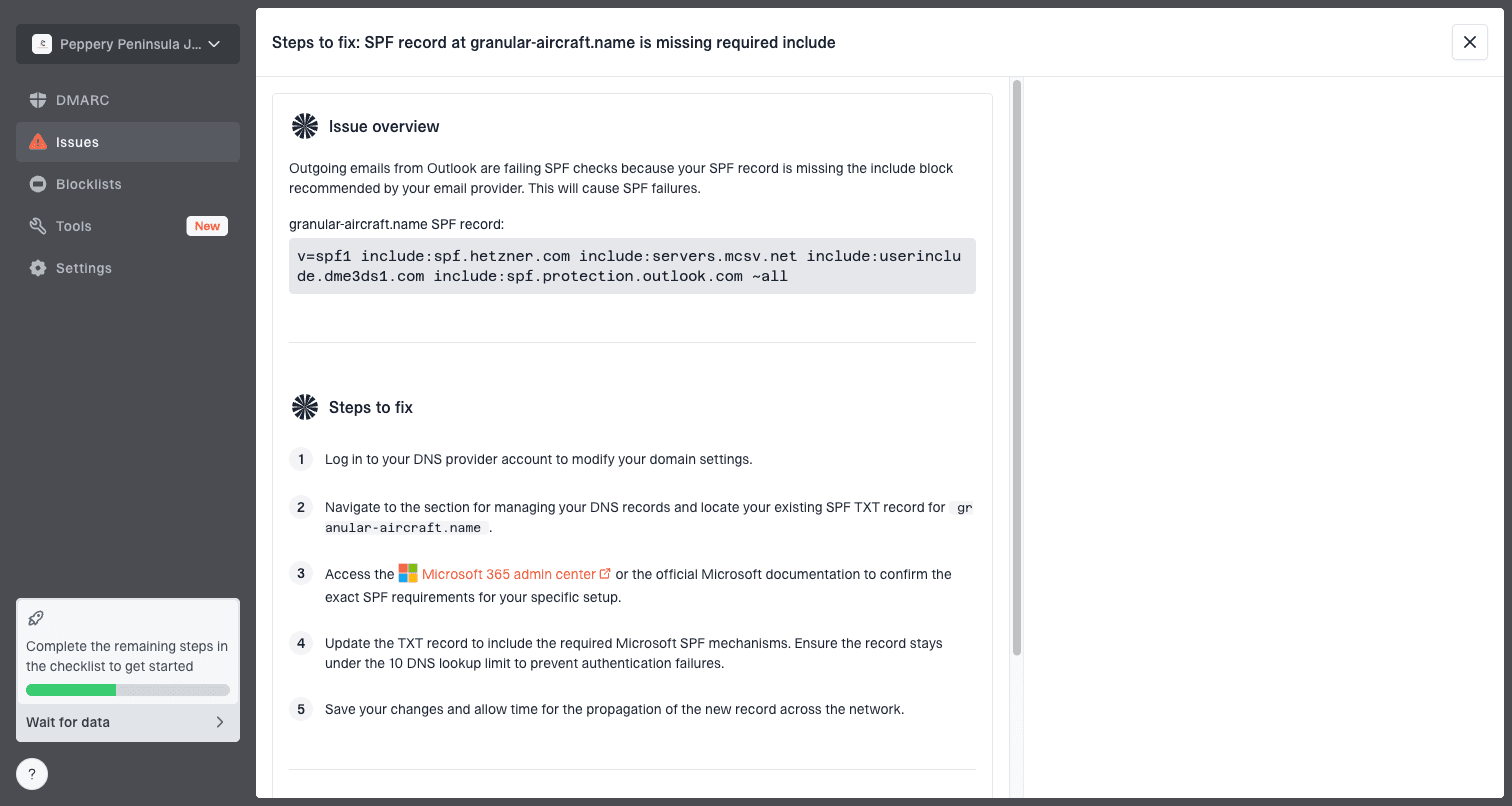
Issue steps to fix dialog showing the issue overview, tailored fix steps, and verification action
Views from the trenches
Best practices
Check delivered headers in Gmail before changing templates or sender settings first.
Compare sender reputation by campaign, IP pool, From domain, and audience source.
Keep body unsubscribe links clear even when header unsubscribe works correctly too.
Common pitfalls
Assuming Gmail will show its button whenever a footer unsubscribe link exists today.
Checking generated headers only, while a relay drops or rewrites the field in transit.
Treating SPF pass as enough when DMARC domain matching still fails for the From.
Expert tips
Test one good campaign and one bad campaign side by side in the same Gmail account.
Track complaint spikes after sends because they affect trust faster than teams expect.
Separate transactional and marketing streams so weak campaigns do not share identity.
Marketer from Email Geeks says Gmail is more likely to show the button when the stream has the header and the message lands in inbox or Promotions.
2020-10-06 - Email Geeks
Marketer from Email Geeks says missing buttons often trace back to low reputation on the sender stream rather than a missing unsubscribe header.
2020-10-07 - Email Geeks
The clean answer
The Gmail unsubscribe button is not guaranteed. Gmail shows it when the delivered message has a valid header-level unsubscribe mechanism and the sender stream has enough trust. If the header is missing, fix the sender or MTA. If the header is present, test the endpoint, then investigate reputation, placement, authenticated domain matching, complaints, and list quality.
The most useful workflow is simple: inspect the delivered headers, compare a working campaign against a non-working campaign, and monitor the authentication and reputation signals over time. Keep the visible unsubscribe link clear, honor opt-outs quickly, and watch complaint and blocklist or blacklist signals so a Gmail UI issue does not become a wider reputation issue.