Google Postmaster Tools V2: "Manage Domains" is Now Live!
News

Google Postmaster Tools V2 now has a live Manage Domains area. The practical answer is simple: this is the place to add sending domains, verify ownership, see which domains are already available to your account, and manage user access without relying on the old interface.
That matters because domain administration was one of the pieces that made the V2 migration feel unfinished. A sender can now move more of the daily workflow into V2, but this release does not bring back the old Domain Reputation or IP Reputation dashboards. I treat the reputation removal as a separate change that still requires monitoring outside Postmaster Tools.
- Main change: Manage Domains gives V2 a proper admin surface for verified domains and access control.
- Main limit: It is not a complete deliverability monitoring system, and it only reports Gmail-specific data.
- Best next step: Add every real sending domain, confirm SPF, DKIM, and DMARC domain matching, then keep watching issues over time.
- Where Suped fits: Suped's product gives the broader workflow: DMARC monitoring, SPF and DKIM visibility, hosted records, alerts, and issue-level fixes.
What Manage Domains does now
Manage Domains is the V2 home for domain inventory. It has a concrete job: show which domains are connected to the current Google account, which domains still need verification, and who has access. For anyone managing more than one sending domain, that removes a lot of manual checking.
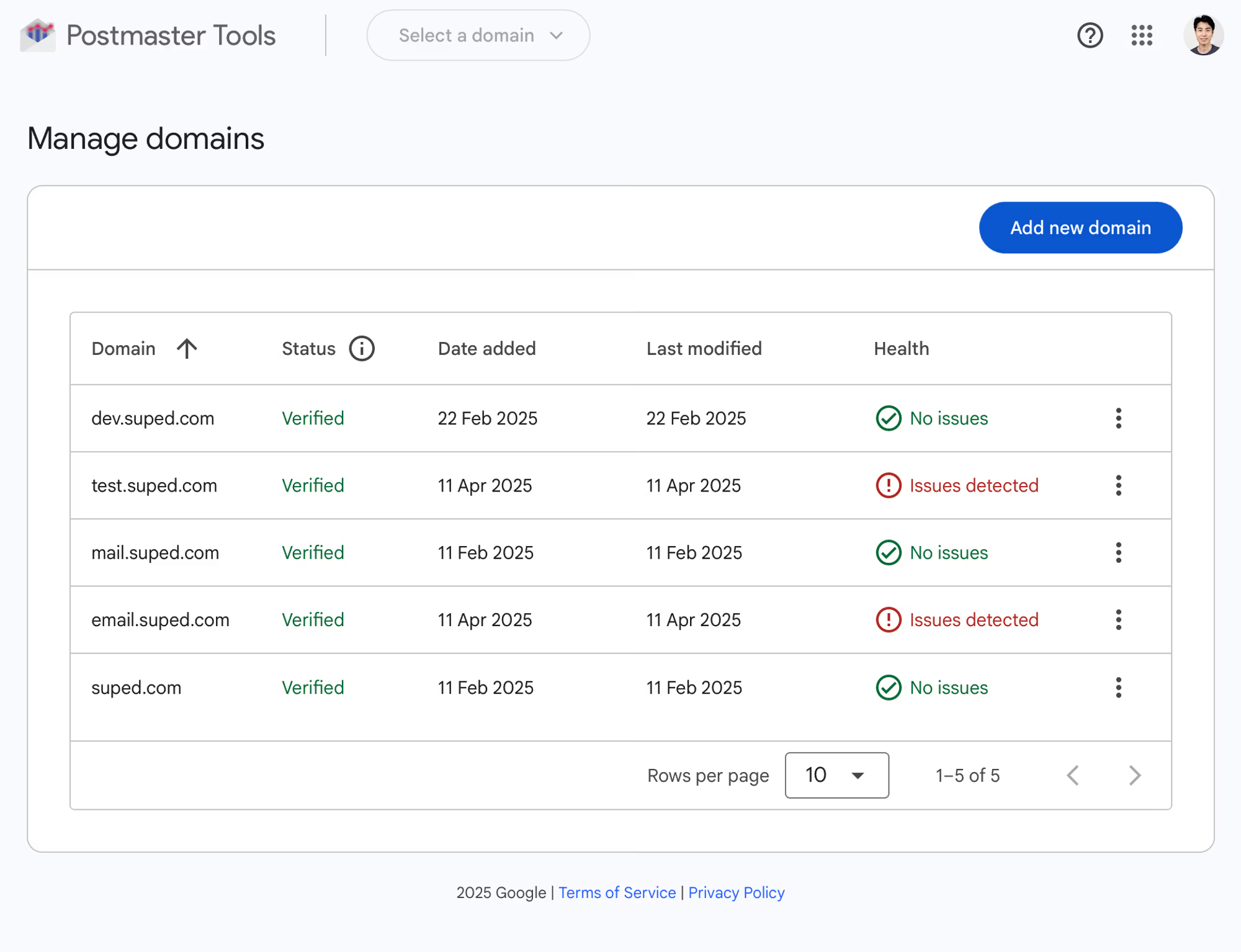
Google Postmaster Tools V2 domain list with verified domains and domain actions.
The useful part is not cosmetic. The useful part is that domain ownership and delegated access now sit closer to the V2 dashboards. If a marketer, agency operator, or deliverability lead needs read access, the owner can manage that access from the domain row instead of sending screenshots or sharing one Google account.
|
|
|
|---|---|---|
Domain list | Shows connected domains | Reduces account confusion |
Verification | Checks DNS ownership | Unlocks dashboard data |
User access | Adds Google accounts | Supports shared operations |
Domain actions | Opens domain controls | Speeds admin reviews |
Compact view of the new Manage Domains workflow
How to use Manage Domains correctly
The right setup starts with the domain that authenticates the mail, not necessarily the visible brand domain in the From address. Google says you can add the DKIM signing domain or the SPF return-path domain. In practice, I add the organizational domain first, then add sending subdomains when they carry their own volume, authentication, or operational ownership.
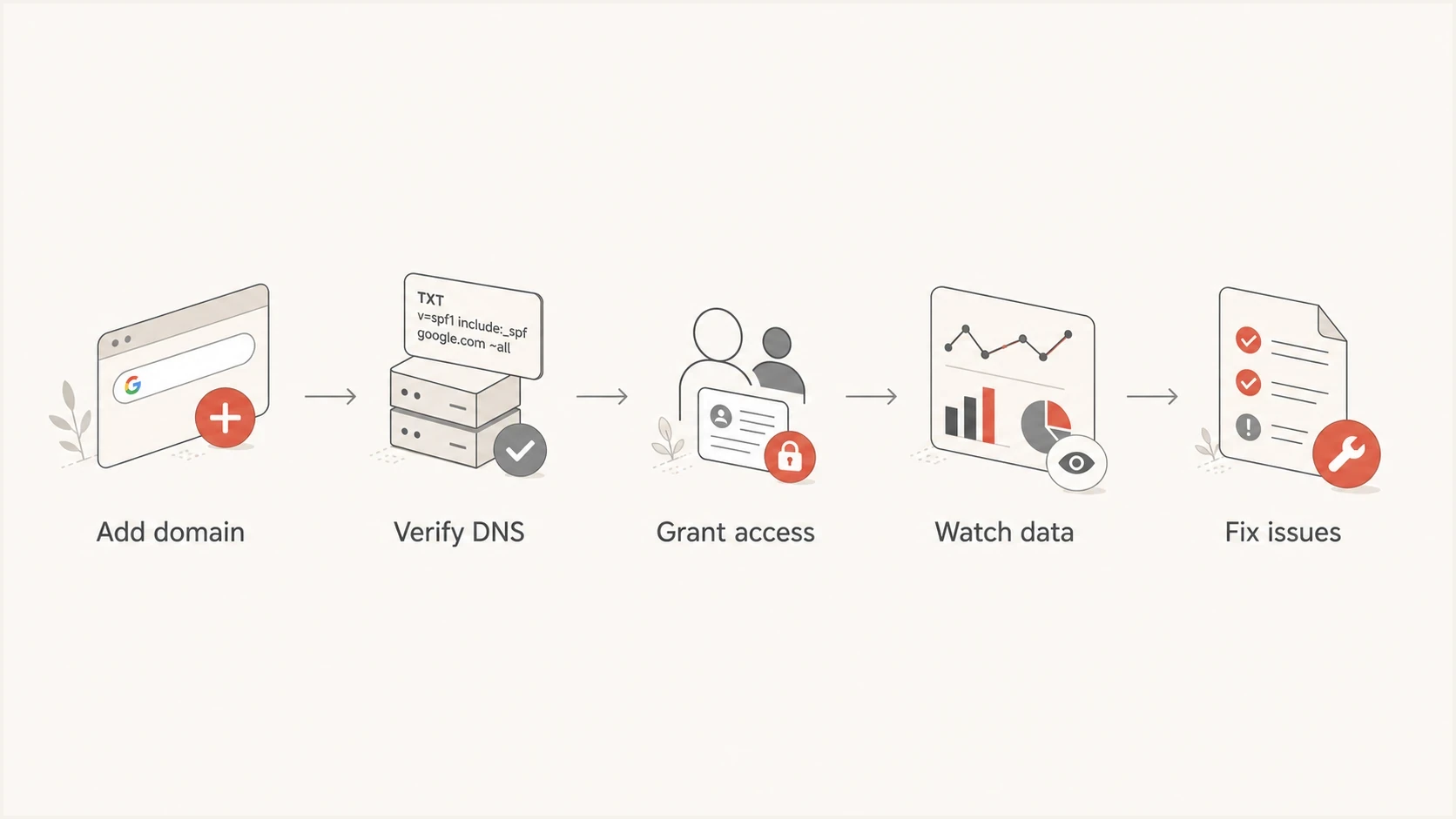
Flowchart showing the Manage Domains setup path: add, verify, grant access, watch data, and fix issues.
- Add the real sender: Use the domain that appears in DKIM or the SPF return path, then include subdomains that send enough Gmail traffic to justify separate monitoring.
- Verify DNS ownership: Publish the Google verification record exactly as provided, then wait for DNS to propagate before retrying verification.
- Add the right people: Give access to the people who maintain email infrastructure, not every person who reads campaign metrics.
- Record ownership: Keep a separate internal note of the owner account, backup owner, and verification method so the domain does not become orphaned.
- Audit quarterly: Remove old agency, contractor, and employee accounts before access drift becomes a security problem.
Authentication records to confirm before trusting V2 dataDNS
_dmarc.example.com TXT
v=DMARC1; p=none; rua=mailto:dmarc@example.com; adkim=s; aspf=s

example.com TXT
v=spf1 include:_spf.google.com include:send.example.net -all

selector1._domainkey.example.com TXT
v=DKIM1; k=rsa; p=PASTE_PUBLIC_KEY
I do not treat a verified domain as a clean domain. Verification only proves control of DNS. It does not prove SPF passes, DKIM signs every stream, DMARC passes with matching domains, unsubscribe headers are correct, or Gmail recipients want the mail. Those checks need separate attention before Postmaster data becomes useful.
What the user management screen changes
The user management piece is the part many teams have been waiting for. It gives the domain owner a direct way to add or remove Google accounts for a verified domain. That is especially useful for agencies, MSPs, deliverability consultants, and internal teams where DNS access and reporting access belong to different people.
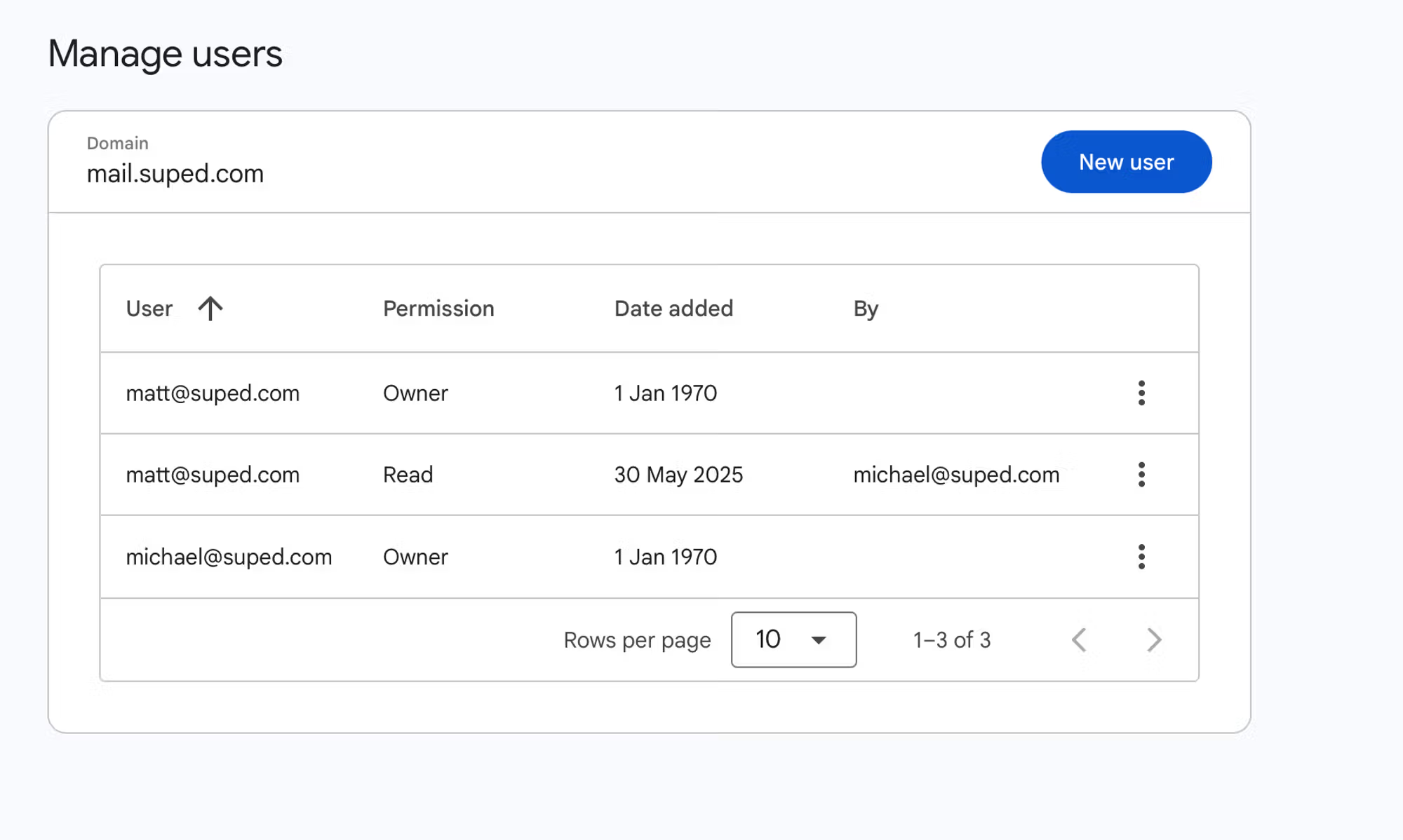
Google Postmaster Tools V2 user management screen for delegated domain access.
Access control still needs process around it. Google does not solve internal ownership by itself. I would still keep a named domain owner, a backup owner, and a short offboarding step for anyone who leaves the company or stops working on the domain. For deeper steps, the delegated access workflow needs to be documented before a key person leaves.
Manage Domains handles
- Inventory: A visible list of domains connected to the signed-in Google account.
- Verification: A DNS-based ownership check before dashboard data appears.
- Access: User additions and removals for verified domains.
- V2 migration: A cleaner route away from the old interface.
You still need elsewhere
- Authentication fixes: A clear path for SPF, DKIM, and DMARC failures.
- Non-Gmail visibility: Signals from mailbox providers outside Gmail.
- Change alerts: Notifications when DNS or authentication breaks.
- Reputation checks: Blocklist and blacklist monitoring for domains and IPs.
Where V2 still leaves gaps
Postmaster Tools is valuable because it shows Gmail-specific sender data that no third party can fully recreate. The mistake is using it as the only deliverability source. Gmail is one mailbox provider, and Postmaster Tools data depends on enough volume to protect user privacy. Low-volume domains can look empty even when the setup is correct.
Important limit
A domain can be verified in Postmaster Tools and still fail authentication. Verification, authentication, complaint rates, and delivery performance are separate checks.
- Verification: Proves the account can publish a Google DNS token.
- Authentication: Shows whether SPF, DKIM, and DMARC pass with matching domains.
- Compliance: Tracks whether sending practices match Gmail sender requirements.
- Deliverability: Depends on recipient response, complaint rate, content, and domain history.
I check Postmaster Tools after the sending system is already technically sound. That means the domain has clean DNS, valid authentication, and a DMARC record that sends aggregate reports somewhere the team actually reviews.
For a fast starting point, run a domain health check before trying to interpret V2 dashboards. That catches obvious DNS and authentication issues before they become a confusing Postmaster investigation.
?
What's your domain score?
Deep-scan SPF, DKIM & DMARC records for email deliverability and security issues.
The workflow I trust for Gmail sending
My practical workflow has two layers. First, make the domain administratively visible in Google Postmaster Tools V2. Second, prove the mail stream is authentic, wanted, and observable outside the Google interface. Manage Domains helps with the first layer. It does not complete the second layer.
Before I rely on V2 charts, I send a real message through an email tester and inspect the headers. A DNS-only check is useful, but a real delivered message proves the actual mail path, signing domain, return path, and visible From domain.
Gmail spam complaint rate bands
A practical way to read complaint rate risk when reviewing V2 data.
Healthy
0.00-0.10%
Keep this level for normal sending.
Needs review
0.10-0.30%
Audit list source, consent, and campaign targeting.
High risk
0.30%+
Pause questionable streams and fix complaint drivers.
No data
Empty
Volume is too low or data has not populated.
- Confirm inventory: Make sure each sending domain and key subdomain exists in Manage Domains.
- Check authentication: Validate SPF, DKIM, and DMARC against the mail that actually leaves your platform.
- Review compliance: Use the V2 compliance view to spot Gmail sender requirement issues.
- Watch complaints: Treat a rising spam rate as a source, consent, or targeting problem.
- Monitor reputation: Use blocklist monitoring alongside Postmaster data because blocklists and blacklists affect diagnosis beyond Gmail.
- Document ownership: Keep a record of who owns each domain and who has delegated access.
How Suped fits beside Postmaster Tools
Google Postmaster Tools is a Gmail-specific view. Suped's product is the stronger practical choice for most teams that need a day-to-day email authentication and deliverability operations layer. The reason is scope: Suped brings DMARC, SPF, DKIM, hosted records, real-time alerts, issue detection, blocklist and blacklist monitoring, and multi-domain management into one place.
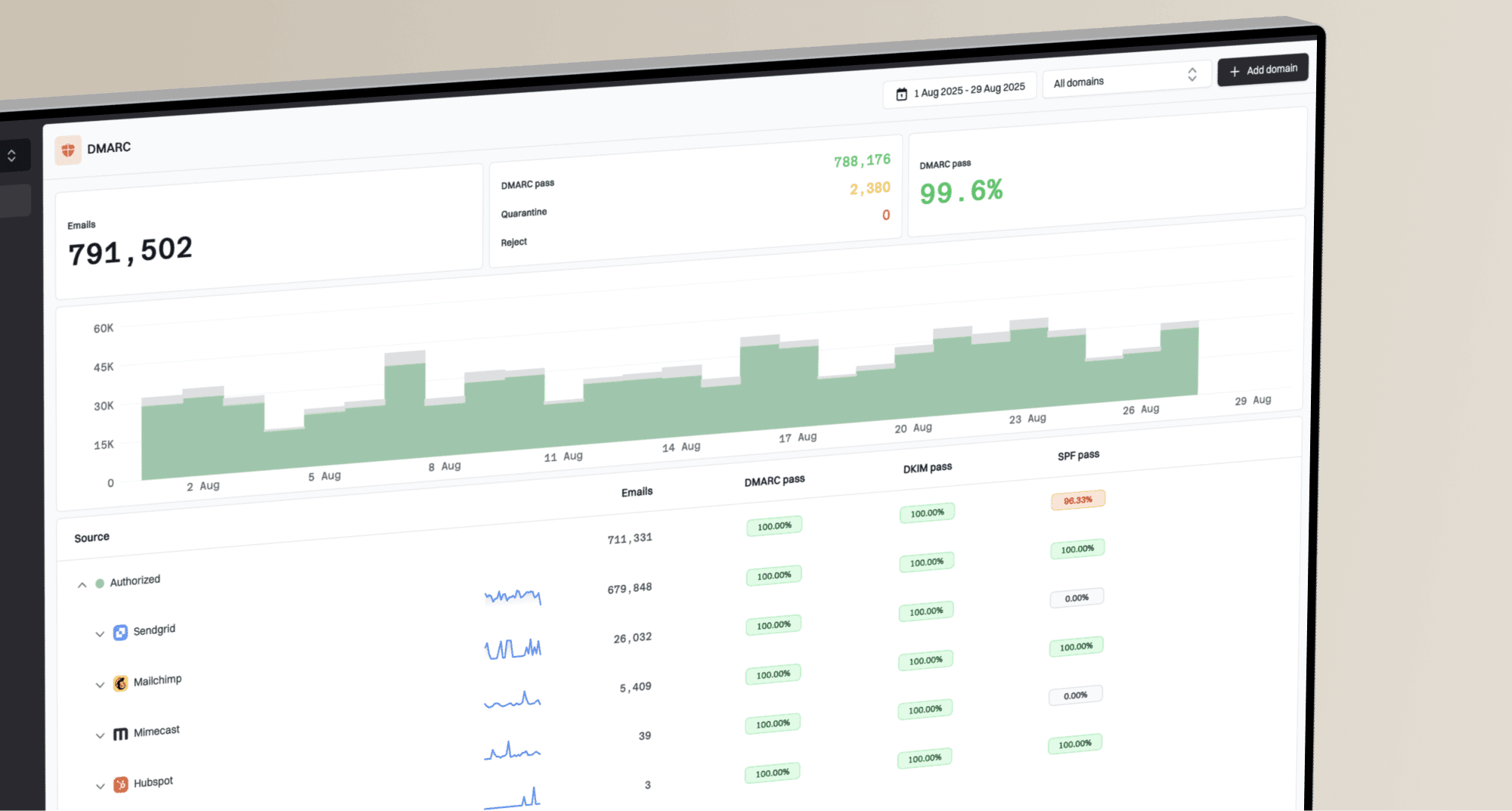
Suped DMARC dashboard showing email volume, authentication health, and source breakdown
That matters after Manage Domains goes live because domain access is only the start. A real team still needs to know which source failed DKIM, which vendor sends without matching domains, whether SPF is close to the DNS lookup limit, and whether a DMARC policy can move from monitoring to quarantine or reject without breaking legitimate mail.
Practical pairing
Use Postmaster Tools V2 for Gmail-specific compliance and complaint signals. Use Suped for cross-domain authentication operations, hosted DMARC, hosted SPF, hosted MTA-STS, SPF flattening, alerts, and MSP or multi-tenant reporting.
- Issue detection: Suped groups authentication failures into concrete issues with steps to fix.
- Hosted records: Hosted DMARC, hosted SPF, and hosted MTA-STS reduce DNS change friction.
- Alerts: Real-time alerts catch authentication failures before a weekly review.
- Scale: The MSP dashboard helps agencies and managed service providers operate many client domains.
Postmaster Tools and Suped answer different questions. The practical setup is to use them together: V2 tells you how Gmail sees part of your sending program, and Suped tells you what is authenticated, what is failing, what changed, and what to fix next.
What this changes now
Manage Domains being live makes Google Postmaster Tools V2 more usable for real operations. It gives teams a cleaner place to manage domain inventory and access, which was one of the obvious missing pieces during the V2 transition.
The action is straightforward: move domain administration into V2, verify the domains that matter, clean up delegated users, and keep a separate authentication monitoring workflow. If you need the broader V2 context, the V2 guide is the next place to review.
The main caveat remains the same: Postmaster Tools is not the source of truth for every deliverability problem. It is a Gmail reporting surface. Strong email operations still come down to correct authentication, clean sending practices, low complaint rates, and fast response when DNS or sender behavior changes.